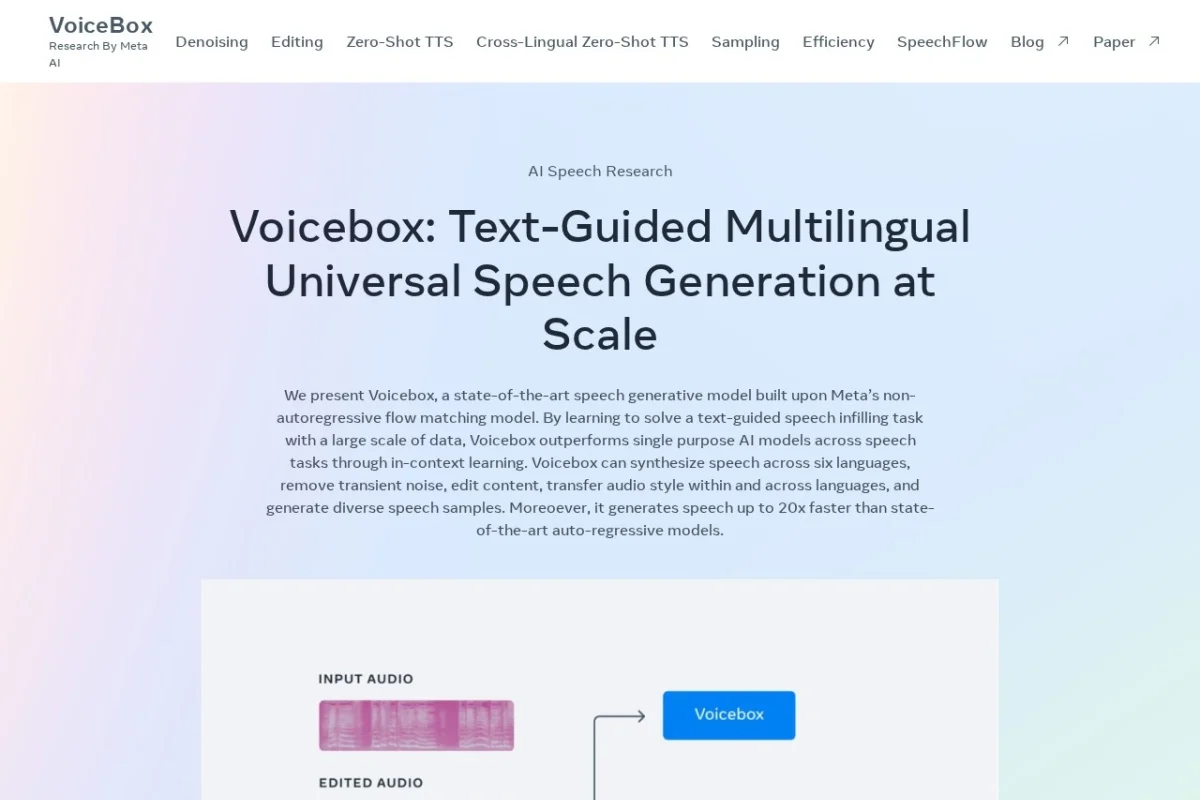
Introduction to VoiceBox
VoiceBox is a groundbreaking speech generative model developed by Meta AI that represents a significant leap forward in artificial intelligence voice technology. Unlike traditional text-to-speech systems that rely on autoregressive models (which generate speech one piece at a time), VoiceBox uses a novel approach called non-autoregressive flow matching. This allows it to generate entire speech sequences in parallel, making it up to 20 times faster than competing models while maintaining exceptional quality.
What makes VoiceBox truly revolutionary is its ability to learn text-guided speech infilling at scale. In simple terms, this means VoiceBox can take a segment of speech, remove or alter parts of it, and then intelligently fill in the gaps based on text instructions. This capability enables a wide range of practical applications, from generating natural-sounding voices for virtual assistants to editing audio content with surgical precision.
VoiceBox supports six languages and can perform tasks that previously required multiple specialized models. Whether you need to synthesize speech in a voice you have never trained on (zero-shot TTS), transfer the style of one language to another, remove background noise, or edit specific words in a recording, VoiceBox handles it all through a unified framework.
The tool is accessible via the official demo website at https://voicebox.metademolab.com/, where users can experiment with its capabilities directly in their browser. This tutorial will guide you through everything you need to know to start using VoiceBox effectively, from understanding its core features to mastering advanced techniques.
Getting Started with VoiceBox
Accessing the Platform
To begin using VoiceBox, navigate to the official demo page at https://voicebox.metademolab.com/. No account creation or login is required. The interface is designed to be intuitive, with clearly labeled sections for different functionalities. You will find a text input area, audio upload options, and controls for selecting languages and tasks.
System Requirements
VoiceBox runs entirely in your web browser, so there are minimal hardware requirements. However, for the best experience:
- Use a modern browser (Chrome, Firefox, Edge, or Safari – latest versions recommended)
- Ensure a stable internet connection (the model processes data on Meta’s servers)
- Have a microphone available if you plan to record voice samples for editing
- Allow browser permissions for audio playback
Understanding the Interface
The demo interface is divided into several key sections:
- Input Panel: Where you enter text or upload audio files
- Task Selector: A dropdown menu to choose the specific task (TTS, style transfer, noise removal, etc.)
- Language Selector: Choose from six supported languages
- Voice Profile: Upload or select a reference voice for style transfer
- Output Panel: Where generated audio is displayed and can be downloaded
- Playback Controls: Listen to results directly in the browser
Key Features of VoiceBox
1. Zero-Shot Text-to-Speech Synthesis
Zero-shot TTS means VoiceBox can generate speech in a voice it has never encountered during training. You provide a short audio sample (as little as 2-3 seconds) of a person speaking, and VoiceBox can synthesize new sentences in that same voice. This is incredibly powerful because it eliminates the need for lengthy voice training sessions. The model captures the unique characteristics of the voice – pitch, tone, cadence, and accent – and applies them to any text you provide.
2. Cross-Lingual Style Transfer
This feature allows you to take the speaking style of one language and apply it to another. For example, you could record yourself speaking English, then have VoiceBox generate a Spanish sentence that sounds like you speaking Spanish with the same rhythm and intonation. This is particularly useful for content creators who want consistent voice branding across multiple languages without hiring multiple voice actors.
3. Transient Noise Removal
VoiceBox can intelligently identify and remove transient noises from audio recordings. Transient noises are short, sudden sounds like clicks, pops, coughs, door slams, or keyboard typing. Unlike traditional noise reduction tools that often degrade audio quality, VoiceBox uses its understanding of speech patterns to remove these disturbances while preserving the natural sound of the voice. It can even fill in the missing speech content that was obscured by the noise.
4. Content Editing
Perhaps the most impressive feature is the ability to edit specific words or phrases within an audio recording. If you record a podcast and mispronounce a word, or if you want to change a sentence entirely, you can select the portion of audio you want to replace, type the new text, and VoiceBox will seamlessly regenerate that segment. The edited portion matches the surrounding audio in voice, tone, and acoustic environment, making the edit virtually undetectable.
5. Diverse Speech Sample Generation
VoiceBox can generate multiple variations of the same text, each with different emotional inflections, speaking rates, or prosody. This is useful for applications like virtual assistants that need to sound natural and varied, or for creative projects where you want to choose the best delivery from several options.
6. Multilingual Support
The model currently supports six languages: English, Spanish, French, German, Polish, and Portuguese. Each language is handled with native-level fluency, including proper pronunciation, intonation, and regional variations. The cross-lingual features work seamlessly across all supported languages.
How to Use VoiceBox: Step-by-Step Guide
Using Zero-Shot Text-to-Speech
Step 1: Select “Text-to-Speech” from the task selector dropdown menu.
Step 2: Choose the language for the output speech from the language selector.
Step 3: In the Voice Profile section, upload a short audio clip (2-10 seconds) of the voice you want to clone. The clip should be clear, with minimal background noise, and contain natural speech.
Step 4: Type or paste the text you want to be synthesized in the text input area.
Step 5: Click the “Generate” button. VoiceBox will process the request and display the generated audio within seconds.
Step 6: Use the playback controls to listen to the result. If satisfied, click the download button to save the audio file.
Tip: For best results, ensure your reference audio clip has a consistent speaking style. Avoid clips with multiple speakers or dramatic changes in volume.
Performing Cross-Lingual Style Transfer
Step 1: Select “Style Transfer” from the task selector.
Step 2: Upload a reference audio clip in the source language (e.g., English). This clip defines the speaking style.
Step 3: Select the target language (e.g., French) from the language selector.
Step 4: Type the text you want to be generated in the target language.
Step 5: Click “Generate.” VoiceBox will produce speech in the target language that mimics the style, rhythm, and emotional tone of the source clip.
Tip: The source clip should be at least 5 seconds long to capture sufficient stylistic information. Longer clips generally yield better style transfer results.
Removing Transient Noise
Step 1: Select “Noise Removal” from the task selector.
Step 2: Upload the audio file that contains the transient noises you want to remove.
Step 3: Optionally, type the text of the audio content. This helps VoiceBox predict what the clean speech should sound like and improves noise removal accuracy.
Step 4: Click “Generate.” VoiceBox will analyze the audio, identify transient noises, and produce a cleaned version.
Step 5: Compare the original and cleaned versions using the playback controls. Download the cleaned file if it meets your standards.
Tip: This feature works best on noises that are short and distinct. For continuous background noise (like fan hum or traffic), traditional noise gates or spectral editing tools may be more appropriate.
Editing Content in Audio
Step 1: Select “Content Editing” from the task selector.
Step 2: Upload the audio file you want to edit.
Step 3: The interface will display a waveform of the audio. Select the portion you want to replace by clicking and dragging on the waveform.
Step 4: In the text input area, type the new text that should replace the selected audio segment.
Step 5: Click “Generate.” VoiceBox will remove the selected audio and generate new speech for that segment based on your text.
Step 6: Listen to the edited audio. The transition between the original and new segments should be seamless. Download the final result.
Tip: Keep the replacement text similar in length to the original segment for best results. Drastically different lengths may cause timing issues.
Generating Diverse Samples
Step 1: Select “Diverse Generation” from the task selector.
Step 2: Type the text you want to generate.
Step 3: Use the “Variation” slider to control how different the generated samples should be from each other. A higher value produces more diverse outputs.
Step 4: Specify the number of samples you want to generate (typically 3-5).
Step 5: Click “Generate.” VoiceBox will produce multiple audio files, each with different prosody, emphasis, and emotional tone.
Step 6: Listen to each sample and select the one that best fits your needs.
Tip: Use diverse generation when you need a natural-sounding voice for applications like audiobooks or IVR systems, where variety prevents monotony.
Tips for Getting the Best Results
Audio Quality Matters
The quality of your input audio directly affects VoiceBox’s output. For reference clips used in TTS or style transfer, ensure the audio is:
- Recorded in a quiet environment with minimal echo
- Free from clipping or distortion
- Sampled at 16kHz or higher (most standard recordings work)
- In a supported format (WAV, MP3, or FLAC)
Text Input Best Practices
- Use proper punctuation to guide VoiceBox’s intonation. Periods create natural pauses, question marks raise pitch, and exclamation marks add emphasis.
- For multilingual use, ensure your text uses correct diacritics and special characters. For example, “français” should include the cedilla.
- When editing content, provide the full context of the surrounding text, not just the replacement phrase. This helps VoiceBox match the acoustic environment.
Managing Expectations
While VoiceBox is remarkably advanced, it has limitations:
- Very short reference clips (under 2 seconds) may not capture enough voice characteristics for accurate cloning.
- Extreme emotional states (screaming, whispering) may not transfer perfectly.
- Cross-lingual style transfer works best between languages with similar phonetic structures (e.g., Spanish to Portuguese). Transfers between very different languages (e.g., English to Polish) may show slight accent artifacts.
- Content editing works best when the replacement text is semantically similar to the original. Changing a factual statement to a question may require regenerating more context.
Workflow Optimization
- For batch processing, prepare all your text inputs and reference clips before starting. VoiceBox processes each request independently, so you can queue multiple jobs.
- Use the “Preview” feature when available to test small segments before generating full-length audio.
- Save your reference voice clips in a dedicated folder. Consistent reference clips lead to consistent output quality.
- If you are unsatisfied with a result, try adjusting the reference clip or text input slightly. Small changes can yield significantly different outputs.
Ethical Considerations
VoiceBox is a powerful tool that should be used responsibly. Meta AI has implemented safeguards to prevent misuse, but as a user, you should:
- Only clone voices with explicit permission from the original speaker
- Clearly disclose when audio is AI-generated in contexts where listeners might be misled
- Avoid using VoiceBox for impersonation, fraud, or creating misleading content
- Respect copyright and intellectual property when using reference audio
Troubleshooting Common Issues
Issue: Generated audio sounds robotic or unnatural.
Solution: Use a higher-quality reference clip. Ensure the clip contains natural, conversational speech rather than monotone reading.
Issue: Cross-lingual output has a strong accent.
Solution: Provide a longer reference clip (10-15 seconds) and ensure the source language clip has clear articulation.
Issue: Noise removal removes too much speech.
Solution: Provide the text transcript of the audio. This helps VoiceBox distinguish between speech and noise more accurately.
Issue: Content editing creates a noticeable “glitch” at the edit point.
Solution: Include a few words of context before and after the edit point in your text input. This gives VoiceBox more information to match the acoustic flow.
Conclusion
VoiceBox represents a paradigm shift in speech generation technology. Its non-autoregressive architecture enables unprecedented speed and flexibility, while its in-context learning capabilities allow it to perform tasks that previously required specialized models. Whether you are a content creator, developer, researcher, or casual user, VoiceBox offers practical tools for generating, editing, and manipulating speech with remarkable ease.
By following this tutorial, you should now have a solid foundation for using VoiceBox across all its key features. Start with simple text-to-speech tasks to familiarize yourself with the interface, then gradually explore more advanced capabilities like cross-lingual style transfer and content editing. Remember that practice and experimentation are key – each use case may require slight adjustments to reference clips, text inputs, or settings to achieve optimal results.
VoiceBox is freely available at https://voicebox.metademolab.com/, and Meta AI continues to refine and expand its capabilities. As you become more comfortable with the tool, you will discover creative applications that go beyond the examples covered in this guide. The future of speech AI is here, and VoiceBox puts it at your fingertips.
VoiceBox
Meta's text-guided multilingual universal speech generation model.