Introduction
Color is one of the most powerful tools in design. It sets the mood, guides the eye, and communicates meaning without a single word. Yet, choosing the perfect color palette can be one of the most time-consuming and frustrating tasks for designers, developers, artists, and hobbyists alike. You might have a general idea of the feeling you want to evoke, but translating that into specific hex codes that work harmoniously together often feels like guesswork. This is where Colormind comes in.
Colormind is a revolutionary, free online color scheme generator that leverages the power of deep learning to create stunning, harmonious palettes. Unlike traditional color wheel tools that rely on rigid mathematical rules (like complementary or analogous schemes), Colormind has been trained on millions of images from photography, cinematography, and fine art. This allows it to understand subtle color relationships and generate palettes that feel natural, sophisticated, and modern.
Think of it as having an AI color consultant by your side. You can generate completely random palettes for inspiration, upload a photograph to extract its core colors, or manually fine-tune every single shade. With daily updated datasets drawn from different visual sources, Colormind ensures you never run out of fresh ideas. This tutorial will walk you through everything you need to know to master this tool, from your first palette to advanced customization techniques.
Getting Started
Getting started with Colormind is remarkably simple because it requires no sign-up, no downloads, and no payment. It runs entirely in your web browser.
Accessing the Tool
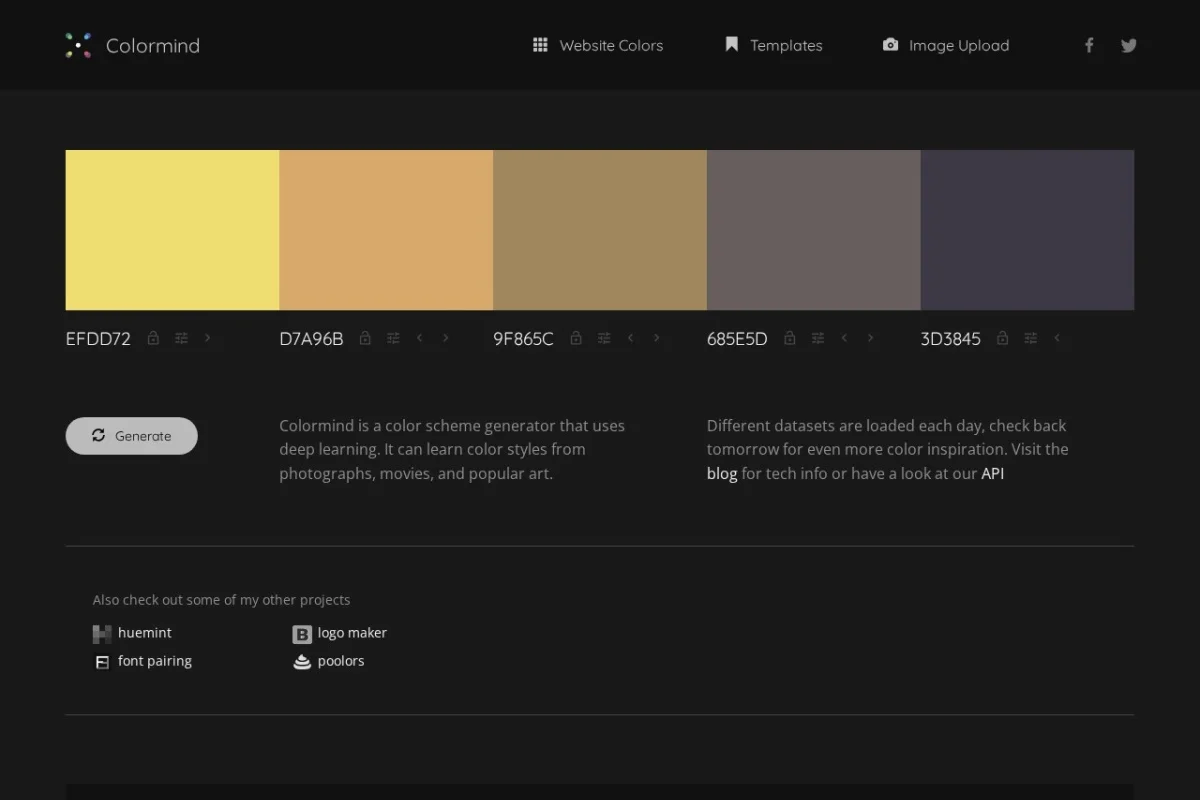
To begin, navigate to the official website: https://colormind.io/. You will be greeted by a clean, minimalist interface. The main element is a horizontal bar of five large color swatches. This is your current color palette. Below this bar, you will find a row of buttons and a small menu for selecting datasets.
Understanding the Interface
The interface is designed for intuitive, mouse-driven interaction. Here is a breakdown of the key elements you will see on the screen:
- Color Swatches: The five large rectangular boxes at the center of the screen. Each represents one color in your palette. You can click on any swatch to expand it and see its hex code, RGB values, or HSL values.
- The “Generate” Button: A prominent button, usually located above the swatches. Clicking this will use the AI to generate a new, random palette based on the currently selected dataset.
- Dataset Selector: A small dropdown menu or text label (e.g., “Default”, “City”, “Movie”) that allows you to choose the style inspiration for the AI.
- Lock Icons: Small lock symbols located on or near each color swatch. Clicking a lock will “freeze” that specific color so it does not change when you generate new palettes.
- Upload Button: An option to upload an image file from your computer. This allows the AI to extract a custom palette from your photo.
Your First Palette
For a quick start, simply click the “Generate” button. Colormind will instantly produce a new five-color palette. Click it again, and again. You will quickly notice that the palettes are not random in the chaotic sense; they feel coherent, balanced, and often surprisingly beautiful. This is the deep learning model at work. Try clicking “Generate” ten times to get a feel for the variety of styles the AI can produce.
Key Features
Colormind is more than just a random color generator. Its feature set is designed to support different creative workflows. Below are the core features you will use most often.
1. Deep Learning Palette Generation
This is the heart of Colormind. The AI model has been trained on a vast dataset of professionally designed images. When you click “Generate,” the model doesn’t just pick random colors; it uses its training to predict a set of five colors that are statistically likely to look good together. This results in palettes that often mimic the color grading of films or the composition of photographs, giving your projects a professional, curated feel.
2. Learning Color Styles from Photos, Movies, and Art
Colormind’s “Datasets” feature is what sets it apart from basic generators. The tool loads different datasets daily. These datasets are thematic collections of images. For example, one day the dataset might be “Iconic Movie Scenes,” and the next it might be “Impressionist Paintings.” By switching the dataset, you change the “knowledge base” the AI uses to generate colors. If you want a palette that feels like a Wes Anderson film, you select the “Movie” dataset. If you want earthy, natural tones, you might choose a “Landscape” dataset. This feature allows you to tap into the visual language of entire genres of art and media.
3. Image Upload for Color Extraction
Have a photograph, a logo, or a piece of artwork with a color scheme you love? Colormind can analyze it. By uploading an image, the AI will identify the five most dominant and harmonious colors within that image and display them as your new palette. This is incredibly useful for branding projects (matching colors to a client’s logo) or for creating a web design theme based on a hero image.
4. Manual Color Adjustment and Locking
Pure AI generation is powerful, but true design control comes from manual adjustment. Colormind allows you to click on any color swatch to open a detailed color picker. Here you can adjust the hue, saturation, and lightness (HSL) or input exact hex codes. The Lock feature is the perfect complement to this. If you have a specific brand color (e.g., a specific blue for your company) that must be included, you can lock that swatch. Then, when you click “Generate,” the AI will create a new palette around your locked color, ensuring harmony while respecting your constraint.
5. Daily Updated Datasets for Inspiration
Creative block is real. Colormind combats this by rotating its datasets on a daily basis. This means the “Default” dataset you use today will produce different results tomorrow. Furthermore, the special themed datasets (like “City” or “Movie”) are updated periodically. This ensures that the tool remains a source of fresh inspiration, preventing you from falling into a rut of seeing the same types of palettes over and over again.
How to Use
This section provides step-by-step instructions for the most common workflows in Colormind. Follow along to become proficient.
How to Generate a Random Palette
- Go to colormind.io.
- Ensure no colors are locked (the lock icons should appear open or grayed out).
- Click the “Generate” button. A new five-color palette will appear.
- If you like a palette but want to see variations, click “Generate” again. The AI will create a new, different palette.
- To save a palette, you can take a screenshot, or simply note down the hex codes by clicking on each swatch.
How to Use Image Upload for Color Extraction
- On the Colormind homepage, locate the “Upload Image” button (often represented by a small image icon or a text link).
- Click the button and select an image file from your computer. Supported formats typically include JPG, PNG, and GIF.
- Colormind will process the image for a few seconds. The five swatches will then update to show the extracted palette.
- You can now lock any of these colors, adjust them manually, or use them as a starting point for further generation.
- Click “Generate” again while the image is still loaded to create new palettes inspired by the same image but different color combinations.
How to Lock and Adjust Colors Manually
- Generate a palette that is close to what you want.
- Click on the lock icon (usually a small padlock) on the color swatch you want to keep. It should change to a “locked” state (e.g., closed padlock or highlighted).
- To adjust a color, click directly on the color swatch. A larger pop-up window will appear.
- In the pop-up, you can:
- Drag the cursor to change the color on a 2D field.
- Use the slider to adjust lightness.
- Type a specific Hex code (e.g., #FF5733).
- Type RGB or HSL values.
- Close the pop-up. The swatch will now display your custom color.
- Now, with your desired color locked, click “Generate”. The AI will produce a new palette that harmonizes with your locked color.
How to Change Datasets for Different Styles
- Look for the dataset selector. It is typically located near the top of the page, often next to the “Generate” button.
- Click on the current dataset name (e.g., “Default”).
- A dropdown menu will appear with available options. Examples include:
- Default: General purpose, balanced palettes.
- Movie: Palettes inspired by cinematography and film color grading.
- City: Palettes based on urban photography and architecture.
- Art: Palettes derived from famous paintings.
- Select a new dataset. The current palette will remain, but the next time you click “Generate,” the AI will use the new style.
Tips for Getting the Best Results
To truly master Colormind and integrate it into your professional workflow, keep these practical tips in mind.
1. Use Locking Strategically
The lock feature is not just for brand colors. Use it to set a “mood anchor.” For example, if you know you want a dark, moody design, lock a very dark gray or black for one swatch. Then generate the rest. The AI will naturally build a darker palette around it. Similarly, if you want a pastel theme, lock a light, desaturated pink or blue first.
2. Cycle Through Datasets for Creative Block
If you feel all your palettes are looking the same, switch the dataset. If you have been using “Default,” try “Movie” or “Art.” The shift in underlying training data will produce dramatically different results. This is a fantastic way to break out of a creative rut.
3. Combine Image Upload with Manual Adjustment
Do not treat the image upload as a final result. Instead, use it as a starting point. Upload a photo of a sunset, extract the palette, and then lock the most dominant orange. Next, switch the dataset to “City” and click “Generate.” You will get a palette that has the warmth of the sunset but the urban, modern feel of the city dataset. This mixing of sources yields unique results.
4. Think in Terms of Roles, Not Just Colors
A five-color palette is abstract. To make it useful, assign roles. The first color (often the lightest) can be your background. The second can be a primary text color. The third can be a secondary accent. The fourth and fifth can be for borders, buttons, or hover states. Colormind gives you the raw ingredients; you decide how to use them in your interface or illustration.
5. Save Your Favorite Palettes
Colormind does not have a built-in user account system to save palettes. Therefore, develop a habit of noting down the hex codes of palettes you love. You can copy them into a text file, a design tool like Figma or Adobe XD, or a note-taking app. Alternatively, take a screenshot of the browser window. Keeping a personal library of Colormind palettes is a valuable resource for future projects.
6. Experiment with the “Random” Seed
While not a visible button, the act of generating a palette is based on a “seed” value. If you generate a palette and then immediately generate again, you get a different seed. If you find a palette that is almost perfect, try locking 3 or 4 of the colors and generating just one or two more times. The AI will try to complete the set in a way that fits the locked colors, often giving you a better final result than manual guessing.
7. Use It for Non-Digital Projects
Colormind is excellent for digital design, but do not limit yourself. Use it to plan color schemes for interior design (e.g., wall paint, furniture, and accents), fashion (coordinating an outfit), or even event decoration. The extracted colors from a “Nature” dataset can provide a beautiful scheme for a wedding or a living room.
By following this tutorial, you now have a complete understanding of Colormind. From generating your first palette with a single click to mastering the advanced interplay of locking, manual adjustment, and datasets, you are equipped to use this AI tool to enhance every creative project. The only limit now is your imagination. Go generate something beautiful.
