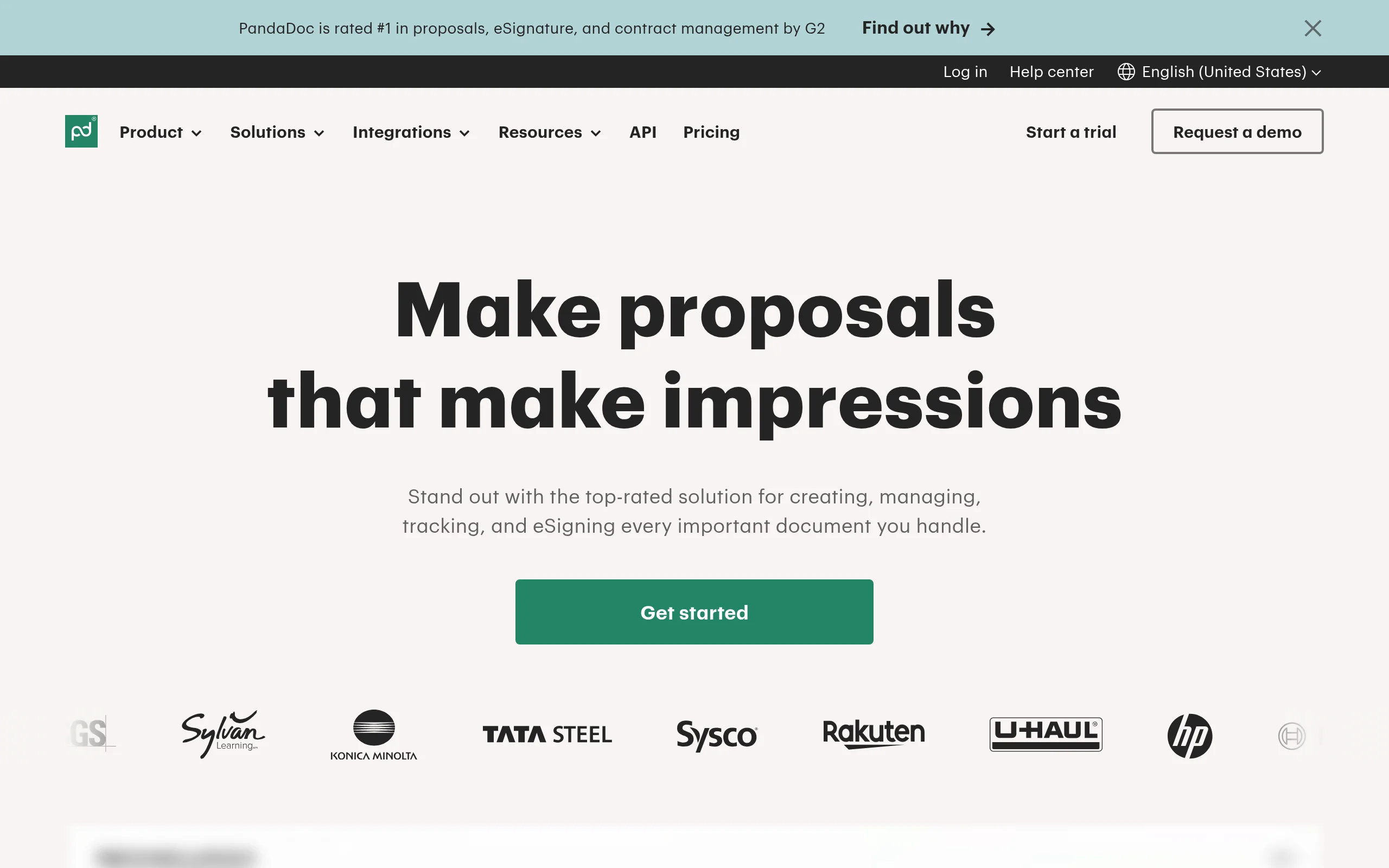
Introduction to PandaDoc
In today’s fast-paced business environment, the ability to create, send, and sign documents quickly can make the difference between closing a deal and losing a prospect. PandaDoc is a comprehensive document automation platform designed to eliminate the friction associated with traditional document workflows. Whether you are a freelancer sending a simple proposal, a sales team managing complex contracts, or a human resources department handling onboarding paperwork, PandaDoc provides a centralized hub to streamline the entire document lifecycle.
At its core, PandaDoc allows you to create professional-looking documents using a drag-and-drop editor, send them for electronic signature, track when recipients open and view them, and even collect payments—all within a single interface. The platform replaces the chaotic process of emailing Word documents back and forth with a clean, auditable, and legally compliant digital workflow. This tutorial is designed for absolute beginners. By the end, you will understand how to set up your account, navigate the key features, and create your first document from scratch.
Getting Started with PandaDoc
Creating Your Account
To begin, navigate to https://pandadoc.com. Click the “Start Free Trial” button prominently displayed on the homepage. You will be prompted to sign up using your work email address or through a Google or Microsoft account. PandaDoc offers a free 14-day trial that gives you full access to the premium features without requiring a credit card. After the trial, you can choose from several pricing tiers (Essentials, Business, and Enterprise) based on the number of users and advanced features you need.
Navigating the Dashboard
Once you log in, you will land on the main dashboard. This is your command center. The left-hand sidebar contains the primary navigation menu:
- Home: A summary view of your recent documents, activity feed, and quick action buttons.
- Documents: This is where all your created documents are stored. You can filter them by status (Draft, Sent, Completed, etc.).
- Templates: Access your pre-designed templates or browse the public template library.
- Workspace: Manage your team members and folders for organizing documents.
- Integrations: Connect PandaDoc with your CRM (like Salesforce or HubSpot), payment gateways (like Stripe), and cloud storage (like Google Drive or Dropbox).
Take a few minutes to click around these sections to familiarize yourself with the layout. The interface is intuitive, but knowing where everything lives will save you time later.
Key Features of PandaDoc
Drag-and-Drop Document Editor
The editor is the heart of PandaDoc. Unlike traditional word processors, this editor is built specifically for business documents. You can add text blocks, images, videos, tables, and signature fields simply by dragging them from the right-hand panel into your document. The editor supports rich text formatting, allowing you to change fonts, colors, and alignment to match your brand guidelines.
E-Signature Capabilities
PandaDoc supports legally binding electronic signatures compliant with ESIGN, UETA, and eIDAS regulations. You can place signature fields, initials fields, date fields, and checkboxes anywhere on the document. Recipients can sign using their mouse, touch screen, or by typing their name. The platform also supports two-factor authentication for high-security documents.
Template Library and Content Blocks
Instead of starting from scratch every time, you can create reusable templates. The built-in template library offers hundreds of professionally designed templates for proposals, quotes, contracts, invoices, and more. Additionally, you can create “Content Blocks”—reusable pieces of content such as standard terms and conditions, pricing tables, or service descriptions—that you can insert into any document with one click.
Approval Workflows
For teams, PandaDoc offers approval workflows. You can set up a sequential or parallel approval process where specific team members must review and approve a document before it is sent to the client. This ensures that contracts are legally sound, pricing is correct, and branding is consistent before leaving your organization.
Tracking and Analytics
Once you send a document, you can track its progress in real-time. You will receive notifications when a recipient opens the document, how long they spent on each page, and whether they have signed or declined. This data is invaluable for sales follow-ups—you can call a prospect just after they have reviewed your proposal.
Payment Collection
PandaDoc integrates with payment gateways like Stripe and PayPal. You can embed payment fields directly into your document. For example, if you send a quote for services, the client can review the terms and pay the deposit instantly without leaving the document. This reduces the time between proposal and payment.
CRM and App Integrations
PandaDoc connects with over 20 popular business applications, including Salesforce, HubSpot, Zoho CRM, Microsoft Dynamics, Slack, and Zapier. These integrations allow you to sync contacts, automatically generate documents from CRM data, and update deal stages when a document is signed. This eliminates manual data entry and keeps your sales pipeline accurate.
How to Use PandaDoc: A Step-by-Step Guide
Step 1: Create Your First Document
Click the “Create New” button at the top right of the dashboard. You will see three options: New Document, From Template, and Upload File.
- New Document: Starts with a blank canvas using the drag-and-drop editor.
- From Template: Opens the template library where you can choose a pre-designed layout.
- Upload File: Allows you to upload a PDF, Word document, or other file type to convert it into an editable PandaDoc document.
For this tutorial, select “New Document.” You will be asked to name your document (e.g., “Project Proposal – Acme Corp”).
Step 2: Build Your Document Using the Editor
The editor interface is divided into two main areas: the document canvas in the center and the content panel on the right. The content panel contains tabs for Blocks, Fields, and Images.
Start by dragging a “Text” block onto the canvas. Type your content, such as a cover letter or introduction. Use the toolbar that appears when you select the text to change the font size, add bold or italics, or create bullet points. Next, drag a “Table” block to create a pricing section. You can customize the number of rows and columns.
To add a signature field, go to the “Fields” tab. Drag the “Signature” field to the location where you want the client to sign. You can also add “Date Signed,” “Initials,” and “Checkbox” fields. Each field can be marked as “Required” to ensure the recipient cannot skip it.
Step 3: Apply a Template or Branding
If you want your document to match your company branding, click the “Branding” button at the top of the editor. Here you can upload your company logo, set primary and secondary colors, and choose a default font. This branding will automatically apply to all new documents. You can also save your current document as a template for future use by clicking “Save as Template” in the document menu.
Step 4: Set Up Approval Workflow (Optional)
Before sending, you may want internal approval. Click the “Approval” tab located next to the “Send” button. Click “Add Approver” and enter the email addresses of colleagues who need to review the document. You can choose between “Sequential” (approver 1 must approve before it goes to approver 2) or “Parallel” (all approvers review simultaneously). Each approver will receive an email notification. Once all approvals are granted, the document status will change to “Approved.”
Step 5: Send the Document for Signature
When your document is ready, click the “Send” button in the top right corner. A modal window will appear. Enter the recipient’s email address and name. You can also add a personalized message. Below the recipient field, you will see options for “Signing Order.” If you need multiple signers (e.g., both you and the client), you can set the order here. Optionally, you can enable reminders—PandaDoc will automatically send follow-up emails if the document remains unsigned after a set number of days.
Click “Send.” The recipient will receive an email with a secure link to view and sign the document. They do not need a PandaDoc account to sign.
Step 6: Track and Follow Up
After sending, the document will appear in your “Documents” list with a status of “Sent.” Click on the document title to open the detailed view. Here you will see a real-time activity log. You can see exactly when the recipient opened the document, which pages they viewed, and for how long. If you see that they have viewed the pricing page multiple times but have not signed, that is your cue to call them and address any questions.
Step 7: Collect Payment (If Applicable)
If your document requires payment (e.g., a deposit for a service), you can add a payment field. When editing the document, drag a “Payment” block from the content panel. You will need to connect your Stripe or PayPal account first. Set the amount and payment schedule (one-time or recurring). When the recipient clicks “Sign and Pay,” they will be redirected to a secure payment page. Once payment is successful, the document status will update to “Paid.”
Step 8: Download or Store the Completed Document
Once all parties have signed, the document status changes to “Completed.” You can download it as a PDF by clicking the “Download” button. The PDF will contain a certificate of completion that includes the audit trail (timestamps and IP addresses of signers). You can also automatically save the completed document to Google Drive, Dropbox, or your CRM using the integrations.
Tips for Getting the Most Out of PandaDoc
Start with Templates
Do not waste time formatting documents from scratch. The template library contains industry-specific templates for real estate, IT services, marketing agencies, and more. Even if you modify them heavily, starting with a template gives you a professional structure and saves you hours.
Create a Content Block Library
If you frequently use the same paragraphs—such as your company’s “About Us,” standard terms of service, or service descriptions—save them as Content Blocks. Go to “Settings” > “Content Library” and create blocks. Then, in any document, you can insert them with a single click. This ensures consistency across all your documents.
Use Merge Fields for Personalization
Merge fields allow you to auto-populate recipient information (name, company, email) from your CRM or from the recipient form. For example, instead of typing “Dear [Name],” you can insert a merge field that pulls the recipient’s first name. This makes your documents feel customized without manual effort.
Set Up Automatic Reminders
Many documents get lost in email inboxes. In the “Send” settings, enable automatic reminders. You can set the first reminder to send after 3 days, and subsequent reminders every 2 days. PandaDoc will automatically send polite follow-up emails, saving you the awkwardness of chasing clients.
Integrate with Your CRM Immediately
If you use Salesforce, HubSpot, or another CRM, connect it to PandaDoc on day one. This integration allows you to create documents directly from a contact or deal record. When a document is signed, the CRM deal stage can automatically update to “Closed Won,” and the signed PDF can be attached to the contact record. This eliminates manual data entry and keeps your sales pipeline accurate.
Use the “View Only” Mode for Internal Reviews
Before sending a document to a client, you may want a colleague to review it. Instead of sending it as a signature request, use the “Send for Review” option. This sends a link where the reviewer can view and comment on the document but cannot sign it. This is perfect for legal or compliance reviews.
Leverage the Mobile App
PandaDoc has a mobile app for iOS and Android. You can create, send, and sign documents directly from your phone. This is particularly useful if you are on the road and need to close a deal quickly. The mobile app supports all the same features as the desktop version, including tracking and notifications.
Experiment with the API
If you have a developer on your team, explore the PandaDoc API. You can automate document generation entirely—for example, generating a customized contract instantly when a user fills out a form on your website. The API is well-documented and can handle complex workflows.
Keep an Eye on Analytics
Use the analytics dashboard to see which templates perform best, how long documents stay in “Sent” status, and which clients take the longest to sign. This data can help you refine your sales process. For example, if you notice that documents with video content have a higher close rate, you can start adding videos to all your proposals.
Train Your Team
If you are using PandaDoc as a team, invest time in training. Create a shared folder structure in the “Workspace” section so everyone knows where to find templates. Set up standard approval workflows for high-value contracts. The more your team adopts the tool, the more value you will get from it.
PandaDoc is more than just a document tool—it is a complete sales enablement platform. By following this tutorial and implementing the tips above, you will move from manual, error-prone document processes to a streamlined, automated workflow that impresses clients and closes deals faster. Start your free trial today and create your first professional document in minutes.

PandaDoc
Document automation and e-signature platform for businesses.