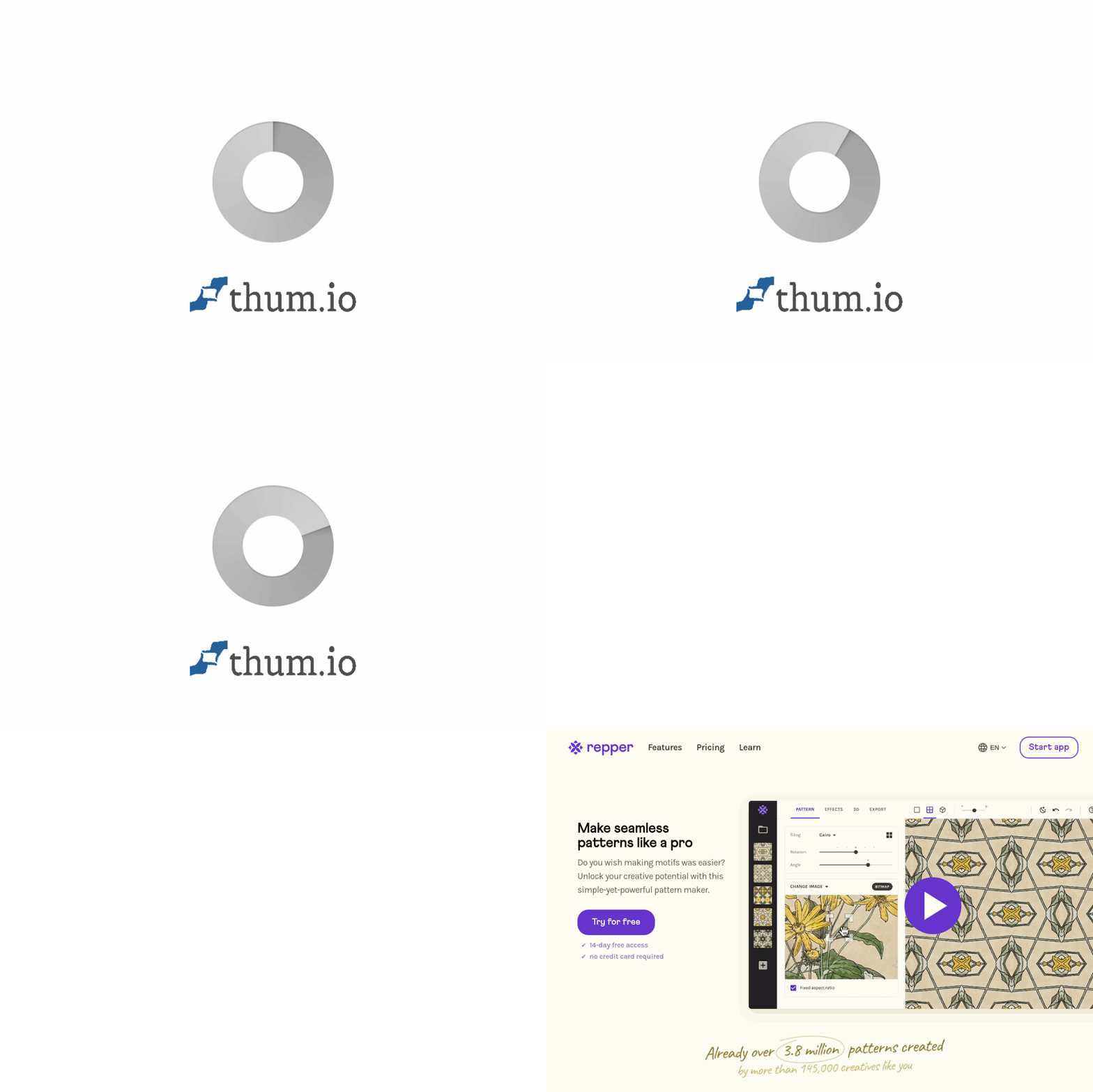
Introduction to Repper: Your Gateway to Professional Pattern Design
Repper is a powerful, browser-based pattern design tool that transforms ordinary images into extraordinary, seamless pattern collections. Whether you are a textile designer, a print-on-demand entrepreneur, a packaging creator, or simply a creative enthusiast, Repper eliminates the technical complexity of creating repeating patterns. Instead of spending hours manually aligning tiles in Photoshop or Illustrator, you can upload any image—a photograph, a drawing, a digital painting, or even a scan of a physical texture—and instantly generate a library of seamless patterns.
The core philosophy behind Repper is accessibility without sacrificing quality. It provides 17 distinct symmetry types, ranging from classic kaleidoscopes to complex hexagonal grids, all adjustable in real-time. You can fine-tune scale, rotation, and position with intuitive sliders, preview your designs on 3D mockups of products like mugs, t-shirts, and notebooks, and export your final patterns as high-resolution PNGs or scalable SVG files for commercial use. This tutorial will guide you through every step, from your first upload to your first commercial export.
Getting Started with Repper
1. Accessing the Tool
Repper is a web-based application, so there is no software to download. Simply open your preferred web browser (Chrome, Firefox, Safari, or Edge) and navigate to https://repper.app/. The interface loads instantly and works on both desktop and tablet devices, though a desktop or laptop with a mouse is recommended for precise control.
2. Creating a Free Account
While you can explore the interface without an account, creating a free account is necessary to save your projects and export patterns. Click the “Sign Up” button in the top-right corner. You can register using your email address or a Google account. The free tier allows you to create a limited number of patterns and export them with a small watermark. For commercial use and full-resolution exports without watermarks, you will need a paid subscription, which you can upgrade to at any time.
3. Understanding the Dashboard
After logging in, you will see the main dashboard. This is your project hub. On the left, you will find a sidebar with options like “New Pattern,” “My Patterns,” and “Settings.” The central area displays your saved pattern projects. For this tutorial, click the “New Pattern” button to begin.
Key Features Explained
Before diving into the step-by-step guide, it is helpful to understand the five primary features that make Repper a standout tool for pattern design.
Symmetry Types (17 Variations)
Symmetry is the mathematical foundation of any repeating pattern. Repper offers 17 different symmetry types, each creating a unique visual rhythm. The most common ones include:
- Kaleidoscope: Mirrors your image in multiple directions, creating a complex, mandala-like effect.
- Grid: The simplest form, where your image repeats in a standard row-and-column format.
- Hexagonal: Arranges your image in a honeycomb structure, ideal for organic or geometric designs.
- Spiral: Creates a continuous, swirling repeat.
- Brick: Offsets each row, similar to a brick wall pattern.
- Diamond: Places the pattern inside a diamond-shaped tile.
You can switch between these types instantly, and each will give your source image a completely different personality.
Real-Time Adjustments
Once you have chosen a symmetry type, you are not stuck with the default look. Three sliders allow you to adjust the pattern dynamically:
- Scale: Zoom in or out of the pattern tile. A smaller scale means more repetitions on the canvas; a larger scale means fewer, bigger tiles.
- Rotation: Rotate the entire pattern by any degree. This is especially useful for aligning patterns with product shapes.
- Position: Move the pattern horizontally or vertically within the tile frame. This lets you control which part of the image becomes the focal point.
3D Mockup Previews
Seeing a flat pattern on a screen is one thing; seeing it on a product is another. Repper includes a built-in 3D mockup preview feature. You can select from a library of product templates—such as mugs, t-shirts, phone cases, notebooks, and fabric rolls—and apply your pattern directly onto them. This allows you to visualize how the pattern will look in real life, helping you make better design decisions before production.
Export Options (PNG and SVG)
When you are satisfied with your pattern, you need to export it. Repper supports two formats:
- PNG: A raster image format. Best for complex, photorealistic patterns or when you need a specific resolution for print (e.g., 300 DPI).
- SVG: A vector format. Ideal for patterns with clean lines, geometric shapes, or when you need infinite scalability without losing quality. SVG files are also smaller and perfect for web use or screen printing.
Both formats are seamless and ready for commercial use, provided you have the appropriate license for the source image.
How to Use Repper: A Step-by-Step Guide
Step 1: Upload Your Image
After clicking “New Pattern,” you will see an upload area. Click the “Choose File” button or drag and drop an image from your computer. Repper accepts common formats like JPG, PNG, and WEBP. For best results, use an image that is at least 1000×1000 pixels. The tool works with photographs, digital art, textures (like wood grain or fabric), and even scanned hand-drawn sketches. Once uploaded, the image will appear in the preview window.
Step 2: Select a Symmetry Type
On the right side of the screen, you will see the “Symmetry” panel. It displays 17 small thumbnail icons, each representing a different symmetry type. Click on any thumbnail to apply it to your image. Watch the preview update instantly. Try a few different types to see how the image transforms. For example, a photo of a flower will look radically different as a kaleidoscope versus a hexagonal pattern. There is no right or wrong choice—experiment until you find a look you love.
Step 3: Fine-Tune with Scale, Rotation, and Position
Below the symmetry panel, you will find three sliders:
- Scale: Drag the slider left to make the pattern smaller (more repeats) or right to make it larger (fewer repeats). For a subtle, all-over print, a smaller scale often works best. For a bold, statement pattern, use a larger scale.
- Rotation: Drag to rotate the entire pattern. For example, if your pattern looks too static, a 15-degree rotation can add dynamic energy.
- Position: Click and drag directly on the pattern preview to shift the image inside the tile. Alternatively, use the position slider to move it horizontally or vertically. This is how you control which part of the image is centered.
All adjustments happen in real-time, so you can see the effect immediately.
Step 4: Preview on a 3D Mockup
Once you have a pattern you like, click the “Mockup” tab at the top of the preview window. A dropdown menu will appear with product categories like “Apparel,” “Home & Living,” and “Accessories.” Select a product, such as a t-shirt or a coffee mug. The 3D model will load with your pattern applied. You can rotate the model by clicking and dragging to see the pattern from all angles. This step is crucial for print-on-demand sellers because it reveals how the pattern wraps around curves and seams.
Step 5: Export Your Pattern
When you are ready to save your work, click the “Export” button in the top-right corner. A dialog box will appear with export settings:
- Format: Choose between PNG or SVG. For most print purposes, PNG at 300 DPI is recommended. For web graphics or screen printing, SVG is often better.
- Size: For PNG, you can select a resolution (e.g., 1024×1024, 2048×2048, or 4096×4096). Larger sizes are better for high-quality fabric printing but will take longer to download.
- Background: You can choose to export with a transparent background (useful for layering) or a solid color.
Click “Download” to save the file to your computer. The pattern will be perfectly seamless and ready for use in your design software, print-on-demand platform, or textile printer.
Tips for Getting the Best Results
1. Start with High-Resolution Images
The quality of your input image directly affects the quality of your pattern. Blurry or pixelated images will result in blurry patterns. Always start with an image that is at least 2000 pixels on the longest side. If you are using a photograph, ensure it is well-lit and in focus. For vector illustrations, export them as high-resolution PNGs before uploading.
2. Use Images with Even Lighting
Patterns with harsh shadows or extreme contrast can look jarring when repeated. Images with soft, even lighting tend to tile more smoothly. If your source image has a dark corner, the pattern may show a visible seam or a sudden change in brightness. You can use photo editing software to adjust brightness and contrast before uploading.
3. Experiment with Abstract and Textured Images
While recognizable objects like flowers or animals can make beautiful patterns, abstract textures often yield the most professional results. Try uploading images of watercolor splashes, marble surfaces, fabric weaves, or even close-up shots of leaves. These textures naturally hide seams and create sophisticated, designer-quality patterns.
4. Combine Symmetry Types with Scale Adjustments
Do not settle for the default scale. A kaleidoscope pattern at 50% scale looks completely different from the same pattern at 200% scale. Try extreme scales—very small for a subtle texture, very large for a bold graphic look. Also, try switching symmetry types after adjusting scale. You might discover a unique combination that no one else has used.
5. Use the Mockup Feature to Catch Seam Issues
Sometimes a pattern looks perfect on a flat square but shows a visible seam when wrapped around a 3D object. Always use the mockup preview, especially for products like mugs or cylindrical bottles. If you see a seam, go back and adjust the position slider slightly until the seam disappears. This small step can save you from costly printing mistakes.
6. Save Multiple Versions
Repper allows you to save your projects. Before exporting, click the “Save” button and give your pattern a name. Then, create a duplicate by clicking “Save As” and experimenting with a different symmetry type or scale. This way, you build a library of variations from a single source image. You can return to any saved version later for further editing.
7. Know Your Export Purpose
Always choose your export format based on the end use:
- For fabric printing (Spoonflower, Printful, etc.): Export as PNG at 300 DPI, 4096×4096 pixels.
- For web or social media: Export as PNG at 72 DPI, 1024×1024 pixels.
- For screen printing or laser engraving: Export as SVG for clean, scalable vector lines.
- For packaging design: Export as PNG at high resolution, then import into your design software (like Adobe Illustrator or Canva) for layout.
8. Respect Copyright and Licensing
Repper is a tool for creating patterns, but it does not grant you ownership of the source image. If you upload a photograph you found on Google or Pinterest, you may not have the legal right to use it for commercial purposes. Always use your own original photos, drawings, or properly licensed stock images. Repper itself does not enforce this, but print-on-demand platforms and clients will require proof of ownership.
Conclusion
Repper democratizes pattern design. It takes what was once a tedious, technical process and turns it into an intuitive, playful experience. With 17 symmetry types, real-time adjustments, 3D mockups, and high-quality exports, you can go from a single image to a full pattern collection in minutes. Whether you are designing for a fashion line, a home decor brand, or a personal project, this tool gives you the power to create professional-grade patterns without a steep learning curve. Start with a simple photograph, explore the symmetry options, and watch your creativity unfold into endless repeating possibilities.
