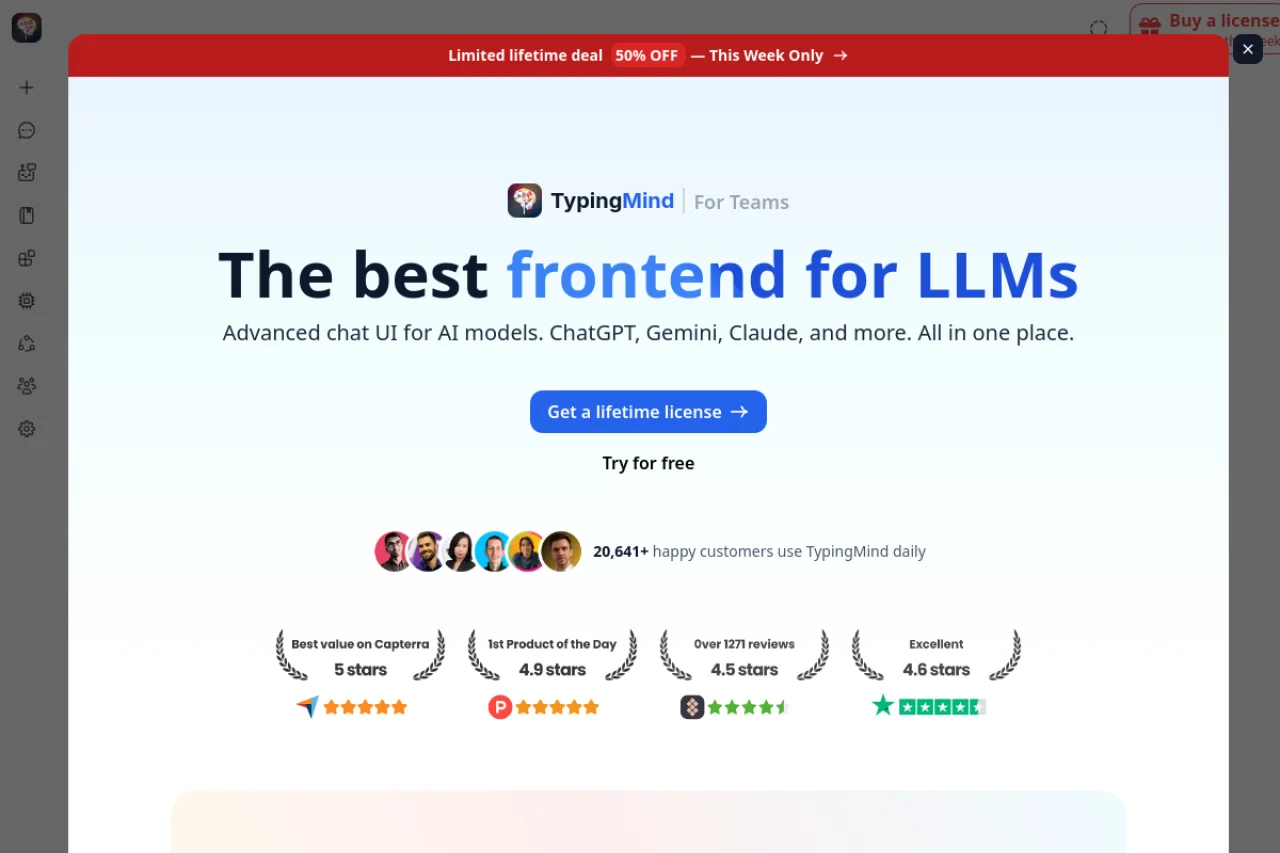
Introduction to TypingMind
TypingMind is a powerful, premium frontend interface designed to give you complete control over your interactions with large language models (LLMs) such as ChatGPT, Gemini, and Claude. Unlike standard chat platforms that require monthly subscriptions and store your data on remote servers, TypingMind operates on a simple principle: you bring your own API keys, and you own your data.
This tool is built for users who value privacy, flexibility, and advanced functionality. Instead of paying a recurring fee, you purchase a lifetime license once. This grants you access to a feature-rich environment where you can build custom AI agents, create knowledge bases, edit documents collaboratively with AI, and organize your conversations into project folders. Whether you are a developer, writer, researcher, or business professional, TypingMind transforms a simple chat interface into a complete AI workspace.
Getting Started with TypingMind
Step 1: Purchase and Account Setup
Begin by visiting the official TypingMind website at https://typingmind.com/. On the homepage, you will find the option to purchase a lifetime license. Once your payment is processed, you will receive a license key via email. Create an account on the website using that key to activate your license. No subscription is required after this one-time payment.
Step 2: Obtaining API Keys
TypingMind does not provide its own AI models. Instead, it acts as a frontend for models you access through third-party providers. You will need to obtain API keys from the following services:
- OpenAI (ChatGPT): Visit platform.openai.com, create an account, and generate an API key under the API section. You will need to add billing information.
- Google (Gemini): Go to the Google AI Studio (makersuite.google.com) and generate an API key for the Gemini models.
- Anthropic (Claude): Access the Anthropic console (console.anthropic.com) and create an API key.
Keep these keys secure. TypingMind stores them locally on your device, not on any remote server.
Step 3: Launching the Interface
After purchasing, you can launch TypingMind directly from the website or download the desktop application (available for Windows, macOS, and Linux). When you open the interface for the first time, you will be prompted to enter your API keys. Go to the settings menu (usually a gear icon in the bottom-left corner) and paste your keys into the corresponding fields. Save the settings, and you are ready to start chatting.
Key Features of TypingMind
Multi-Model Support
TypingMind allows you to switch between different AI models seamlessly within a single conversation. You can use ChatGPT for creative writing, Gemini for research, and Claude for analytical tasks without leaving the interface. The model selector is located at the top of the chat window. You can also run multiple models side-by-side in different tabs.
Privacy-First Local Data Storage
All your conversations, settings, and API keys are stored locally on your computer. TypingMind does not upload your chat history to any cloud service. This means that your sensitive business data, personal projects, or confidential research remains under your control. You can also export your data as JSON or text files at any time.
AI Agent Builder
One of the most powerful features is the ability to create custom AI agents. These are specialized bots that follow specific instructions, use custom prompts, and can access plugins. For example, you can build an agent that acts as a coding tutor, a marketing copywriter, or a legal assistant. Agents can be saved and reused across different conversations.
Plugins and Knowledge Bases
TypingMind supports plugins that extend the functionality of your AI agents. You can add web search capabilities, enable the AI to read PDFs or Word documents, or connect to external databases. Knowledge bases allow you to upload files (PDF, TXT, CSV) that the AI can reference during conversations. This is ideal for creating a chatbot that knows your company’s internal documentation.
Canvas Editor
The Canvas Editor is a unique feature that turns your chat into a collaborative document. You can write articles, code, or reports directly in the canvas while the AI edits, suggests, or rewrites sections in real-time. This is perfect for long-form writing projects where you want to maintain a single document instead of scrolling through endless chat logs.
Web Search and Voice Input
TypingMind includes a built-in web search function that allows the AI to fetch real-time information from the internet. This is useful for fact-checking, news summaries, or research. Additionally, the tool supports text-to-speech (the AI reads responses aloud) and voice input (you speak your questions). These features require microphone and speaker permissions on your device.
Project Folders and Chat History
Organize your work by creating project folders. Each folder can contain multiple chat sessions, knowledge base files, and custom agents. This structure helps you keep your work organized, especially if you manage multiple clients, courses, or research topics. The search function within the folder allows you to find specific messages quickly.
How to Use TypingMind: A Practical Walkthrough
Starting a Basic Conversation
After launching TypingMind and entering your API keys, you will see a clean chat interface. Type your question in the input box at the bottom and press Enter. The AI will respond using the model you have selected. You can continue the conversation naturally. To change the model mid-conversation, click the model name at the top of the chat window and select a different one.
Creating a Custom AI Agent
Let us walk through building a simple agent. Click on the “Agents” icon in the left sidebar. Choose “Create New Agent.” Give it a name, such as “Technical Writer.” In the system prompt field, write instructions like: “You are a technical writer who explains complex topics in simple language. Always provide examples.” You can also add plugins, such as a “Spell Check” plugin or a “Code Formatter” plugin. Save the agent. Now, when you start a new chat, you can select this agent from the dropdown menu.
Setting Up a Knowledge Base
Suppose you want the AI to answer questions based on your company’s handbook. Go to the “Knowledge Base” section in the settings. Click “Add File” and upload a PDF or text file. Once uploaded, the AI will be able to reference this file during conversations. When you ask a question, TypingMind will automatically search the knowledge base for relevant information and include it in the context sent to the AI. This ensures accurate, document-based answers.
Using the Canvas Editor
For a collaborative writing task, click the “Canvas” button in the top toolbar. A new blank document will open. Type your draft directly into the canvas. Highlight a section of text, then use the AI toolbar that appears to ask the AI to “Rewrite,” “Expand,” or “Summarize” the selected text. The AI will modify the content in place. You can also use the chat panel on the side to give broader instructions, such as “Add an introduction paragraph about climate change.”
Enabling Web Search
To allow the AI to search the internet, go to the settings and enable the “Web Search” plugin for your current agent. When you ask a question that requires current information, such as “What is the latest news on AI regulation?”, the AI will perform a live search and include the results in its response. This feature requires an internet connection and may use additional API credits depending on the model.
Tips for Getting the Most Out of TypingMind
Tip 1: Use Multiple API Keys for Redundancy
If you rely on TypingMind for daily work, consider adding API keys from multiple providers (OpenAI, Google, Anthropic). If one model is down or slow, you can instantly switch to another. This ensures uninterrupted productivity.
Tip 2: Organize with Project Folders from Day One
Do not let your chat history become a chaotic list. Create folders for each major project, client, or topic. For example, create a folder named “Marketing Campaign Q4” and store all related chats, drafts, and uploaded files there. This makes retrieval effortless.
Tip 3: Fine-Tune Your Agents with System Prompts
The quality of your AI agent depends heavily on the system prompt you write. Be specific about the agent’s role, tone, and constraints. Instead of “You are a helpful assistant,” write “You are a senior Python developer who provides code examples and explains errors in a step-by-step manner.” Test and refine your prompts over time.
Tip 4: Leverage the Canvas for Long Documents
When writing reports, books, or code, use the Canvas Editor instead of the regular chat. The canvas allows you to maintain a single document that grows with your edits. Use the AI to rewrite paragraphs, fix grammar, or generate new sections directly within the document. This is much more efficient than copying and pasting from a chat log.
Tip 5: Monitor Your API Usage
Since you are using your own API keys, you are responsible for the costs. TypingMind provides a usage tracker in the settings that shows how many tokens you have consumed. Set a budget alert if your API provider allows it. This prevents surprise bills, especially when using expensive models like GPT-4 or Claude 3 Opus.
Tip 6: Export Your Data Regularly
Even though your data is stored locally, hardware can fail. Use the export feature to download your chat histories and knowledge bases as JSON files. Store these backups on a cloud service or external drive. This ensures you never lose your work.
Tip 7: Experiment with Plugin Combinations
Plugins can be combined to create powerful workflows. For example, combine the “Web Search” plugin with the “PDF Reader” plugin to create an agent that reads a research paper, searches for recent studies on the same topic, and then summarizes everything in a report. The possibilities are vast.
Conclusion
TypingMind is more than just a chat interface; it is a complete AI productivity suite that respects your privacy and gives you full control. By bringing your own API keys, you avoid monthly subscriptions and gain access to the best models on the market. The ability to build agents, create knowledge bases, and edit documents collaboratively makes it an indispensable tool for professionals. Start with a simple conversation, then gradually explore the advanced features. With practice, you will wonder how you ever managed without it.