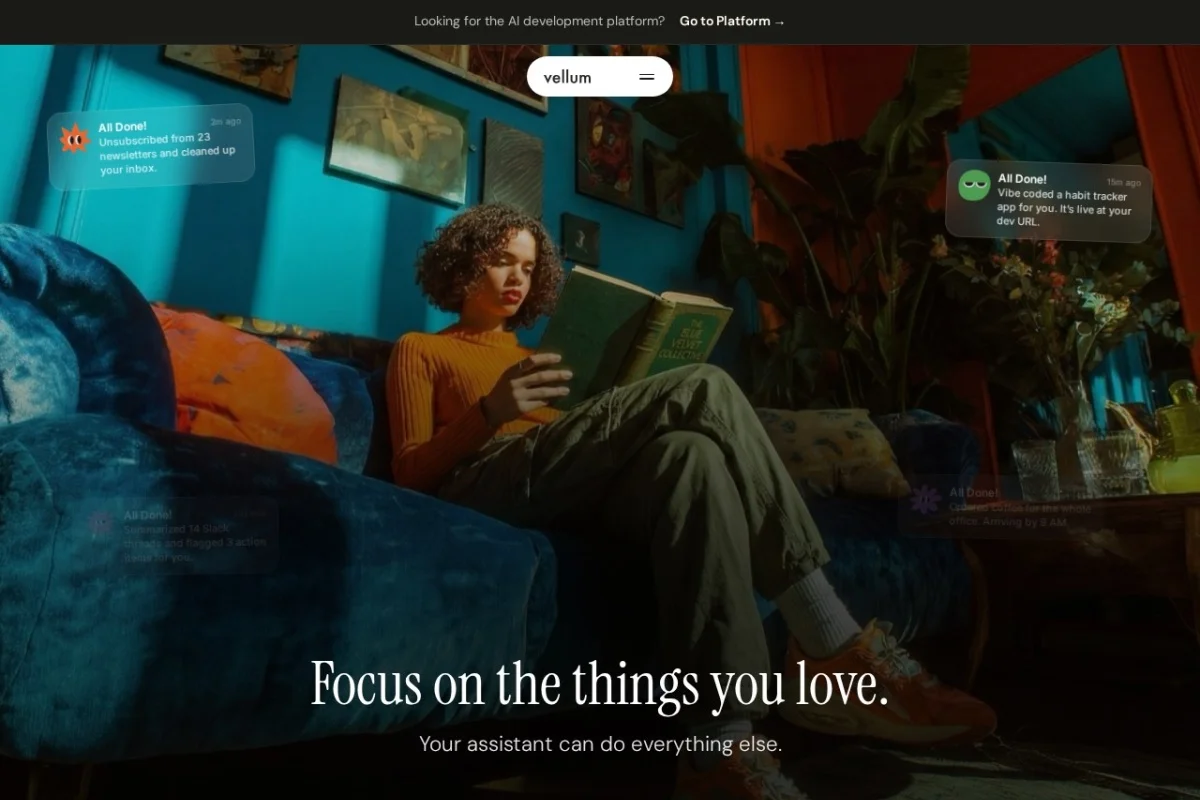
Your Ultimate Guide to Automating Work with Vellum AI Assistant
In today’s fast-paced digital workspace, we juggle countless applications, notifications, and repetitive tasks. What if you had a dedicated, intelligent assistant that could not only understand your workflow but actively manage parts of it for you? Enter Vellum AI Assistant. Vellum is more than just a chatbot; it’s an AI-powered productivity engine that connects to your tools, learns your preferences, and performs meaningful actions to automate your work, both on your computer and within your team. This detailed tutorial will guide you from complete beginner to proficient user, helping you reclaim hours of your week.
What Exactly is Vellum AI Assistant?
Vellum AI Assistant is an intelligent software agent designed to integrate deeply with your digital work life. Think of it as a highly capable personal assistant that lives inside your computer and collaboration tools like Slack. Its core promise is to move beyond simple question-answering and into the realm of action. It can read, write, organize, summarize, and execute tasks across the applications you use daily, all while learning from your behavior to become more helpful over time. You maintain full control over its permissions, ensuring it acts as a secure extension of your own intent.
Getting Started with Vellum
Setting up Vellum is a straightforward process focused on connecting your tools and defining your scope. Here’s how to begin your automation journey.
Step 1: Sign Up and Installation
First, visit the official website at https://www.vellum.ai and sign up for an account. You’ll likely start with a free trial or a basic plan. After registration, you will be guided to download and install the Vellum desktop application. This local client is crucial as it allows Vellum to operate securely on your computer with your explicit permission.
Step 2: The Initial Connection & Permissions
Upon first launch, Vellum will walk you through a setup wizard. The most critical step here is granting permissions. You will:
- Authorize access to key tools: You’ll connect Vellum to the apps you use most, such as Google Workspace (Gmail, Calendar, Drive), Microsoft 365, project management tools (like Asana or Trello), and notably, Slack. This is done via secure OAuth protocols, similar to how you connect other apps.
- Set computer operation boundaries: The desktop app will request specific permissions to manage files, control applications, or simulate keystrokes (for automation). Read these prompts carefully and grant only what you’re comfortable with. You can always adjust these later in the settings.
Step 3: Introducing Vellum to Your Team (Optional but Powerful)
If you plan to use Vellum’s team features, you’ll need to install the Vellum bot in your Slack workspace. Navigate to the “Team” section in Vellum’s web dashboard and follow the instructions to add it to Slack. This will allow your teammates to interact with Vellum and enable cross-team automations.
Step 4: The Learning Phase
Don’t expect Vellum to be a mind-reader on day one. Spend the first few days interacting with it naturally. Forward it emails, ask it to find files, or request summaries of your documents. The more you use it, the better it understands your priorities, frequently accessed projects, and communication style.
Key Features and Capabilities
Vellum’s power lies in its interconnected features. Understanding each will help you envision what to automate.
Deep Tool and App Connectivity
This is the foundation. Vellum acts as a central hub, pulling context from your email, calendar, cloud storage, and project management apps. This means it can, for example, cross-reference a meeting invite in your Calendar with related project files in Drive and previous email threads in Gmail to give you a complete pre-meeting briefing.
Proactive Learning and Memory
Vellum isn’t static. It builds a “memory” of your projects and preferences. If you often work on “Q4 Marketing Report” documents, it will start to associate that project name with specific files, people, and tasks. Over time, it can proactively suggest relevant information or remind you of pending actions related to that project.
Slack-Centric Team Collaboration
Within Slack, Vellum transforms into a team assistant. You can:
- Mention it in channels to get summaries of long threads.
- Ask it to fetch files or information from connected apps without leaving Slack.
- Use it to set up automated stand-up reminders or compile status updates from team members.
Secure Computer Action Automation
This is where Vellum moves from assistant to executor. With your permission, it can perform actions on your machine, such as:
- Organizing downloaded files into specific folders based on rules you set.
- Renaming batches of files according to a consistent format.
- Opening applications and preparing documents for your next meeting.
Intelligent File Management
Vellum brings order to chaos. You can ask it to “find all budget spreadsheets modified last week” or “organize all screenshots from the desktop into a dedicated folder.” It understands file content, not just names, making search incredibly powerful.
Routine Task and Summary Automation
This is the ultimate time-saver. Configure Vellum to handle repetitive workflows, such as:
- Generating a daily morning digest of your calendar, top emails, and pending tasks.
- Summarizing the key points from lengthy documents or meeting transcripts.
- Drafting routine email responses based on templates and context.
How to Use Vellum: Practical Examples
Let’s translate features into real-world commands and workflows. You can interact with Vellum via its desktop chat, a web dashboard, or directly in Slack.
Example 1: Taming Your Morning Chaos
Goal: Get a focused start to your day without opening 10 different apps.
What to say to Vellum: “Good morning, Vellum. What’s my daily briefing?”
What Vellum Does: It scans your connected tools and returns a concise summary: your first three calendar appointments, the number of unread high-priority emails, the top items from your project management tool, and any reminders you’ve set. You’ve just avoided 30 minutes of manual checking.
Example 2: Preparing for a Client Meeting in 5 Minutes
Goal: Quickly get up to speed on a client before a call.
What to say to Vellum: “Vellum, prepare a briefing for my 3 PM call with [Client Name].”
What Vellum Does: It searches across your email history, CRM (if connected), Drive, and recent project notes for all interactions and documents related to that client. It then generates a one-page summary with key contact info, last discussion points, open action items, and links to relevant files.
Example 3: Organizing a Messy Downloads Folder
Goal: Automatically sort downloaded files.
What to do: In the Vellum desktop app, go to the Automation settings. Create a new rule: IF a new file appears in the Downloads folder AND it is a PDF, THEN move it to a folder called “Inbox/PDFs” and notify me. Vellum will now handle this silently in the background.
Example 4: Getting a Slack Thread Summary
Goal: Catch up on a busy team channel you’ve been away from.
What to do in Slack: In the channel, tag Vellum: @Vellum summarize the last 50 messages.
What Vellum Does: It reads the conversation thread, disregards greetings and side chatter, and posts a bullet-point summary of key decisions, action items, and questions raised directly in the Slack channel for everyone’s benefit.
Example 5: Drafting a Status Email
Goal: Quickly compile a project update for your manager.
What to say to Vellum: “Vellum, draft a status email for the ‘Website Redesign’ project. Pull in completed tasks from Asana and highlight any blockers.”
What Vellum Does: It accesses the connected Asana project, identifies completed tasks this week, finds any tasks marked as blocked, and formats this information into a clear, professional email draft in your email client, ready for your review and send.
Pro Tips for Maximizing Vellum
To go from a basic user to a power user, implement these strategies.
Start Small, Think Big
Begin by automating one or two annoying, small tasks—like filing receipts or setting daily reminders. As you build trust and see the time savings, gradually expand to more complex, multi-step workflows that involve several apps.
Be Specific in Your Requests
Vellum’s AI is powerful but benefits from clear instructions. Instead of “find that document,” try “find the Q3 financial forecast PowerPoint that Sarah sent last Thursday.” The more context you provide, the more accurate the result.
Regularly Review and Refine Permissions
Periodically check the connected apps and computer permissions in Vellum’s settings. Remove access for tools you no longer use and ensure the level of computer control still matches your comfort zone. Security is a shared responsibility.
Leverage the “Memory” Feature
Explicitly tell Vellum about your major projects. Say, “Vellum, remember that I’m working on the ‘Alpha Launch’ project. Key files are in the shared Drive folder ‘Alpha_Launch_2024’, and the main contacts are Priya and David.” This seeds its memory for better future assistance.
Combine Features for Powerful Workflows
The real magic happens when features intersect. For instance, create an automation where Vellum monitors a specific Slack channel for the word “bug.” When it appears, it can log the issue in a connected spreadsheet, notify the engineering lead via email, and create a follow-up task in your project management tool—all without you lifting a finger.
Train Your Team
If Vellum is in your team’s Slack, create a quick guide on common commands. Encourage everyone to use it for summaries, file searches, and meeting prep. Its value multiplies with shared use.
Vellum AI Assistant represents a significant step towards a truly intelligent and automated work environment. By following this tutorial, you’ve learned how to set it up securely, understand its core capabilities, apply it to practical daily scenarios, and adopt advanced strategies to save even more time. Remember, the goal is not to replace your judgment but to eliminate the mundane, giving you more space to focus on the creative, strategic work that truly matters. Start automating today, and watch your productivity transform.

Vellum AI Assistant
An AI assistant that connects to your tools, learns your preferences, and handles your work tasks.