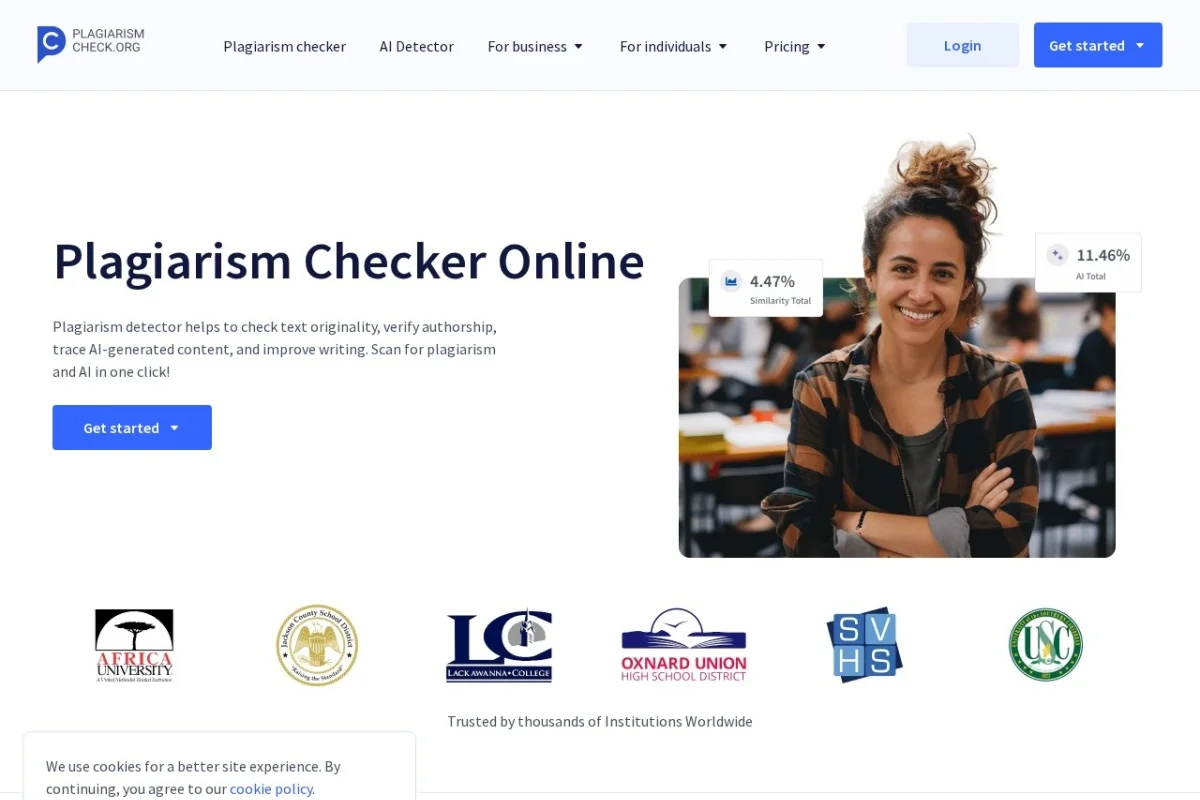
Your Complete Beginner’s Guide to PlagiarismCheck.org
In today’s digital world, where information is abundant and easily accessible, ensuring the originality of written work is more critical than ever. Whether you’re a student submitting a thesis, a teacher reviewing assignments, a blogger creating content, or a professional preparing a report, the integrity of your text is paramount. Manually checking for copied material is an impossible task, given the vast expanse of the internet and academic databases. This is where dedicated plagiarism detection tools become essential. PlagiarismCheck.org is a powerful, web-based solution designed to tackle this very challenge. This detailed tutorial will guide you through every step of using this tool effectively, from creating your first account to interpreting the detailed reports it generates.
PlagiarismCheck.org operates by comparing your submitted text against an enormous and continually updated database. This database includes billions of web pages, academic journals, publications, and previously submitted documents. The tool doesn’t just find exact matches; it can identify paraphrased content and poorly cited sources, providing you with a comprehensive view of your text’s originality. By the end of this guide, you will be equipped to use PlagiarismCheck.org with confidence, ensuring your work meets the highest standards of authenticity.
Getting Started with Your Account
Before you can start scanning documents, you need to set up access to PlagiarismCheck.org. The process is straightforward and designed to get you up and running in minutes.
Step 1: Registration
- Navigate to the official website: https://plagiarismcheck.org.
- Look for the “Sign Up” or “Get Started” button, typically located in the top right corner of the homepage.
- You will usually be presented with different registration options. You can often sign up directly with your email address, or sometimes through integrated services like Google or Microsoft for faster access.
- Choose your preferred method. If using email, you will need to provide a valid email address, create a secure password, and agree to the platform’s terms of service and privacy policy.
Step 2: Account Types and Credits
- PlagiarismCheck.org typically operates on a credit-based system. Upon registration, you might receive a small number of free credits to test the service.
- One credit is generally used to check a certain number of words or pages (e.g., 1,000 words). Be sure to check the current pricing and credit bundles on the site’s “Pricing” page.
- Different plans are available for individuals, educational institutions, and businesses. Select a plan that fits your expected usage, whether it’s occasional checks or regular, high-volume scanning.
Step 3: Understanding the Dashboard
- After logging in, you will be taken to your main user dashboard. This is your control center.
- The dashboard is typically clean and intuitive, showing options like “New Check,” “My Checks” (history of past scans), “Account Settings,” and information about your remaining credit balance.
- Take a moment to familiarize yourself with this layout. All the key actions you need begin here.
Key Features and Capabilities
PlagiarismCheck.org is packed with features that make it a robust tool for originality verification. Understanding these features will help you maximize its potential.
Comprehensive Database Scanning
- The core engine scans your text against a massive, proprietary database that includes live web pages, academic repositories, scientific journals, and a private collection of submitted documents.
- This multi-source approach ensures a thorough check, catching material that might be copied from obscure websites, paywalled articles, or other student papers.
Detailed Similarity Report with Source Links
- The tool doesn’t just give you a percentage. It generates an interactive, color-coded report.
- Matched text is highlighted directly within your document. More importantly, each match is linked directly to its online source, allowing you to verify the context and assess the severity of the match instantly.
Flexible Document Upload Support
- You are not limited to pasting plain text. PlagiarismCheck.org supports a wide range of file formats for direct upload, including:
- Microsoft Word documents (.doc, .docx)
- PDF files (.pdf)
- Rich Text Format (.rtf)
- Plain text files (.txt)
- PowerPoint presentations (.ppt, .pptx)
- OpenOffice files (.odt)
- This flexibility saves time and preserves your original formatting.
Percentage-Based Originality Score
- Upon completion of a scan, you receive an overall “Similarity Score” or “Originality Score” presented as a percentage.
- This provides a quick, at-a-glance understanding of how much of your text matches existing sources. A lower percentage indicates higher originality.
Passage Highlighting for Easy Review
- Within the report, every instance of potentially unoriginal text is highlighted in a specific color (e.g., yellow, orange, red).
- Clicking on a highlighted section expands a sidebar that shows the exact source URL, the matched text from that source, and the percentage of the match. This makes reviewing and correcting your work incredibly efficient.
How to Use PlagiarismCheck.org: A Step-by-Step Walkthrough
Now, let’s walk through the actual process of checking a document for plagiarism.
Step 1: Initiating a New Check
- From your dashboard, click the prominent button labeled “New Check” or “Check Plagiarism.”
Step 2: Submitting Your Text
You will have two primary options for submitting content:
- Option A: Text Input
- Simply copy and paste your text directly into the provided large text box. This is ideal for quick checks of excerpts, paragraphs, or shorter pieces.
- Option B: File Upload
- Click the “Upload File” or “Choose File” button.
- Navigate to the document on your computer, select it, and upload it. The system will automatically extract the text for analysis.
Step 3: Configuring Check Settings (Optional but Recommended)
- Before starting the scan, look for an “Advanced Settings,” “Options,” or “Settings” link/button.
- Here, you can often configure important parameters:
- Exclude Bibliography/References: A crucial setting for academic work. It tells the tool to ignore your reference list, preventing it from being flagged as plagiarism.
- Exclude Quotes: You can choose to ignore text within quotation marks, focusing the scan on your original prose.
- Set Sensitivity: Some versions allow you to adjust the matching sensitivity or the minimum phrase length that triggers a match.
Step 4: Running the Scan and Waiting for Results
- Once your text is in and your settings are configured, click the “Check Plagiarism” or “Start Check” button.
- The system will begin processing. The time this takes depends on the length of your document and server load, but it is usually very fast, ranging from a few seconds to a couple of minutes for lengthy papers.
- A progress bar or status indicator will keep you informed.
Step 5: Analyzing the Detailed Report
This is the most important step. When the scan is complete, you will be automatically redirected to the detailed report view.
- View the Overall Score: First, note the large, clear originality percentage at the top of the report.
- Examine the Highlighted Text: Scroll through your document. All text with potential matches will be highlighted. Different colors may indicate different levels of similarity or different source types.
- Investigate Individual Matches: Click on any highlighted passage. A detailed panel will appear (usually on the right side of the screen) showing:
- The specific source URL where the match was found.
- The exact text from that source.
- The percentage of the match relative to your submitted text.
- Review the Sources List: Most reports also include a separate list or sidebar aggregating all matched sources, with links and overall match percentages for each source.
Step 6: Taking Action Based on the Report
- Use the report as a diagnostic tool. For each highlighted match, decide:
- Is it a properly cited quotation? If yes, no action is needed.
- Is it paraphrased but still too close to the source? You need to rephrase it further and improve your paraphrasing skills.
- Is it uncopied but missing a citation? You must add an appropriate citation to credit the original author.
- Is it unintentional “patchwriting” (mixing copied phrases with your own)? You need to rewrite those sections in your own voice.
- You can use the report to make corrections directly in your original document file.
Pro Tips for Effective and Efficient Use
To become a power user of PlagiarismCheck.org, consider these practical tips and best practices.
Tip 1: Check Early and Check Often
- Don’t wait until the final draft. Run checks on individual sections or early drafts. This helps you identify problematic writing habits (like over-reliance on source wording) early in the process, making final revisions much easier.
Tip 2: Always Exclude Bibliographies and Quotes
- Make it a habit to enable the “Exclude Bibliography” and “Exclude Quotes” options in settings. This will give you a much more accurate originality score for your actual writing, filtering out elements that are supposed to match.
Tip 3: Interpret the Percentage Wisely
- There is no universal “safe” percentage. A 10% similarity consisting of properly cited quotes is perfectly acceptable. A 5% similarity that is one uncited, copied paragraph is a serious problem. Always review the context of each match rather than relying solely on the overall number.
Tip 4: Use it as a Learning Tool
- For students and writers, this tool is invaluable for learning proper citation and paraphrasing. By seeing exactly which phrases trigger matches, you can learn how to better synthesize information and express ideas in your own unique words.
Tip 5: Maintain a Record for Accountability
- Use the “My Checks” history feature. For teachers, this can create an audit trail for student submissions. For professionals, it can serve as proof of due diligence in content creation.
Tip 6: Understand its Limitations
- No tool is infallible. PlagiarismCheck.org may not have access to every single private database or a recently published website. It is a powerful aid, but it should be part of a broader commitment to academic and professional integrity, complemented by your own critical review.
By following this tutorial, you have learned how to harness the full power of PlagiarismCheck.org. From the initial sign-up to the nuanced interpretation of its detailed similarity reports, you are now equipped to use this tool to safeguard the originality and integrity of any text you create or review. Remember, the goal is not just to achieve a low percentage, but to cultivate authentic writing and responsible scholarship. Happy checking!

PlagiarismCheck.org
An online plagiarism detection tool that checks text for originality and duplicate content.