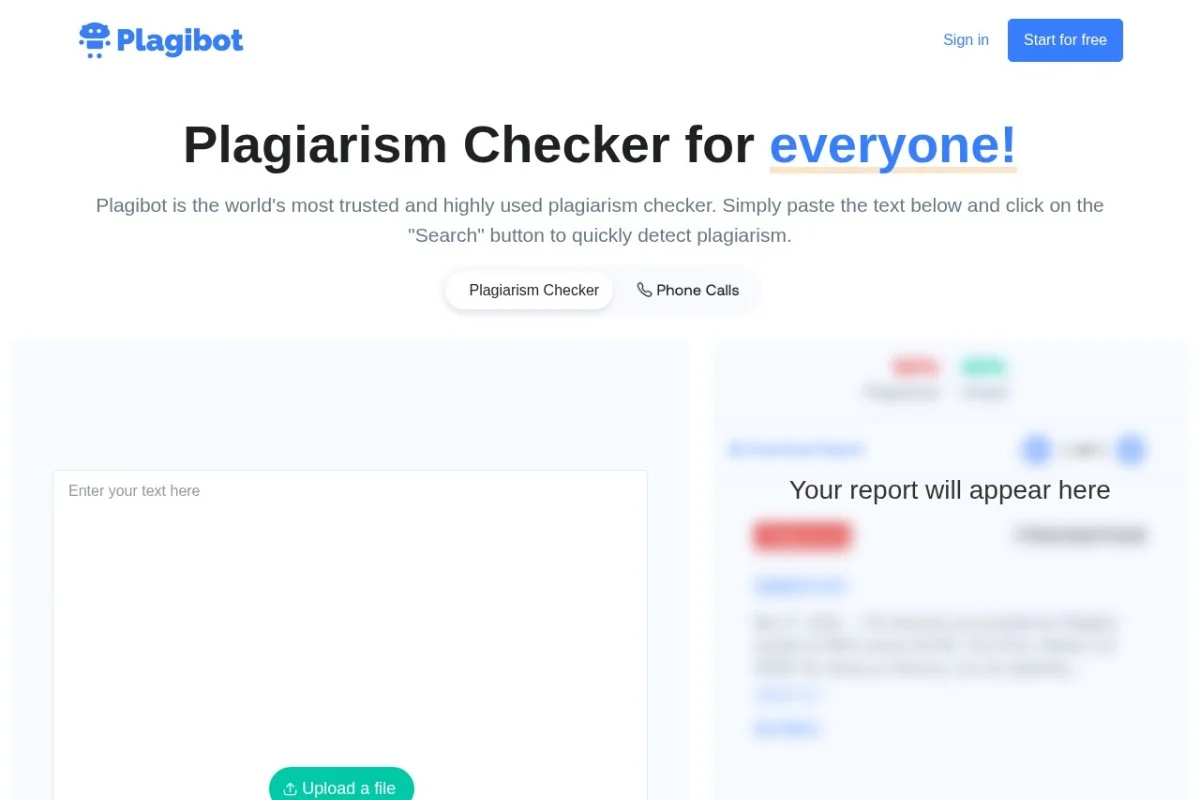
Introduction to Plagibot Plagiarism Checker
In the digital age, where information is abundant and easily accessible, ensuring the originality of written work is more critical than ever. Whether you are a student submitting a thesis, a teacher reviewing assignments, a blogger creating content, or a professional drafting a report, the integrity of your text is paramount. This is where a reliable plagiarism checker becomes an indispensable tool. Plagibot Plagiarism Checker is a powerful, web-based solution designed to meet this exact need.
Plagibot is a dedicated online service that scans your text against an immense database of over 15 billion web pages to detect copied or unoriginal content. Launched in 2010 and having processed millions of pages, it has established itself as a focused and accurate tool for plagiarism detection. Unlike some all-in-one writing suites, Plagibot concentrates solely on doing one thing exceptionally well: identifying plagiarism. It provides clear, actionable reports that show not just how much content is plagiarized, but precisely where it came from. This tutorial will guide you through everything you need to know to start using Plagibot effectively, from creating an account to interpreting your first report.
Getting Started with Plagibot
Beginning your journey with Plagibot is a straightforward process. The tool is entirely web-based, meaning there is no software to download or install. All you need is a modern web browser and an internet connection.
Creating Your Account
The first step is to visit the Plagibot website at https://www.plagibot.com. On the homepage, you will find options to sign up or log in. While Plagibot may offer a limited check without an account, creating one is highly recommended. An account allows you to manage your scan history, access detailed reports, and utilize the full features of the service. The registration process is standard: you will typically need to provide an email address and create a password. Some registration options might also be available through social media accounts for added convenience.
Understanding the Dashboard
Once you log in, you will be taken to your user dashboard. This is your central hub. The interface is clean and user-friendly, designed to get you to your primary task—checking for plagiarism—as quickly as possible. Key areas of the dashboard usually include:
- New Scan/Check: A prominent button to start a new plagiarism check.
- Scan History: A list or table of your previous scans, allowing you to revisit reports.
- Account Settings: Where you can manage your subscription, update profile information, and review usage statistics.
Familiarizing yourself with this layout will make your future sessions much smoother.
Key Features of Plagibot
Plagibot packs a powerful set of features into its simple interface. Understanding these features will help you appreciate the tool’s capabilities and how it can serve your specific needs.
Massive 15B+ Web Page Database
At the core of Plagibot’s effectiveness is its extensive and continually updated database. With access to over 15 billion web pages, the tool casts a very wide net. This includes academic journals, websites, articles, and publications across the internet. The larger the database, the higher the likelihood of detecting even subtly paraphrased or sourced content from obscure corners of the web, ensuring a thorough check.
Flexible Input Methods
Plagibot offers two convenient ways to submit content for analysis:
- Direct Text Pasting: You can simply copy and paste your text directly into a provided text box on the website. This is ideal for quick checks of shorter excerpts, emails, or paragraphs.
- Document Upload: For longer works like essays, reports, or manuscripts, you can upload entire files. Plagibot supports popular formats including .doc, .docx, .txt, and .rtf. This saves you the trouble of copying and pasting lengthy documents.
Comprehensive and Clear Reporting
The scan report is where Plagibot truly shines. After analysis, it provides a detailed breakdown that includes:
- Overall Originality Score: A clear percentage showing how much of your text is unique.
- Plagiarism Percentage: The complementary percentage indicating the amount of text identified as matching external sources.
- Source Highlighting: The plagiarized or matched sections within your text are highlighted in color. Clicking on a highlighted section reveals the specific online source where that text was found.
- Source Links: Direct URLs to the matched web pages are provided, allowing you to verify the match and see the original context.
Downloadable Reports
For record-keeping, formal submission, or sharing with colleagues or students, Plagibot allows you to download a copy of your plagiarism report. This downloadable document typically contains the scanned text, the highlighted matches, and a list of sources, providing a permanent record of the scan’s results.
How to Use Plagibot: A Step-by-Step Guide
Now, let’s walk through the actual process of conducting a plagiarism check from start to finish.
Step 1: Initiating a New Check
From your dashboard, click on the button that says “New Scan,” “Check Plagiarism,” or similar. This will open the main scanning interface.
Step 2: Inputting Your Text
You now have a choice:
- Option A – Paste Text: Click inside the large text box. Copy your text from your word processor, website, or email and paste it directly into the box.
- Option B – Upload a Document: Look for an “Upload File” or “Choose File” button. Click it and navigate to the document file (.doc, .docx, .txt, .rtf) on your computer. Select it and confirm the upload. The system will extract the text automatically.
Step 3: Starting the Scan
Once your text is in place (you will usually see a word count displayed), look for the button to begin the analysis. It is often labeled “Check for Plagiarism” or “Start Scan.” Click it. The system will now process your text, comparing it sentence by sentence against its vast database. This may take from a few seconds to a couple of minutes, depending on the length of your text and current server load. A progress indicator will keep you informed.
Step 4: Analyzing the Report
When the scan is complete, you will be redirected to the results page. Here’s how to read it:
- First, look at the summary statistics at the top. You will see two key figures: “Unique Content” and “Plagiarized Content,” each expressed as a percentage. Aim for a uniqueness score as close to 100% as possible.
- Your submitted text is displayed below. Sections of text that Plagibot has found elsewhere on the web will be highlighted in a color (often yellow or orange).
- Click on any highlighted passage. A panel will appear (usually to the side or below) showing the source URL(s) where that exact or very similar text appears. You can click these links to open the source in a new browser tab for verification.
- The report will also list all detected sources separately, giving you an overview of where matches originated.
Step 5: Downloading and Taking Action
If you need a copy of the report, look for a “Download Report” or “Export” button. Click it to save a file (usually in PDF or DOC format) to your computer. Your most important job now is to use the report to revise your work. For every highlighted section, you must either:
1. Properly paraphrase the idea in your own words and structure.
2. Quote the source directly and add a proper citation.
3. Remove the content entirely if it is not essential.
After making revisions, you can run the text through Plagibot again to ensure the issues have been resolved.
Tips for Effective Use of Plagibot
To get the most out of Plagibot and integrate it seamlessly into your workflow, consider these practical tips.
Check Early and Check Often
Do not wait until you have finished a 50-page document to run a plagiarism check. Scan individual sections or chapters as you write. This proactive approach helps you identify accidental plagiarism or citation oversights early, making corrections much easier and less time-consuming than trying to fix an entire document at the last minute.
Understand What Constitutes Plagiarism
Plagibot is a tool, not a judge. It highlights text matches. It is your responsibility to understand why a match is flagged. It could be:
– A correctly cited quotation (which is not plagiarism but will still be highlighted as a match).
– Common phrases or idioms (which are often false positives).
– Truly plagiarized, uncopied text.
Always review each highlight. If it’s a legitimate quote with a citation, it’s fine. If it’s an unoriginal block of text without attribution, it needs to be addressed.
Use it as a Learning Tool
For students and new writers, Plagibot can be an excellent educational resource. By showing you exactly which sentences are too close to the source material, it helps you learn the difference between effective paraphrasing and copying. Use the feedback to improve your research writing and citation skills.
Respect Privacy and Terms of Service
Be mindful of the content you submit. Avoid uploading highly confidential, unpublished, or sensitive documents unless you are confident in the platform’s privacy policy. Plagibot states it is focused solely on detection, but it is always good practice to understand how your data is used. Typically, scans are kept private and are not added to public databases.
Combine with Other Writing Tools
While Plagibot excels at originality checking, consider using it alongside grammar checkers and style editors. A complete writing workflow might involve: drafting, checking for plagiarism with Plagibot, revising based on the report, and then using a grammar tool to polish the final, original text.
In conclusion, Plagibot Plagiarism Checker is a robust, no-fuss tool that delivers on its promise of accurate plagiarism detection. By following this tutorial, you are now equipped to use its features confidently to uphold the integrity and originality of all your written work. Start by visiting https://www.plagibot.com, and take the first step towards ensuring your content is truly your own.

Plagibot Plagiarism Checker
A trusted online tool for detecting plagiarism in text by comparing it against a vast database.