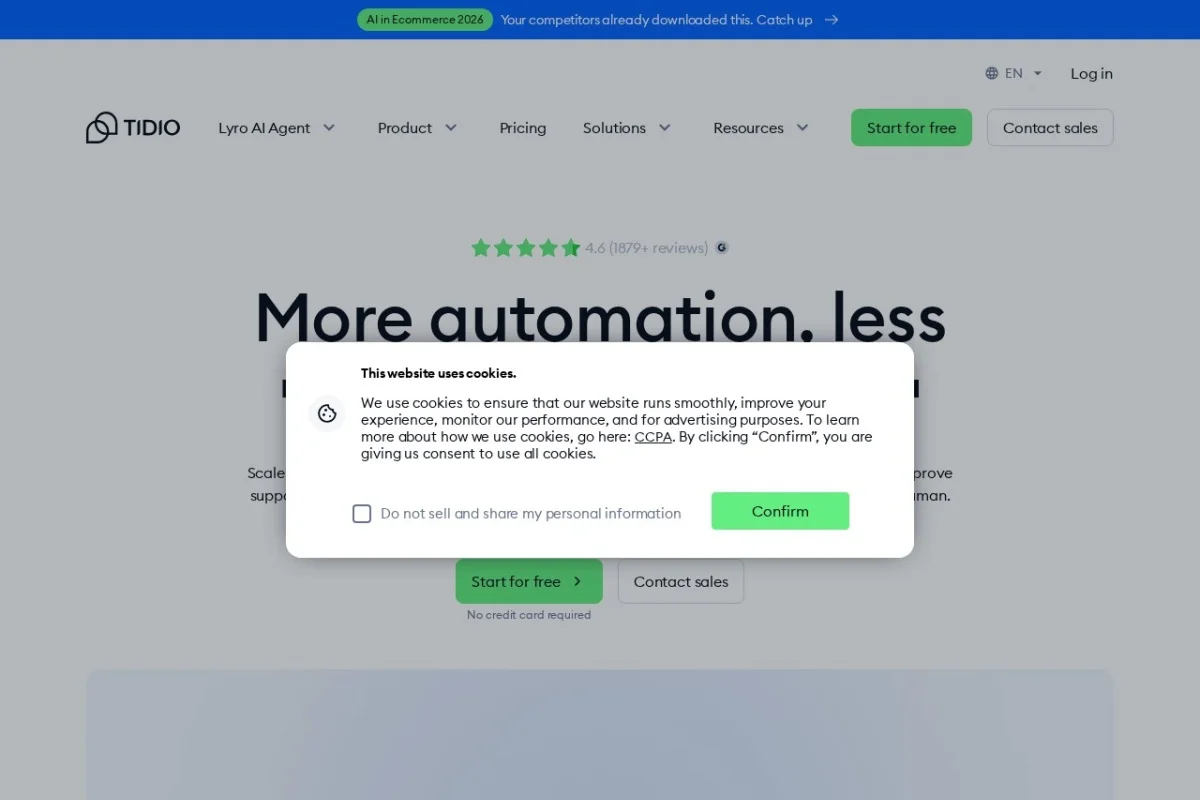
Mastering Your Customer Support: A Beginner’s Guide to Tidio AI Customer Service Agent
In today’s fast-paced digital world, customers expect immediate answers and seamless support. Balancing this demand with efficient operations can be a challenge for any business. This is where Tidio steps in. Tidio is a powerful, all-in-one customer support platform that combines the speed of artificial intelligence with the empathy of human connection. It allows you to automate responses to common questions, engage visitors in real-time with live chat, and manage all your support tickets from a single, intuitive dashboard. Trusted by over 300,000 businesses, Tidio is designed to help you scale your customer service without losing the personal touch. This tutorial will guide you through everything you need to know to get started and become proficient with Tidio.
Getting Started with Tidio
Setting up Tidio is a straightforward process designed to get you up and running in minutes. Follow these steps to begin your journey.
Step 1: Creating Your Account
First, navigate to the Tidio website. Click on the “Sign Up” or “Start for Free” button. You will be prompted to enter your email address and create a password. Alternatively, you can sign up quickly using your Google or Facebook account. Tidio offers a generous free plan, which is perfect for testing its core features.
Step 2: Adding Your Website
After signing up, Tidio will ask you to add your website. Enter your website’s URL (e.g., www.yourbusiness.com). Tidio will then generate a unique piece of code (a JavaScript snippet). You will need to install this code on your website to activate the chat widget. Don’t worry if you’re not technical; Tidio provides clear instructions for popular platforms.
Step 3: Installing the Chat Widget
There are several easy ways to install the widget code:
- Manual Installation: Copy the code snippet and paste it just before the closing
</head>tag on every page of your website. - Plugin/App Installation: If you use WordPress, Shopify, Wix, or another major platform, you can skip the code. Simply search for “Tidio” in your platform’s app store or plugin directory and install the official integration. This is often the easiest method.
- Google Tag Manager: You can also add the snippet as a custom HTML tag within Google Tag Manager.
Once installed, the Tidio chat bubble will appear on your website, usually in the bottom-right corner.
Step 4: Initial Configuration
Log into your Tidio dashboard. Take a moment to explore the interface. Go to the ‘Settings’ or ‘Dashboard’ area to customize the appearance of your chat widget—you can change colors, text, and positioning to match your brand. Set up your first human agent profile (that’s you!) by adding a name and profile picture to make chats more personal.
Key Features of Tidio Explained
Tidio’s power lies in its integrated suite of features. Understanding each component will help you leverage the platform fully.
The AI-Powered Chatbot (Lyro)
This is Tidio’s intelligent automation engine, named Lyro. Unlike simple rule-based bots, Lyro uses AI to understand customer questions and pull answers directly from your website’s content, such as FAQ pages, product descriptions, or blog posts. It learns what information is relevant and provides instant, accurate responses 24/7, qualifying leads and solving common problems before they reach your human team.
Live Chat for Human Agents
When the AI can’t handle a query or a customer requests a human, the conversation is seamlessly transferred to your live chat. Your team can respond in real-time from the Tidio dashboard or mobile app. Features like typing previews, saved replies, and file sharing make these conversations efficient and effective.
Unified Helpdesk (Ticketing System)
Tidio consolidates all customer inquiries, whether they come from the chat widget, your connected Facebook Messenger, Instagram, or even email, into a single helpdesk view. Each conversation becomes a ticket that can be assigned, tagged, and tracked to resolution, ensuring no customer message ever gets lost.
Visitor and Chat Analytics Dashboard
Knowledge is power. Tidio’s dashboard gives you real-time insights into who is on your site, their browsing behavior, and your support performance. Track metrics like response time, chat volume, customer satisfaction, and which pages generate the most inquiries to continuously improve your service.
Seamless Integrations
Tidio connects with the tools you already use. Key integrations include:
- E-commerce: Shopify, WooCommerce (for syncing products and orders).
- Content Management: WordPress, Wix.
- Marketing & CRM: Mailchimp, Salesforce, Zapier (for connecting to hundreds of other apps).
- Social & Messaging: Facebook Messenger, Instagram, WhatsApp.
Mobile App
The Tidio mobile app (available for iOS and Android) allows you and your team to manage customer conversations from anywhere. You can receive push notifications for new messages, respond to chats, and monitor your dashboard on the go.
How to Use Tidio: A Practical Workflow
Let’s walk through a typical customer interaction and how you would manage it within Tidio, from setup to resolution.
1. Setting Up Your AI Chatbot (Lyro)
Navigate to the ‘Automation’ or ‘Lyro’ section in your dashboard. Click to activate Lyro. The AI will automatically start scanning your website’s public pages to learn about your business. You can guide it by specifying which pages to read (like your FAQ or “About Us” page). Train Lyro by reviewing its suggested answers to common questions and marking them as correct or incorrect. Over time, it becomes more accurate.
2. Managing Live Chats
When a visitor clicks the chat widget, Lyro will greet them automatically. You can watch these interactions in real-time from the ‘Chats’ panel. If a visitor asks, “Can I speak to a person?” or asks a complex question Lyro can’t answer, you can manually take over the chat. Simply click on the active conversation and start typing. Use saved replies for frequently typed messages to save time. You can also send images, PDFs, or links to assist the customer.
3. Handling Support Tickets
If a chat conversation requires follow-up (e.g., “Please check my order status and email me”), you can convert it into a ticket. In the chat interface, look for an option to “Create Ticket” or “Assign.” Add relevant tags (e.g., “billing,” “urgent”) and assign it to yourself or a team member. All tickets are organized in the ‘Helpdesk’ section, where you can filter by status (open, pending, closed) and ensure every issue is tracked to completion.
4. Connecting Other Channels
Go to ‘Channels’ in your settings. Click to add a new channel, such as Facebook Messenger. Follow the simple authorization steps to connect your business account. Once connected, messages from Facebook will flow into the same Tidio dashboard as your website chats, allowing you to manage all customer communications from one place.
5. Reviewing Analytics
Regularly visit the ‘Analytics’ or ‘Dashboard’ section. Pay attention to:
- Chat Volume: Identify your busiest times.
- Response Time: Aim to keep your average response time as low as possible.
- Lyro’s Resolution Rate: See what percentage of questions your AI is solving automatically. A high rate indicates great efficiency.
- Visitor Info: See which pages active visitors are viewing, which can help you anticipate their questions.
Pro Tips for Maximizing Tidio
To truly excel with Tidio and provide exceptional service, consider these advanced strategies.
Tip 1: Craft a Warm and Informative Greeting
Your chatbot’s first message sets the tone. Instead of a generic “Hello, how can I help?” try a more engaging opener like, “Hi there! Welcome to [Your Business Name]. I’m here to answer questions about our products, shipping, or anything else. What brings you by today?” This feels more personal and guides the visitor.
Tip 2: Use Tags and Saved Replies Religiously
Tags are your best friend for organization. Create a standard set of tags (e.g., sales-question, technical-issue, refund-request) and apply them to every chat or ticket. This allows for easy filtering and reporting. Similarly, build a library of saved replies for your most common responses (like your return policy or business hours) to ensure consistency and speed.
Tip 3: Train Lyro with Your Unique Content
For the best AI performance, don’t just rely on automatic website scanning. Proactively add custom questions and answers in the Lyro training section. Think about the specific, nuanced questions your customers ask that might not be explicitly written on a webpage. The more you train it, the more it relieves your team’s workload.
Tip 4: Set Up Smart Automated Triggers
Beyond Lyro, explore Tidio’s visual automation builder. You can create “if-then” rules to trigger specific actions. For example: IF a visitor spends more than 60 seconds on your pricing page, THEN automatically send a message: “Have any questions about our plans? I’m here to help!” This proactive engagement can significantly increase conversions.
Tip 5: Close the Loop with Feedback
After closing a chat or resolving a ticket, consider sending a short, automated customer satisfaction survey. A simple “How did we do?” with a rating scale provides invaluable feedback on both your AI and human agent performance, highlighting areas for improvement.
Tip 6: Keep Human Agents in the Loop
Remember, Tidio is about augmentation, not replacement. Always monitor Lyro’s conversations, especially in the beginning. Step in promptly when needed. The goal is for the AI to handle the repetitive questions, freeing your human team to build relationships and solve complex, high-value problems.
By following this guide, you will transform your customer support from a potential bottleneck into a streamlined, efficient, and customer-delighting powerhouse. Tidio provides the tools to be always available, incredibly organized, and genuinely helpful. Start with the basics, gradually implement the pro tips, and watch your customer satisfaction—and your team’s productivity—soar.

Tidio AI Customer Service Agent
An AI-powered customer service platform combining chatbots, live chat, and helpdesk tools.