Unlock Your PDFs with AI: A Complete Beginner’s Guide to ChatPDF
Do you ever feel overwhelmed by a dense PDF? Whether it’s a 100-page financial report, a complex technical manual, or a lengthy research paper, extracting the information you need can be a slow and tedious process. What if you could simply ask the document a question and get an immediate answer? This is no longer science fiction—it’s the reality offered by ChatPDF. This detailed tutorial will guide you through everything you need to know to use ChatPDF effectively, transforming how you interact with PDF documents forever.
What is ChatPDF?
ChatPDF is an innovative, AI-powered web service that acts as a conversational partner for your PDF files. At its core, it’s a specialized application of large language models (like ChatGPT) designed specifically for document interaction. Instead of you manually skimming, searching, and reading, you upload a PDF to ChatPDF. Its AI engine reads, analyzes, and understands the text content. Once processed, you can engage with it in a simple chat interface, asking questions in natural language just as you would ask a human expert who has read the document. It then provides concise, accurate answers by extracting, summarizing, and synthesizing information directly from your uploaded file.
The tool is designed for anyone who works with PDFs: students analyzing academic papers, professionals digesting business reports, researchers reviewing literature, or even casual readers trying to understand a long e-book. It supports documents in multiple languages and can handle queries in different languages as well, making it a versatile tool for a global audience. By providing citations for its answers, it also adds a layer of transparency, allowing you to verify the information in the original PDF.
Getting Started with ChatPDF
Starting your journey with ChatPDF is remarkably straightforward. You don’t need to install any software or have advanced technical knowledge. Just follow these simple steps.
Step 1: Access the Website
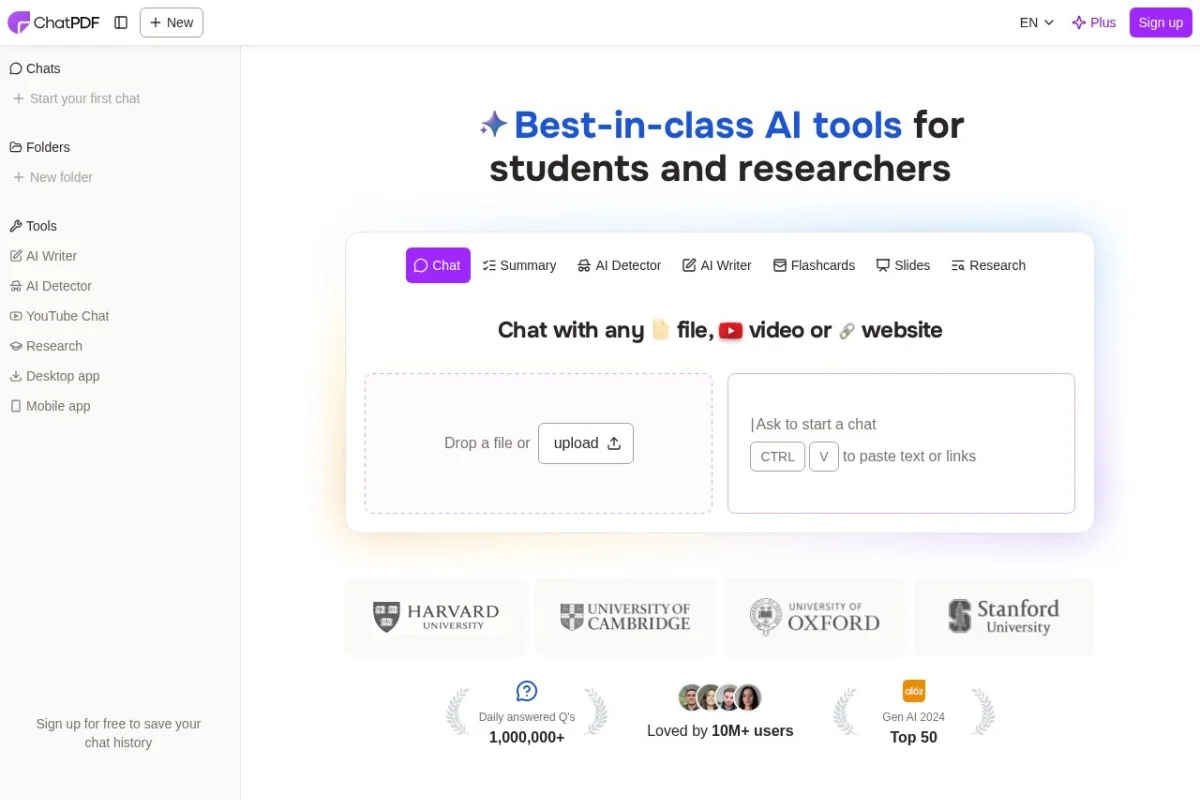
Open your preferred web browser (like Chrome, Firefox, or Safari) and go to the official ChatPDF website: https://www.chatpdf.com. The site has a clean, intuitive design that works on both desktop computers and mobile devices.
Step 2: Upload Your PDF File
On the homepage, you’ll see a prominent box prompting you to upload a PDF. You have two main options:
- Drag and Drop: Simply click and hold your PDF file from your computer’s folder, then drag it over the upload box and release the mouse button.
- Click to Select: Click on the upload area (it might say “Drop PDF here” or “Select a PDF file”) to open your system’s file browser. Navigate to where your PDF is saved, select it, and click “Open.”
ChatPDF also offers the ability to chat with a PDF via a URL if the document is already hosted online, which is perfect for publicly available research papers or reports.
Step 3: Let the AI Process the Document
Once uploaded, you’ll see a brief loading animation. This is where ChatPDF’s AI is reading and processing the entire text of your document. This usually takes only a few seconds, depending on the file size and length. When it’s ready, the chat interface will open automatically, and you’ll often see a friendly greeting from the AI, introducing itself as an expert on your specific document and suggesting a few sample questions to get you started.
Step 4: Start Chatting!
You are now ready to interact. Look for the chat bar at the bottom of the screen—this is where you’ll type your questions. Begin with something simple to test the waters, like “What is this document about?” or “Summarize the key points.” Then, dive deeper based on the answers you receive.
Key Features and Capabilities
Understanding the full range of what ChatPDF can do will help you leverage its power for various tasks. Here are its core features broken down:
AI-Powered Document Comprehension
This is the foundation. ChatPDF doesn’t just perform simple keyword searches. It builds a contextual understanding of the document, grasping the relationships between concepts, themes, and data points. This allows it to answer inferential questions, not just locate exact phrases.
Natural Language Q&A Interface
You don’t need to use special commands or syntax. Ask questions as you normally would: “What were the main findings of the study?” “Explain the methodology used in section 3.” “List all the safety warnings mentioned in the manual.” The AI interprets your intent and finds the relevant information.
Multi-Language Support
ChatPDF can process documents in numerous languages. Furthermore, you can ask questions in a language different from the document. For example, you can upload a Spanish research paper and ask questions about it in English, making it a powerful tool for cross-language research.
Source Citations for Verification
Every answer provided by ChatPDF includes small citation numbers (like [1], [2]). Clicking on these citations will highlight the specific sentence or paragraph in the PDF viewer on the side of the screen where the information was sourced. This is crucial for academic or professional work, as it allows you to check the AI’s accuracy and context.
Simple and Accessible Design
The interface is clean and focused on the chat experience. With no complex menus or settings to configure, users of all skill levels can start benefiting from it immediately.
How to Use ChatPDF: Practical Examples and Prompts
Let’s move from theory to practice. Here’s how you can use ChatPDF for different types of documents, complete with example prompts.
For Academic Research Papers
Speed up your literature review and comprehension.
- “Provide a bullet-point summary of the abstract and introduction.”
- “What research gap is this paper trying to address?”
- “Explain the experimental procedure in simple terms.”
- “What are the limitations of this study as stated by the authors?”
- “Compare the conclusions of this paper to the author’s initial hypothesis.”
For Business Reports and Financial Statements
Extract insights from lengthy corporate documents quickly.
- “What were the total revenues and net profit for Q4?”
- “List the three main strategic priorities for the upcoming year.”
- “What risks are identified in the risk management section?”
- “Summarize the CEO’s outlook from the letter to shareholders.”
- “What are the key performance indicators (KPIs) mentioned?”
For Textbooks and Manuals
Use it as a study aid or a quick reference guide.
- “Define [key term] as explained in Chapter 5.”
- “Outline the step-by-step process for troubleshooting error code 404.”
- “What are the five key takeaways from the chapter on climate change?”
- “Create a quiz for me based on pages 50-75.” (The AI can generate questions!)
- “Find all mentions of ‘voltage regulation’ and explain the context.”
For General Books and Novels
Enhance your reading experience and analysis.
- “Describe the main character’s primary motivation.”
- “What is the central conflict of the story?”
- “Summarize the plot of Chapter 12.”
- “List all the major symbols used in the book and their possible meanings.”
Pro Tips for Getting the Best Results
To become a ChatPDF power user, keep these practical tips in mind:
Be Specific and Contextual in Your Questions
The more precise your question, the better the answer. Instead of “Tell me about the results,” ask “What were the results of the patient survival rate in the clinical trial discussed in Table 2?” Providing context helps the AI narrow down its search within the document.
Use the Citations
Always click on the citation numbers to review the source text. This ensures the AI hasn’t misinterpreted or taken information out of context, which is essential for critical work.
Ask for Summaries at Different Levels
You can ask for a summary of the entire document, a specific chapter, or even a particular section. Chain your questions: start with “Summarize this document,” then ask “Now, go into more detail on the section about future recommendations.”
Leverage Follow-Up Questions
ChatPDF maintains context within a conversation. You can use pronouns and references to previous answers. For example, after asking “What is the thesis?” you can follow up with “What evidence is provided to support it?”
Understand the Limitations
ChatPDF works with text-based PDFs. Scanned PDFs or documents saved as images are not readable unless they have been processed by Optical Character Recognition (OCR) software first. The AI also cannot interpret complex visuals like charts and graphs, though it can summarize the textual data and captions associated with them.
Respect Privacy and Copyright
Do not upload sensitive, confidential, or copyrighted material that you do not have the right to use. While ChatPDF’s privacy policy should be reviewed, it’s best practice to avoid using private data.
By integrating ChatPDF into your workflow, you can reclaim hours lost to manual reading and searching. It’s like having a tireless, ultra-fast research assistant for every document you encounter. Start with a simple PDF today, ask it a question, and experience the future of document interaction.
ChatPDF
An AI tool that lets you chat with any PDF document to get instant answers.