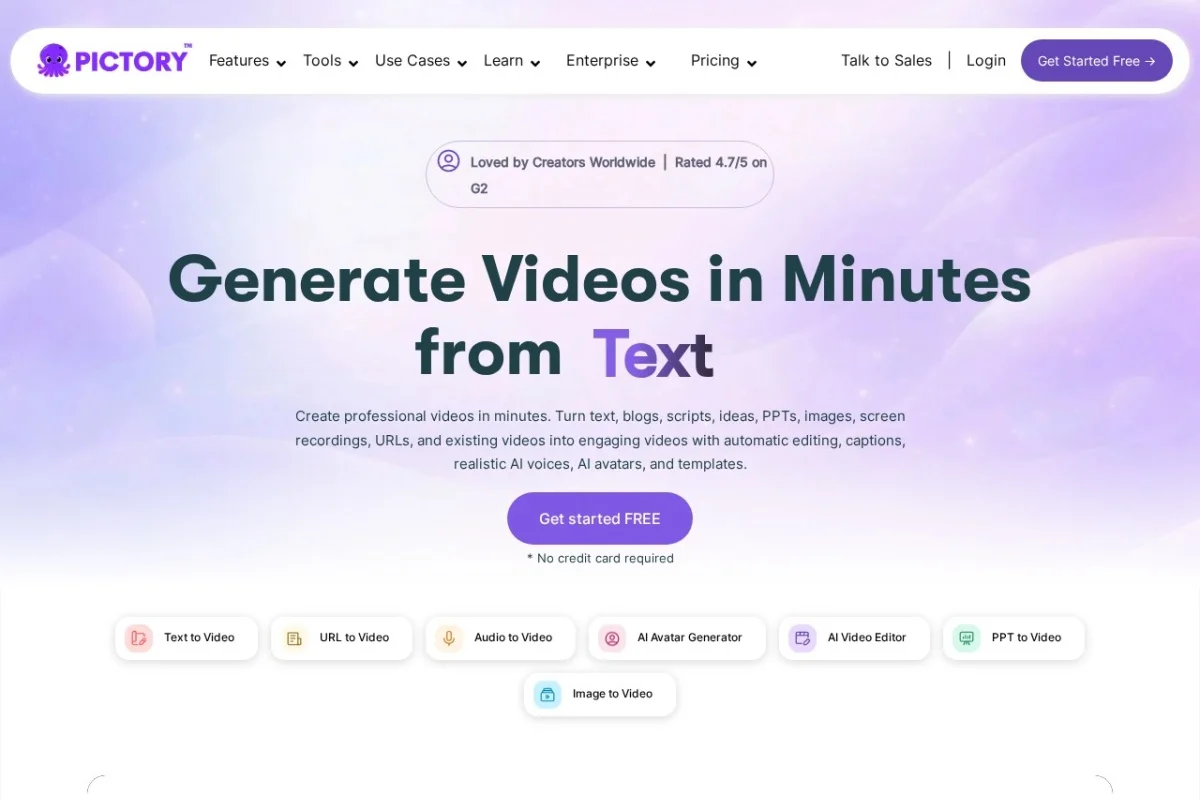
Your Complete Beginner’s Guide to Pictory AI: Effortless Video Creation
In today’s digital landscape, video is king. Whether for social media, marketing, or training, engaging video content drives results. But for many, the idea of video editing is daunting—complex software, steep learning curves, and hours of tedious work. Enter Pictory AI, a revolutionary tool designed to democratize video creation. This detailed tutorial will guide you, step-by-step, from complete beginner to confident user, enabling you to harness the power of AI to create stunning videos in minutes, not days.
What is Pictory AI?
Pictory AI is an artificial intelligence-powered online platform that simplifies the entire video creation process. Its core mission is to transform existing, long-form content—like blog posts, articles, scripts, webinars, and podcasts—into short, compelling, and professional videos. Think of it as your automated video editor and producer. It handles the heavy lifting: finding visuals, editing clips, adding music, and generating accurate captions. This allows marketers, content creators, bloggers, coaches, and business owners to produce high-quality, branded video content consistently without needing any prior video editing experience or technical skills.
Getting Started with Pictory AI
Beginning your journey with Pictory is straightforward. Follow these steps to set up your account and familiarize yourself with the environment.
1. Sign Up for an Account
Navigate to the official Pictory website. You will find options to start with a free trial, which typically offers a limited number of video projects or minutes. This is an excellent way to explore the platform’s capabilities without immediate investment. Click “Sign Up” or “Start Free Trial” and enter your details—usually just an email address and password.
2. Understanding the Dashboard
After logging in, you’ll land on your dashboard. This is your command center. The interface is clean and user-friendly, with clear pathways to start your first project. You’ll typically see:
- Create Video: A prominent button to start a new project from scratch.
- Project Templates: Pre-designed formats for different platforms (e.g., Instagram Reels, YouTube Shorts).
- Your Projects: A library of all your past and ongoing video creations.
- Training Resources: Access to tutorials and help articles directly within the platform.
3. Choosing Your First Project Type
Pictory offers several entry points for video creation, accessible from the “Create Video” button:
- Script to Video: Start by pasting or writing a script. Pictory will automatically match your words to visuals and voiceover.
- Article to Video: Paste the URL of your blog post or article. Pictory will summarize it and create a storyboard.
- Visuals to Video: Upload your own video clips and images to assemble a video.
- Edit Video Using Text: A revolutionary feature where you edit a video (like a webinar recording) by simply deleting sentences from the auto-generated transcript.
For your first try, we recommend “Article to Video” if you have a blog, or “Script to Video” if you want to write something new. It showcases Pictory’s AI magic most effectively.
Key Features of Pictory AI Explained
To use Pictory effectively, it’s crucial to understand the powerful tools at your disposal. Here’s a breakdown of its standout features.
Automated Video Creation from Text
This is Pictory’s flagship capability. You provide the text (via URL or script), and the AI analyzes it to identify key themes, sentences, and keywords. It then searches its vast library of millions of stock video clips and images to find relevant visuals that match your content. It automatically assembles these into a coherent video, synchronizing scene changes with the flow of your narrative.
AI-Powered Highlight Reels & Summarization
Do you have a long recording, like a 60-minute Zoom webinar or a podcast episode? Manually finding the best moments is a chore. Pictory’s AI scans the transcript of your long video, identifies the most engaging and important segments (based on linguistic cues and context), and extracts them to create a concise highlight reel. This is perfect for creating promotional teasers or recap videos.
Automatic Captions and Transcripts
Accessibility and viewer engagement are non-negotiable. Over 80% of social media videos are watched on mute. Pictory automatically generates a transcript of your video’s audio (or uses your provided script) and turns it into stylish, on-screen captions. You can customize the font, color, size, and position of these captions to match your brand, significantly boosting watch time and comprehension.
Extensive Media Library
Pictory provides access to a comprehensive library of royalty-free assets, meaning you can use them without worrying about copyright strikes. This includes:
- Millions of high-quality video clips and images from providers like Storyblocks.
- A diverse collection of background music tracks to set the right mood.
- Multiple voice-over options in different accents and languages for text-to-speech.
Branding Customization Suite
To ensure every video feels uniquely yours, Pictory offers robust branding tools. You can create and save “Brand Kits” that include:
- Your custom logo and watermark for corner placement.
- Brand-specific color palettes applied to text, captions, and elements.
- Custom font selections for all text overlays and captions.
- The ability to save intros and outros for consistent video bookends.
How to Use Pictory AI: A Step-by-Step Walkthrough
Let’s create a social media video from a blog post to see the process in action.
Step 1: Input Your Content
Click “Create Video” and select “Article to Video.” Paste the URL of your blog article into the field and click “Proceed.” Pictory will fetch the article, analyze the text, and generate a summary. You can edit this summary, select key points to include, and choose a target video length (e.g., 1 minute for Instagram).
Step 2: Customize the AI-Generated Storyboard
You will now see a visual storyboard. Each scene corresponds to a sentence from your summary. Here’s where you take control:
- Change Visuals: Click on any video clip or image. A sidebar will open with alternative suggestions from the media library. You can also search for specific keywords.
- Edit Text: Click on the text overlay to change wording, font, color, or animation.
- Rearrange Scenes: Simply drag and drop scenes to change the video’s flow.
- Add Voiceover: Choose between using the AI voice (select a voice and accent) or recording/uploading your own.
Step 3: Add Music and Captions
Navigate to the “Music” tab. Browse or search the music library by genre (e.g., uplifting, corporate, energetic) and select a track. The volume can be adjusted relative to the voiceover. Then, go to the “Captions” tab. Pictory will have already generated captions from your script. You can choose a caption style template and customize its appearance under the “Brand” tab to ensure it’s readable and on-brand.
Step 4: Apply Your Branding
Go to the “Brand” tab. If you’ve set up a Brand Kit, select it to automatically apply your logo, colors, and fonts. If not, you can manually upload your logo, set it as a watermark, and choose custom colors for text elements. Consistency here makes your videos instantly recognizable.
Step 5: Preview, Render, and Export
Always click the “Preview” button to watch your video from start to finish. Check for pacing, visual relevance, and caption accuracy. Once satisfied, click “Export Video.” Pictory will process and render your video in the cloud. You can choose resolution (up to 1080p HD). Once complete, you can download the MP4 file directly to your computer, share it via a link, or publish it to social media platforms like YouTube with one click.
Pro Tips for Mastering Pictory AI
To elevate your videos from good to great, keep these practical tips in mind.
Tip 1: Start with Great Text
The AI is only as good as the content you feed it. For the best results:
- Use clear, concise, and well-structured articles or scripts.
- Break long paragraphs into shorter sentences for more digestible scenes.
- Include strong verbs and descriptive nouns that the AI can easily match with visuals.
Tip 2: Personalize the AI’s Visual Choices
While the AI does a remarkable job, your human touch is key. Always review and swap out generic stock clips. Use the search function to find more specific, unique, or on-brand visuals. Incorporating your own screenshots, product images, or short video clips can make the video feel more authentic.
Tip 3: Master the Caption Editor
Don’t just accept the default captions. Use the caption editor to:
- Fix any misheard words by the AI (crucial for accuracy).
- Shorten long lines for better on-screen readability.
- Emphasize key words by making them bold or a different color within the caption.
Tip 4: Leverage Templates for Consistency and Speed
Once you create a video style you like (e.g., for your YouTube intros), save it as a custom template. This allows you to replicate the structure, fonts, colors, and music for future videos in seconds, ensuring brand consistency and saving enormous time.
Tip 5: Use “Edit Video Using Text” for Rapid Long-Form Editing
This is a game-changer for repurposing webinars. Upload your recording, let Pictory generate a transcript, and simply delete the sentences or paragraphs from the text editor that you don’t want in the final video. The corresponding video and audio are automatically removed. It’s like editing video by using a word processor—fast and intuitive.
Conclusion: Your Video Creation Journey Begins
Pictory AI fundamentally changes the video creation game. It removes the technical barriers and time constraints, allowing you to focus on your message and strategy. By following this tutorial, you’ve learned how to navigate the platform, harness its core AI features, and apply professional tips to refine your output. The best way to learn is by doing. Start with your free trial, transform an old blog post into a vibrant video, and experience the power of AI-assisted storytelling. Consistent, engaging video content is no longer a luxury for large teams with big budgets—with Pictory, it’s an achievable reality for anyone with a story to tell.

Pictory AI Video Generator and Editor
An AI-powered tool for automatically creating and editing branded video content.