Your Complete Guide to Stockimg AI: The All-in-One AI Design and Content Creation Platform
In today’s fast-paced digital world, creating eye-catching visuals and consistent social media content can be a major hurdle. It often requires expensive software, design skills, and hours of your precious time. What if there was a tool that could generate professional logos, stunning images, and ready-to-post social media content in seconds? Enter Stockimg AI. This comprehensive tutorial will guide you through everything you need to know to master this powerful AI-powered design and content creation suite, transforming your workflow from a chore into a creative powerhouse.
Introduction: What is Stockimg AI?
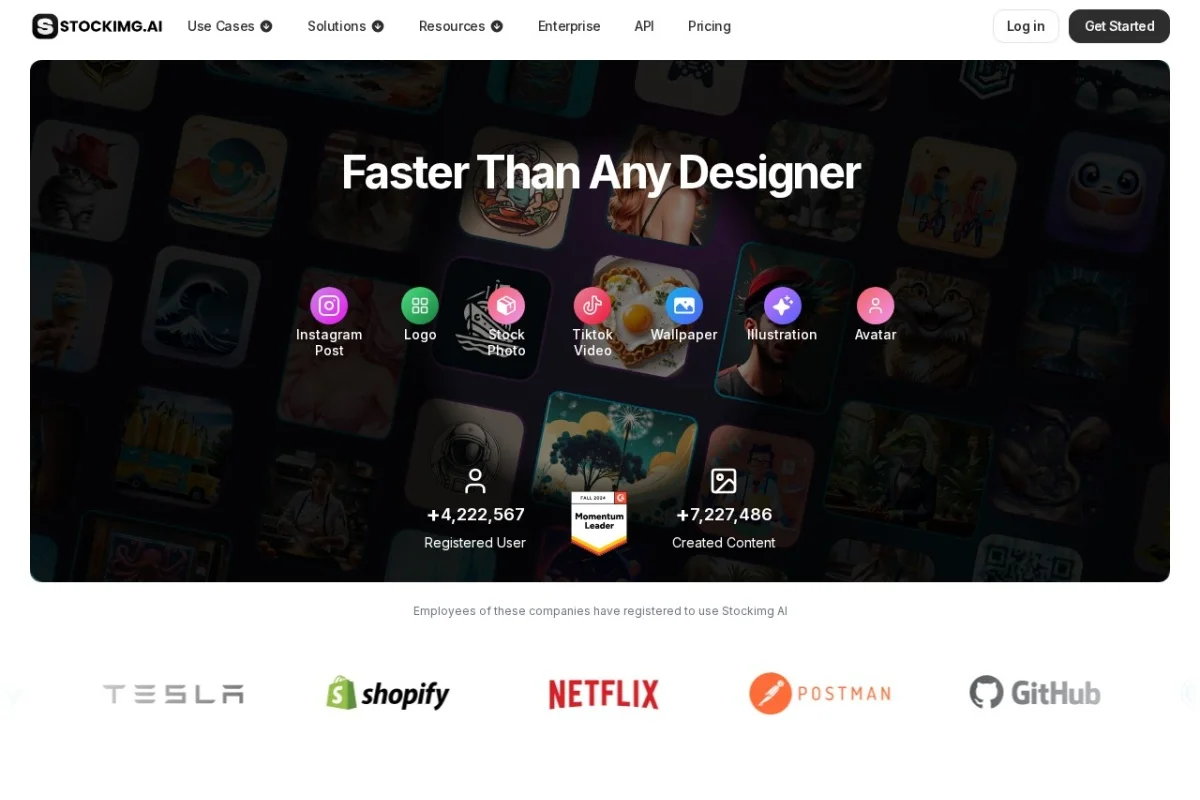
Stockimg AI is an all-in-one cloud-based platform that leverages artificial intelligence to democratize design and content creation. It’s built for entrepreneurs, small business owners, marketers, social media managers, and anyone who needs high-quality visual assets without the steep learning curve or cost of traditional design tools. The platform’s core promise is simple: to save you significant time and money.
Unlike single-purpose AI image generators, Stockimg AI functions as a complete toolkit. You can start from scratch by generating logos, illustrations, and stock photos based on text descriptions. Then, you can take those generated assets (or your own uploads) and use them to craft polished posts for Instagram, TikTok, or YouTube Reels, complete with trending audio and text overlays. Finally, you can manage your entire content calendar by scheduling and automating posts directly to over ten connected social platforms. It’s a seamless journey from idea to publication, all within a single, user-friendly interface.
Getting Started with Stockimg AI
Beginning your journey with Stockimg AI is a straightforward process designed to get you creating in minutes.
Step 1: Creating Your Account
Navigate to the Stockimg AI website. Look for the “Sign Up” or “Get Started” button, typically located in the top right corner. You can usually register using your email address or through a convenient social login like Google. Choose a plan that fits your needs; many platforms offer a free tier or a trial period, which is perfect for exploring the basic features.
Step 2: Exploring the Dashboard
After logging in, you’ll land on your main dashboard. This is your command center. Take a moment to familiarize yourself with the layout. You will likely see:
- A Navigation Menu: This is your gateway to all tools, typically found on the left side or top of the screen.
- Creation Tools: Clear buttons or sections for “AI Image Generator,” “Logo Maker,” “Social Media Post Creator,” etc.
- Content Calendar: A visual calendar where you can view, drag, and drop scheduled posts.
- Media Library: A repository for all your AI-generated images, uploaded files, and created projects.
Step 3: Connecting Social Media Accounts (Optional but Recommended)
To unlock the full power of scheduling and automation, connect your social media profiles. Look for a “Settings,” “Integrations,” or “Accounts” section. Stockimg AI supports platforms like Instagram, Facebook, TikTok, Twitter (X), LinkedIn, Pinterest, and more. Follow the on-screen prompts to authorize the connection securely. This step ensures your finished content can be published directly without manual uploading.
Key Features Deep Dive
Stockimg AI packs a multitude of features into one platform. Let’s break down the core capabilities that make it stand out.
AI-Powered Asset Generation
This is the heart of the creative engine. Instead of searching stock photo websites, you describe what you need, and the AI creates it.
- AI Logo Generator: Input your company name, industry, and preferred style keywords (e.g., “modern, minimalist, tech, blue”) to generate a variety of unique logo concepts.
- AI Illustration & Stock Photo Generator: Need a specific image that doesn’t exist? Type a detailed prompt like “a happy pug working on a laptop in a sunny home office, digital art” to get custom illustrations or photo-realistic images.
Social Media Content Creation
Transform your generated images or uploads into ready-to-publish content.
- Post Designer for Instagram, TikTok, Reels: Pre-sized templates ensure your content fits each platform perfectly. Add text, filters, and elements.
- Video Creation with Audio: Create short-form videos by combining images/videos with a vast library of licensed, trending music and sound effects, crucial for TikTok and Reels success.
Advanced Editing Suite
The AI’s first output might not be perfect. The built-in editor allows you to refine everything.
- Basic & Advanced Edits: Crop, resize, adjust brightness/contrast, apply filters, and remove backgrounds with AI.
- Text & Graphic Overlays: Add stylish fonts, shapes, stickers, and icons to make your posts pop.
Social Media Management Hub
Move beyond creation to consistent publication.
- Visual Content Calendar: Plan your posting strategy by dragging and dropping posts across days and weeks.
- Bulk Scheduling & Automation: Schedule a week’s or month’s worth of content in one sitting. Set optimal posting times automatically.
- Multi-Platform Integration: Publish or schedule to all your connected accounts simultaneously or customize for each platform.
How to Use Stockimg AI: A Practical Walkthrough
Let’s walk through a common workflow: creating and scheduling an Instagram post from scratch.
Part 1: Generating a Base Image
Imagine you run a cozy coffee shop and need a visual for a post about your new autumn latte.
- From the dashboard, click on “AI Image Generator” or a similar option.
- In the text prompt box, write a detailed description: “A steaming mug of coffee with cinnamon and foam art on a wooden table, autumn leaves in the background, soft morning light, photorealistic.”
- Select an image style (e.g., “Photo”) and choose an aspect ratio suitable for Instagram (like 1:1 square or 4:5 portrait).
- Click “Generate.” In seconds, you’ll have multiple image options. Select your favorite and save it to your Media Library.
Part 2: Designing the Instagram Post
- Now, navigate to the “Social Media Post” or “Instagram Post” creator.
- Choose a template or start with a blank canvas in the correct Instagram size.
- Upload your newly generated coffee image as the background.
- Use the editing tools:
- Add a text overlay: “Fall in Love with Our New Spiced Latte!” using a stylish font.
- Place a graphic element like a leaf icon near the text.
- Adjust the image warmth to enhance the autumn feel.
- When satisfied, save the project.
Part 3: Scheduling the Post
- Go to the Content Calendar section.
- Click on the date you want the post to go live.
- Select “Create Post” or drag your saved design into the calendar slot.
- A composer window will open. Write your engaging Instagram caption, add relevant hashtags (#AutumnVibes #CoffeeLover), and tag your location.
- Ensure the correct connected Instagram account is selected.
- Choose your desired posting time (or use the AI-recommended optimal time).
- Click “Schedule.” Your post is now queued and will publish automatically at the set time.
Pro Tips for Maximizing Stockimg AI
To truly excel with this tool, go beyond the basics with these strategic tips.
Mastering the AI Prompt
The quality of your generated images depends heavily on your descriptive prompts.
- Be Specific and Detailed: Instead of “a dog,” try “a fluffy golden retriever puppy playing in a field of daisies, sunset, wide-angle lens, vibrant colors.”
- Use Style Keywords: Incorporate terms like “minimalist vector logo,” “3D render,” “watercolor illustration,” “cinematic photo,” or “vintage poster.”
- Iterate and Refine: Use the initial results to improve your prompt. If the image is too dark, add “bright lighting” to your next try.
Streamlining Your Workflow
- Batch Create Content: Dedicate a block of time to generate multiple images and design a week’s worth of posts in one session. Use the bulk scheduler to set them all up at once.
- Build a Brand Kit: If using the logo generator, save your final logo and brand colors. Consistently use these colors and fonts in your social posts within the editor to maintain brand identity.
- Leverage the Media Library: Keep all your assets organized here. Tag or folder your images (e.g., “Product Photos,” “Backgrounds,” “Logos”) for quick access later.
Strategic Social Media Management
- Analyze and Adapt: While Stockimg AI excels at creation and scheduling, always check your native platform insights (Instagram Insights, etc.). Use this data to inform what type of visuals and posting times work best, then adjust your Stockimg strategy accordingly.
- Repurpose Content: Create one strong AI image and repurpose it. Turn it into an Instagram post, a TikTok video with audio, and a Pinterest pin by adjusting the dimensions and text in the editor.
- Stay Compliant: When using AI-generated content, especially for commercial use, always review Stockimg AI’s terms of service regarding licensing and usage rights to ensure you’re in the clear.
Stockimg AI represents a significant leap forward in making professional design and consistent social media presence accessible to everyone. By combining generative AI with practical editing and robust scheduling tools, it removes the traditional barriers to entry. Start by experimenting with the AI generators, embrace the iterative process of prompt refinement, and gradually build up to a fully automated content calendar. With practice and the guidance in this tutorial, you’ll be able to produce a stunning, cohesive visual brand and maintain an active social media presence with a fraction of the effort and cost. Your journey to simpler, smarter content creation starts now.

Stockimg AI Design and Content Creation Tool
An AI-powered all-in-one tool for generating logos, illustrations, social media posts, and videos instantly.