Unlock Your Design Potential: A Complete Beginner’s Guide to PatternedAI
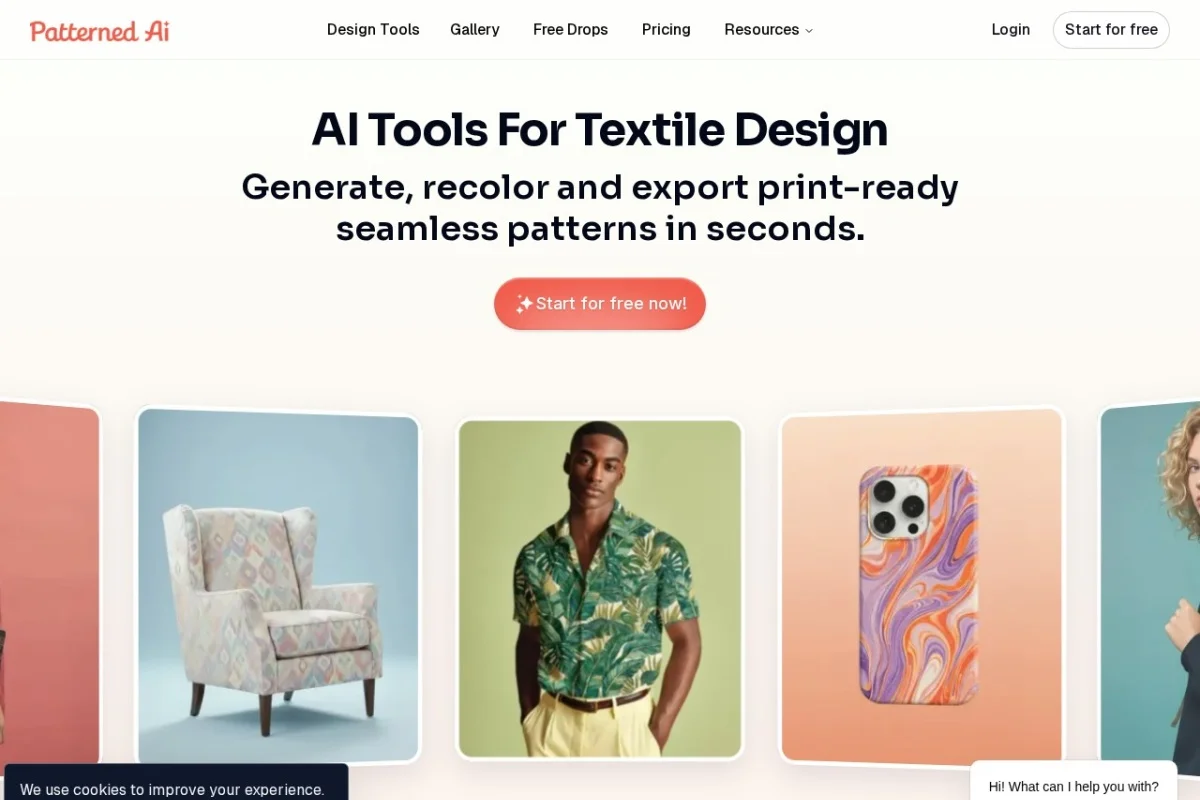
In the fast-paced worlds of fashion, textiles, and product design, creating unique, high-quality patterns can be a time-consuming and technically challenging process. This is where PatternedAI revolutionizes the workflow. PatternedAI is a powerful, AI-powered design tool built specifically to generate seamless, print-ready patterns. Whether you’re a seasoned designer looking to accelerate your process or a complete beginner with a creative vision, this tool translates your ideas—from a simple text description or an existing image—into professional, tiling patterns in minutes. This tutorial will guide you through every step, from creating your first account to exporting production-ready files.
What Makes PatternedAI Special?
Unlike generic AI image generators, PatternedAI is purpose-built. Its AI is trained to understand the specific requirements of a seamless pattern—a design where the edges match perfectly, allowing it to be tiled infinitely without visible seams or breaks. This is the cornerstone of fabric, wallpaper, and wrapping paper design. The platform wraps essential tools like generation, extraction, recoloring, and fixing into one streamlined interface, removing the complex technical hurdles traditionally associated with pattern creation.
Getting Started with PatternedAI
Beginning your pattern-making journey is straightforward and requires no prior design software experience.
1. Creating Your Account
Navigate to the PatternedAI website at https://patterned.ai/. Look for the “Sign Up” or “Get Started” button. You can typically register using your email address or through a convenient social login like Google. New users often start with a free tier or trial, which provides a set number of credits to explore the core features—perfect for learning the ropes.
2. Understanding the Dashboard
After logging in, you’ll land on your main dashboard. This is your control center. Key areas to identify include:
- Create New Pattern: The primary button to start a fresh project using text or image upload.
- My Patterns/History: Where all your generated and uploaded designs are stored for easy access.
- Credits/Usage: A display showing your remaining generation credits.
- Tool Menu: Access to all the platform’s features like the Pattern Fixer, Recolor tool, and Upscaler.
3. Acquiring Credits
PatternedAI typically operates on a credit-based system. Each AI generation or advanced operation uses a certain number of credits. You can purchase credit packs or subscribe to a monthly plan for higher volume. The free trial credits are excellent for your first experiments.
Exploring the Key Features of PatternedAI
PatternedAI packs a suite of intelligent tools tailored for the pattern design workflow. Here’s what each one does:
Text-to-Pattern AI Generation
This is the flagship feature. You describe the pattern you envision in plain English, and the AI generates multiple seamless pattern options. For example, typing “watercolor lemons on a light blue background” or “geometric art deco shapes in gold and black” will produce relevant, tiling designs.
AI Seamless Pattern Extraction
Have an existing image, sketch, or logo you love? Upload it, and the AI intelligently analyzes it, isolates the core elements, and transforms them into a perfectly seamless, tileable pattern. It identifies motifs and arranges them to avoid hard edges.
One-Click Pattern Recoloring
This powerful tool lets you instantly change the color palette of any pattern you’ve generated or uploaded. You can input specific hex color codes or choose from preset themes, allowing for rapid iteration and creating cohesive collections from a single design.
Seamless Pattern Fixer
If you have a pattern that almost works but has visible seams or awkward edges when tiled, upload it to the Pattern Fixer. The AI will analyze the edges and seamlessly blend them, creating a perfect, continuous tile.
Pattern Upscaler
Need your pattern in a higher resolution for large-format printing? The Upscaler uses AI to increase the resolution and detail of your pattern without losing quality or introducing blurriness.
Export and Integration Features
- SVG and PNG Export: Download your final patterns in versatile, production-ready formats. PNG for standard raster printing, and vector-based SVG for infinite scalability without quality loss.
- Product Mockup Visualization: See your pattern applied to real-world items like t-shirts, dresses, tote bags, or wallpaper directly within the platform. This is invaluable for presentations and client approvals.
- White-Label API Integration: For businesses and developers, this allows you to integrate PatternedAI’s core technology directly into your own applications or websites under your own branding.
How to Use PatternedAI: A Step-by-Step Workflow
Let’s walk through a common project: creating a custom fabric pattern from a text idea.
Step 1: Generate Your Base Pattern
Click the main “Create” button. Select the Text-to-Pattern option. In the text prompt box, be as descriptive as possible. A good prompt includes: Subject + Style + Color Palette + Background. For instance: “Tiny scattered eucalyptus leaves in a botanical illustration style, sage green and white, on a cream linen texture background.” You can often select a style filter (e.g., “Watercolor,” “Vector,” “Vintage”) to further guide the AI. Choose the number of variations you want to generate and click “Create.”
Step 2: Review and Select
The AI will present you with several pattern options. Click on each to view them in a larger tile view. Examine them closely for seamless tiling—look for any obvious repeating elements or harsh lines. Select your favorite by clicking on it to open in the editor.
Step 3: Edit and Recolor
Inside the editor, locate the Recolor tool. Perhaps you want to see the eucalyptus pattern in autumn colors. You can manually input hex codes for rust orange and mustard yellow, or apply a preset like “Warm Tones.” The change happens in real-time. Experiment with several palettes and save each as a new pattern variant.
Step 4: Apply the Seamless Fixer (If Needed)
If you notice a slight seam in your chosen pattern, don’t start over. From your pattern library, select the design and choose the Pattern Fixer tool. Upload the file, and the AI will process it, outputting a corrected, perfectly seamless version. Download both to compare.
Step 5: Upscale for Print
Before final export, if you plan to print the pattern on fabric, use the Upscaler. Select your final pattern, choose a high-resolution output (e.g., 4K), and let the AI enhance it. This ensures crisp details on the final product.
Step 6: Visualize and Export
Use the Mockup Visualization feature. Choose a product, like a “Summer Dress,” and apply your pattern. See how it looks from different angles. Once satisfied, click Export. Choose your format:
- PNG: Select a high DPI (e.g., 300 DPI) for professional printing. The file will download as a tileable image.
- SVG: For vector-based workflows or scaling to any size. This is ideal for laser cutting or digital displays.
Your pattern is now ready for your manufacturer, print-on-demand service, or next design project.
Pro Tips for Mastering PatternedAI
To consistently get great results and work efficiently, keep these tips in mind:
Crafting Effective Text Prompts
- Be Specific: “Small, overlapping circles” is okay, but “irregular organic circles in a dense, honeycomb layout, mint and coral” is better.
- Use Style Keywords: Incorporate terms like “linocut,” “watercolor wash,” “stained glass,” “retro 70s,” “minimalist line art.”
- Describe the Layout: Use words like “scattered,” “uniform grid,” “diagonal stripes,” “randomized,” “ombré fade.”
- Reference Textures: “On a paper texture,” “on a knitwear background,” “grainy overlay.”
Optimizing Images for Pattern Extraction
- Use images with clear, high-contrast subjects on a simple background for best results.
- The AI will work to remove backgrounds, but starting with a clean image yields a cleaner pattern.
- For logo patterns, ensure your logo file is as high-quality as possible.
Strategic Use of the Recolor Tool
- Create seasonal collections (Spring Pastels, Autumn Hues) from one master pattern to save time.
- Use the tool to test how a pattern looks with different brand colors before finalizing.
- Generate a base pattern in neutral colors, then recolor it into multiple vibrant options.
Workflow Integration
- Always use the Mockup Visualizer before final export. A pattern that looks good as a tile can look very different on a curved garment.
- Save every iteration you like in your “My Patterns” library. You can build a personal catalog of assets for future projects.
- For advanced users, explore the API documentation to automate pattern generation for large-scale or custom applications.
PatternedAI democratizes the art of pattern making, placing powerful, industry-specific AI directly into the hands of creators. By following this guide, you are now equipped to navigate the platform with confidence, from that initial spark of an idea to a finalized, professional-grade design. Start experimenting, embrace the iterative process facilitated by the AI, and watch your textile and product visions come to life with unprecedented speed and ease. Happy patterning!
PatternedAI: AI Seamless Pattern Generator
AI-powered tool for generating seamless patterns for textile and fashion design.