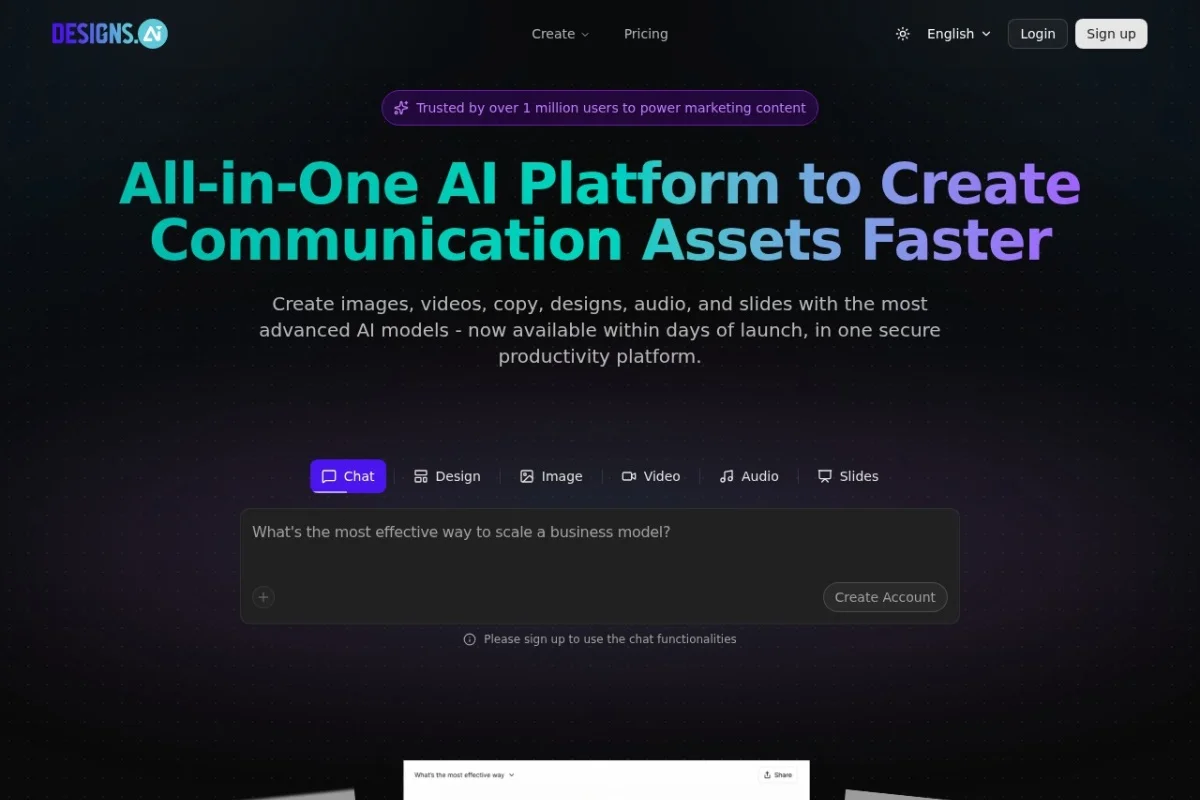
Your Complete Guide to Designs.ai: The AI-Powered Creative Suite
In today’s fast-paced digital world, creating high-quality visual and audio content is essential, but it can also be time-consuming and require specialized skills. Enter Designs.ai, an all-in-one artificial intelligence platform that puts the power of professional design, video, writing, and audio creation at your fingertips. Whether you’re a solopreneur, marketer, educator, or small business owner with no prior design experience, Designs.ai empowers you to produce stunning, brand-consistent communication assets in minutes, not hours. This detailed tutorial will walk you through everything you need to know to start creating with this innovative tool.
Getting Started with Designs.ai
Beginning your creative journey with Designs.ai is a straightforward process designed to get you from sign-up to creation as quickly as possible.
Creating Your Account
First, navigate to the official website at https://designs.ai/. Look for the “Sign Up” or “Get Started” button, typically located in the top right corner. You can usually register using your email address or through a convenient social login like Google. The platform offers various subscription plans, including a free tier with limited credits, which is perfect for exploring the core features. Choose the plan that fits your needs and complete the registration process.
Understanding the Dashboard
Once you log in, you’ll be greeted by the main dashboard. This is your creative command center. You’ll see clear icons or cards for each of the platform’s main tools:
- LogoMaker for brand identity.
- GraphicMaker for social media posts, banners, and flyers.
- Videomaker for producing video content.
- AI Writer for generating copy and scripts.
- SpeechMaker for text-to-speech audio.
- PresentationMaker for slides.
- AI Chat for brainstorming and assistance.
Take a moment to familiarize yourself with this layout. Your recent projects may also be displayed here for easy access.
Setting Up Your First Brand (Highly Recommended)
Before diving into creating random assets, leverage one of Designs.ai’s strongest features: Brand Consistency. Click into the brand management section (often called “Brand Kit” or similar). Here, you can create a new brand by inputting your company name, industry, and preferred color styles. You can upload an existing logo or create one instantly with LogoMaker. The system will then generate a complete brand guideline including a primary and secondary color palette, and a selection of complementary fonts. Setting this up early ensures every asset you create afterward automatically aligns with your brand identity.
Key Features and Tools Deep Dive
Designs.ai integrates several powerful AI tools under one roof. Let’s explore what each one does.
1. AI Chat & Multi-LLM Assistance
Think of this as your creative co-pilot. The AI Chat feature provides a conversational interface where you can brainstorm ideas, ask for marketing angles, or generate draft copy for social posts, blogs, or video scripts. A key advantage is its multi-LLM access, meaning it utilizes various large language models that are regularly updated. This gives you diverse perspectives and writing styles, ensuring you get the best possible output for your task.
2. Brand Creation & Management
This isn’t just a logo maker. It’s a full brand identity system. You can generate a logo from a text prompt, then instantly extract its colors to form your brand palette. The platform also suggests typography pairings. Once saved, this “Brand Kit” becomes the foundation for all other tools. The “one-click brand extraction” feature is magical—simply upload any image of a competitor or inspiration, and the AI will pull out the dominant colors and fonts for you to adopt or analyze.
3. AI Image & Graphic Generation
Using the GraphicMaker tool, you can create custom visuals for any platform. Start by choosing a template (e.g., Instagram post, YouTube thumbnail, business card) or a custom dimension. Then, instead of searching for stock photos, use the text-to-image generator. Describe the scene you need (“a cheerful panda working on a laptop in a sunny cafe”), and the AI will generate unique images. You can then customize text, apply your brand colors, and add elements—all with drag-and-drop simplicity.
4. AI-Powered Video Production
The Videomaker transforms scripts into engaging videos. You provide the text, select a template or style, and the AI suggests relevant video clips, images, and background music from its massive media library. You can sync text overlays and transitions automatically. It also allows you to use the text-to-speech voiceovers from SpeechMaker to narrate your video, creating a complete production without ever needing a camera or microphone.
5. Presentation Slide Creation
PresentationMaker takes the pain out of designing slides. Input your topic or bullet points, and the AI will suggest intelligent layouts, color schemes (aligned with your brand), and visual arrangements. It automatically structures your content into a visually coherent story, saving you hours of formatting work.
6. Audio Generation with SpeechMaker
This is a sophisticated text-to-speech engine. Paste your script, and choose from a wide variety of lifelike voices in multiple languages and accents. You can adjust speech rate, pitch, and add pauses for dramatic effect. This is perfect for creating voiceovers for videos, podcasts intros, or audio notes.
How to Use Designs.ai: A Practical Walkthrough
Let’s tie it all together by following a common project from start to finish: creating a social media campaign for a new product.
Step 1: Ideation and Copy with AI Chat
Open the AI Chat. Type in a prompt like: “Generate 5 catchy post ideas and a short video script for launching a new organic coffee brand called ‘Morning Roast’. Target audience: young professionals.” The AI will provide creative options. Select the best ideas and ask it to refine the video script further.
Step 2: Ensure Brand Consistency
Go to your Brand Kit. If you haven’t created one for “Morning Roast,” do it now. Choose earthy, brown, and green tones. Generate a simple logo featuring a coffee bean. Save the brand. Now, every subsequent tool will default to these colors and fonts.
Step 3: Create the Visuals with GraphicMaker
Open GraphicMaker. Select an Instagram post template. Instead of searching for an image, click the AI image generator and type: “A steaming cup of coffee on a rustic wooden table at sunrise, organic style.” Pick the best-generated image. Add your headline using the AI Chat’s suggested copy. The text will automatically appear in your brand’s font and color. Export the image.
Step 4: Produce the Video with Videomaker
Open Videomaker. Choose “Product Promotion” style. Paste the finalized video script from Step 1. The AI will storyboard it with suggested scenes. Use the brand color filter. For the voiceover, click to generate audio using SpeechMaker, selecting a warm, friendly voice. Preview the video, make any timing adjustments, and render it.
Step 5: Generate a Supporting Audio Snippet
Open SpeechMaker. Take a key tagline from your script (e.g., “Morning Roast – Wake Up Naturally”). Generate it in the same voice as your video. Download this short audio file to use in an Instagram Story or podcast ad.
Step 6: Compile a Quick Presentation
Need to present this campaign internally? Open PresentationMaker. Input the key points: Campaign Goal, Target Audience, Key Visuals, Video Strategy. Select a clean layout. The AI will create a branded slide deck ready for presentation in under a minute.
Pro Tips for Maximizing Designs.ai
To truly become a power user and get the highest quality outputs, keep these strategies in mind.
Master the Art of the Prompt
Whether for images, copy, or logos, detailed prompts yield better results. Instead of “a dog,” try “a fluffy golden retriever puppy playing in a field of daisies, bright sunlight, photorealistic style.” The more descriptive you are, the more accurate the AI’s output will be.
Leverage Templates as a Starting Point
Don’t start from a blank canvas unless you have to. Browse the extensive template libraries in GraphicMaker and Videomaker. Even if a template isn’t perfect, it provides a proven structure that you can customize with your brand and content, dramatically speeding up your workflow.
Use the Brand Kit Religiously
The true power of Designs.ai is consistency. For every project, no matter how small, ensure you have the correct Brand Kit selected. This automates the most tedious part of design and makes all your assets look like they belong to the same professional family.
Iterate and Combine Tools
Use the AI Chat to brainstorm, then refine its output. Generate an image in GraphicMaker, then use that image as a visual in your Videomaker project. Create a script in the writer, then turn it into audio and a video. The seamless integration between tools is where your efficiency will skyrocket.
Explore Regularly
Designs.ai frequently updates its AI models and adds new features, templates, and media assets. Set aside a few minutes every couple of weeks to explore new template categories or test the updated AI Chat capabilities to stay ahead of the curve.
By following this guide, you’re now equipped to harness the full potential of Designs.ai. Remember, the best way to learn is by doing. Start with a small, real project, follow the steps, and experiment. You’ll be amazed at how quickly you can produce professional, engaging, and on-brand content that stands out in a crowded digital landscape.

Designs.ai AI-Powered Design Platform
All-in-one AI platform to create images, videos, copy, designs, audio, and slides with advanced AI models.