Master Your Marketing: A Beginner’s Guide to the Simplified AI Marketing Platform
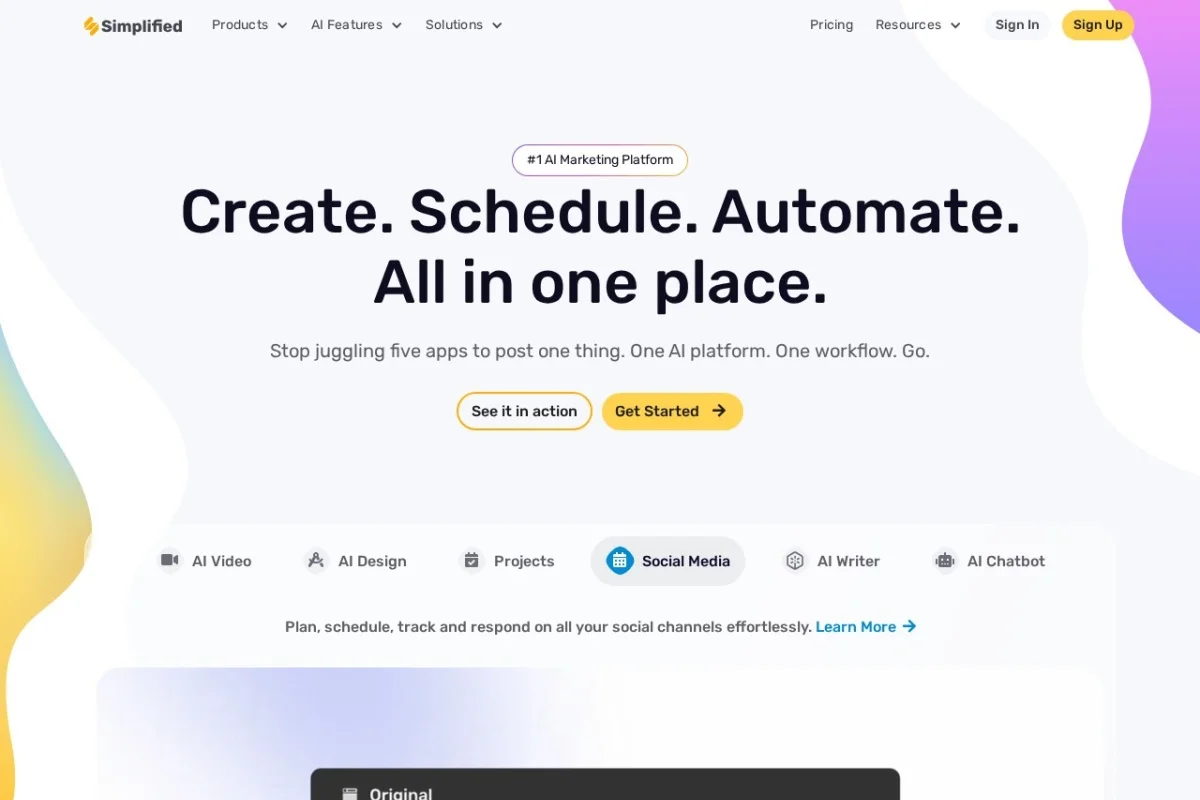
In today’s fast-paced digital world, marketers and content creators are constantly juggling multiple tools: one for writing, another for design, a separate app for video, and yet another for scheduling posts. This fragmented workflow is not only expensive but also incredibly inefficient. Enter Simplified AI Marketing Platform, an all-in-one solution designed to consolidate your entire creative process. This tutorial will guide you, step-by-step, on how to harness this powerful platform to produce, design, and distribute stunning content from a single, intuitive workspace.
Simplified is built on a simple yet powerful premise: to unify the disjointed toolkit of the modern creator. Whether you’re a solo entrepreneur, a social media manager, or part of a large marketing team, Simplified offers an integrated suite of AI-powered tools. You can write a blog post, design its featured image, create a promotional video clip, and schedule it all for publication without ever leaving your browser. By the end of this guide, you’ll be equipped to streamline your workflow, boost your productivity, and unleash your creativity with Simplified.
Getting Started with Simplified
Beginning your journey with Simplified is a straightforward process designed to get you creating in minutes.
- Step 1: Sign Up for an Account
Navigate to https://simplified.com/. Click on the “Sign Up” or “Get Started for Free” button prominently displayed on the homepage. You can typically sign up using your email address, or through convenient options like your Google or Facebook account. Simplified offers a robust free plan, which is perfect for exploring the platform’s core features without any initial investment.
- Step 2: Explore the Dashboard
Once you log in, you’ll be greeted by the main dashboard. This is your mission control center. Take a moment to familiarize yourself with the clean layout. You’ll see clear sections or navigation menus for AI Writer, AI Designer, AI Video Editor, and Social Media. The dashboard may also provide quick-start templates and a glimpse into your recent projects.
- Step 3: Set Up Your Brand (Optional but Recommended)
For consistent marketing, visit the settings or “Brand” section. Here, you can create a Brand Kit. Upload your company logo, define your primary and secondary brand colors, and add your brand fonts. Once saved, these assets will be readily available across the Designer and other tools, ensuring every piece of content you create is on-brand.
- Step 4: Connect Your Social Media Accounts
To use the powerful scheduling features, connect your social media accounts. Look for an “Integrations” or “Accounts” section. Simplified supports all major platforms like Instagram, Facebook, Twitter (X), LinkedIn, Pinterest, and more. Follow the secure, step-by-step prompts to authorize Simplified to publish on your behalf. This one-time setup unlocks the ability to schedule and auto-publish content directly.
Key Features Deep Dive
Simplified packs a tremendous amount of functionality into one platform. Let’s break down its core features to understand what each one offers.
1. AI Writer: Your Content Creation Co-pilot
This is more than a basic text editor. The AI Writer can generate everything from catchy social media captions and product descriptions to long-form blog articles and ad copy. You provide a prompt (e.g., “Write a blog intro about sustainable gardening for beginners”), and the AI generates a draft in seconds. It also includes tools for rephrasing sentences, expanding on paragraphs, adjusting tone (from professional to friendly), and even checking for plagiarism to ensure originality.
2. AI Graphic Designer: Drag, Drop, and Design
Think of this as a simplified, AI-enhanced version of professional design software. It offers thousands of customizable templates for social media posts, stories, flyers, posters, and logos. The magic lies in its AI capabilities: you can describe the image you want (“a minimalist logo for a coffee shop called ‘Bean There'”), and the AI will generate design options. Combined with your Brand Kit, it makes professional design accessible to everyone.
3. AI Video Editor: Quick and Engaging Clips
Video content is king, and Simplified’s video editor makes it easy to reign. You can start from scratch or use templates. Key features include trimming and cutting clips, adding text overlays and music, using AI to generate voiceovers from text, and even automatically creating subtitles to boost accessibility and engagement. It’s perfect for turning a long video into short, shareable social media teasers.
4. Social Media Scheduler & Publisher
This feature brings your content strategy together. You can visually plan your content calendar across all connected platforms. Write your captions, attach your designed images or edited videos, and choose the date and time for publishing. Simplified will then automatically post your content for you, saving you hours of manual work. You can also recycle top-performing posts.
5. Collaboration & Workflow Management
Simplified is built for teams. You can invite team members to your workspace, assign roles and permissions, and collaborate on documents and designs in real-time. Leave comments, approve drafts, and manage the entire content workflow from ideation to publication within the platform, eliminating chaotic email threads and version control issues.
How to Use Simplified: A Practical Walkthrough
Let’s follow a common marketing task from start to finish to see how the tools work together.
Project: Launch a New Product on Social Media
Phase 1: Content Creation with AI Writer
- From your dashboard, click on “AI Writer” and select “Blog Writer” or “Social Media Caption.”
- In the command box, type a detailed prompt: “Write 5 engaging Instagram captions announcing the launch of our new wireless headphones, highlighting noise cancellation and 30-hour battery life. Use an excited tone and include relevant hashtags.”
- Click generate. Review the options provided. Found one you like but want it longer? Use the “Expand” feature. Want to check for uniqueness? Run it through the built-in plagiarism checker.
- Once satisfied, save the copy to your project.
Phase 2: Visual Design with AI Designer
- Now, click over to “AI Designer.” Search for “Instagram Post” templates.
- Choose a template that fits your brand aesthetic. Customize it: change the text to your headline from the AI Writer, use the “Resize” tool to adapt it for different platforms (e.g., Instagram Story, Facebook Post).
- Want a unique background? Use the AI Image Generator within the designer: type “abstract sound waves, dark blue background, tech style” and generate an image to use.
- Apply your Brand Kit colors and fonts with one click for instant brand consistency. Save your designs.
Phase 3: Video Teaser with AI Video Editor
- Go to “AI Video Editor.” Start with a template for “Product Launch.”
- Upload your product video clips or stock footage. Trim them to the key 5-9 seconds.
- Add a text overlay: “Silence the Noise. Launching 11.15!” Use the AI voiceover tool to generate a dynamic voice saying this text.
- Automatically generate subtitles for the voiceover. Add a trending background track from the music library. Export the short video.
Phase 4: Scheduling and Publishing
- Navigate to the “Social Media” scheduler. Click “Create Post.”
- Select all the platforms you want to publish to (e.g., Instagram Feed and Facebook Page).
- Upload your finalized graphic and video. Paste the caption you created with the AI Writer.
- On the calendar view, drag and drop this post to your desired launch date and time. Click “Schedule.” Simplified will now handle the posting automatically.
Pro Tips for Maximizing Simplified
- Master the Art of the Prompt: The AI tools are powerful, but their output depends on your input. Be specific in your prompts. Instead of “write about coffee,” try “write a friendly 100-word Instagram caption for a new Ethiopian cold brew blend, targeting young professionals, emphasizing smooth taste and afternoon refreshment.”
- Leverage Templates as a Springboard: Never start from a blank page if you don’t have to. Browse the template libraries in Writer, Designer, and Video Editor for inspiration and structure. Customizing a template is always faster.
- Use the “Resize” Magic in Designer: After creating one perfect graphic, use the “Resize” feature to instantly adapt it for every other social media platform format. This ensures a cohesive campaign look with one click.
- Batch Create and Schedule: Dedicate a few hours each week or month to batch-create content. Write multiple captions, design all the accompanying graphics, and schedule them out for the next two weeks. This frees up your daily schedule for engagement and strategy.
- Collaborate Early and Often: If you’re on a team, share your project drafts early for feedback. Use the comment features within documents and designs to consolidate all feedback in one place, directly on the asset.
- Explore Multi-Language Support: If your audience is global, use the AI Writer’s translation and multi-language features to adapt your core messaging for different regions, all within the same workflow.
By following this guide, you’ve taken the first steps toward transforming your chaotic, multi-app marketing workflow into a streamlined, efficient, and creative process. The Simplified AI Marketing Platform empowers you to do more with less—less time, less hassle, and less cost. Start with the free plan, experiment with the features outlined here, and gradually integrate Simplified into your daily routine. You’ll soon wonder how you ever managed your marketing without it.

Simplified AI Marketing Platform
An all-in-one AI platform for content creation, design, video editing, and social media management.