Introduction to Adobe Firefly: Your AI Creative Assistant
Welcome to the world of generative AI creativity. Adobe Firefly is a groundbreaking family of generative AI models developed by Adobe, designed to transform how you create images, text effects, and design elements. Unlike many other AI tools that operate in isolation, Firefly is built from the ground up to integrate directly into the Adobe Creative Cloud ecosystem, meaning it speaks the same visual language as Photoshop, Illustrator, and Express.
At its core, Firefly allows you to describe what you want to see using natural language—a simple sentence like “a golden retriever puppy sleeping on a stack of vintage books” instantly becomes a high-resolution, visually stunning image. But Firefly goes far beyond simple text-to-image generation. It offers powerful editing capabilities like Generative Fill, which lets you add, remove, or replace objects in existing photos with a single prompt. For designers, it can generate unique text effects, turning standard typography into works of art made of flowers, metal, or clouds.
One of the most important aspects of Adobe Firefly is its commitment to commercial safety. Because Adobe trained Firefly on licensed content and public domain images, the outputs are designed to be safe for commercial use, making it an ideal tool for marketers, small business owners, and professional designers who need to avoid copyright risks. This tutorial will walk you through everything you need to know to start creating with Firefly, from your first prompt to advanced techniques.
Getting Started with Adobe Firefly
Accessing the Platform
Getting started with Adobe Firefly is straightforward. You can access it in two primary ways:
- Web Browser (Recommended for Beginners): Navigate to https://firefly.adobe.com/. This is the standalone web application that requires no downloads or installations. You can use it on any modern browser including Chrome, Safari, Firefox, or Edge.
- Within Creative Cloud Apps: If you already have Adobe Photoshop or Adobe Illustrator installed, Firefly functionality is built directly into these applications (look for the “Generative Fill” or “Text to Image” panels).
Creating an Account and Understanding Plans
To use Firefly, you need an Adobe ID. If you already have one for other Adobe products, you can sign in immediately. If not, you can create a free account at the Firefly website.
Free Plan: Adobe offers a generous free tier that allows you to generate images and explore the tool. Free users receive a monthly allocation of “generative credits” (typically around 25 credits per month). Each image generation usually consumes one credit. This is perfect for experimenting and learning.
Paid Plans: For heavier usage, Adobe offers paid subscriptions through Creative Cloud, Adobe Express Premium, or dedicated Firefly plans. These plans provide significantly higher monthly credit limits, priority processing, and access to advanced features. If you are a professional designer or marketer generating dozens of images daily, a paid plan is essential.
Understanding the Interface
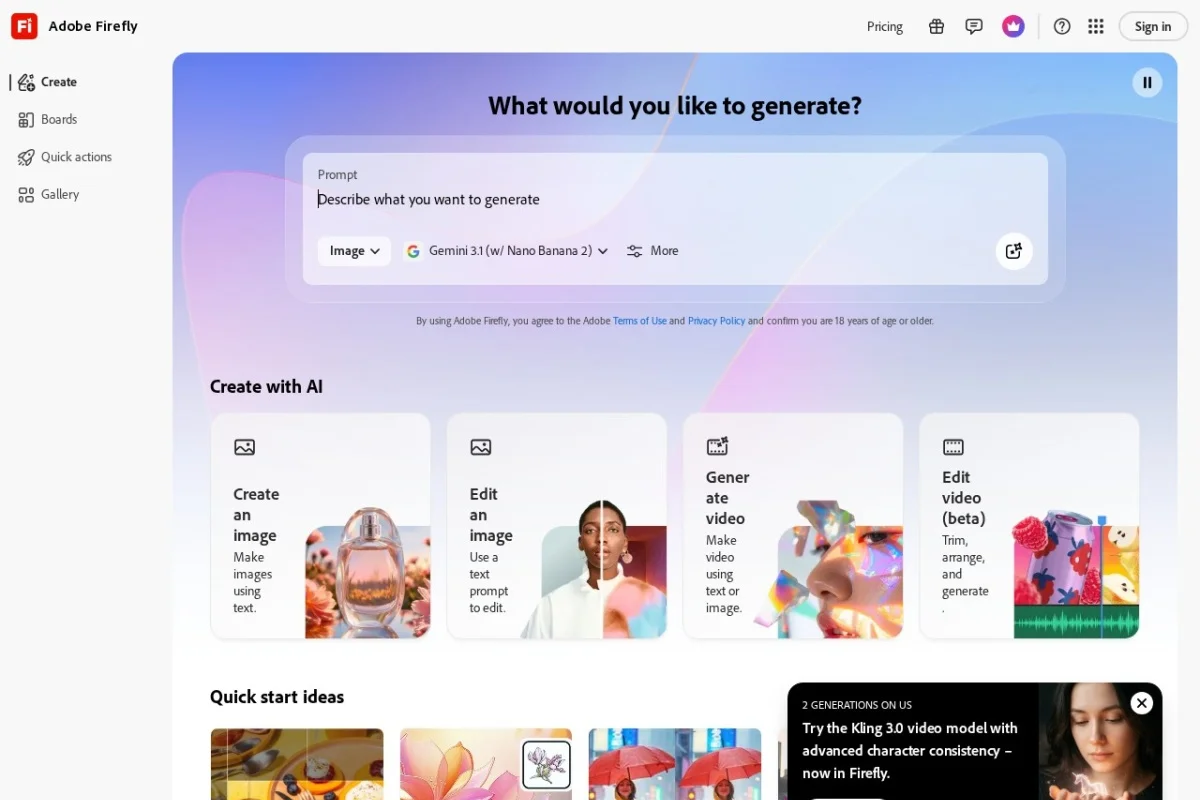
When you first open Firefly on the web, you will see a clean, intuitive interface. The main elements include:
- The Home Dashboard: This is where you can see featured prompts, recent creations, and quick access to different Firefly modules (Text-to-Image, Text Effects, Generative Fill).
- The Prompt Input Box: A large text field at the center of the screen where you type your description. This is your primary tool for communicating with the AI.
- The Settings Panel: Usually located on the right side of the screen, this panel lets you control aspects like aspect ratio, style presets, content type (photo, art, graphic), and color palette.
- The Gallery: Below the prompt box, you will see your generated image results. You can click on any image to view it full-size, download it, or edit it further.
Key Features of Adobe Firefly
Firefly is not just one tool; it is a suite of generative features. Understanding each one will unlock different creative possibilities.
Text-to-Image Generation
This is the flagship feature. You type a description, and Firefly generates multiple images based on your prompt. The AI understands complex relationships, styles, and artistic movements. You can specify everything from “a photorealistic portrait of a woman with freckles in the style of Rembrandt” to “a 3D render of a futuristic city made of crystal.”
Key controls include:
- Aspect Ratio: Choose from landscape (16:9), square (1:1), portrait (9:16), or custom dimensions.
- Content Type: Select “Photo” for realistic images, “Art” for illustrations, or “Graphic” for vector-like designs.
- Style Presets: Firefly offers dozens of built-in styles like “Cinematic,” “Minimalist,” “Cyberpunk,” “Oil Painting,” and “Paper Craft.”
- Color Palette: You can choose a specific color theme to guide the overall mood of the image.
Text Effects and Styles
This feature is a game-changer for graphic designers and marketers. You can type a word or phrase (like “SUMMER” or “SALE”) and then describe a texture or material for the text to be made from. For example, you can prompt: “Text made of blooming cherry blossoms” or “Text made of dripping gold liquid.” Firefly will generate the word rendered in that exact material or style.
This feature does not require a separate image; the AI creates the text from scratch in the style you specify. It is perfect for creating logos, social media headers, posters, and title cards.
Generative Fill and Editing
Generative Fill is a powerful editing tool available within the Firefly web app and integrated into Photoshop. It allows you to select a specific area of an existing image and replace it with AI-generated content. For example, you can:
- Remove a person from a background by selecting them and typing “empty beach.”
- Add an object, like “a red balloon,” to a photo of a park.
- Extend the canvas of a photo, and Firefly will intelligently fill the new space with content that matches the existing image (this is called “Generative Expand”).
To use Generative Fill on the Firefly website, you upload an image, use the brush tool to select the area you want to change, and then type your prompt. The AI will generate several variations for you to choose from.
Integration with Adobe Creative Cloud
Firefly is not a standalone app; it is deeply woven into the fabric of Adobe’s creative software. If you use Photoshop, you can access “Generative Fill” directly from the toolbar. In Illustrator, you can use “Text to Vector Graphic” to create scalable icons and illustrations from prompts. In Adobe Express, Firefly powers the “Text to Image” and “Generative Fill” features, making it easy to create social media graphics. This integration means you can start a project in Firefly and seamlessly continue editing it in Photoshop without losing quality.
How to Use Adobe Firefly: A Step-by-Step Guide
Step 1: Creating Your First Text-to-Image
Let us start with a simple example. Go to https://firefly.adobe.com/ and sign in. Click on “Text to Image.”
Write a basic prompt: In the prompt box, type: “A cozy mountain cabin in the snow at night, warm light coming from the windows, photorealistic.”
Adjust settings:
- Leave the Aspect Ratio as “Landscape” (16:9).
- Set Content Type to “Photo.”
- Under “Style,” select “Cinematic” for a dramatic look.
Generate: Click the “Generate” button. Within a few seconds, you will see four variations of your cabin. You can click on any image to view it in full resolution. If you like one, click the “Download” button (the down-arrow icon) to save it as a JPG or PNG file.
Step 2: Refining Your Prompt
If the results were not exactly what you wanted, do not worry. The key to good AI art is prompt engineering. Let us refine our prompt:
Instead of a simple description, add more detail. Try: “A cozy mountain cabin in the snow at night, warm yellow light from windows, smoke from chimney, pine trees in foreground, cinematic lighting, 8K resolution.”
You can also use the “Negative Prompt” field (if visible) to tell the AI what you do not want. For example, type “no people, no cars.” This helps the AI focus on the environment.
Step 3: Using Generative Fill on an Image
Now, let us edit an existing image. Click on “Generative Fill” from the Firefly homepage.
Upload an image: Click “Upload Image” and select a photo from your computer (a simple photo of a landscape works best).
Select an area: Use the brush tool to paint over the area you want to change. For example, paint over the sky in your landscape photo.
Write a prompt: In the prompt box, type: “A dramatic sunset with orange and purple clouds.”
Generate: Click “Generate.” Firefly will replace the selected sky with the sunset you described. You can generate multiple variations and choose the one that blends best with the rest of your photo.
Step 4: Creating a Text Effect
Click on “Text Effects” from the main menu.
Enter your text: Type the word you want to render, for example, “DREAM.”
Write a style prompt: In the prompt box, type a description of the material or style. For example: “Text made of flowing water with blue and turquoise tones, realistic.”
Generate: Click “Generate.” Firefly will create several variations of the word “DREAM” rendered as liquid water. You can download these as transparent PNG files, which is perfect for overlaying on other designs.
Tips for Getting the Best Results from Adobe Firefly
Write Specific and Descriptive Prompts
The AI responds best to clear, detailed language. Instead of “a cat,” try “a fluffy white Persian cat sitting on a velvet red cushion, soft studio lighting, shallow depth of field.” Include adjectives for lighting, color, mood, and texture. The more information you give, the closer the output will match your vision.
Use Artistic and Technical Terms
Firefly understands photography and art terminology. Words like “cinematic,” “macro photography,” “bokeh,” “wide-angle lens,” “low-poly,” “isometric view,” “watercolor,” and “vector illustration” will significantly influence the style of your output. Do not be afraid to use technical language.
Leverage Style Presets and Color Palettes
Do not rely solely on your prompt text. The Style Presets and Color Palettes in the settings panel are powerful shortcuts. If you want a retro 1970s look, select the “Retro” style preset. If you want a specific brand color, use the Color Palette tool to lock in those hues. This saves you from having to describe colors in the prompt.
Iterate and Use Variations
Your first generation is rarely your final result. Firefly makes it easy to iterate. If you get an image that is almost perfect, click the “Variations” button (usually represented by a refresh icon or a grid icon) to generate slightly different versions of that specific image. This is much more efficient than generating entirely new sets.
Understand Generative Credits
Keep an eye on your credit balance, especially if you are on the free plan. Each generation typically costs one credit. However, using “Variations” or re-generating a single image may also consume credits. Plan your experiments accordingly. For commercial projects, consider a paid plan to avoid running out of credits mid-project.
Combine Firefly with Other Adobe Tools
Firefly is strongest when used as part of a workflow. Generate a background image in Firefly, download it, then open it in Photoshop to add your logo or text. Use Generative Fill in Photoshop to fine-tune small details. Use the Text Effects from Firefly in an Adobe Express template for social media. This combination of tools gives you maximum control and professional results.
Check for Commercial Use Compliance
While Adobe Firefly is designed for commercial safety, always double-check the specific license agreement for the content you generate. Adobe provides clear labeling on Firefly-generated content, and you can generally use it for commercial purposes such as advertising, merchandise, and social media. However, you cannot use Firefly to generate content that infringes on third-party trademarks or depicts public figures without permission.
Conclusion
Adobe Firefly represents a major leap forward in making generative AI accessible, professional, and commercially viable. Whether you are a seasoned graphic designer looking to speed up your workflow, a marketer needing quick visuals for a campaign, or a complete beginner exploring AI art for the first time, Firefly offers a powerful yet intuitive platform. By understanding its key features—Text-to-Image, Text Effects, and Generative Fill—and by practicing the art of prompt writing, you can create stunning visuals that were previously impossible or time-consuming to produce. Start with the free plan, experiment with different styles, and remember that the best results come from iteration and creativity. Welcome to the future of design with Adobe Firefly.

Adobe Firefly
Adobe Firefly is a generative AI tool for creating images and designs.