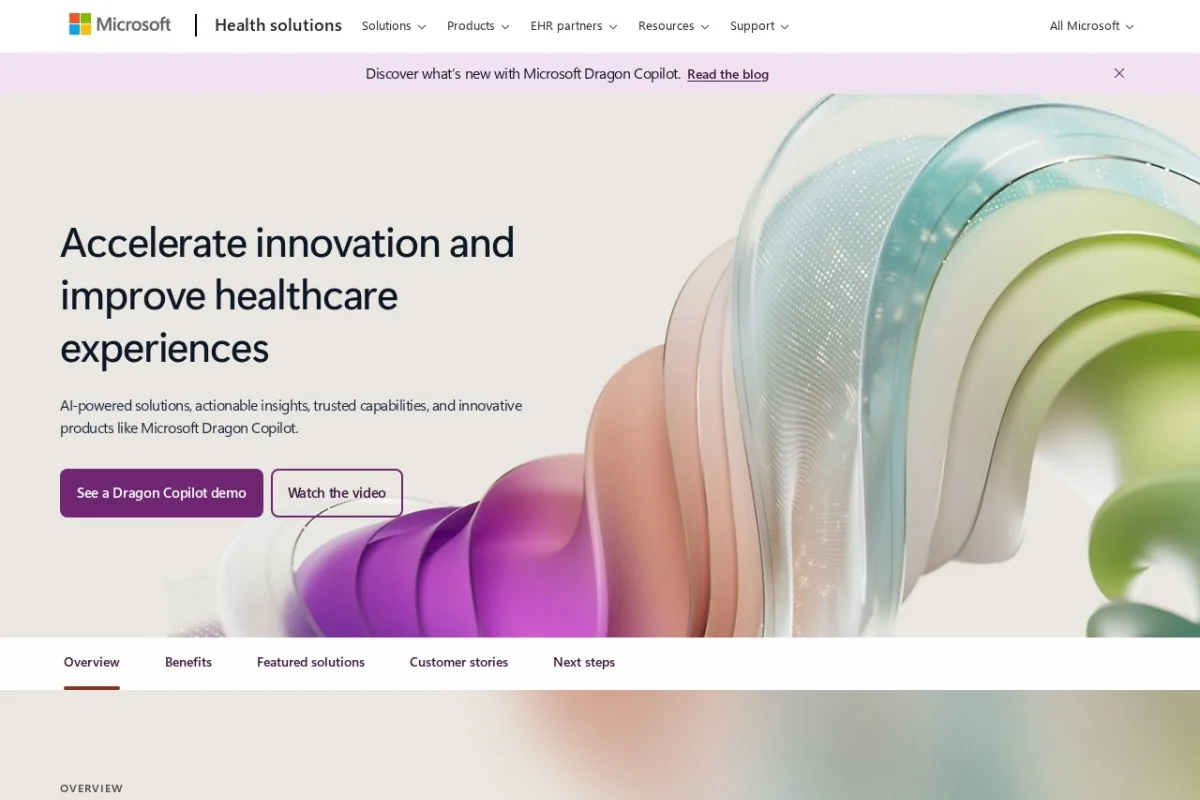
Introduction to Nuance: Your AI-Powered Productivity and Healthcare Companion
In an era where time is the most valuable currency, the ability to streamline workflows, reduce manual data entry, and enhance decision-making is paramount. Nuance, now a proud part of the Microsoft ecosystem, stands at the forefront of this transformation. Far more than a simple speech-to-text tool, Nuance represents a comprehensive suite of AI-driven solutions designed to revolutionize how professionals work—from busy executives dictating emails to radiologists analyzing complex medical images.
At its core, Nuance leverages decades of research in artificial intelligence, natural language processing, and deep learning to deliver industry-leading accuracy and security. Whether you are a physician looking to spend less time on documentation and more time with patients, a radiologist seeking to improve diagnostic confidence, or a business professional aiming to boost daily productivity, Nuance offers a scalable, secure, and intelligent platform. This tutorial will guide you through the essentials of Nuance, from getting started to mastering its key features, ensuring you can harness its full potential from day one.
Getting Started with Nuance
Before diving into the advanced capabilities, it is crucial to understand the Nuance ecosystem and how to set up your account properly. The platform is modular, meaning you will access different tools based on your specific role and needs.
1. Understanding the Nuance Product Families
Nuance is not a single application but a collection of specialized solutions. As a beginner, you should identify which product aligns with your workflow:
- Dragon Professional & Consumer: For general business productivity, transcription, and voice commands. Ideal for writers, lawyers, and executives.
- Dragon Medical One: A cloud-based speech recognition solution specifically for physicians, integrated with Electronic Health Records (EHR).
- PowerScribe One: A radiology reporting platform that uses AI to structure and automate radiology reports.
- Nuance Healthcare Solutions: A broader suite including ambient clinical intelligence (DAX Copilot) and diagnostic imaging AI.
2. Creating Your Account and Installation
To get started, visit the official Nuance website at https://www.nuance.com. Depending on your chosen product, follow these general steps:
- Step 1: Click on “Products” and select the solution that fits your profession (e.g., “Dragon” for productivity or “Healthcare” for clinical use).
- Step 2: Choose a subscription plan. Most business and medical products require a monthly or annual subscription. A free trial is often available for Dragon Professional.
- Step 3: Create your account using your work email. For healthcare solutions, you may need to verify your medical credentials.
- Step 4: Download the installer from your account portal. For cloud-based solutions like Dragon Medical One, you will download a lightweight client that connects to Microsoft Azure servers.
- Step 5: Run the installer and follow the on-screen prompts. You will be asked to select your microphone. For best results, use a high-quality noise-canceling headset or a Nuance-approved microphone.
3. Initial Setup and Microphone Calibration
Accuracy begins with proper audio setup. After installation, the software will guide you through a microphone calibration process:
- Find a quiet environment.
- Position the microphone about one inch from your mouth, slightly to the side (to avoid “plosive” sounds like ‘p’ and ‘b’).
- Read the calibration text aloud at a natural pace. The software will adjust to your voice’s volume and tone.
- Complete the “Audio Setup” wizard. This is critical for achieving the advertised 99% accuracy rate.
Key Features of Nuance
Nuance’s power lies in its deep feature set. Below, we break down the most impactful features across its productivity and healthcare lines.
1. Advanced Speech Recognition for Productivity
This is the flagship feature of the Dragon family. Unlike basic voice typing, Nuance uses deep learning to understand context, punctuation, and even your specific vocabulary.
- Real-time Dictation: Speak naturally, and your words appear instantly in any application—Word, Outlook, Slack, or web browsers.
- Voice Commands: Control your computer entirely by voice. You can say “Open Google Chrome,” “Scroll down,” “Select next word,” or “Bold that.”
- Custom Vocabulary: Add industry-specific jargon, acronyms, or client names. The software learns your unique lexicon over time.
- Text-to-Speech: Have documents read back to you for proofreading, which helps catch errors faster.
2. AI-Powered Healthcare Solutions for Physicians
For clinicians, Nuance transforms the EHR experience from a burden into a seamless interaction.
- Dragon Medical One (DMO): A cloud-based solution that integrates directly with your EHR (Epic, Cerner, etc.). You can navigate patient charts, enter orders, and document notes entirely by voice.
- DAX Copilot (Ambient Intelligence): This is a game-changer. During a patient visit, DAX listens to the conversation (with consent) and automatically generates a clinical note in real-time, structured into SOAP format (Subjective, Objective, Assessment, Plan).
- Voice Biometrics: Physicians can authenticate their identity using their voice, eliminating the need for passwords and reducing login time.
3. AI-Powered Solutions for Radiologists
Radiology reporting is highly specialized. Nuance’s PowerScribe One addresses this with precision.
- Structured Reporting: Speak naturally, and the AI extracts findings to populate structured templates, ensuring compliance with standards like ACR (American College of Radiology).
- Critical Results Management: Automatically flag urgent findings (e.g., pneumothorax) and trigger alerts to the referring physician.
- AI-Assisted Worklist: Prioritize studies based on clinical urgency using Nuance’s AI algorithms, reducing the risk of missing critical cases.
4. Secure and Scalable Infrastructure
Security is non-negotiable, especially in healthcare. Nuance, running on Microsoft Azure, offers:
- HIPAA Compliance: All data is encrypted at rest and in transit. Business Associate Agreements (BAAs) are standard.
- Zero Trust Security: Every access request is verified, regardless of network location.
- Scalability: Whether you are a solo practitioner or a 10,000-physician health system, the cloud infrastructure scales instantly without performance loss.
5. Deep Integration with the Microsoft Ecosystem
Since joining Microsoft, Nuance has deepened its integration with tools you already use:
- Microsoft Teams: Dictate messages or use voice commands during meetings.
- Microsoft 365 (Office): Seamless dictation into Word, Excel, and Outlook.
- Azure Cognitive Services: Developers can integrate Nuance’s speech recognition into custom applications using Azure APIs.
- Power Automate: Create workflows where a spoken command triggers an action, such as sending an email or updating a CRM record.
How to Use Nuance: A Step-by-Step Guide
Let’s walk through three practical scenarios to demonstrate how to use Nuance effectively.
Scenario 1: Using Dragon Professional for Daily Office Tasks
Goal: Dictate a report and format it using voice commands.
- Open Dragon: Launch the Dragon application from your system tray. Ensure the microphone icon is green (listening).
- Open Your Application: Open Microsoft Word. You will see a floating Dragon toolbar.
- Dictate: Say “Wake up” (if the microphone is sleeping). Then, speak naturally: “Dear Mr. Smith, I am writing to confirm our meeting on Friday at 2 PM.”
- Format Using Voice: Say “Select ‘Friday'” then say “Underline that.” Say “New paragraph.” Then say “Please bring the quarterly report.”
- Correct Errors: If the software misheard a word, say “Correct ‘Friday'” and the system will show a list of alternatives. Say the number next to the correct word.
- Save and Send: Say “Save document” and then “Open Outlook.” Say “New email to John Doe” and dictate the body of the email.
Pro Tip: Use the “Dictation Box” for quick, temporary notes that you can copy-paste later.
Scenario 2: A Physician Using Dragon Medical One with an EHR
Goal: Document a patient encounter and place an order.
- Log In: Launch Dragon Medical One. Use your voice biometrics to authenticate: “My voice is my password.”
- Open Patient Chart: Say “Open chart for [Patient Name].” The EHR opens to the correct patient.
- Navigate: Say “Go to History of Present Illness.”
- Dictate the Note: Speak naturally: “The patient is a 45-year-old male with a history of hypertension, presenting with chest pain for three days. Pain is substernal, non-radiating, 5 out of 10.”
- Use Macros: Say “Insert physical exam macro.” The software populates a standard exam template. You can edit by saying “Change blood pressure to 130 over 80.”
- Place an Order: Say “Order an EKG.” The system will confirm the order in the EHR.
- Sign the Note: Say “Sign note.” The note is saved and coded for billing.
Pro Tip: Create custom “Voice Shortcuts” for frequently used phrases, like “Plan: Continue current medications, follow up in one week.”
Scenario 3: A Radiologist Using PowerScribe One for Reporting
Goal: Dictate a chest X-ray report with structured findings.
- Open Study: PowerScribe One automatically loads the next study from your worklist. Say “Next study.”
- Auto-Populate: The AI pre-fills patient demographics and clinical indication from the order.
- Dictate Findings: Speak clearly: “Heart size is normal. Mediastinum is unremarkable. Lungs are clear without focal consolidation, effusion, or pneumothorax.”
- Use Structured Templates: Say “Insert chest template.” The system converts your free text into a structured format with headings like “Lungs,” “Pleura,” and “Bones.”
- Add Impression: Say “Impression: No acute cardiopulmonary abnormality.”
- Flag Critical Result: If you see something urgent, say “Flag as critical.” The system will alert the referring physician.
- Sign and Send: Say “Sign report.” The report is sent to the EHR and the referring provider.
Pro Tip: Use the “AI Assistant” to query the system: “What is the patient’s prior study date?” The AI will pull the information from the PACS (Picture Archiving and Communication System).
Tips for Getting the Most Out of Nuance
To truly master Nuance and achieve peak productivity, follow these expert tips.
1. Train Your User Profile
Speech recognition improves with use. After your first dictation session, go to the “Accuracy Center” and run the “Train Your Profile” tool. Read additional text passages to help the AI learn your accent, speech patterns, and vocal nuances. The more you train, the fewer corrections you will need.
2. Master Voice Commands
Do not just dictate words—command your computer. Memorize these high-value commands:
- Navigation: “Go to address bar,” “Switch to [Application Name]”
- Editing: “Delete that,” “Insert line,” “Copy that,” “Paste here”
- Mouse Control: “Mouse grid” (opens a numbered grid on screen; say a number to click there)
3. Optimize Your Environment
Background noise is the enemy of accuracy. Use a high-quality microphone (the Dragon-branded ones are excellent). Close windows and doors. If you are in a noisy office, use a headset with a noise-canceling boom microphone. Avoid speaking over music or TV.
4. Leverage Custom Vocabulary and Auto-Texts
In the Dragon toolbar, go to “Tools” > “Vocabulary Editor.” Add:
- Names of clients, colleagues, or medications.
- Industry acronyms (e.g., “SOAP” for clinical notes, “ROI” for business).
- Auto-texts: Create a shortcut like “addr” that expands to your full mailing address.
5. Use the “Playback” Feature for Proofreading
After dictating a long document, use the “Playback” feature to have Nuance read the text back to you. This helps you catch errors that your eyes might miss, especially homophones (e.g., “their” vs. “there”).
6. Integrate with Power Automate for Workflow Automation
For advanced users, connect Nuance to Microsoft Power Automate. For example:
- Create a flow that triggers when you say “Log expense.” The flow opens a form, fills in the date, and asks you to dictate the amount and category.
- Set up a flow that sends a pre-written email to your team when you say “Send standup notes.”
7. Keep Your Software Updated
Nuance and Microsoft release frequent updates that improve accuracy and add new features. Enable automatic updates in your account settings. For healthcare users, ensure your EHR integration plugins are also up to date.
8. Use the Mobile Companion Apps
Dragon Anywhere (mobile app) allows you to dictate on the go. Notes sync to your desktop profile. This is perfect for capturing ideas during commutes or between patient visits.
9. Practice the “Think-Speak” Method
To minimize corrections, think about what you want to say before you speak. Pause briefly between sentences. If you make a mistake, do not stop—simply say “Correct that” and re-dictate the phrase. This maintains your flow.
10. Utilize Microsoft Copilot Integration
If you have a Microsoft 365 Copilot license, you can combine it with Nuance. For example, dictate a draft email, then say “Copilot, make this email more professional.” The AI will rewrite your text while keeping your meaning intact.
Conclusion
Nuance, powered by Microsoft AI, is more than a tool—it is a productivity multiplier. Whether you are a business professional seeking to type three times faster, a physician reclaiming hours from documentation, or a radiologist improving diagnostic accuracy, Nuance delivers tangible results. By following this tutorial, you have learned how to set up the software, navigate its key features, and apply practical tips to master your workflow. Start with small dictation sessions, gradually explore voice commands, and customize your vocabulary. Within a week, you will wonder how you ever worked without it.
Visit https://www.nuance.com to explore the full suite of solutions and begin your free trial today. Your voice is the ultimate interface—let Nuance unlock its power.

Nuance
Nuance is now Microsoft, offering AI-powered speech and healthcare solutions.