Introduction
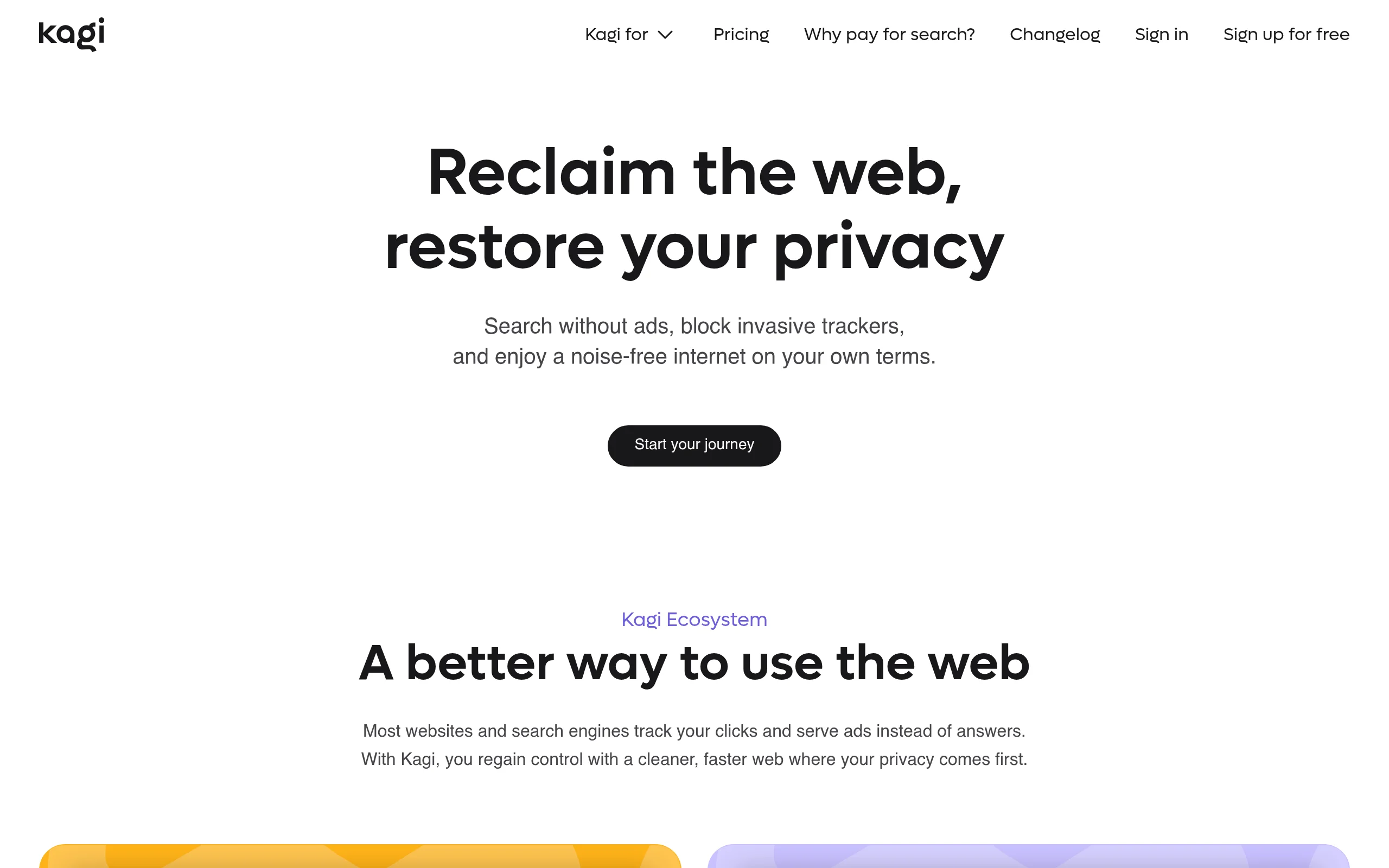
In a digital world dominated by advertising, data collection, and algorithmic manipulation, most search engines and web tools operate with a hidden cost: your privacy. Kagi offers a refreshing alternative. It is a premium, subscription-based search engine and web tools platform that fundamentally reverses the traditional model. Instead of being the product sold to advertisers, you become the customer. Kagi eliminates ads, trackers, and noise from your online experience, delivering clean, relevant results and powerful tools designed to give you control.
Kagi is not just a search engine; it is a complete ecosystem for a healthier internet. It includes the Orion Browser, Kagi Translate, Kagi News, Kagi Summarize, and the Small Web collection. A standout feature is the Kagi Assistant, which provides access to multiple AI models grounded by live search results, all on an opt-in basis. This means AI helps you when you need it, without manipulating your behavior or feeding your data into a corporate machine. This tutorial will guide you from your first visit to Kagi through mastering its most powerful features, all while keeping things beginner-friendly and practical.
Getting Started
Creating Your Account
Begin by navigating to https://kagi.com/. Click the “Sign Up” button located in the top right corner. Kagi is a paid service, which ensures its privacy-first promise. You will be asked to choose a subscription plan. Kagi offers a free trial (typically 100 searches) so you can test the experience before committing. After selecting a plan, you will need to provide an email address and create a password. No personal information beyond what is necessary for billing is required. Kagi does not track your search history or build a profile on you.
Setting Up Your Browser
Once your account is active, you can use Kagi directly on their website, but for the best experience, you should set it as your default search engine. Kagi provides detailed setup guides for all major browsers (Chrome, Firefox, Safari, Edge, and Brave).
- Chrome/Edge/Brave: Go to your browser’s settings, find “Search engine,” and select “Manage search engines.” Add a new search engine with the URL https://kagi.com/search?q=%s and set it as default.
- Firefox: Right-click the address bar, select “Add Kagi,” or install the official Kagi extension from the Firefox Add-ons store.
- Safari: Kagi offers a dedicated Safari extension that not only sets the search engine but also enables additional privacy features.
For the most seamless integration, consider installing the Orion Browser (available for macOS and iOS). Orion is built by the same team behind Kagi and comes with built-in ad-blocking, tracker blocking, and full extension support (including Chrome and Firefox extensions). Using Orion with Kagi creates a unified, privacy-focused environment.
Key Features
Ad-Free and Tracker-Free Search
This is the foundation of Kagi. When you search, you see only organic results. No sponsored links, no promoted content, no tracking pixels. Your search terms are not sent to advertisers, and your search history is not stored. This results in faster page loads and a cleaner, more focused experience.
Powerful Customization Controls and Filters
Kagi gives you unprecedented control over your search results. You can:
- Block Domains: Permanently remove any website from your results. If you dislike a particular blog or forum, add it to your blocklist and it will never appear again.
- Pin Domains: Force certain websites to always appear at the top of your results for specific queries.
- Set Personal Results Ranking: Train the search engine to understand your preferences. You can upvote or downvote results to improve future searches.
- Use Lenses: Apply pre-configured filters to narrow searches. For example, the “News” lens shows only news articles, the “Academic” lens filters for scholarly content, and the “Forums” lens surfaces discussions from Reddit, Stack Overflow, and similar sites.
Kagi Assistant
Kagi Assistant is an integrated AI tool that provides answers grounded in real-time search results. Unlike standalone chatbots that may hallucinate or rely on outdated data, Kagi Assistant cites its sources. You can choose from multiple AI models, including OpenAI’s GPT-4, Anthropic’s Claude, and Kagi’s own models. This feature is entirely opt-in; you only use it when you click the “Ask Assistant” button. It is perfect for summarizing complex topics, getting quick answers, or generating outlines.
Orion Browser
Orion is Kagi’s native browser for macOS and iOS. It is lightweight, fast, and respects your privacy by default. Key features include:
- Built-in Ad and Tracker Blocking: No need for separate extensions.
- Chrome and Firefox Extension Support: You can install extensions from both ecosystems.
- Vertical Tabs: A clean, modern way to manage many open pages.
- Kagi Integration: Seamless connection with your Kagi account for search, summarization, and translation.
Kagi Translate
A private translation tool covering over 240 languages. Unlike Google Translate, Kagi Translate does not log your translations or use them to train its models. It is simple to use: enter text or a URL, select the target language, and get a clean, accurate translation.
Kagi News
Kagi News delivers a private, noise-free news experience. You can browse headlines from major sources without being tracked or bombarded with ads. The “Briefs” feature provides concise summaries of top stories, allowing you to stay informed quickly.
Kagi Summarize
This tool lets you generate custom summaries of any article or webpage. You can control the length (short, medium, long) and the format (bullet points, paragraph). It is ideal for research, studying, or quickly grasping the main points of a long article.
Small Web
Small Web is a curated collection of non-commercial, independent websites. It highlights blogs, personal projects, and community-driven content that are often buried by algorithmic feeds. This feature helps you discover the authentic, human side of the internet.
How to Use
Performing Your First Search
Open your browser and type your query into the address bar (if you set Kagi as default) or go to https://kagi.com/. Notice the clean, minimal interface. Type “best hiking trails in Japan” and press Enter. Your results will be free of advertisements. On the right side of the results page, you may see a “Kagi Assistant” box offering to summarize the topic. Click it if you want a quick overview.
Using Lenses to Refine Results
After searching, look at the top of the results page. You will see tabs labeled “All,” “News,” “Academic,” “Forums,” “Video,” and “Images.” Click “Forums” to see discussions from Reddit and other communities. This is especially useful for troubleshooting technical problems or getting real-world opinions. To use a lens before searching, type your query followed by a lens shortcut. For example, type “climate change {news}” to automatically apply the News lens.
Blocking and Pinning Domains
Suppose you are tired of seeing results from a specific website, like “example-spam-site.com.”
- Click the three dots next to any result from that site.
- Select “Block domain.”
- Confirm your choice. That domain will never appear in your results again.
To pin a domain (for instance, you always want Wikipedia results for general knowledge queries):
- Perform a search.
- Find a result from Wikipedia.
- Click the three dots and select “Pin domain.”
- Now, Wikipedia results will be elevated for similar queries.
Using Kagi Summarize
When reading a long article, click the Kagi icon in your browser toolbar (if you have the extension installed) or navigate to https://kagi.com/summarize. Paste the article URL. Choose your preferred length (e.g., “Medium”) and format (e.g., “Bullet points”). Click “Summarize.” The tool will generate a concise summary with key points, saving you time.
Accessing the Kagi Assistant
The Assistant is available on any search results page. Look for the “Ask Assistant” button, usually located near the top right of the results. Click it, and a chat interface will appear. You can ask follow-up questions, and the Assistant will provide answers grounded in the search results. You can also switch between AI models by clicking the model name (e.g., “GPT-4” or “Claude”) in the Assistant window. This is useful if you prefer one model’s writing style or reasoning ability over another.
Translating Text or Pages
Go to https://kagi.com/translate. Type or paste the text you want to translate, or enter a URL to translate an entire webpage. Select the source language (or leave it as “Auto-detect”) and the target language. The translation will appear instantly. No data is stored.
Exploring Small Web
Visit https://kagi.com/smallweb. You will see a feed of curated, non-commercial content. You can browse by category (e.g., “Technology,” “Art,” “Writing”) or use the search bar to find specific topics. Click any link to visit the original site. This is a great way to break free from algorithm-driven content.
Tips
Optimize Your Search Settings
Spend 10 minutes exploring your Kagi account settings. Go to https://kagi.com/settings. Here you can:
- Set Default Lenses: Choose which lens (e.g., “All” or “News”) is applied by default.
- Adjust Result Density: Choose between “Compact” and “Detailed” views.
- Enable Dark Mode: Reduce eye strain with a dark theme.
- Manage Blocked and Pinned Domains: Review and edit your lists.
Use Keyboard Shortcuts
Kagi supports keyboard shortcuts for faster navigation:
- j / k: Move up and down results.
- Enter: Open a selected result.
- / : Focus the search bar.
- l: Open the Lenses menu.
Train Your Personal Rankings
Kagi learns from your feedback. After each search, you can click the thumbs-up or thumbs-down icon next to any result. Over time, the algorithm will prioritize sites you prefer and demote those you dislike. This creates a personalized search experience without compromising privacy.
Combine Tools for Research
For deep research, use multiple Kagi tools together. Start with a search using the Academic lens. Use Kagi Summarize to get a quick overview of a key paper. Then, use the Kagi Assistant to ask clarifying questions about the summary. Finally, use Kagi Translate to access a source in another language. This workflow is efficient and keeps your data private.
Leverage the Orion Browser
If you use macOS or iOS, download the Orion Browser. It integrates with Kagi at a deep level. For example, you can right-click any text on a page and select “Summarize with Kagi” or “Translate with Kagi.” The browser also blocks trackers automatically, and its vertical tab system helps manage many open pages without clutter.
Experiment with AI Models
Do not stick to just one AI model in the Kagi Assistant. Try GPT-4 for creative writing and brainstorming. Use Claude for analytical tasks and long-form reasoning. Kagi’s own models are optimized for speed and cost. Switching models costs nothing extra (within your subscription quota) and can give you better results for specific tasks.
Stay Updated with Kagi News Briefs
Set up a daily briefing by visiting Kagi News and selecting “Briefs.” You can customize the topics you care about (e.g., “Technology,” “World News,” “Science”). Each morning, you will receive a private, ad-free summary of the most important stories. This is a much healthier alternative to scrolling through algorithm-driven news feeds.
Support the Small Web
Make it a habit to browse Small Web regularly. Bookmark interesting sites you find. This helps counterbalance the dominance of large commercial platforms and supports independent creators. You can also submit your own site or a favorite site for inclusion in the Small Web collection.
Kagi represents a fundamental shift in how we interact with the internet. By paying for a service, you reclaim your privacy, your attention, and your control. This tutorial has covered the essentials to get you started. As you explore further, you will discover even more ways to customize and refine your experience. Welcome to a cleaner, quieter, and more respectful web.
