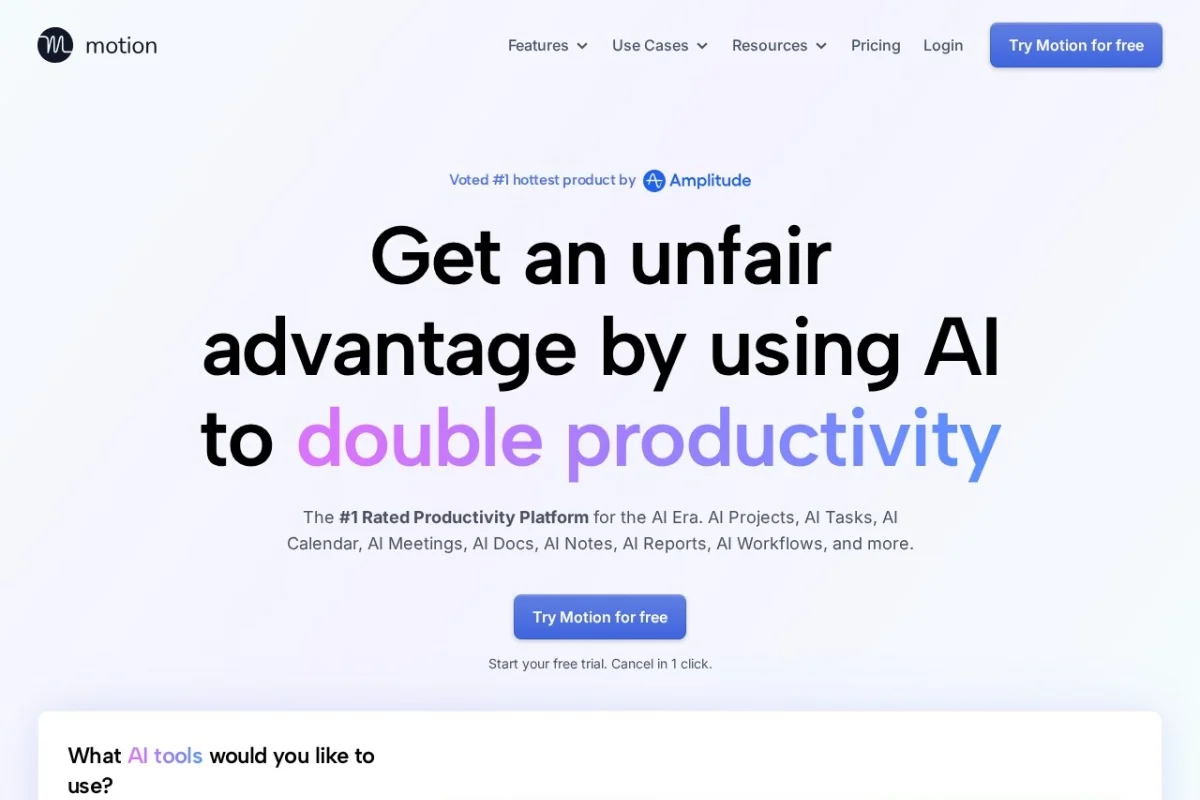
Introduction to Motion: Your AI-Powered Productivity Hub
In today’s fast-paced digital environment, managing projects, tasks, meetings, and documentation across multiple tools can lead to fragmentation and wasted time. Motion is designed to solve this problem by integrating project management, time management, and knowledge management into a single, intelligent superapp. Unlike traditional productivity tools that require manual input for every update, Motion leverages artificial intelligence to automate planning, scheduling, and documentation.
Motion’s core promise is to double your productivity by taking over repetitive workflows. The AI analyzes your workload, deadlines, and priorities to automatically build a daily schedule, adjust project timelines, and even take notes during meetings. Whether you are a freelancer juggling multiple clients, a team lead managing complex projects, or an individual looking to optimize your daily routine, Motion provides a centralized platform where everything syncs seamlessly.
This tutorial will guide you through setting up Motion, exploring its key features, and using practical steps to integrate it into your workflow. By the end, you will have a clear understanding of how to leverage Motion’s AI capabilities to save hours each week.
Getting Started with Motion
Step 1: Creating Your Account
Visit https://www.usemotion.com/ and click on the “Get Started” or “Try for Free” button. You can sign up using your Google account, Microsoft account, or email address. Motion offers a free trial, so you can explore the features before committing to a paid plan.
Step 2: Setting Up Your Profile
After signing up, Motion will ask you a few questions to personalize your experience:
- Your Role: Select whether you are an individual, a team lead, or part of a larger organization.
- Work Hours: Define your typical working hours (e.g., 9 AM to 5 PM). Motion uses this to schedule tasks realistically.
- Calendar Integration: Connect your Google Calendar or Outlook Calendar. This allows Motion to sync existing events and avoid double-booking.
Step 3: The Dashboard Overview
Once set up, you will land on the main dashboard. The interface is clean and divided into logical sections:
- Left Sidebar: Contains navigation for Projects, Tasks, Calendar, Docs, and Meetings.
- Main View: Shows your current day’s schedule, upcoming tasks, and project progress.
- AI Assistant Icon: Usually located in the bottom right corner, this is where you can ask Motion to create tasks or plans using natural language.
Key Features of Motion
1. AI Project Manager
This is Motion’s flagship feature. When you create a new project, you simply provide a project name, a deadline, and a list of tasks. The AI automatically estimates the duration of each task, assigns dependencies, and creates a realistic timeline. It continuously adjusts the schedule if tasks are delayed or completed early.
2. AI Gantt Chart
The Gantt chart in Motion is dynamic. It visualizes your project timeline with bars representing tasks. Unlike static Gantt charts, Motion’s version updates in real-time. If you move a task, the AI recalculates the entire project schedule, including dependencies and resource availability.
3. AI Task Manager
Tasks are the building blocks of your work. Motion’s task manager uses AI to prioritize tasks based on deadlines, project importance, and your available time. You can add tasks quickly using natural language, for example: “Write quarterly report by Friday, estimated 2 hours.”
4. AI Calendar
This is where Motion truly shines. The AI Calendar automatically blocks time on your calendar for every task, meeting, and break. It considers your energy levels (you can mark tasks as “deep work” or “shallow work”) and schedules accordingly. If a meeting is cancelled, Motion instantly fills the freed-up time with the next priority task.
5. AI Meeting Assistant
Motion provides a booking link that others can use to schedule meetings with you. The AI checks your calendar availability and only shows times that fit your schedule. It also sends reminders and can reschedule automatically if conflicts arise.
6. AI Meeting Notetaker
During a meeting, Motion can join as a participant (via Zoom, Google Meet, or Microsoft Teams) and take notes automatically. After the meeting, it generates a summary with key points, action items, and decisions. These notes are stored in the Docs section and linked to the relevant project.
7. AI Dashboards
Dashboards provide a high-level view of your projects. You can see progress bars, task completion rates, and upcoming deadlines. The AI highlights potential bottlenecks, such as tasks that are at risk of being overdue.
8. AI Docs Assistant
Motion includes a built-in document editor with AI capabilities. You can ask the AI to draft a project brief, create meeting agendas, or summarize long documents. The assistant learns from your writing style over time, making suggestions more relevant.
How to Use Motion: A Practical Step-by-Step Guide
Part 1: Creating Your First Project
1. Click on “Projects” in the left sidebar.
2. Click the “+ New Project” button.
3. Enter a project name, for example: “Q4 Marketing Campaign”.
4. Set a deadline date.
5. Add tasks by typing them in natural language. For example:
– “Design social media graphics (3 hours)”
– “Write email copy (1 hour)”
– “Review and approve assets (30 minutes)”
6. Click “Create Project”. Motion will automatically generate a Gantt chart and schedule these tasks on your calendar.
Part 2: Managing Tasks with AI
1. Go to the “Tasks” view.
2. You will see a list of tasks sorted by priority. Motion assigns a priority score based on urgency and importance.
3. To add a task quickly, use the command bar at the top. Type: “Prepare presentation for client meeting tomorrow 10 AM, 2 hours”.
4. Motion will create the task, estimate the duration, and block time on your calendar accordingly.
5. You can drag and drop tasks to reorder them. The AI will recalculate the schedule.
Part 3: Using the AI Calendar
1. Click on “Calendar” to see your day or week view.
2. Notice how Motion has already placed tasks in available time slots, leaving gaps for lunch and breaks.
3. If a task takes longer than expected, you can extend it by dragging the edge. Motion will automatically push other tasks later.
4. To reschedule a task, drag it to a different day. The AI will adjust dependencies.
Part 4: Taking Meeting Notes Automatically
1. Before a meeting, create a calendar event in Motion (or sync from Google Calendar).
2. In the event details, toggle on “AI Notetaker”.
3. Join your meeting as usual. Motion will join silently and record the conversation.
4. After the meeting, open the event and click on “Notes”. You will see a transcript and an AI-generated summary.
5. Action items will be automatically created as tasks in your project.
Part 5: Writing Documents with AI Docs
1. Navigate to “Docs” in the sidebar.
2. Click “New Document”.
3. Type a prompt, such as: “Draft a project kickoff agenda for the Q4 campaign”.
4. The AI will generate a structured document with bullet points and sections.
5. You can edit, expand, or ask the AI to rewrite specific parts.
6. Link the document to a project by clicking the project icon in the toolbar.
Part 6: Tracking Progress with Dashboards
1. Go to “Dashboards”.
2. Select a project to view its dashboard.
3. You will see a completion percentage, a list of overdue tasks, and a timeline.
4. The AI will highlight tasks that are “At Risk” (e.g., due tomorrow but not started).
5. Click on any task to jump directly to it and update its status.
Tips for Maximizing Motion’s AI Capabilities
Tip 1: Use Natural Language for Task Creation
Motion’s AI understands conversational language. Instead of filling out forms, type commands like: “Schedule a 45-minute deep work session for writing the report tomorrow at 2 PM.” This saves time and feels intuitive.
Tip 2: Set Realistic Task Durations
The AI is only as good as the data you provide. When creating tasks, estimate the time accurately. If you consistently underestimate, Motion will learn and adjust, but starting with realistic estimates ensures your calendar is not overstuffed.
Tip 3: Leverage Dependencies for Complex Projects
In the Gantt chart view, you can link tasks. For example, “Design graphics” must be completed before “Review graphics”. Motion will automatically prevent scheduling the review before the design is done. This is critical for multi-step projects.
Tip 4: Review Your Daily Plan Each Morning
Motion’s AI plans your day automatically, but it is wise to review it. Open the Calendar view each morning. If you have a high-priority task that needs more focus, you can mark it as “Deep Work” in the task settings. Motion will then block a longer, uninterrupted period for it.
Tip 5: Use Meeting Notes as Action Items
After a meeting, always check the AI-generated notes. The AI often misses context, so quickly scan the summary and edit any action items. Then, assign them to yourself or team members directly from the notes interface.
Tip 6: Integrate with Your Existing Tools
Motion connects with Slack, Zoom, Google Drive, and more. In Settings, enable these integrations. For example, when you create a task in Motion, it can automatically post a notification in a Slack channel. This keeps your team aligned without manual updates.
Tip 7: Use the AI Docs Assistant for Templates
If you often write similar documents (e.g., weekly status reports), create a template once. Then, ask the AI: “Create a weekly status report for Project X using the template.” It will populate the document with current data from your tasks and calendar.
Tip 8: Don’t Ignore the “At Risk” Alerts
The dashboard’s AI alerts are designed to prevent last-minute rushes. When you see a task marked “At Risk”, investigate immediately. Either adjust the deadline, delegate the task, or block extra time on your calendar to complete it.
Tip 9: Experiment with the Free Trial
Motion has a learning curve, especially if you are used to manual tools. Spend the first week testing different features. Create a dummy project, schedule fake meetings, and write a few documents. This will help you understand how the AI thinks before you rely on it for real work.
Tip 10: Use Keyboard Shortcuts
To speed up navigation, learn a few shortcuts. Press N to create a new task, P for a new project, and / to open the command bar. These shortcuts reduce clicks and keep you in a flow state.
Conclusion
Motion is more than just a calendar or task list; it is an AI co-pilot for your workday. By automating scheduling, note-taking, and project planning, it frees you to focus on high-value activities. Start with the basics—create a project, add tasks, and let the AI build your day. As you become comfortable, explore the meeting notes and docs features. With consistent use, Motion can transform how you manage your time and tasks, making you significantly more productive without adding complexity.
Remember, the AI learns from your behavior. The more you use Motion, the better it becomes at predicting your needs. So dive in, experiment, and let the AI handle the busywork.

Motion
AI-powered superapp for project, time, and knowledge management.