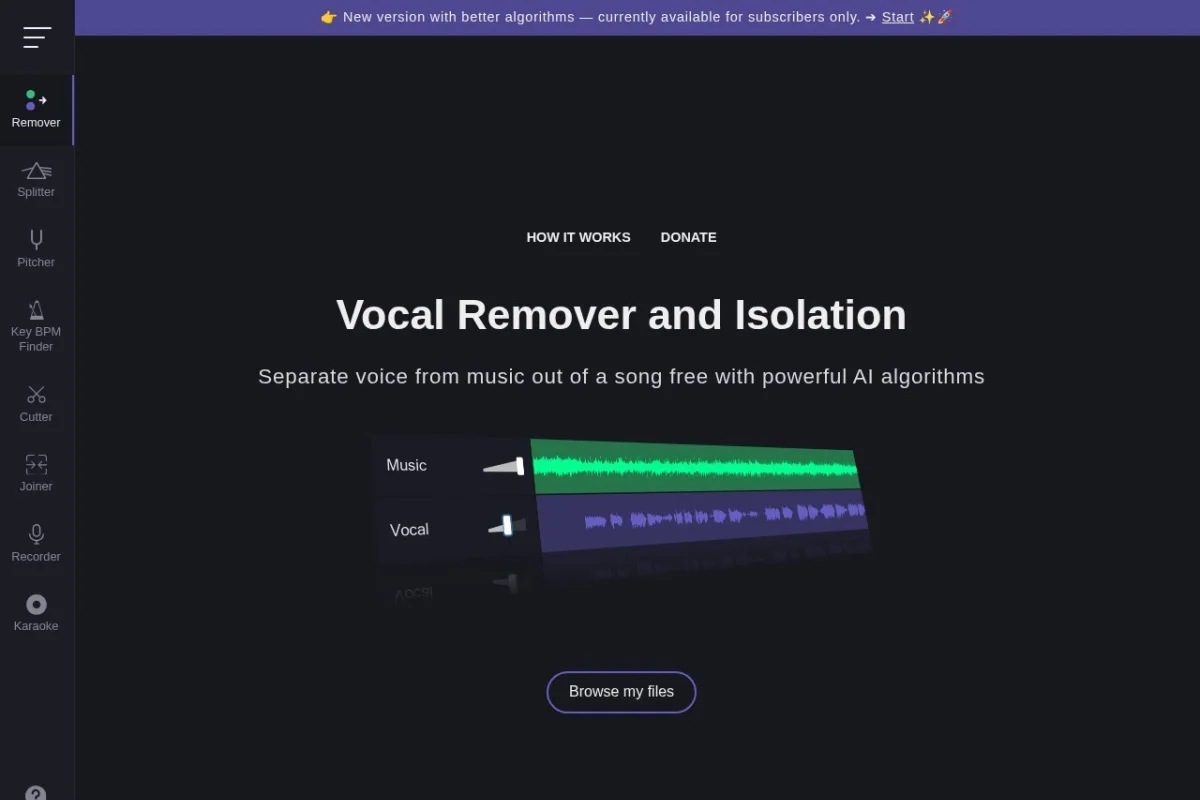
Introduction to Vocal Remover and Isolation
In the world of music production, content creation, and audio editing, the ability to separate vocals from instrumental tracks has traditionally been a complex and expensive process. Professional studios charge hundreds of dollars for stem separation, and consumer-grade software often produces muddy, artifact-ridden results. This is where Vocal Remover and Isolation changes the game entirely.
Vocal Remover and Isolation is a free, browser-based AI tool that performs real-time vocal separation with astonishing accuracy. By leveraging deep learning algorithms trained on thousands of audio samples, this tool can analyze any song you upload and produce two distinct tracks: a karaoke version (instrumentals without vocals) and an acapella version (vocals isolated from the music). The entire process takes approximately 10 seconds, making it one of the fastest and most accessible solutions available today.
Whether you are a musician looking for backing tracks, a podcaster needing clean vocal samples, a teacher preparing karaoke activities, or a hobbyist experimenting with remixes, this tool offers professional-grade results without requiring any technical expertise. This tutorial will walk you through everything you need to know to start using Vocal Remover and Isolation effectively.
Getting Started
What You Will Need
Before you begin, ensure you have the following:
- A computer, tablet, or smartphone with an internet connection
- A modern web browser (Chrome, Firefox, Safari, or Edge recommended)
- An audio file you want to process (MP3, WAV, FLAC, M4A, or OGG format)
- Approximately 10 seconds of patience
Accessing the Tool
Navigate to the official website: https://vocalremover.org/
You will be greeted by a clean, minimal interface. There is no registration required, no software download, and no hidden fees. The tool is entirely free to use, and the developers sustain it through optional donations and non-intrusive advertisements.
Browser Compatibility
The tool works on all major browsers. For the best experience, ensure your browser is updated to the latest version. Mobile users can also access the site through their phone browser, though the interface is optimized for desktop use.
Key Features
1. AI-Powered Vocal Separation
The core technology behind Vocal Remover and Isolation is a neural network trained on thousands of hours of music. Unlike older methods that simply filter out frequencies, this AI understands the difference between a voice and a guitar, a drum, or a synthesizer. The result is clean separation with minimal bleeding between tracks.
2. Two Output Files
Every upload generates two files simultaneously:
- Karaoke track: The instrumental version of your song with vocals removed.
- Acapella track: The isolated vocal performance, free from background music.
3. Fast Processing Time
Most songs are processed in approximately 10 seconds. This speed is remarkable considering the complexity of the AI algorithms working behind the scenes. Longer songs or files with very complex arrangements may take slightly longer, but you will rarely wait more than 30 seconds.
4. Free with No Limits
Unlike many online tools that restrict usage after a free trial, Vocal Remover and Isolation imposes no daily limits. You can process as many songs as you wish. The service is supported by donations and ads, not subscriptions.
5. No File Size Restrictions
You can upload files up to 50MB in size. This accommodates most high-quality MP3s and even some lossless files. If your file exceeds this limit, consider compressing it to a lower bitrate MP3 before uploading.
6. Preserves Audio Quality
The output files maintain the original sample rate and bit depth of your upload. You will not experience the tinny, robotic artifacts common in older vocal removal tools.
How to Use Vocal Remover and Isolation
Step 1: Prepare Your Audio File
Locate the song you want to process on your device. For best results, use a high-quality source file. Avoid heavily compressed formats like 64kbps MP3s, as the AI performs better with more audio data. Recommended formats in order of quality:
- WAV (lossless)
- FLAC (lossless compressed)
- MP3 at 320kbps
- M4A/AAC at 256kbps or higher
Step 2: Upload Your Song
On the Vocal Remover and Isolation homepage, you will see a large button labeled “Choose File” or a drag-and-drop area. Click this button to browse your device, or simply drag an audio file from your file manager into the designated area.
The tool accepts the following file types: MP3, WAV, FLAC, M4A, OGG, and AAC. If your file is in an unsupported format (like WMA or AIFF), convert it to MP3 using a free converter before uploading.
Step 3: Wait for Processing
Once you upload the file, the tool will display a progress indicator. The AI begins analyzing the audio immediately. You will see a message like “Processing…” along with a timer. In most cases, this takes between 8 and 15 seconds. During this time, do not close the browser tab or refresh the page.
Step 4: Download Your Tracks
When processing is complete, the interface will display two download buttons:
- Download Karaoke Version: Click this to save the instrumental track to your device.
- Download Acapella Version: Click this to save the isolated vocal track.
Both files will download in the same format as your original upload. For example, if you uploaded an MP3, you will receive two MP3 files. The files are named automatically with the suffix “_karaoke” and “_acapella” appended to the original filename.
Step 5: Preview Before Downloading
Before downloading, you can click the play button next to each track to preview the result. This is useful if you want to check the quality before saving. The preview feature streams the processed audio directly in your browser.
Step 6: Repeat as Needed
You can process another song immediately by clicking the “Remove another song” button. There is no need to refresh the page or wait for any cooldown period.
Practical Tips for Best Results
Choose the Right Songs
The AI performs best on songs where vocals are clearly separated from the instrumentation in the original mix. Songs with heavy distortion, dense orchestration, or vocals that blend deeply with instruments may produce less perfect results. Pop, rock, and electronic music typically yield excellent outcomes.
Use High-Quality Source Files
Garbage in equals garbage out. A 128kbps MP3 will produce noticeably worse separation than a 320kbps MP3 or a lossless WAV file. If you have access to CD-quality audio, use it. The AI can more easily distinguish vocal frequencies when given more audio data.
Understand the Limitations
While Vocal Remover and Isolation is remarkably advanced, no AI tool is perfect. You may occasionally hear:
- Artifacts: Slight warbling or metallic sounds in complex passages
- Bleed: Faint instrumental sounds remaining in the acapella track
- Missing frequencies: Some high or low vocal frequencies may be attenuated
These are normal and occur even in professional, paid software. The results are usually more than adequate for most personal and creative projects.
Combine with Other Tools
For professional use, consider using the output from Vocal Remover and Isolation as a starting point. You can further refine the tracks using a DAW (Digital Audio Workstation) like Audacity (free), GarageBand, or Adobe Audition. Apply EQ filtering, noise gates, or compression to clean up any remaining artifacts.
Batch Processing Strategy
If you need to process multiple songs, do them one at a time. The tool does not offer batch upload, but individual processing is fast enough that you can work through an album in under 10 minutes. Keep a folder open on your desktop to drag files quickly.
Use for Karaoke Parties
Create a playlist of karaoke tracks by processing your favorite songs. Download the instrumental versions and store them in a dedicated folder. The quality is often better than commercial karaoke tracks, and you get to choose exactly which songs to include.
Respect Copyright
This tool is intended for personal use, educational purposes, and creative projects. If you plan to use the separated tracks commercially (for example, in a YouTube video, a podcast, or a released song), ensure you have the proper licenses or permissions for the original music. The AI tool does not grant you any copyright ownership over the original song.
Troubleshooting Common Issues
Problem: The file upload seems stuck.
Solution: Check your internet connection. Large files (over 30MB) may take a few seconds to upload. If the progress bar does not move after 30 seconds, refresh the page and try again.
Problem: The download button does not appear.
Solution: Ensure your browser allows pop-ups and downloads from vocalremover.org. Some ad blockers may interfere. Try disabling your ad blocker temporarily.
Problem: The output sounds distorted.
Solution: The original file may be too compressed or of very low quality. Try using a higher-bitrate source file. Also, avoid songs with heavy clipping or distortion in the original recording.
Problem: The tool says “Processing failed.”
Solution: This usually indicates a corrupt or unsupported file format. Convert the file to a standard MP3 or WAV using a free converter and try again.
Creative Applications
For Musicians
Use the acapella tracks to practice singing along with isolated vocals. You can also load the instrumental track into your DAW and record your own vocals or instruments over it. This is excellent for cover songs, remixes, or mashups.
For Content Creators
Podcasters can extract vocal samples for commentary or analysis. Video editors can use instrumental tracks as background music without competing vocals. Teachers can create custom karaoke activities for language learning or music education.
For DJs and Remixers
Isolate vocals from one song and mix them with the instrumental of another to create unique mashups. The speed of the tool means you can experiment with multiple combinations in a single session.
For Audio Restoration
In some cases, you can use vocal isolation to clean up old recordings where the vocals are buried in noise. While not designed for restoration, the AI can sometimes separate speech from background music in older audio files.
Conclusion
Vocal Remover and Isolation democratizes a technology that was once reserved for professional studios with expensive equipment. In just 10 seconds, you can transform any song into its component parts, opening up endless creative possibilities. The tool is free, fast, and remarkably accurate, making it an essential resource for musicians, content creators, educators, and hobbyists alike.
By following this tutorial, you now have all the knowledge needed to start separating vocals from your favorite songs. Remember to use high-quality source files, preview your results, and respect copyright laws when using the output. The next time you need a karaoke track, an acapella sample, or a clean instrumental, you know exactly where to go.
Visit https://vocalremover.org/ and start creating today.

Vocal Remover and Isolation
Free AI tool to separate vocals from music for karaoke.