Introduction
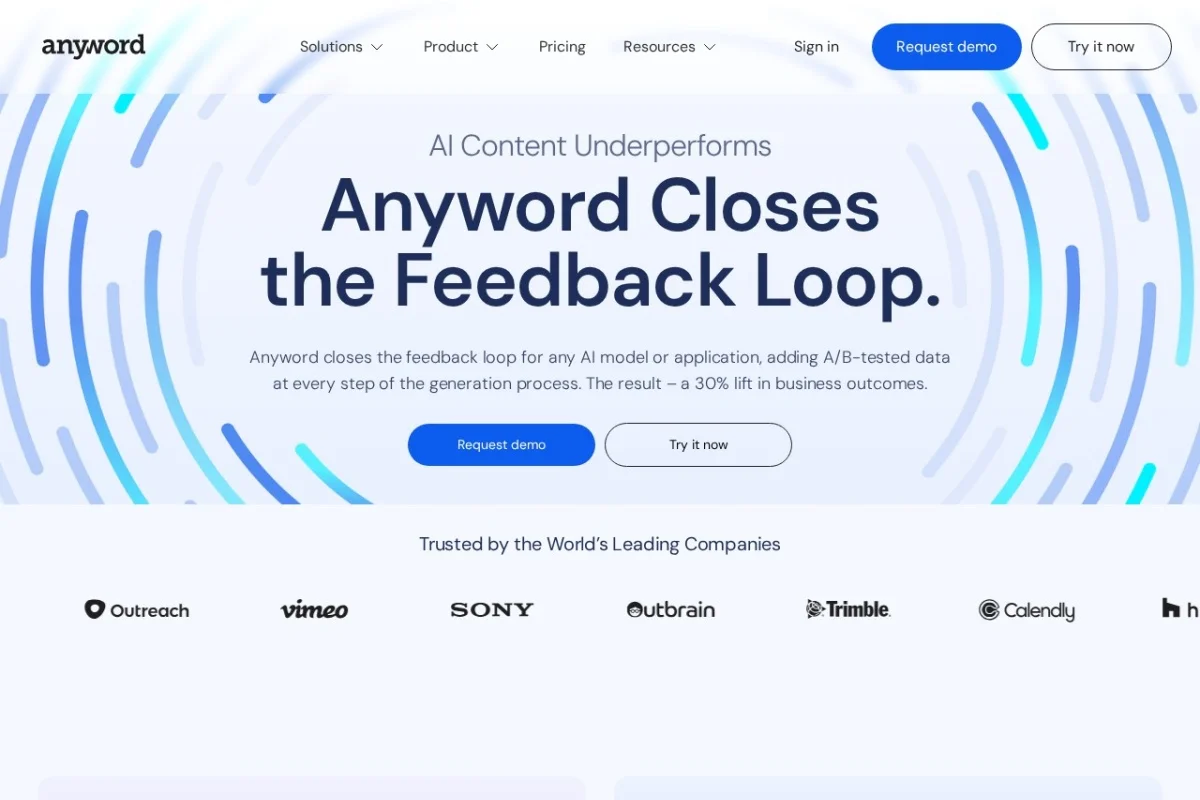
In the fast-paced world of digital marketing, creating copy that not only reads well but also performs well is a constant challenge. Traditional copywriting often relies on gut feeling, A/B testing, and a lot of waiting. Anyword changes this dynamic by introducing a data-driven approach to writing. Anyword is an AI-powered writing platform specifically designed for marketers and content creators who need to generate high-performing copy for ads, emails, landing pages, and more.
What sets Anyword apart from generic AI writing tools is its core feature: predictive performance scoring. The platform analyzes your copy against millions of data points and provides a score that predicts how well it will engage your audience and drive conversions. This closes the feedback loop between creation and performance, allowing you to optimize your content before it goes live.
This tutorial will guide you through everything you need to know to start using Anyword effectively. Whether you are a solo entrepreneur, a content marketing manager, or a social media strategist, you will learn how to leverage this tool to save time, improve your copy, and achieve better results.
Getting Started
Creating Your Account
To begin, navigate to https://www.anyword.com. Click the “Get Started Free” button. You can sign up using your Google account or your work email. Anyword offers a free plan with limited credits, which is perfect for testing the platform. For full access to all features, including predictive scoring and integrations, you will need to choose a paid plan.
Navigating the Dashboard
Once you log in, you will be greeted by the main dashboard. The layout is clean and intuitive. On the left-hand sidebar, you will find the primary navigation menu:
- Home: Returns you to the main dashboard where you can see recent projects and quick stats.
- Generate: This is where you create new content. You can choose from various copy types like Facebook Ads, Google Ads, Emails, Landing Pages, and more.
- Projects: A centralized folder system where you can organize your work by campaign, client, or brand.
- Brand Voice: A powerful feature that allows you to train Anyword to write in your specific brand style.
- Integrations: Connect Anyword to platforms like Google Ads, Facebook Ads, and HubSpot.
- Analytics: View the performance of your copy based on actual campaign data (requires integration).
Setting Up Your Brand Voice (First Step)
Before you start generating copy, it is highly recommended to set up your Brand Voice. This ensures consistency across all your content.
- Click on Brand Voice in the sidebar.
- Click Create Brand Voice.
- Enter your brand name and a brief description of your company.
- Paste in examples of your best-performing copy (e.g., a winning ad or a well-written email). Anyword will analyze the tone, vocabulary, and style.
- Adjust the sliders for formality, humor, enthusiasm, and other attributes to fine-tune the voice.
- Save your brand voice. You can create multiple voices for different brands or campaigns.
Key Features
Predictive Performance Scoring
This is the flagship feature of Anyword. When you write or generate copy, the platform assigns a score (usually between 0 and 100). This score predicts the copy’s effectiveness in terms of engagement or conversion, depending on the channel. For example, a score of 85 on a Facebook Ad headline suggests a high likelihood of driving clicks. The score is based on historical data from millions of ad campaigns. You can see which parts of your copy are strong and which need improvement.
AI Content Generation
Anyword can generate entire pieces of copy from scratch. You simply provide a prompt, a description of your offer, and your target audience. The AI then produces multiple variations. Unlike generic AI tools, Anyword’s outputs are specifically optimized for marketing channels. You can generate:
- Ad Copy: Headlines, primary text, and descriptions for Facebook, Google, LinkedIn, and Instagram.
- Email Subject Lines & Body: Promotional emails, newsletters, and drip campaigns.
- Landing Page Copy: Hero sections, value propositions, and call-to-action buttons.
- Social Media Posts: Short-form content for various platforms.
Brand Voice Customization
As mentioned earlier, this feature allows you to maintain a consistent tone across all generated content. Once your brand voice is set, every piece of copy the AI generates will adhere to your specific guidelines. This is crucial for brands with strict style guides or unique personalities.
Real-Time Feedback and Optimization Suggestions
As you write or edit copy, Anyword provides live feedback. It highlights weak phrases, suggests stronger synonyms, and points out missing elements like a compelling call-to-action. The optimization panel on the right side of the editor shows you exactly what to change to improve your predictive score.
Integrations with Major Marketing Platforms
Anyword connects directly to your advertising and email platforms. This allows you to push copy directly to your campaigns. More importantly, it enables Analytics Sync. Once connected, Anyword can pull performance data (like CTR or conversion rate) from your live campaigns and link it back to the specific copy variations you created. This closes the feedback loop, showing you which AI-generated copy actually worked best.
How to Use Anyword
Step 1: Creating a New Project
Click on Projects in the sidebar and then New Project. Give your project a name (e.g., “Summer Sale Campaign”) and assign a Brand Voice if you have one. This keeps all related copy organized.
Step 2: Generating Ad Copy (Example: Facebook Ad)
This is the most common use case. Let’s walk through creating a Facebook Ad.
- Inside your project, click Generate.
- Select Facebook Ads from the list of templates.
- You will see input fields:
- Product or Service: Describe what you are selling. Be specific. For example: “A subscription-based project management tool for remote teams.”
- Target Audience: Describe who you are targeting. Example: “Small business owners and freelancers who work remotely.”
- Key Benefit: The main value proposition. Example: “Saves 10 hours per week on admin tasks.”
- Call to Action: Choose from options like “Sign Up,” “Learn More,” or “Get Started.”
- Click Generate Copy. Anyword will produce multiple variations of headlines, primary text, and descriptions.
- Look at the Predictive Score next to each variation. Scores are color-coded: green (high), yellow (medium), red (low).
- Click on a high-scoring variation to open it in the editor.
Step 3: Editing and Optimizing Copy
Once you have selected a variation, you can edit it manually.
- The Editor shows your copy with highlighted sections. Hover over a highlight to see a suggestion for improvement.
- On the right side, the Optimization Panel lists specific issues. For example: “Add urgency to the headline” or “Make the CTA more specific.”
- Click on any suggestion. Anyword will automatically rewrite that section or provide alternative phrases.
- As you make changes, the predictive score updates in real-time. Aim for a score above 80 for high-performing copy.
- From the Generate menu, select Email Subject Lines.
- Enter the purpose of the email (e.g., “Welcome sequence for new subscribers”).
- Provide the key message or offer.
- Anyword will generate a list of subject lines with predictive scores. The score here predicts open rates.
- You can filter results by style: “Curiosity,” “Urgency,” “Direct,” etc.
- Select Blog Post from the templates.
- Enter a topic and a few bullet points about what you want to cover.
- Choose your tone (e.g., Educational, Persuasive, Casual).
- The AI will generate an outline first. You can approve it or ask for changes.
- Once approved, it writes the full post. You can then edit sections and use the predictive scoring on individual paragraphs to ensure they are engaging.
- Go to Integrations in the sidebar.
- Select your platform (e.g., Google Ads).
- Authorize the connection. You will need to log in to your advertising account.
- Once connected, you can push copy directly from Anyword to your ad groups.
- After your campaigns run for a few days, return to Anyword and check the Analytics tab. You will see which specific headlines or text variations drove the most clicks or conversions. This data is invaluable for future campaigns.
Step 4: Generating Email Subject Lines
Email marketing is another area where Anyword excels.
Step 5: Using the Blog Post Generator
For longer content, Anyword offers a blog post generator.
Step 6: Integrating with Your Platforms
To close the loop, connect Anyword to your marketing tools.
Tips for Getting the Most Out of Anyword
1. Be Specific with Your Inputs
The quality of Anyword’s output is directly related to the quality of your input. Do not write vague descriptions like “sell a product.” Instead, write detailed prompts. Include specific benefits, target audience demographics, and the desired emotion. For example: “Write a Facebook ad for a luxury organic skincare serum. Target women aged 35-50 who are concerned about wrinkles. The key benefit is visible results in 14 days. The tone should be elegant and scientific.”
2. Use the Predictive Score as a Guide, Not a Rule
A high predictive score is a strong indicator of performance, but it is not a guarantee. Always consider your specific audience and brand context. Use the score to compare variations. If two headlines have a score of 85 and 70, the 85 is statistically more likely to perform better. However, if the 70-score headline perfectly matches your brand voice, it might still be the right choice.
3. Create Multiple Brand Voices
If you manage different brands or different lines of business, create separate Brand Voices. For example, a “Professional B2B” voice for LinkedIn and a “Fun & Casual” voice for Instagram. This prevents the AI from mixing tones across projects.
4. Leverage the “Remix” Feature
When you find a high-scoring piece of copy, use the Remix button. This tells the AI to create new variations based on the current winning copy. This is a powerful way to generate a pool of high-quality options without starting from scratch.
5. Use Analytics to Train Your Future Copy
Do not just generate and forget. The Analytics feature is where the long-term value lives. After running a campaign, check which specific words or phrases correlated with high conversion rates. Use this insight when writing prompts for your next campaign. Over time, you will build a data-driven intuition for what works in your niche.
6. Combine Human Creativity with AI Efficiency
Anyword is a tool to augment your skills, not replace them. Use the AI for the heavy lifting of generating variations and identifying weak spots. Then apply your human judgment to add nuance, emotion, and brand personality that the AI might miss. The best results come from a partnership between you and the platform.
7. Start with High-Impact Templates
If you are new to Anyword, start with the templates for Facebook Ads or Google Ads. These templates have the most robust predictive scoring models because there is a massive amount of training data available. You will see the most immediate value here.
8. Experiment with Different CTAs
The call-to-action is often the most critical part of your copy. Use Anyword to generate multiple CTA variations. The predictive score will help you determine which phrasing (“Get Started,” “Claim Your Discount,” “Try Free”) is most compelling for your specific audience.
Conclusion
Anyword is more than just an AI writing assistant; it is a performance optimization engine for your marketing copy. By combining powerful generation capabilities with predictive analytics and real-time feedback, it empowers you to create content that is not only well-written but also proven to work. Start by setting up your Brand Voice, experiment with generating ads and emails, and pay close attention to the predictive scores. As you integrate the tool with your marketing platforms, you will build a virtuous cycle of creation, measurement, and improvement. With consistent use, Anyword will become an indispensable part of your marketing toolkit, helping you save time and achieve better results.

Anyword
AI writing platform that optimizes content performance with predictive analytics.