Introduction to LogoAI: Your AI-Powered Branding Partner
In the modern business landscape, a strong brand identity is no longer a luxury—it is a necessity. For entrepreneurs, startups, and small business owners, creating a professional logo and cohesive brand assets often feels like an intimidating, expensive, or time-consuming process. This is where LogoAI steps in as a revolutionary solution.
LogoAI is an online, artificial intelligence-driven platform designed to democratize the branding process. Instead of hiring a graphic designer or spending hours learning complex software, you can simply input your business name and a few preferences. The AI engine then generates custom logo concepts, suggests harmonious color palettes, recommends fonts, and even produces a full brand identity kit. This kit typically includes business card designs, social media profile assets, and other essential marketing materials. The goal of LogoAI is to simplify branding from a daunting task into a straightforward, enjoyable experience, allowing you to focus on running your business while still looking professional.
This tutorial is designed for absolute beginners. You do not need any prior design experience, technical skills, or artistic talent. We will walk you through every step, from your first visit to the website to downloading your final, high-resolution logo files. By the end of this guide, you will have a complete brand identity ready to be used across your website, business cards, and social media channels.
Getting Started with LogoAI
Before you begin creating your logo, it is helpful to have a few things prepared. This will make the process smoother and ensure the AI understands your vision.
What You Need Before You Start
- Your Business Name: This is essential. Have the exact name you want to appear on your logo ready.
- A Tagline (Optional but Recommended): A short phrase that describes what you do. For example, “Fresh Coffee Delivered” or “Modern Web Solutions.”
- Your Industry: Think about the general category your business falls into, such as Technology, Food & Beverage, Health & Wellness, Real Estate, or Creative Arts.
- Design Preferences (Ideas): While you don’t need to be a designer, think about the feeling you want your brand to convey. Do you want it to look modern and minimal, classic and elegant, playful and colorful, or bold and powerful? Having a few keywords in mind helps.
- A Color Preference (Optional): If you already know you want blue, green, or black and white, have that in mind.
Navigating the LogoAI Website
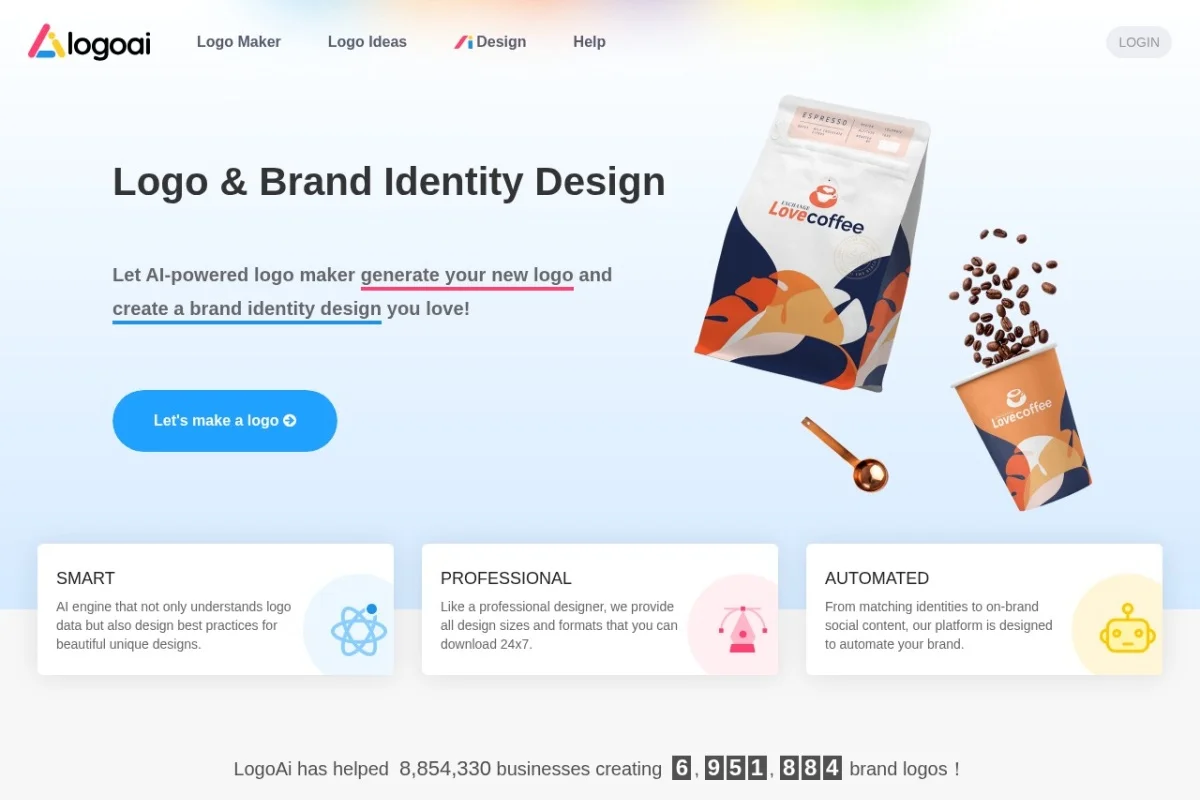
Go to https://logoai.com/. The homepage is clean and user-friendly. You will immediately see a prompt asking you to enter your business name. This is your starting point. Do not be overwhelmed by the options; the tool is designed to guide you step-by-step. You will typically find a large, central button that says “Create Your Logo” or something similar. Clicking this begins the creation process.
Key Features of LogoAI
Understanding the features available to you will help you make the most of the tool. LogoAI is not just a logo maker; it is a comprehensive brand identity generator.
1. AI-Generated Logo Designs Based on User Input
This is the core feature. After you provide your business name and select your industry and style preferences, LogoAI’s artificial intelligence analyzes thousands of design elements, icons, and typography combinations. In seconds, it generates a variety of unique logo concepts. You are not just getting one option; you are presented with a gallery of diverse designs to choose from.
2. Customizable Color Palettes and Fonts
Once you select a base logo design that you like, the real customization begins. LogoAI allows you to experiment with different color schemes. You can choose from professionally curated palettes or manually select your own colors using a color picker. Similarly, you can change the font style of your business name and tagline. You can mix and match serif, sans-serif, script, or display fonts until the text looks exactly right.
3. Brand Identity Kit
A logo alone is not a complete brand. LogoAI understands this. After you finalize your logo, the tool automatically generates a full brand identity kit. This typically includes:
- Business Card Designs: Front and back layouts with your logo, name, and contact information placeholders.
- Social Media Assets: Profile pictures and cover photos optimized for platforms like Facebook, LinkedIn, Twitter, and Instagram.
- Brand Guidelines: A simple document showing your logo, primary colors, and recommended fonts. This ensures consistency across all your marketing materials.
4. High-Resolution Logo Downloads
Once you are satisfied, you can download your logo in high resolution. This is crucial for printing on business cards, flyers, banners, or merchandise. The platform typically offers multiple file formats, including PNG (with a transparent background for use on websites and social media) and SVG or PDF (vector formats ideal for professional printing).
5. Real-Time Preview and Editing
Every change you make is visible instantly on the screen. You do not have to guess how a font will look or if a color matches. As you adjust the palette or change the layout, the logo updates in real-time. This immediate feedback loop allows for rapid experimentation and ensures you are happy with every detail before you finalize your design.
How to Use LogoAI: A Step-by-Step Guide
Follow these steps to create your first logo and brand identity. The process is designed to be intuitive, but this guide will ensure you do not miss any important features.
Step 1: Enter Your Business Name
On the homepage, you will find a text field. Type your business name exactly as you want it to appear. If you have a tagline, there is usually a secondary field for that. Click the button to proceed, often labeled “Generate Logos” or “Start”.
Step 2: Select Your Industry
The AI needs context to generate relevant icons and styles. You will be presented with a list of industries or categories. Choose the one that best fits your business. For example, if you run a bakery, select “Food & Beverage” or “Restaurant.” If you are a freelance photographer, select “Creative Arts” or “Photography.” This step significantly improves the quality of the initial logo suggestions.
Step 3: Choose Your Style Preferences
Now you will be asked about the visual style you prefer. You might see options like Minimalist, Classic, Playful, Modern, Elegant, or Bold. You can usually select multiple styles. This tells the AI the “mood” of your brand. If you want a clean, professional look, choose “Minimalist” and “Modern.” If you want something fun and colorful, choose “Playful.”
Step 4: Browse the AI-Generated Concepts
After a few seconds, LogoAI will display a grid of logo concepts. Each concept is a unique combination of an icon, typography, and layout. Scroll through the options. Do not worry about finding the perfect one immediately. Look for a design that has the right “vibe” or a strong icon that represents your business. Click on any design to select it and move to the editing screen.
Step 5: Customize Your Logo
This is where you make the logo truly yours. You are now in the editing interface. Here are the main things you can adjust:
- Icon: You can change the icon entirely. Look for an “Icon” or “Symbol” tab. LogoAI offers a large library of icons. You can search for keywords like “tree,” “phone,” “star,” or “gear” to find a symbol that better fits your business.
- Fonts: Click on the text (your business name or tagline). A font menu will appear. You can change the font family, adjust the size, spacing, and alignment. Try a few different fonts to see how they change the logo’s personality.
- Colors: Look for a “Colors” or “Palette” section. You can click on any color in the logo to change it. You can either choose from the suggested palettes or use the color picker to input a specific hex code (e.g., #2C3E50 for a dark blue-gray).
- Layout: Some tools allow you to change the arrangement of the icon and text. You can choose between having the icon on top, to the left, or centered with the text below.
Step 6: Preview the Brand Identity Kit
Once you are happy with the logo itself, look for a button or tab labeled “Brand Kit” or “Preview”. This will show you how your logo looks on a business card, a social media profile, and a website mockup. This is a critical step. A logo that looks great alone might not work well on a small social media icon. If something looks off, go back and adjust the logo’s complexity or layout.
Step 7: Download Your Assets
When you are completely satisfied, proceed to the download page. You will likely need to create a free account (using your email) or choose a pricing plan. LogoAI typically offers a free download of a low-resolution version, while the full high-resolution package with vector files (SVG, PDF) and the brand kit requires a one-time payment or subscription.
What to download:
- High-Resolution PNG: For digital use (websites, email signatures, social media).
- Vector File (SVG or PDF): For professional printing. This file can be scaled to any size without losing quality.
- Brand Kit Files: Download the business card and social media templates. You can edit these later in software like Canva or Adobe Illustrator, or use them as-is.
Tips for Getting the Best Results from LogoAI
To ensure your final logo and brand identity are professional and effective, keep these practical tips in mind.
1. Keep It Simple
The best logos are often the simplest. Avoid the temptation to add too many colors, fonts, or intricate details. A simple logo is more memorable, scales better (looks good on a tiny phone screen and a huge billboard), and is easier to print. If your logo looks cluttered, try removing elements or choosing a cleaner font.
2. Think About Versatility
Your logo will be used in many places. Before you finalize, check how it looks in black and white (grayscale). A good logo should work without color. Also, check how it looks when it is very small (like a favicon) and very large. If the text becomes unreadable when small, consider using a simpler icon or a bolder font.
3. Use the Color Palette Wisely
Colors evoke emotions. Blue often represents trust and professionalism (good for finance or tech). Green represents nature and health (good for organic products or wellness). Red represents energy and excitement (good for food or entertainment). Choose 2-3 colors maximum for your primary palette. Use the brand kit to see how these colors look together on a business card.
4. Test the Font Readability
Fancy, script fonts can look beautiful, but they are often hard to read, especially at small sizes. Reserve decorative fonts for your tagline or a single word, and use a clean, readable font for your main business name. Always prioritize clarity over style.
5. Don’t Settle for the First Design
LogoAI generates many options. Spend time browsing through all of them. You might be surprised by a design you initially overlooked. Also, do not be afraid to go back to the style selection step and try a different combination. Sometimes, a completely different direction yields a much better result.
6. Use the Brand Kit Consistently
Once you have your logo and brand kit, use them everywhere consistently. Use the exact same colors and fonts on your website, your social media profiles, your business cards, and your email signature. Consistency builds trust and recognition with your audience. The brand guidelines document provided by LogoAI is your rulebook for this.
7. Consider the Long-Term
Choose a logo that you will still like in 3-5 years. Avoid trends that are too specific to the current year. A timeless design, such as a simple wordmark or a classic icon, will serve your business better in the long run than something that looks “trendy” today but dated tomorrow.
By following this tutorial, you now have the knowledge to use LogoAI effectively. Remember, the tool handles the technical design work, but your input—your business name, your industry, and your style preferences—guides the AI to create something uniquely yours. Take your time, experiment with the features, and enjoy the process of building your brand identity.
