Introduction
In today’s fast-paced digital world, managing email and documents efficiently is critical for productivity. Superhuman is a premium, AI-powered email client and document editor designed from the ground up for speed. Unlike traditional email clients that can feel sluggish and cluttered, Superhuman focuses on a minimalist, keyboard-driven experience that lets you process your inbox in record time.
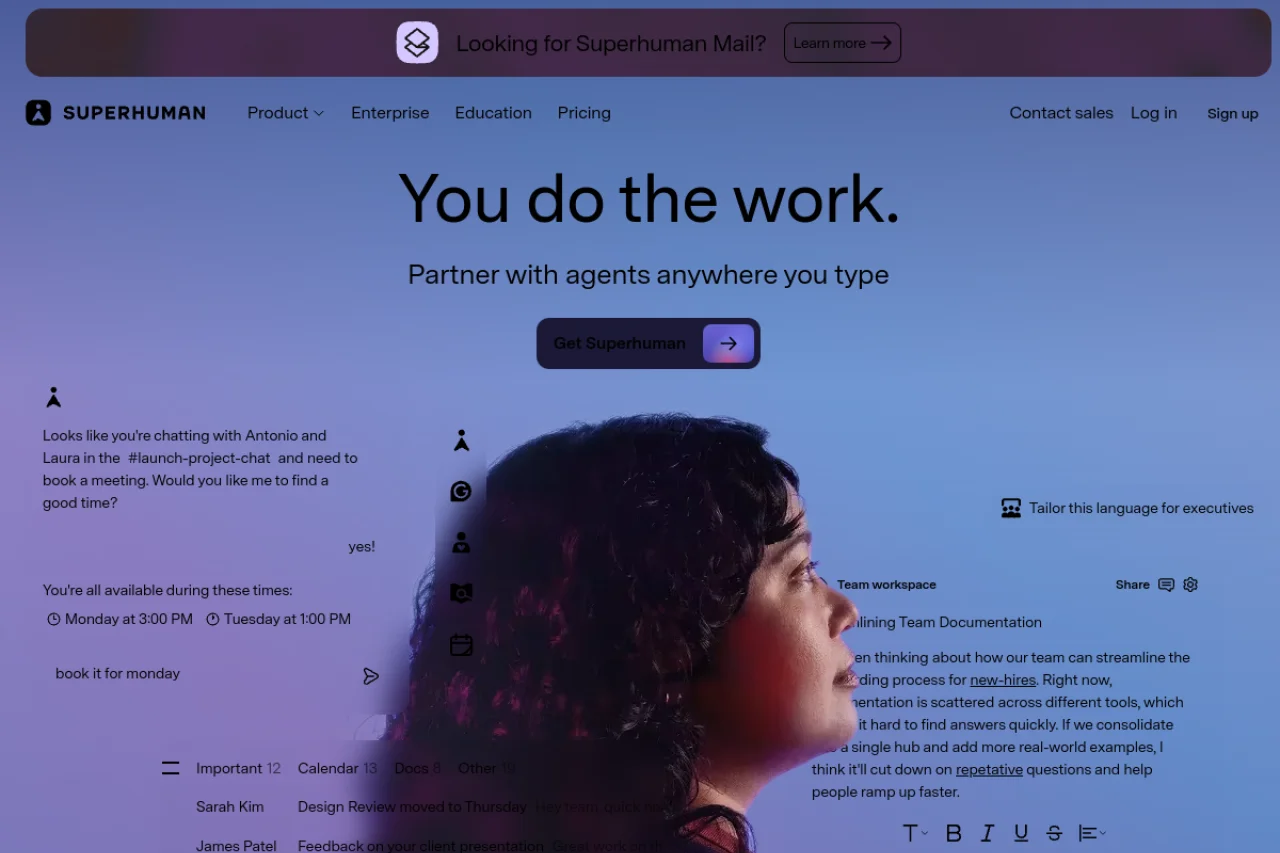
Superhuman is not just an email client; it also includes a built-in document editor with real-time collaboration, unified search across both emails and documents, and powerful AI features that help you write, summarize, and find information faster. Whether you are a busy executive, a startup founder, or a remote team member, Superhuman aims to be the single hub for your communication and document workflow.
This tutorial will walk you through everything you need to know to get started with Superhuman, explore its key features, and use it effectively in your daily work. By the end, you will be able to navigate the app with confidence, leverage AI to save time, and collaborate seamlessly with your team.
Getting Started
Creating Your Account
To begin using Superhuman, visit the official website at https://superhuman.com/. Click on the “Get Started” or “Try Free” button. You will be prompted to enter your email address. Superhuman currently supports Gmail, Google Workspace, Microsoft 365 (Outlook), and iCloud email accounts.
After entering your email, you will receive a verification link. Click the link to verify your account. You will then be guided through a short onboarding process where you can set up your preferences, including your time zone, work hours, and preferred keyboard shortcuts.
Installing the App
Superhuman is available as a desktop application for macOS and Windows, as well as a mobile app for iOS and Android. You can also use it in a web browser at app.superhuman.com.
- Desktop: Download the installer from the Superhuman website and follow the on-screen instructions.
- Mobile: Search for “Superhuman” in the Apple App Store or Google Play Store and install the app.
- Web: No installation required; simply log in through your browser.
Connecting Your Email Accounts
Once installed, Superhuman will ask you to connect your email accounts. Click on “Add Account” and follow the authentication prompts. You can connect multiple accounts (e.g., work and personal) and switch between them easily. Superhuman supports two-factor authentication (2FA) for added security.
Initial Setup and Preferences
After connecting your accounts, take a few minutes to customize your settings:
- Keyboard Shortcuts: Superhuman uses a powerful set of keyboard shortcuts. You can view and customize them by pressing Cmd/Ctrl + K and typing “Keyboard Shortcuts.”
- Snooze and Follow-up: Set default snooze times (e.g., later today, tomorrow, next week) and enable automatic follow-up reminders for emails that don’t receive a reply.
- Signature: Create a professional email signature that will be appended to all outgoing messages.
Key Features
Blazing-Fast Email Client with Keyboard Shortcuts
Superhuman is known for its speed. Every action—archiving, replying, moving to a folder, or scheduling—can be done with a single keystroke. The interface is designed to minimize mouse usage. For example, pressing E archives an email, R replies, and Cmd/Ctrl + Enter sends the message. The app also uses a “split-second” loading philosophy, meaning emails open almost instantly.
AI-Powered Email Writing and Summarization
Superhuman leverages artificial intelligence to help you write better emails faster. The AI Compose feature suggests complete sentences, subject lines, and even entire email drafts based on the context of the conversation. You can also use the Summarize feature to get a one-paragraph summary of a long email thread, saving you from reading every single message.
Built-in Document Editor with Real-Time Collaboration
Superhuman includes a native document editor that works similarly to Google Docs or Notion. You can create new documents directly from your inbox, share them with colleagues, and collaborate in real time. Comments, suggestions, and edits appear instantly. This eliminates the need to switch between your email client and a separate document tool.
Unified Search Across Email and Docs
One of the most powerful features is the unified search. You can search for keywords, people, or file names, and Superhuman will return results from both your emails and your documents in a single list. The search is lightning-fast and supports advanced filters such as sender, date range, and attachment type.
Cross-Device Sync and Offline Support
Superhuman syncs your inbox, documents, and settings across all your devices. If you read an email on your phone, it will be marked as read on your desktop. The app also offers offline support, allowing you to read, compose, and move emails even when you are not connected to the internet. Changes are synced automatically once you reconnect.
How to Use Superhuman
Navigating the Inbox
When you open Superhuman, you will see your inbox organized into three main sections: Important, Other, and Done. The “Important” section shows emails that require action, while “Other” contains newsletters, notifications, and low-priority messages. “Done” is where archived emails go.
To navigate between sections, use the left sidebar or press Cmd/Ctrl + 1 for Important, Cmd/Ctrl + 2 for Other, and Cmd/Ctrl + 3 for Done.
Processing Emails with Keyboard Shortcuts
Superhuman is built for “inbox zero” workflows. Here are the essential shortcuts:
- E – Archive the current email
- R – Reply to the sender
- A – Reply to all
- F – Forward the email
- S – Snooze the email (choose a time to bring it back)
- # – Delete the email
- Cmd/Ctrl + Enter – Send the email you are composing
- J / K – Move to the next/previous email
Practice these shortcuts for a few days, and you will be able to process dozens of emails in minutes.
Using AI to Write Emails
To use the AI writing assistant, start composing a new email by pressing R or Cmd/Ctrl + N. As you type, you will see suggestions appear in gray text. Press Tab to accept a suggestion. You can also trigger the AI explicitly by pressing Cmd/Ctrl + J and typing a command like “Write a follow-up email about the project deadline” or “Summarize this thread.” The AI will generate a draft for you to review and edit.
Summarizing Long Email Threads
When you open a long email thread, look for the Summarize button at the top of the message (or press Cmd/Ctrl + Shift + S). Superhuman will instantly generate a concise summary of the entire conversation, highlighting key decisions, action items, and dates. This is especially useful for catching up on threads you missed.
Creating and Collaborating on Documents
To create a new document, click the Documents icon in the left sidebar (or press Cmd/Ctrl + D). Choose New Document and give it a title. You can type, format text, add bullet points, and insert links just like in any word processor.
To collaborate, click the Share button in the top right corner. Enter the email addresses of your collaborators. You can give them View, Comment, or Edit permissions. Changes appear in real time, and you can see who is currently viewing the document.
Searching Across Email and Docs
Press Cmd/Ctrl + K to open the universal search bar. Type your query—for example, “budget report Q3” or “meeting notes from John.” The results will show relevant emails and documents. You can filter results by type (email vs. doc) or by date using the dropdown menus. Click any result to open it directly.
Using Offline Mode
Superhuman automatically caches your recent emails and documents for offline access. To compose an email while offline, simply start typing as usual. The message will be saved in your outbox and sent automatically when you reconnect. You can also move, archive, and snooze emails offline.
Tips for Getting the Most Out of Superhuman
Master the Keyboard Shortcuts Gradually
Don’t try to memorize all shortcuts at once. Start with the most common ones: E (archive), R (reply), and J/K (navigate). Once those become automatic, add one or two new shortcuts each week. You can print a shortcut cheat sheet from the settings menu.
Use Snooze to Manage Your Attention
Instead of leaving emails in your inbox, use the snooze feature to bring them back at a specific time. For example, snooze a non-urgent email until tomorrow morning. This keeps your inbox clean and ensures you only see emails when you are ready to act on them.
Leverage AI for Repetitive Emails
If you frequently send similar emails (e.g., meeting confirmations, status updates, or follow-ups), use the AI compose feature to create templates. Type a command like “Write a meeting confirmation for Friday at 3 PM” and let the AI generate the text. You can then customize it slightly before sending.
Use Split Inbox for Better Focus
Superhuman allows you to create custom views or “splits” for your inbox. For example, you can create a split that shows only emails from your boss or only messages with attachments. To create a split, click the + icon next to the inbox name and define your filter criteria.
Set Up Automatic Follow-ups
For important emails that require a response, enable the Follow-up feature. When you send an email, Superhuman will automatically remind you if the recipient hasn’t replied within a set number of days. This ensures nothing falls through the cracks.
Integrate with Your Calendar and Tools
Superhuman integrates with Google Calendar, Outlook Calendar, and tools like Slack and Notion. You can view your upcoming events directly in the sidebar, and you can share your availability when scheduling meetings. Check the integrations section in settings to connect your favorite apps.
Use the “Undo Send” Safety Net
Superhuman offers a configurable “undo send” delay. Set it to 5 or 10 seconds in the settings. After you send an email, a small “Undo” button appears at the bottom of the screen. Click it to recall the message before it is delivered.
Review Your Weekly Stats
Superhuman provides a weekly email summary called Superhuman Weekly that shows your email processing speed, response times, and productivity trends. Use these insights to identify areas for improvement, such as reducing the time you spend in your inbox or increasing your use of keyboard shortcuts.
Explore the Command Palette
Press Cmd/Ctrl + K to open the command palette. From here, you can type any action—like “Create a new document,” “Search for invoices,” or “Change signature”—without navigating through menus. This is the fastest way to access any feature.
Customize Your Experience
Superhuman allows you to customize themes (light or dark mode), font sizes, and notification preferences. You can also set “quiet hours” during which you won’t receive notifications. Tailor these settings to match your workflow and reduce distractions.
Conclusion
Superhuman is more than just an email client; it is a complete productivity platform that combines speed, AI, and collaboration into one seamless experience. By following this tutorial, you have learned how to set up your account, navigate the interface, use keyboard shortcuts, leverage AI for writing and summarization, collaborate on documents, and search across everything with ease.
The key to mastering Superhuman is consistency. Spend a few days practicing the shortcuts and exploring the AI features. Soon, you will wonder how you ever managed your inbox without it. Whether you are processing hundreds of emails a day or collaborating on important documents with your team, Superhuman will help you work smarter and faster.
For additional help, visit the Superhuman help center or join the Superhuman community forum to share tips with other users. Happy emailing!

Superhuman: AI-Powered Email and Docs
Superhuman is the fastest email experience with AI and docs.