Introduction to Microsoft Bing
Microsoft Bing is a powerful web search engine developed by Microsoft, serving as a direct competitor to Google Search. Launched in 2009, Bing has evolved significantly over the years and now integrates cutting-edge artificial intelligence technologies, including GPT-4, to provide users with a comprehensive and interactive search experience. Unlike traditional search engines that only return lists of links, Bing offers AI-powered chat, image creation, personalized search results, and a rewards program that lets you earn points for your searches. Whether you are looking for information, images, videos, news, or directions, Bing aims to deliver accurate, relevant, and visually appealing results. This tutorial is designed for beginners and will guide you through everything you need to know to start using Bing effectively.
Getting Started with Bing
Accessing Bing
To begin using Bing, simply open your preferred web browser and navigate to https://bing.com. You do not need to create an account to perform basic searches. However, signing in with a Microsoft account unlocks additional features such as personalized search results, the rewards program, and the AI-powered chat experience. You can sign in by clicking the “Sign in” button located in the top right corner of the homepage.
Creating a Microsoft Account
If you do not already have a Microsoft account, you can create one for free. Visit https://account.microsoft.com and click “Create a Microsoft account.” You will need to provide a valid email address or phone number, create a password, and verify your identity. Once your account is set up, you can use it to sign in to Bing and other Microsoft services like Outlook, OneDrive, and Office Online.
Understanding the Bing Homepage
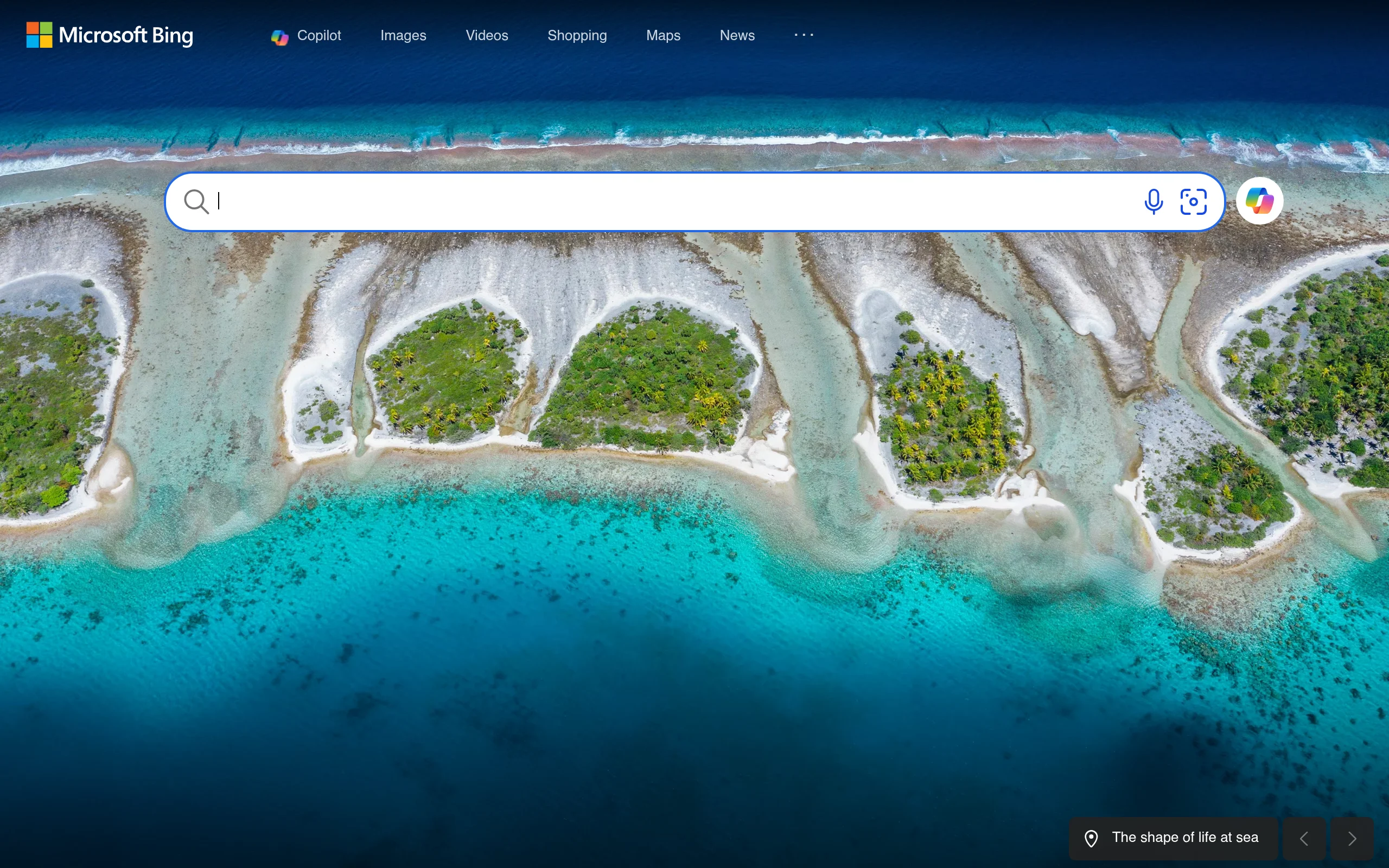
The Bing homepage features a beautiful, high-resolution background image that changes daily. On this page, you will find a search bar in the center where you can type your queries. Below the search bar, you may see trending searches or quick links to popular categories like images, videos, news, and maps. At the top of the page, there is a navigation menu with tabs for Web, Images, Videos, News, and Maps. You can click on these tabs to filter your search results by type.
Key Features of Bing
Web Search
Bing’s core feature is its web search engine. When you enter a query, Bing returns a list of relevant web pages, organized by relevance. Each result typically includes a title, a short description (snippet), and the URL. You can also see the date of publication and, in some cases, ratings or reviews. Bing uses advanced algorithms to understand the context of your search and deliver the most useful results.
Image Search
Bing Image Search allows you to find images from across the web. You can search by keyword, and Bing will display results in a grid layout. You can filter images by size, color, type (photo, clip art, line drawing), layout, and license (Creative Commons, public domain, etc.). Hovering over an image shows a larger preview, and clicking on it opens a dedicated page with more details and related images.
Video Search
With Bing Video Search, you can discover videos from platforms like YouTube, Vimeo, and Dailymotion. Results are shown with a thumbnail, title, duration, and source. You can filter videos by duration (short, medium, long), resolution (high definition, standard definition), and source. Clicking on a video plays it directly on Bing or takes you to the original site.
News Search
Bing News aggregates headlines from thousands of news sources worldwide. You can browse news by category (World, Local, Business, Technology, Entertainment, Sports, Science, Health) or search for specific topics. Each news story includes the headline, a summary, the source name, and the publication time. You can also set your news preferences to see more stories from specific publishers or regions.
Map Search
Bing Maps provides interactive maps, driving directions, and traffic information. You can search for addresses, businesses, or points of interest. The map view can be switched between road map, aerial view, and streetside view. You can also get turn-by-turn directions for driving, walking, or public transit. Bing Maps includes features like real-time traffic updates, location sharing, and 3D city views.
AI-Powered Chat with GPT-4
One of Bing’s most innovative features is its AI-powered chat, which is built on OpenAI’s GPT-4 model. This allows you to have natural language conversations with Bing. You can ask complex questions, request summaries, get creative ideas, or even ask for help with writing. The AI can understand context, follow up on previous questions, and provide detailed, human-like responses. To access this feature, click on the “Chat” tab at the top of the Bing homepage or use the dedicated chat interface.
Image Creation via Bing Image Creator
Bing Image Creator is a tool that uses AI to generate images based on text descriptions. You can type a description of what you want to see, and Bing will create a unique image for you. This feature is powered by DALL-E, an AI model developed by OpenAI. You can use it to create artwork, illustrations, or conceptual images for personal or educational projects. Image Creator is available directly within the Bing search interface or at https://bing.com/create.
Rewards Program
Microsoft Rewards is a loyalty program that lets you earn points by using Bing. You earn points for every search you perform (up to a daily limit), for using the Bing mobile app, and for completing special offers or quizzes. These points can be redeemed for gift cards, sweepstakes entries, donations to charity, or subscriptions to services like Xbox Game Pass. To participate, sign in with your Microsoft account and enable rewards tracking in your account settings.
SafeSearch Filtering
Bing offers SafeSearch, a feature that filters out explicit or adult content from search results. You can set SafeSearch to three levels: Strict (filters all adult content), Moderate (filters images and videos but allows text), and Off (no filtering). This is especially useful for families or for use in educational environments. You can adjust SafeSearch settings by clicking the gear icon in the top right corner of the Bing homepage and selecting “SafeSearch.”
How to Use Bing
Performing a Basic Web Search
To perform a simple web search, follow these steps:
- Go to https://bing.com.
- Type your query into the search bar. For example, “best laptops for students.”
- Press the Enter key or click the magnifying glass icon.
- Review the search results. You can click on any result to visit the page.
- Use the tabs at the top (Images, Videos, News, Maps) to switch to a different type of result.
Using AI Chat
To use the AI-powered chat feature:
- Click on the “Chat” tab at the top of the Bing homepage.
- In the chat window, type your question or request. For example, “Explain quantum computing in simple terms.”
- Press Enter. Bing will generate a response based on GPT-4.
- You can ask follow-up questions or request clarifications. The AI remembers the context of your conversation.
- To start a new conversation, click the “New topic” button.
Creating Images with Bing Image Creator
To generate AI images:
- Go to https://bing.com/create or click the “Images” tab and then “Image Creator.”
- In the text box, describe the image you want. Be as detailed as possible. For example, “A futuristic city skyline at sunset with flying cars.”
- Click “Create” or press Enter.
- Bing will generate four variations of your image. You can click on any image to view it in full size.
- You can download the image or share it. You can also refine your description and create new versions.
Searching for Images
To find images on Bing:
- Click on the “Images” tab on the Bing homepage.
- Type a keyword, such as “sunset beach.”
- Browse the results. Use the filter options below the search bar to narrow down by size, color, type, or license.
- Click on an image to see a larger preview and details like the source website and image dimensions.
Finding Videos
To search for videos:
- Click the “Videos” tab.
- Enter your search term, for example, “how to bake a cake.”
- Use filters to sort by duration, resolution, or source.
- Click on a video thumbnail to watch it. The video will play in a pop-up player or redirect you to the hosting site.
Reading News
To stay updated with news:
- Click the “News” tab.
- Browse headlines by category or use the search bar to find news on a specific topic.
- Click on a headline to read the full article. You can also customize your news feed by selecting “My Interests” from the settings menu.
Using Maps
To get directions or explore locations:
- Click the “Maps” tab.
- Type an address or place name in the search bar, for example, “Eiffel Tower.”
- Use the zoom controls to view the map in detail. You can switch to aerial or streetside view.
- To get directions, click “Directions” and enter your starting point and destination. Choose your mode of transportation (driving, walking, or transit).
Earning Rewards Points
To start earning rewards:
- Sign in to Bing with your Microsoft account.
- Perform searches as usual. You will see a counter or notification indicating how many points you have earned.
- Visit the Microsoft Rewards dashboard at https://rewards.microsoft.com to track your points, see available offers, and redeem your rewards.
- Complete daily sets or quizzes to earn bonus points.
Tips for Using Bing Effectively
Use Advanced Search Operators
To get more precise results, use Bing’s advanced search operators. For example:
- site: – Search within a specific website. Example: “site:wikipedia.org artificial intelligence.”
- filetype: – Find files of a specific type. Example: “filetype:pdf climate change.”
- intitle: – Find pages with a specific word in the title. Example: “intitle:recipes pasta.”
- OR – Combine multiple terms. Example: “laptop OR tablet reviews.”
- – (minus sign) – Exclude a word. Example: “jaguar -car” (to find the animal, not the vehicle).
Personalize Your Search Experience
Sign in to your Microsoft account to enable personalized search results. Bing will use your search history and preferences to tailor results to your interests. You can manage your privacy settings by going to the “Settings” menu and selecting “Search history” to view or clear your data.
Take Advantage of the Rewards Program
To maximize your rewards points:
- Perform at least 30 searches per day on Bing (the daily maximum for earning points).
- Use the Bing mobile app for additional points.
- Complete the “Daily Set” activities on the Rewards dashboard.
- Participate in special promotions or quizzes.
Customize SafeSearch for Your Needs
Always set SafeSearch to a level that matches your comfort or the needs of your household. For families, “Strict” is recommended. To change SafeSearch, click the gear icon on the Bing homepage, select “SafeSearch,” and choose your preferred setting. This will apply to all searches on that browser.
Use AI Chat for Complex Queries
When you have a complicated question or need a detailed explanation, use the AI chat feature instead of a standard web search. For example, instead of searching for “history of the Roman Empire” and reading multiple articles, you can ask Bing Chat: “Summarize the key events of the Roman Empire.” The AI will provide a concise, structured answer. You can also ask it to compare topics, generate ideas, or write content for you.
Explore Image Creator for Creative Projects
If you need unique visuals for a presentation, social media post, or personal project, try Bing Image Creator. Experiment with different descriptions to get the best results. Use specific adjectives, styles (e.g., “oil painting,” “photorealistic,” “cartoon”), and lighting details. You can also combine concepts, like “a cat wearing a spacesuit on Mars.”
Stay Updated with Bing News
To get the most relevant news, set your interests in the News tab. Click “My Interests” and select topics you care about, such as technology, sports, or local news. Bing will then prioritize those topics in your news feed. You can also follow specific publishers to see their articles more frequently.
Use Bing Maps for Trip Planning
Before traveling, use Bing Maps to explore your destination. Use the streetside view to virtually walk through neighborhoods. Check traffic conditions to plan the best route. You can also save locations to your favorites for quick access later.
Enable Dark Mode
If you prefer a darker interface, Bing offers a dark mode option. Click on the gear icon, select “Appearance,” and choose “Dark.” This can reduce eye strain, especially when using Bing at night.
Keyboard Shortcuts
Speed up your navigation with keyboard shortcuts:
- Ctrl + E – Focus on the search bar.
- Ctrl + Enter – Open search results in a new tab.
- Tab – Move through search results.
- Enter – Open the selected result.
By following this tutorial, you should now have a solid understanding of how to use Microsoft Bing for web searches, image and video discovery, news reading, map navigation, AI-powered chat, and image creation. Whether you are a casual user or a power searcher, Bing offers a wide range of tools to help you find information quickly and creatively. Start exploring today and take advantage of the rewards program to earn points while you search.

Microsoft Bing
Microsoft's search engine for finding information on the web.