Introduction to Prompt Library
In the rapidly evolving world of artificial intelligence, the quality of your output is directly tied to the quality of your input. Whether you are generating stunning visuals with Midjourney or DALL-E, or crafting compelling text with ChatGPT or Gemini, the prompt you write is the single most important factor in determining the result. For beginners, crafting the perfect prompt can feel like a guessing game. For experienced users, it can be a time-consuming process of trial and error.
Prompt Library (https://promptlibrary.org/) solves this problem by providing a curated, free, and organized collection of ready-to-use prompts. It is a comprehensive resource designed to help you get the best results from your AI tools without starting from scratch every time. This tutorial will guide you through everything you need to know about using Prompt Library effectively, from your first visit to advanced browsing techniques.
The platform is designed with accessibility in mind. You do not need to create an account, pay a subscription fee, or download any software. It is a straightforward web-based library that you can access immediately. The prompts are categorized by the type of AI tool (image generation vs. text generation) and by specific themes, making it easy to find inspiration for any project.
Getting Started with Prompt Library
Accessing the Platform
To begin, simply navigate to https://promptlibrary.org/ using any modern web browser on your computer, tablet, or smartphone. The site is fully responsive, meaning it will adapt to your screen size for a comfortable browsing experience.
Understanding the Layout
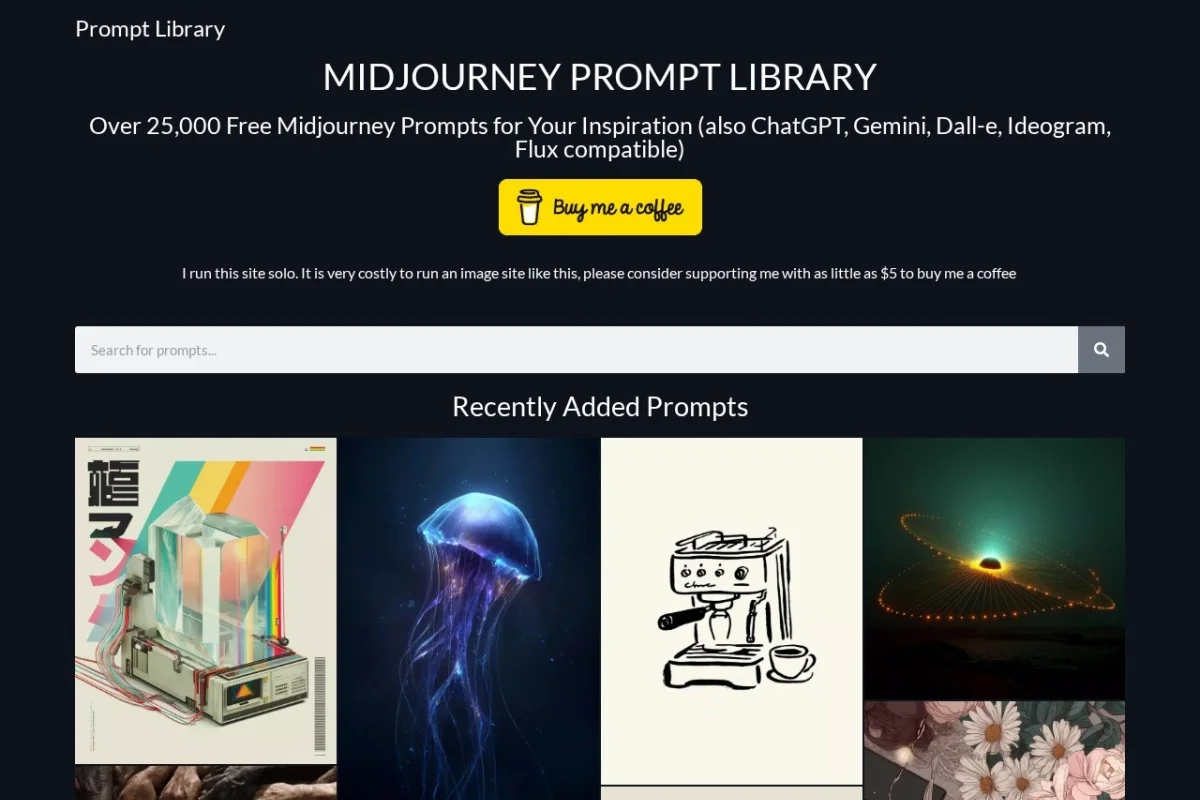
When you first arrive at the homepage, you will be greeted with a clean, minimalist interface. The design prioritizes functionality, so you will not be distracted by unnecessary clutter. The main elements you need to understand are:
- The Header: This contains the site logo and the main navigation links.
- The Search Bar: Located prominently at the top, this is your primary tool for finding specific prompts quickly.
- Category Sections: Below the search bar, you will find the main categories of prompts. These are typically divided into image generation and text generation, with further sub-categories.
- Prompt Cards: Each prompt is displayed as a card. These cards contain the prompt text itself, a label indicating which AI tool it is best suited for, and a “Copy” button.
No Registration Required
One of the best features of Prompt Library is that it is completely open. You do not need to sign up, provide an email address, or log in. This means you can start browsing and copying prompts instantly. This zero-friction approach makes it an ideal tool for quick inspiration or for users who value their privacy.
Key Features of Prompt Library
1. Free Prompt Library for Multiple AI Models
The core of the tool is its extensive, completely free collection of prompts. Unlike many services that charge for “premium” prompts, everything on Prompt Library is available at no cost. The library supports prompts for the most popular AI models, including:
- Midjourney: Known for its artistic and stylized image generation. Prompts here often include parameters like aspect ratios and style references.
- DALL-E: OpenAI’s image generator, which excels at realistic and detailed images from natural language descriptions.
- ChatGPT: The leading text-based AI. Prompts here range from creative writing and brainstorming to business emails and coding assistance.
- Gemini: Google’s multimodal AI model, which can handle both text and image generation prompts.
Each prompt card clearly labels which AI model it is optimized for, saving you from guessing whether a prompt will work in your chosen tool.
2. Categorized Prompts for Easy Navigation
Browsing through hundreds of prompts without organization would be overwhelming. Prompt Library solves this by grouping prompts into logical categories. Common categories you will find include:
- Image Generation Categories: Fantasy Landscapes, Character Design, Product Photography, Architecture, Surreal Art, Logo Design, and more.
- Text Generation Categories: Business Writing, Creative Stories, Social Media Posts, Email Templates, Code Snippets, Educational Explanations, and more.
These categories are visible on the homepage and in the main navigation menu. Clicking on a category will show you only the prompts relevant to that topic, saving you from scrolling through unrelated content.
3. Search Functionality to Find Specific Prompts
When you have a very specific idea in mind, browsing categories might not be efficient. The Search Bar is your best friend in this situation. You can type in keywords related to your project, such as:
- “Cyberpunk city”
- “Watercolor painting”
- “Professional email”
- “Python function”
- “Minimalist logo”
The search algorithm will scan the entire library and return all prompts that contain your keywords. This feature is incredibly powerful for finding niche prompts that might not have their own dedicated category.
4. Regularly Updated with New Prompts
The world of AI is moving fast, and new techniques for prompting are discovered every week. The team behind Prompt Library actively updates the collection with fresh, modern prompts. This ensures that you are not stuck using outdated phrasing or styles. If you visit the site regularly, you will always find something new to experiment with.
5. Supports Image and Text Generation Prompts
Many prompt libraries focus exclusively on one type of AI (usually image generation). Prompt Library is uniquely versatile because it supports both image generation and text generation prompts. This makes it a one-stop shop for creators who use multiple AI tools in their workflow. You can find a prompt for a Midjourney illustration and then immediately find a ChatGPT prompt to write a story about that illustration.
How to Use Prompt Library
Step 1: Finding a Prompt
You have three main methods for finding a prompt:
Method A: Browsing Categories
- On the homepage, look at the list of categories displayed.
- Click on a category that interests you, for example, “Fantasy Landscapes.”
- The page will refresh to show only prompts from that category.
- Scroll through the list to find a prompt that matches your vision.
Method B: Using the Search Bar
- Click on the search bar at the top of the page.
- Type a specific keyword or phrase (e.g., “steampunk robot”).
- Press “Enter” or click the search icon.
- Review the filtered results.
Method C: Exploring the Latest Additions
- Look for a section labeled “New Prompts” or “Latest.”
- This section shows the most recently added prompts, which can be a great source of fresh inspiration.
Step 2: Copying a Prompt
Once you have found a prompt you like, copying it is simple:
- Look at the prompt card. You will see the full text of the prompt displayed clearly.
- Find the “Copy” button, usually located at the bottom or side of the card.
- Click the “Copy” button. The prompt text will be automatically copied to your device’s clipboard.
- You will typically see a brief confirmation message, such as “Copied!” to let you know the action was successful.
Important: You can also manually select the text with your mouse and copy it using your keyboard shortcuts (Ctrl+C on Windows, Command+C on Mac), but the dedicated “Copy” button is faster and ensures you get the entire prompt without missing any characters.
Step 3: Using the Prompt in Your AI Tool
Now that the prompt is on your clipboard, you need to paste it into your AI tool of choice.
For Image Generation (Midjourney, DALL-E, Gemini):
- Open your AI image generator.
- Find the input box where you type your prompt.
- Paste the copied text (Ctrl+V or Command+V).
- Important: Some prompts from Prompt Library may include parameters specific to Midjourney (like –ar 16:9 for aspect ratio). If you are using DALL-E or another tool, you may need to remove or adjust these parameters. The prompt card will usually indicate which tool it is designed for.
- Press “Generate” or “Submit.”
For Text Generation (ChatGPT, Gemini):
- Open your AI chat interface.
- Paste the copied prompt into the message input box.
- Press “Send” or “Enter.”
- The AI will process the prompt and generate a response based on the instructions provided.
Step 4: Adapting the Prompt
One of the most powerful ways to use Prompt Library is as a starting point, not a final destination. Feel free to modify the prompts to better suit your needs.
- Change the Subject: If a prompt is for “a majestic dragon,” change it to “a friendly robot.”
- Adjust the Style: Change “photorealistic” to “oil painting” or “anime style.”
- Add Details: Include specific colors, moods, or settings.
- Combine Prompts: Take elements from two different prompts to create something unique.
For example, if you find a prompt for “A serene lake at sunset, photorealistic,” you could adapt it to “A serene lake at sunset, in the style of Van Gogh.”
Tips for Getting the Most Out of Prompt Library
Tip 1: Start with Image Prompts if You Are a Beginner
If you are new to AI prompting, image generation prompts are often easier to understand and evaluate. You can immediately see if the prompt produced the desired result. Text prompts can be more nuanced, as the AI’s interpretation of your instructions can vary widely. Start with image prompts to build your confidence.
Tip 2: Read the Entire Prompt Before Copying
Do not just copy blindly. Read through the prompt to understand its structure. Notice how it describes the subject, the style, the lighting, the composition, and any technical parameters. This will teach you how to write your own prompts in the future.
Tip 3: Use the Search Bar for Specific Projects
If you have a specific project in mind, like creating a logo for a coffee shop, do not just browse the “Logo Design” category. Use the search bar to type “coffee shop logo.” This will narrow down the results to prompts that are directly relevant to your project, saving you significant time.
Tip 4: Bookmark Your Favorite Categories
As you explore, you will likely find certain categories that are more useful to you than others. If you frequently need prompts for “Character Design” or “Business Emails,” bookmark those specific category pages in your browser. This will allow you to jump directly to your preferred prompts without navigating through the homepage every time.
Tip 5: Experiment with Different AI Models
Do not limit yourself to just one AI tool. If you find a prompt labeled for Midjourney, try pasting it into DALL-E or Gemini as well. The results will often be surprisingly different and may give you a creative direction you had not considered. The same prompt can yield a painterly result in one tool and a hyper-realistic result in another.
Tip 6: Keep a Personal Prompt Journal
When you find a prompt that works exceptionally well, save it somewhere outside of Prompt Library. You can create a simple document, a note on your phone, or a spreadsheet. Write down the prompt, which AI tool you used, and what the result looked like. Over time, this personal collection will become your most valuable resource.
Tip 7: Check Back Regularly for Updates
Prompt Library is not a static resource. New prompts are added regularly to reflect current trends and new AI capabilities. Make it a habit to visit the site once a week or subscribe to any newsletter or social media channels they might offer. Staying updated ensures you are always using the most effective prompting techniques.
Tip 8: Use Prompts as Learning Tools
Every prompt in the library is a lesson in prompt engineering. Pay attention to the language used. Notice how specific adjectives (like “ethereal,” “gritty,” “minimalist”) influence the output. Notice how the order of words matters. By studying the prompts, you will gradually learn the “grammar” of effective AI communication.
Tip 9: Combine Multiple Prompts for Complex Results
For advanced users, do not be afraid to combine elements from several prompts. For example, you might take the subject description from one prompt, the artistic style from a second prompt, and the lighting conditions from a third prompt. Paste this combined text into your AI tool to create a highly customized result.
Tip 10: Share Your Successes
If you create something amazing using a prompt from Prompt Library, consider sharing the result with the community (if the platform has a community feature) or on your own social media. This helps other users see the potential of the prompts and encourages the creators to keep updating the library.
Conclusion
Prompt Library is an invaluable resource for anyone using AI tools, from complete beginners to seasoned professionals. By providing a free, organized, and regularly updated collection of high-quality prompts, it removes the guesswork from the creative process and allows you to focus on producing great results. Whether you need a breathtaking image for a presentation, a catchy tagline for a product, or a complex code snippet, this tool has you covered.
Start by browsing the categories, use the search bar when you need something specific, and never hesitate to adapt the prompts to make them your own. With consistent use, Prompt Library will not only save you time but also teach you the art of crafting effective prompts, making you a more skilled and confident AI user. Visit https://promptlibrary.org/ today and unlock the full potential of your AI tools.

Prompt Library
Free prompts for Midjourney, ChatGPT, Gemini, and DALL-E.