Introduction
In today’s competitive business landscape, a professional logo is essential for establishing brand identity and credibility. However, hiring a graphic designer can be expensive and time-consuming. Logomaster.ai offers a revolutionary solution: a free, AI-powered online logo maker that enables anyone—regardless of design experience—to create polished, unique logos in just minutes.
Logomaster.ai leverages artificial intelligence to simplify the design process. Instead of starting from a blank canvas, you answer a few simple questions about your brand, and the AI instantly generates a curated selection of logo concepts tailored to your industry and style preferences. You can then refine these designs using intuitive customization tools, adjusting colors, fonts, and icons until the logo perfectly represents your vision.
This tutorial will guide you through every step of using Logomaster.ai, from your first visit to downloading your final logo in high-resolution formats. Whether you are launching a startup, rebranding an existing business, or creating a logo for a personal project, this guide will help you achieve professional results without any design skills.
Getting Started
What You Need
To use Logomaster.ai, you only need:
- A computer, tablet, or smartphone with internet access
- A modern web browser (Chrome, Firefox, Safari, or Edge)
- Basic information about your brand (name, industry, style preferences)
Accessing the Tool
Navigate to the official website at https://logomaster.ai. No registration or payment is required to begin the design process. The interface is fully web-based, so there is no software to download or install.
Overview of the Interface
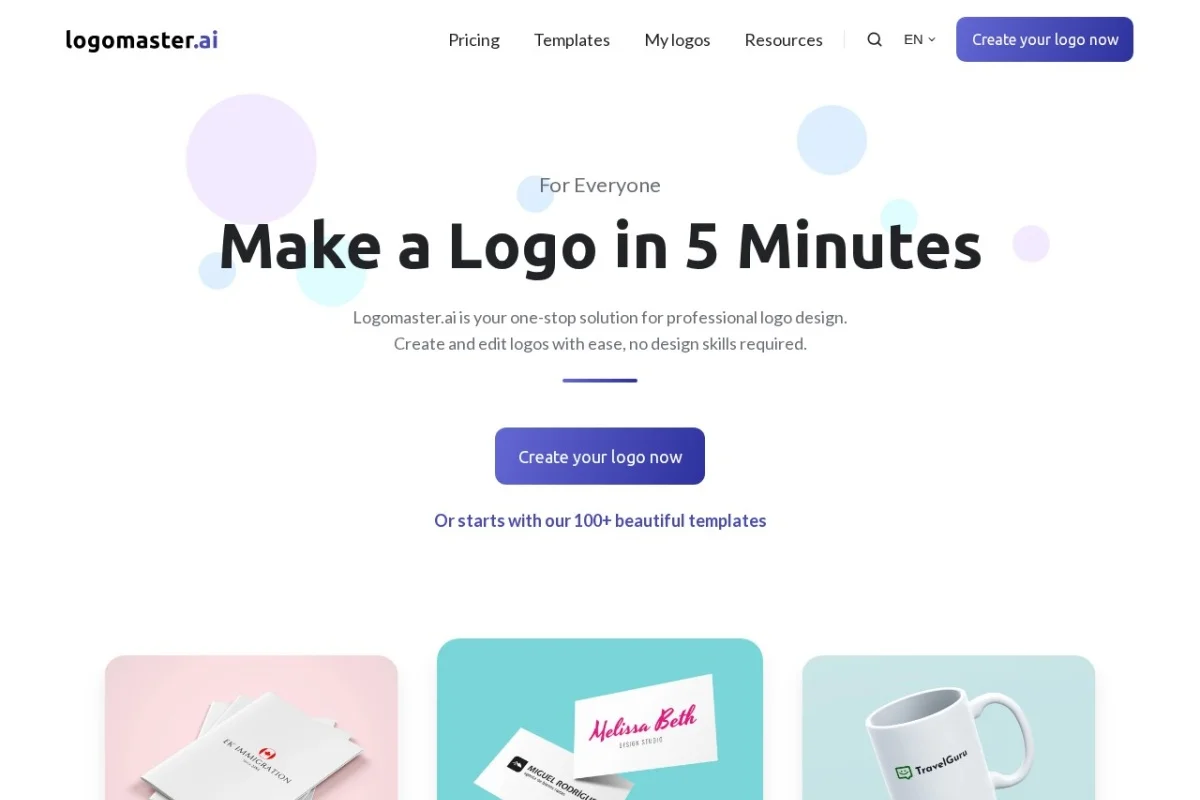
Upon arrival, you will see a clean, straightforward homepage with a prominent call-to-action button to start creating your logo. The design process is divided into a few logical steps, each presented on a single screen. The tool guides you through each step with clear instructions, making it nearly impossible to get lost.
Key Features
AI-Powered Logo Generation
The core of Logomaster.ai is its artificial intelligence engine. When you provide information about your brand—such as your business name, industry, and preferred visual style—the AI analyzes this data and generates multiple logo concepts that are uniquely tailored to you. Unlike templates that simply swap text, these AI-generated designs consider color psychology, typography trends, and iconography relevant to your field.
Customizable Logo Designs
After the AI presents you with options, you enter the customization phase. You can adjust virtually every element of your chosen logo:
- Colors: Change the primary and secondary colors using a built-in palette or enter custom hex codes.
- Fonts: Browse a library of professional typefaces and adjust text size, spacing, and alignment.
- Icons: Replace or modify the AI-suggested icon with alternatives from the tool’s extensive icon library.
- Layout: Rearrange the position of text and icons relative to each other.
High-Resolution Downloads
Once you are satisfied with your design, Logomaster.ai allows you to download your logo in multiple file formats:
- PNG: Perfect for social media profiles, websites, and digital use. The tool provides a high-resolution version (typically 2000×2000 pixels or larger).
- SVG: A vector format ideal for printing on business cards, merchandise, or large banners. SVG files scale infinitely without losing quality.
Multiple Logo Variations
The AI does not just give you one option. It generates a set of distinct variations based on your input. You can browse these variations, mix elements from different designs, or start fresh if none of the initial suggestions appeal to you.
User-Friendly Interface
The entire platform is designed with beginners in mind. Tooltips, visual cues, and a logical step-by-step flow ensure that you never feel overwhelmed. No design terminology or technical skills are required.
How to Use
Step 1: Start the Design Process
On the Logomaster.ai homepage, click the button that says “Create Your Logo” or a similar call-to-action. This will launch the AI-powered questionnaire.
Step 2: Enter Your Brand Information
You will be prompted to provide the following details:
- Business Name: Type the exact name you want to appear on your logo. You can also add a tagline or slogan if desired.
- Industry: Select your business category from a dropdown list (e.g., Technology, Food & Beverage, Health & Wellness, Education, Real Estate, etc.). This helps the AI choose relevant icons and design styles.
- Style Preference: Choose a visual style that reflects your brand personality. Options typically include Minimalist, Modern, Classic, Playful, Elegant, and more. You can often select multiple styles if your brand blends characteristics.
Step 3: Review AI-Generated Logos
After submitting your information, the AI will process your inputs and display a gallery of logo variations. You will see different combinations of icons, fonts, and layouts. Take your time to browse these options. You can click on any logo to preview it in a larger view.
Step 4: Select a Logo to Customize
Choose the logo variation that resonates most with your brand vision. Click on it to enter the customization workspace. You are not locked into this choice—you can always go back and select a different variation later.
Step 5: Customize Your Logo
The customization interface is divided into several panels or tabs:
- Text Editing: Click on the text elements to change the brand name, adjust font style, size, letter spacing, and line height. You can also add or remove a tagline.
- Color Adjustment: Use the color picker to change the logo’s palette. You can apply colors to the text, icon, or background. The tool often suggests harmonious color combinations based on your industry.
- Icon Customization: If you want to replace the AI-selected icon, click on it to open the icon library. You can search by keyword (e.g., “tree,” “star,” “phone”) or browse categories. Once you select a new icon, you can resize and reposition it.
- Layout Options: Experiment with different arrangements, such as placing the icon above the text, to the left, or to the right. You can also adjust the overall alignment (center, left, or right).
Step 6: Preview and Refine
As you make changes, the logo updates in real time. Use the preview feature to see how your logo will look in different contexts, such as on a business card, website header, or social media profile. This helps you ensure the design works well in various sizes and backgrounds.
Step 7: Download Your Logo
Once you are completely satisfied with your design, locate the “Download” button. Logomaster.ai typically offers the following options:
- Free Download: A high-resolution PNG file with a transparent background. This is often available at no cost.
- Premium Download: An SVG vector file, plus additional formats like EPS or PDF. This may require a one-time payment or subscription, but it gives you full ownership and scalability for professional printing.
Choose the format that suits your immediate needs. If you only need a digital logo for your website or social media, the free PNG download is usually sufficient.
Step 8: Save Your Project (Optional)
Logomaster.ai may allow you to create a free account to save your project. This is useful if you want to return later to make further edits or download additional variations. If you do not create an account, ensure you download your final logo before closing the browser tab, as your work may not be recoverable.
Tips
Tip 1: Be Specific with Your Brand Input
The quality of AI-generated logos depends heavily on the information you provide. When describing your industry, choose the most specific category available. For example, instead of selecting “Food,” choose “Bakery” or “Coffee Shop” if applicable. Similarly, when selecting a style, think about your target audience. A law firm might prefer “Classic” and “Professional,” while a children’s toy brand might opt for “Playful” and “Colorful.”
Tip 2: Experiment with Multiple Variations
Do not settle for the first logo you see. The AI generates several options for a reason. Click through all of them, and consider combining elements from different designs. For instance, you might like the icon from one variation and the font from another. Logomaster.ai often allows you to start customization from any variation, so feel free to explore.
Tip 3: Keep It Simple
One of the most common mistakes beginners make is overcomplicating their logo. A good logo should be recognizable at a small size (like a social media avatar) and in black and white. Avoid using too many colors (stick to two or three), overly decorative fonts, or complex icons. The AI’s minimalist suggestions are often the most effective.
Tip 4: Test Your Logo in Real-World Scenarios
Before finalizing your download, use the preview feature to see how your logo looks on a dark background, a light background, and in a small square format. If the logo becomes illegible or loses its impact, go back and simplify the design further.
Tip 5: Consider the SVG Download for Print
If you plan to use your logo on business cards, flyers, banners, or merchandise, invest in the SVG (vector) download. Unlike PNG, which is made of pixels, SVG is made of mathematical paths. This means you can scale it to the size of a billboard without any blurriness or pixelation. Many print shops require vector files for best results.
Tip 6: Use the Tagline Wisely
If your business name is long or abstract, a short tagline can add context. However, avoid making the tagline too prominent. It should be smaller and visually subordinate to the main brand name. Logomaster.ai makes it easy to adjust the size and weight of tagline text.
Tip 7: Save Your Color Hex Codes
Once you finalize your logo colors, note down the hex codes (e.g., #2A5C8A for blue). You can use these exact colors across your website, marketing materials, and social media to maintain brand consistency. Logomaster.ai displays the hex code for each color you select.
Tip 8: Don’t Rush the Process
While Logomaster.ai is designed for speed, your logo is a long-term asset. Spend at least 15-20 minutes exploring variations and fine-tuning details. Step away for a few minutes and return with fresh eyes. You might notice improvements you missed earlier.
Tip 9: Use the Tool for Multiple Projects
Since Logomaster.ai is free to start, you can use it for different purposes: a main business logo, a logo for a sub-brand, a logo for an event, or even a personal monogram. Each project can have its own unique style while still benefiting from the AI’s intelligent design suggestions.
Tip 10: Check Licensing Terms
Before using your logo commercially, review the licensing terms on the Logomaster.ai website. Free downloads typically grant you full commercial rights to the final design, but it is always wise to confirm. This ensures you can use your logo on products, websites, and marketing without legal issues.
By following this tutorial, you can harness the power of artificial intelligence to create a logo that looks like it was designed by a professional agency—all from the comfort of your browser, with zero design experience required. Logomaster.ai democratizes logo design, making it accessible, affordable, and genuinely enjoyable. Start your design journey today, and give your brand the visual identity it deserves.

Logomaster.ai
AI-powered logo maker for creating custom logos quickly.