Introduction to Clockwise: Your AI-Powered Calendar Assistant
In today’s fast-paced work environment, calendars often become a chaotic jumble of back-to-back meetings, leaving little room for focused, deep work. Clockwise was designed to solve this exact problem. It is an AI-driven scheduling assistant that integrates seamlessly with Google Calendar and Outlook to help individuals and teams reclaim their time. By automatically rescheduling flexible meetings, creating dedicated Focus Time blocks, and optimizing your daily schedule, Clockwise aims to make your workday more productive and less stressful.
Since its launch, Clockwise has created over 8 million hours of Focus Time and moved more than 23 million meetings, demonstrating its powerful impact on workplace efficiency. The tool works by analyzing your calendar, understanding your preferences, and intelligently rearranging events to ensure you have uninterrupted periods for concentrated work, while also adding necessary buffers like travel time and breaks.
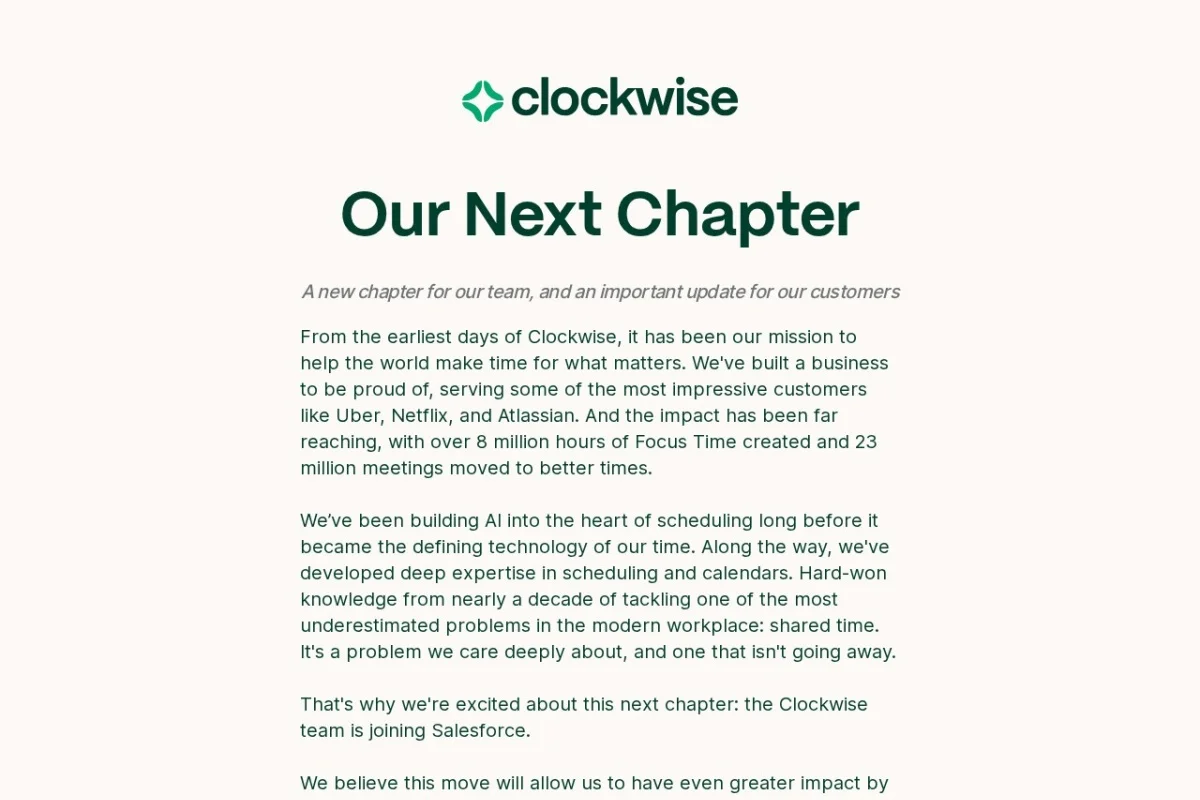
Important Note: As of the latest update, Clockwise is scheduled to shut down on March 27, 2026, as the team joins Salesforce. This tutorial will help you make the most of the tool while it is still active, and also prepare you for a smooth transition. Whether you are a new user or looking to optimize your current setup, this guide will walk you through everything you need to know.
Getting Started with Clockwise
Step 1: Creating Your Account
To begin, navigate to the official Clockwise website at https://www.getclockwise.com/. Click on the “Get Started” or “Sign Up” button, typically located in the top right corner. You will be prompted to sign in using either your Google Calendar or Microsoft Outlook account. Clockwise requires access to your calendar to function, so you will need to grant the necessary permissions during this step.
Step 2: Connecting Your Calendar
After signing up, Clockwise will ask you to connect your primary calendar. If you use Google Calendar, you will see a Google sign-in screen. For Outlook users, a Microsoft login page will appear. Ensure you select the correct email address associated with your work or personal calendar. Clockwise will then scan your existing events to understand your schedule patterns.
Pro Tip: If you manage multiple calendars (e.g., work and personal), you can connect them all. Clockwise will treat events on your secondary calendars as “busy” time, ensuring it does not schedule Focus Time or move meetings when you are otherwise occupied.
Step 3: Setting Your Working Hours and Preferences
Once connected, Clockwise will ask you to define your working hours. This is a critical step. Set your start and end times for a typical workday (e.g., 9:00 AM to 6:00 PM). You can also specify which days of the week you work. Clockwise will use this information to schedule Focus Time blocks and move flexible meetings only within these hours.
Next, you will configure your preferences for Focus Time. You can choose how many hours of Focus Time you want per day (e.g., 2 to 4 hours) and whether you prefer long, uninterrupted blocks (e.g., 90 minutes) or shorter sessions. You can also set “meeting density” preferences, such as how many meetings you are comfortable having per day.
Key Features of Clockwise
Automatic Focus Time Blocks
This is the flagship feature of Clockwise. The AI analyzes your calendar and automatically schedules blocks of “Focus Time” during your most productive hours. These blocks are marked as “Busy” so colleagues cannot book meetings over them. Focus Time is not just empty space; it is protected time for deep work, strategic thinking, or catching up on tasks. Clockwise intelligently moves these blocks to optimal times each day based on your remaining meetings.
Flexible Meeting Rescheduling
Not all meetings are created equal. Clockwise identifies meetings that are marked as “flexible” or ones that can be moved without impacting attendees. It then automatically reschedules these meetings to times that create larger, uninterrupted Focus Time blocks. For example, a 30-minute status update that could happen at 10:00 AM or 2:00 PM might be moved to fill a gap, freeing up a 2-hour block in the morning.
Travel Time and Meeting Breaks
Back-to-back meetings are a major cause of burnout. Clockwise addresses this by automatically adding travel time between meetings. If you have a meeting at a different location (e.g., a client site), you can set a default travel time, and Clockwise will insert it into your calendar. Additionally, the tool can enforce mandatory breaks between meetings, such as 5 or 10 minutes, to give you time to stretch, grab water, or prepare for the next session.
Smart Hold Events
Clockwise introduces “Smart Hold” events, which are placeholders on your calendar for tasks that are not yet scheduled. For example, if you know you need to spend two hours on a project report this week, you can create a Smart Hold. Clockwise will then attempt to find the best time to schedule that hold, based on your availability and Focus Time blocks. This feature helps you proactively plan your tasks rather than reacting to meeting requests.
Scheduling Links
Much like Calendly or Calendso, Clockwise offers Scheduling Links. You can create a personalized link (e.g., clockwise.io/yourname/30min) and share it with colleagues or clients. When someone books a meeting through this link, Clockwise automatically checks your calendar, respects your Focus Time blocks, and suggests only available slots. This eliminates the back-and-forth of finding a meeting time.
How to Use Clockwise: A Step-by-Step Guide
Setting Up Focus Time
1. Open the Clockwise dashboard after signing in.
2. Navigate to the “Preferences” or “Settings” tab.
3. Under “Focus Time,” use the slider to select how many hours you want daily (e.g., 3 hours).
4. Choose your preferred block length. For deep work, select 90-minute blocks. For lighter tasks, 45-minute blocks work well.
5. Click “Save.” Clockwise will immediately analyze your calendar for the next week and insert Focus Time blocks into the most open periods.
Marking Meetings as Flexible
1. Go to your Google Calendar or Outlook Calendar.
2. Find a meeting that you are willing to move (e.g., a recurring team sync that has no fixed agenda).
3. Open the meeting details and look for the Clockwise extension or add-on (usually a small clock icon).
4. Click the icon and select “Mark as Flexible.” You can also set a deadline (e.g., “Move anytime before Friday”).
5. Clockwise will now consider this meeting movable and will reschedule it to optimize your calendar.
Note: Only you can mark your own meetings as flexible. Meetings created by others will not be moved unless they have also enabled Clockwise.
Adding Travel Time and Breaks
1. In the Clockwise dashboard, go to “Settings” > “Meeting Buffers.”
2. Toggle on “Add Travel Time.” Enter your default travel duration (e.g., 15 minutes for local meetings).
3. Toggle on “Enforce Breaks.” Set a minimum break duration (e.g., 5 minutes) between meetings.
4. Click “Save.” Clockwise will now automatically insert these buffers into your calendar whenever meetings are scheduled or moved.
Using Smart Holds
1. On your Clockwise dashboard, click the “Smart Hold” button (usually a plus icon with a clock).
2. Enter a title for the task (e.g., “Write Q3 Report”).
3. Set an estimated duration (e.g., 2 hours).
4. Optionally, set a deadline date by which the task must be completed.
5. Click “Create.” Clockwise will place a grayed-out event on your calendar. Over the next few days, it will automatically move this hold to the best available slot, prioritizing your Focus Time blocks.
Sharing Scheduling Links
1. From the Clockwise dashboard, click on “Scheduling Links” in the left menu.
2. Click “Create New Link.”
3. Choose the meeting duration (e.g., 30 minutes, 1 hour).
4. Select the calendar you want to use (e.g., your primary work calendar).
5. Copy the generated URL and share it via email, Slack, or your email signature.
6. When someone clicks the link, they will see only the times that do not conflict with your Focus Time or existing meetings.
Tips for Getting the Most Out of Clockwise
Tip 1: Be Honest About Your Working Hours
Clockwise is only as effective as the data you provide. If you set your working hours as 9 AM to 5 PM but often work until 7 PM, you might miss out on potential Focus Time. Review your actual work patterns and set realistic hours. You can always adjust them weekly if your schedule changes.
Tip 2: Start with a Low Focus Time Goal
If you are new to Focus Time, do not try to block out 4 hours immediately. Start with 1.5 to 2 hours per day. This allows your team to adjust to your new availability. As you see the benefits, gradually increase the duration. Remember, Focus Time is not about being unavailable; it is about being more productive when you are available.
Tip 3: Communicate Changes to Your Team
Clockwise moves meetings automatically, which can surprise colleagues. Send a brief message to your team explaining that you are using Clockwise to optimize your schedule. Encourage them to mark their own flexible meetings as well. The tool works best when an entire team adopts it, as it can coordinate rescheduling across multiple calendars.
Tip 4: Use Smart Holds for Recurring Tasks
Do not just use Smart Holds for one-off projects. Create recurring Smart Holds for weekly tasks like “Review Reports” or “Team One-on-Ones.” Clockwise will automatically find the best time each week, adjusting as your meeting load changes. This ensures important recurring tasks never get forgotten.
Tip 5: Review Your Weekly Schedule
Every Sunday evening, spend 5 minutes reviewing your upcoming week in the Clockwise dashboard. Look at the Focus Time blocks and see if any conflicts exist. You can manually drag a Focus Time block to a different day if needed. This small habit ensures you are always in control of your calendar, not just reactive to it.
Tip 6: Prepare for the Shutdown
Since Clockwise will shut down on March 27, 2026, start planning your transition early. Export your calendar settings and any custom preferences you have set. Consider exploring alternative tools like Reclaim.ai, Motion, or simply using Google Calendar’s built-in “Focus Time” feature. Test one of these alternatives while Clockwise is still active to ensure a smooth migration.
Tip 7: Disable Clockwise for Personal Events
If you have personal events on your calendar (e.g., doctor appointments, gym sessions), make sure they are on a separate calendar or marked as “Private.” Clockwise will not move events marked as private, but it will still treat them as busy time. This prevents the AI from scheduling Focus Time over your personal commitments.
Final Thoughts
Clockwise is a powerful tool that can transform your relationship with your calendar. By automating the tedious work of scheduling and protecting your time for deep work, it allows you to focus on what truly matters. While its shutdown in 2026 is unfortunate, the principles it teaches—protecting Focus Time, adding buffers, and being intentional with meetings—are timeless.
Use this tutorial to set up Clockwise correctly from day one. Experiment with the features, communicate with your team, and enjoy the extra hours of uninterrupted work. When the time comes to say goodbye, you will have developed habits that make you more productive, regardless of the tool you use next.

Clockwise
AI-powered calendar tool that optimizes team schedules for focus time.