Introduction
Have you ever had a brilliant idea while walking the dog, only to forget it by the time you sit down at your computer? Or perhaps you’ve recorded a voice memo full of insights, but the resulting transcript is a chaotic mess of half-finished sentences and tangents that would embarrass you if anyone read it. This is the exact problem AudioPen was built to solve.
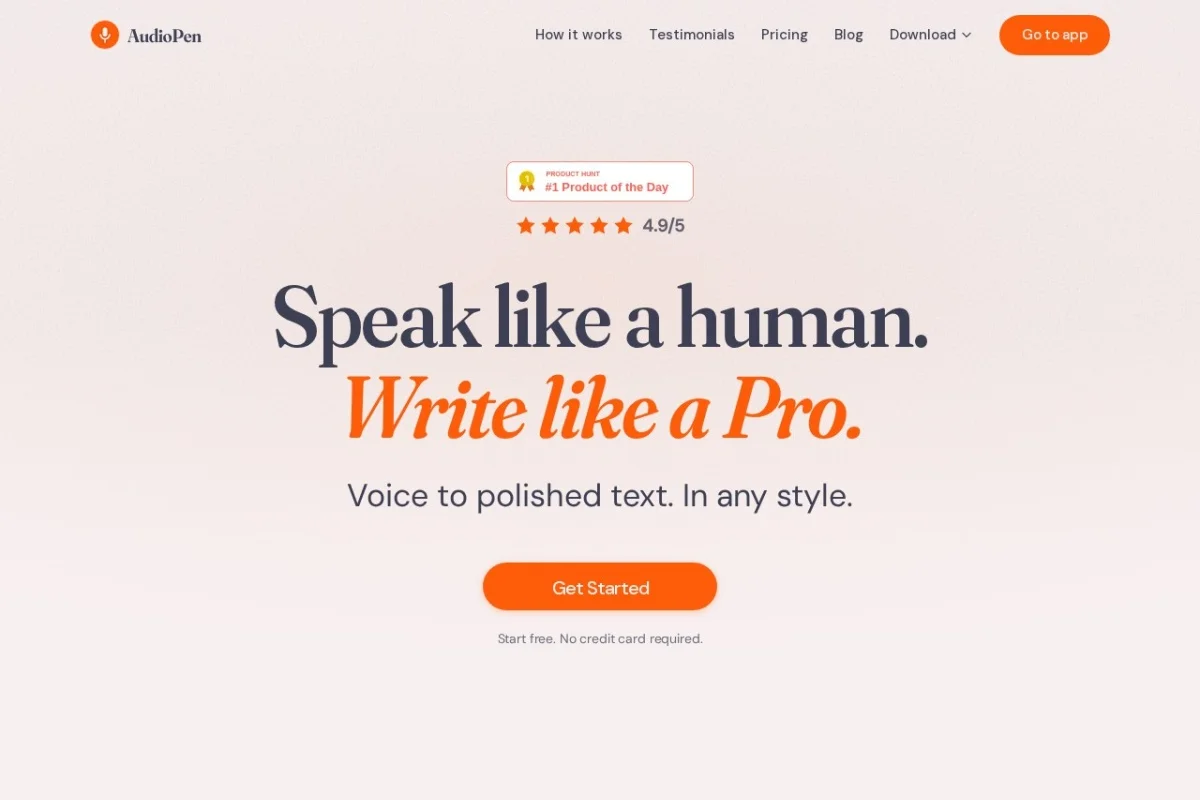
AudioPen is an AI-powered speech-to-text tool that does far more than simply transcribe your voice. It listens to your raw, unstructured, and often rambling spoken thoughts, then uses artificial intelligence to rewrite them into clear, coherent, and structured text. You can change your mind mid-sentence, go off on tangents, repeat yourself, or speak in incomplete fragments. AudioPen takes that messy audio and transforms it into polished output ready for a blog post, a professional email, a team memo, or even a social media caption.
Unlike traditional dictation software that demands perfect grammar and clear enunciation, AudioPen embraces the way humans actually think and speak. It is available on web, iOS, Android, and macOS, and it also offers a handy Chrome extension. This tutorial will walk you through everything you need to know to start using AudioPen effectively, from your very first recording to advanced tips for getting the best possible results.
Getting Started
Creating an Account
Getting started with AudioPen is straightforward. Visit https://audiopen.ai/ on your preferred browser. You will see a prominent “Sign Up” or “Get Started” button. You can register using your email address or, for faster access, sign in with your Google account. The free tier offers a limited number of recordings per month, which is perfect for testing the waters. If you find yourself using it daily, consider upgrading to a paid plan for unlimited recordings and additional features.
Installing on Mobile Devices
For iOS and Android users, head to the Apple App Store or Google Play Store and search for “AudioPen.” Download the official app. The mobile experience is identical to the web version, with the added convenience of recording on the go. Log in with the same credentials you used on the web, and your recordings will sync automatically across all your devices.
Installing the macOS App
If you are a Mac user, you can download the dedicated macOS app from the AudioPen website or the Mac App Store. This app lives in your menu bar, allowing you to start a recording with a single click without opening a browser tab. It is ideal for quick note-taking while working on other tasks.
The Chrome Extension
The Chrome extension is a game-changer for anyone who writes emails, documents, or messages in a browser. Install it from the Chrome Web Store by searching for “AudioPen.” Once installed, you will see the AudioPen icon in your browser toolbar. When you click into any text field (like a Gmail compose window, a Google Doc, or a Slack message), you can click the extension icon to start recording. AudioPen will transcribe and clean up your speech, then paste the polished text directly into the field you were typing in.
Key Features
Voice Recording with No Structure Needed
This is the core feature of AudioPen. You do not need to prepare an outline or speak in complete sentences. You can start a recording by saying “I’m thinking about…” and then jump between three different ideas, backtrack, and end with a completely different conclusion. The AI is trained to handle this natural chaos. It identifies the main points, removes filler words like “um” and “uh,” and discards irrelevant tangents while preserving your original meaning and tone.
Automatic Cleanup of Rambling Speech
When you finish a recording, AudioPen does not give you a raw transcript. Instead, it processes the audio through its AI engine. It removes repetitions, corrects grammar, and reorganizes your thoughts into logical paragraphs. For example, if you say “So I was thinking about the new project… and then, you know, we should probably… actually, maybe we should focus on the budget first,” AudioPen will output something like: “Regarding the new project, we should first focus on the budget.” This cleanup happens in seconds.
Output in Any Writing Style
One of the most powerful features is the ability to choose your output format. After recording, you can select from several styles:
- Clean Note: A neutral, well-structured summary of your thoughts.
- Email: Transforms your ramble into a professional or friendly email format, complete with a subject line.
- Blog Post: Structures your ideas into an engaging article with headings and paragraphs.
- Social Media Post: Condenses your message into a punchy, platform-appropriate post.
- List: Converts your ideas into a bulleted or numbered list.
- Memo: Creates a concise business memo suitable for team communication.
You can even switch between styles after the fact without re-recording.
Multi-Platform Support
Your recordings and their cleaned-up outputs are available on every platform you use. Start a recording on your phone during your commute, refine the text on your laptop at your desk, and paste the final version into an email using the Chrome extension. Everything syncs via your account.
How to Use AudioPen
Step 1: Start a New Recording
On the web or mobile app, you will see a large red record button. Tap or click it to begin. On the macOS app, click the icon in the menu bar and select “New Recording.” The interface is intentionally minimal to reduce friction. You do not need to set a title or choose a style beforehand. Just start talking.
Speak naturally. Do not worry about pauses, filler words, or changing your mind. If you realize you said something incorrectly, simply say “Actually, I meant…” and continue. AudioPen will figure it out.
Step 2: Stop Recording and Process
When you are finished, tap the stop button. AudioPen will immediately begin processing your audio. This usually takes a few seconds, depending on the length of your recording. During this time, the AI analyzes your speech, identifies the core ideas, and prepares the cleaned-up version.
Step 3: Review the Output
Once processing is complete, you will see the polished text displayed on your screen. Read through it carefully. AudioPen is remarkably accurate, but it is always good to check for any misinterpretations, especially with technical terms, names, or unusual phrases. You can edit the text directly in the output box if needed.
Step 4: Choose Your Style
Below the output text, you will see the style selector. By default, it is usually set to “Clean Note.” Click on the dropdown menu and try different styles. Watch how the text changes instantly. For example, if your raw recording was about a new marketing strategy, selecting “Email” will reformat it with a greeting, body, and sign-off. Selecting “Blog Post” will add headings and a more conversational flow.
Experiment with different styles for the same recording. You might find that one style captures your intent better than another.
Step 5: Copy or Share
Once you are happy with the output, you have several options:
- Copy to Clipboard: Click the copy icon to paste the text into any application.
- Share: Generate a shareable link to send the cleaned text to a colleague or friend.
- Save: The recording and its output are automatically saved in your AudioPen history. You can access them later from the sidebar or menu.
Using the Chrome Extension
The Chrome extension works slightly differently. Click into any text field on a website. Then click the AudioPen extension icon in your browser toolbar. A small recording window will pop up. Start speaking. When you stop, the cleaned text will be automatically inserted into the text field you had selected. This is incredibly useful for drafting emails in Gmail, writing comments on platforms like LinkedIn, or creating documents in Google Docs without ever touching your keyboard.
Tips for Getting the Best Results
Speak in Paragraphs, Not Bullet Points
AudioPen works best when you speak in a flowing, conversational manner. If you try to speak in bullet points like “First point… second point… third point,” the AI may struggle to connect your ideas naturally. Instead, tell a story. Say something like “The first thing we need to address is the budget, because without that, the timeline doesn’t matter. Speaking of the timeline, I think we can finish by next month if we…” This gives the AI more context to work with, resulting in better-structured output.
Use Natural Pauses
You do not need to speak non-stop. If you need to think for a moment, simply pause. AudioPen will not cut you off. However, avoid long silences of more than 10 seconds, as the tool may interpret that as the end of your recording. If you need a longer break, just say “Hold on, let me think” and then continue. The AI will handle it.
Correct Yourself Out Loud
If you make a mistake or change your mind, do not go back and edit. Simply say “Actually, let me rephrase that” or “Scratch that, what I mean is…” AudioPen is trained to recognize these self-corrections and will incorporate the corrected version in the final output, discarding the earlier, incorrect statement.
Experiment with Different Styles
Do not settle for the first style you see. Record a single thought about a complex topic, then cycle through all the available styles. You will be amazed at how differently the same raw recording can be transformed. For example, a rambling brainstorm about a vacation can become a detailed “Blog Post” for your travel blog, a concise “Email” to your travel agent, or a punchy “Social Media Post” for Instagram. This feature alone makes AudioPen incredibly versatile.
Use the History Feature
All your recordings are saved in your history. This is useful for two reasons. First, you can revisit old ideas and re-export them in a different style months later. Second, you can listen to the original audio if the AI made an error in transcription. Simply click on a past recording to see both the raw audio and the cleaned text side by side.
Keep Recordings Focused
While AudioPen handles tangents well, extremely long recordings (over 10 minutes) can sometimes result in less focused output. If you have multiple unrelated topics, consider recording them separately. For example, record one audio for “Project A ideas” and another for “Grocery list.” This gives the AI a clearer context for each cleanup, resulting in higher quality text.
Use Specific Language for Better Results
If you know you want the output to be formal, use formal language in your recording. If you want it to be funny, be funny. AudioPen preserves the tone of your voice. If you speak in a serious, analytical tone, the output will be serious and analytical. If you speak casually with jokes, the output will retain that personality. The AI enhances your natural voice; it does not replace it with a robotic default.
Check for Proper Nouns
AudioPen is excellent with general vocabulary, but it may occasionally misspell names, brand names, or technical jargon. Always scan the output for proper nouns. If you notice a recurring error, you can manually correct it in the output box before copying. Over time, the AI may learn from your corrections.
Combine with Other Tools
AudioPen is a fantastic first step in a writing workflow. Use it to get your raw ideas out of your head and into a structured format. Then, copy that text into your preferred writing tool (like Google Docs, Notion, or Microsoft Word) for further refinement, formatting, or collaboration. AudioPen handles the messy brainstorming phase; you handle the final polish.
Practice Makes Perfect
Like any tool, AudioPen works better the more you use it. Your brain will naturally adapt to the “ramble first, clean later” workflow. After a few uses, you will find yourself speaking more efficiently, knowing that the AI will clean up your mess. This reduces the mental friction of writing and allows you to capture ideas faster than ever before.
AudioPen is not just a transcription tool; it is a thinking tool. It bridges the gap between the speed of speech and the clarity of the written word. Whether you are a busy professional, a student, a writer, or someone who simply struggles to organize their thoughts, AudioPen can transform how you capture and communicate ideas. Start with a free account, record your first messy thought, and watch it become something you are proud to share.
