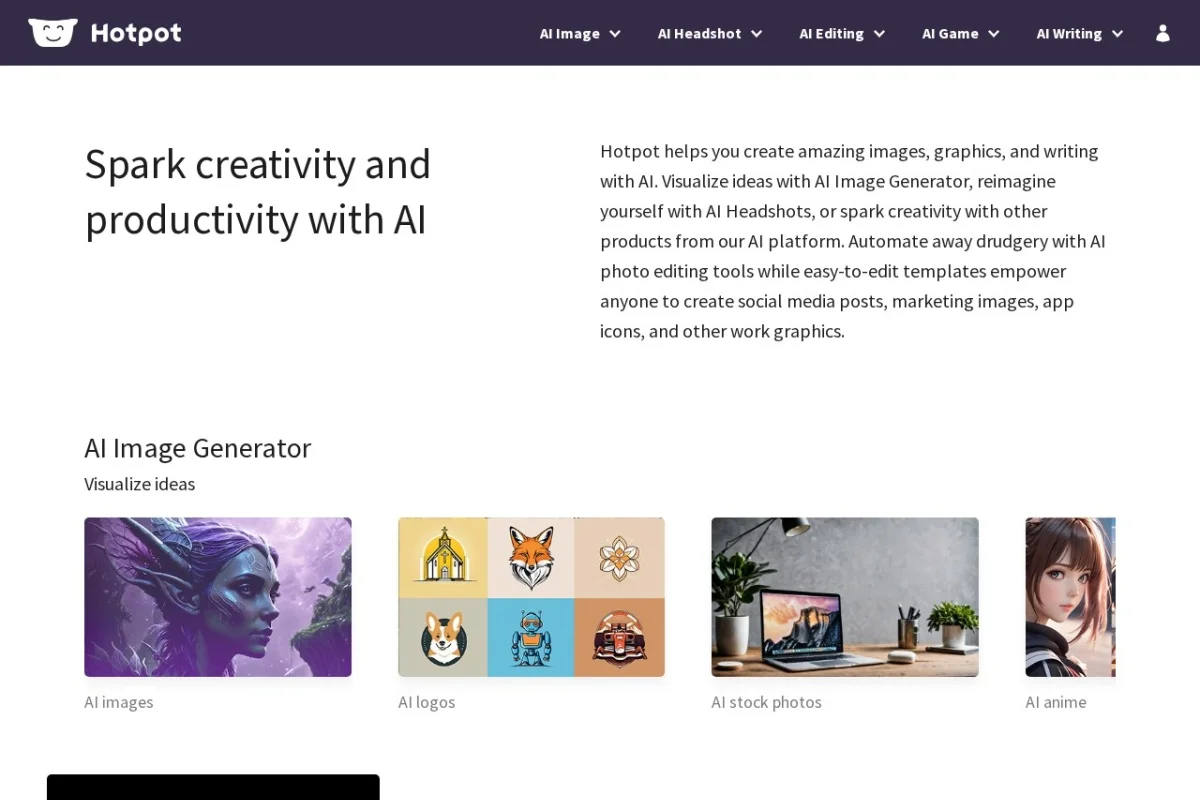
Introduction to Hotpot.ai
Hotpot.ai is a comprehensive, all-in-one creative platform that harnesses the power of artificial intelligence to help individuals, freelancers, marketers, and businesses produce high-quality visual and written content quickly. Unlike many single-purpose AI tools, Hotpot.ai combines image generation, photo editing, professional headshot creation, game asset design, and even AI-powered writing into one unified interface. Whether you need a unique logo for your startup, a realistic corporate headshot without hiring a photographer, or a beautifully upscaled vintage family photo, Hotpot.ai provides a practical solution.
The platform is designed with accessibility in mind. You do not need any prior experience in graphic design, coding, or AI technology. The interface is clean, the prompts are guided, and most tools work with just a few clicks. This tutorial will walk you through everything you need to know to start using Hotpot.ai effectively, from creating an account to mastering its most powerful features.
Getting Started with Hotpot.ai
Creating Your Account
To begin using Hotpot.ai, navigate to the official website at https://hotpot.ai. Click on the “Sign Up” button located in the top right corner of the homepage. You can register using your email address or by connecting your Google account. After signing up, you will receive a confirmation email. Verify your account to unlock all features. Hotpot.ai offers a free tier with a limited number of credits, which is perfect for testing the tools before committing to a paid plan.
Understanding Credits and Plans
Hotpot.ai operates on a credit-based system. Each action, such as generating an image, upscaling a photo, or creating a headshot, consumes a specific number of credits. The free plan provides a small amount of credits to get started. Paid subscription plans offer larger credit packs, priority processing, and access to higher-resolution outputs. You can view your current credit balance at the top of your dashboard. Do not worry about spending credits on mistakes—most tools allow you to preview results before finalizing.
Navigating the Dashboard
Once logged in, you will see a clean dashboard. The main menu is located on the left side of the screen. It is organized into categories: AI Art, AI Headshots, Photo Editing, Game Tools, and AI Writing. Clicking any category expands a list of specific tools. The center of the screen displays your recent projects and saved files. You can return to this dashboard at any time by clicking the “Home” icon.
Key Features of Hotpot.ai
1. AI Art Generator
The AI Art Generator is the flagship tool of Hotpot.ai. It transforms text descriptions into unique digital artwork. You can generate anything from photorealistic landscapes to abstract paintings, fantasy characters, or product mockups. The tool supports multiple artistic styles, including oil painting, watercolor, 3D render, anime, and sketch. You can also specify an aspect ratio (square, portrait, landscape) to fit your intended use—whether for social media posts, website banners, or print materials.
2. AI Headshots (General, Corporate, Avatar)
This feature is a game-changer for professionals. Instead of booking a photoshoot, you can upload a few casual selfies, and Hotpot.ai will generate high-quality headshots. There are three categories: General (casual or creative looks), Corporate (professional business attire with clean backgrounds), and Avatar (stylized digital portraits for gaming or social media). The AI analyzes your facial features and produces consistent, natural-looking results.
3. Photo Upscaler and Restorer
The Photo Upscaler increases the resolution of low-quality images without losing sharpness. It is ideal for old digital photos, screenshots, or images downloaded from the web. The Photo Restorer goes a step further—it can repair damaged or faded photographs, remove scratches, and enhance colors. This tool is particularly useful for preserving family history or improving product images for e-commerce.
4. Object and Background Remover
These two tools simplify complex editing tasks. The Background Remover instantly isolates the subject of any image by removing the background. You can then replace it with a solid color, a gradient, or a custom image. The Object Remover allows you to erase unwanted elements from a photo—such as a person in the background, a logo, or a piece of clutter. Simply brush over the object, and the AI fills the area with contextually appropriate content.
5. AI Game Tools (Characters, Backgrounds, Logo)
Game developers and hobbyists will appreciate this dedicated suite. The AI Character Generator creates unique character designs based on descriptive prompts. The AI Background Generator produces immersive environments like forests, dungeons, or futuristic cities. The AI Logo Generator helps you design a game studio logo or a brand mark. All assets are generated in high resolution and can be exported in common formats.
6. AI Writing (Copywriting, Song Writing, Book Writing)
Hotpot.ai is not limited to visuals. Its writing tools can generate marketing copy, social media captions, blog outlines, song lyrics, and even book chapters. The AI adapts to your tone—whether you need professional business language, creative storytelling, or catchy advertising slogans. You can input a topic or a few keywords, and the AI will produce multiple variations to choose from.
How to Use Hotpot.ai: Step-by-Step Guides
Creating AI Art
1. From the dashboard, click on AI Art in the left menu, then select AI Art Generator.
2. In the text box, describe what you want to generate. Be specific. For example, instead of “a cat,” write “a fluffy orange cat sitting on a vintage armchair in a sunlit room, oil painting style.”
3. Choose an art style from the dropdown menu (e.g., “Photorealistic,” “Anime,” “3D Render”).
4. Select the aspect ratio. “1:1” is best for social media, “16:9” for widescreen, and “4:3” for standard prints.
5. Click the Generate button. The AI will process your prompt and display four variations.
6. Hover over a result to see options. You can download the image, regenerate it with minor tweaks, or save it to your project library. If you are not satisfied, adjust your prompt and try again.
Generating Corporate Headshots
1. Navigate to AI Headshots and select Corporate.
2. Upload 3 to 5 clear selfies from different angles. Ensure your face is well-lit and unobstructed by glasses or hair.
3. Choose a background style (e.g., “White,” “Gray,” “Office,” or “Blurred”).
4. Select your gender and clothing style (e.g., “Suit,” “Blazer,” “Casual”).
5. Click Generate Headshots. The AI will process your images and produce multiple professional headshots within a few minutes.
6. Review the results. You can download individual headshots or the entire set. If the results are not perfect, you can adjust the input photos and regenerate.
Upscaling an Image
1. Go to Photo Editing and click Photo Upscaler.
2. Upload your image by dragging it into the upload area or clicking to browse.
3. Choose the upscale factor: 2x, 4x, or 8x. For most purposes, 4x is sufficient.
4. Optionally, enable “Enhance Face” if the image contains a person. This improves facial details.
5. Click Upscale. The process takes a few seconds. Once complete, you can download the high-resolution version. Compare it with the original by using the slider tool.
Removing Background from an Image
1. Under Photo Editing, select Background Remover.
2. Upload your image. The AI will automatically detect the subject and remove the background in seconds.
3. You will see a preview with a transparent background. To replace it, click on “Edit Background.”
4. Choose a solid color, upload a custom background image, or select a gradient. Adjust the position of the subject if needed.
5. Click Apply and then Download to save your final image.
Using AI Writing Tools
1. From the left menu, click AI Writing and choose the specific tool (e.g., Copywriting).
2. In the input field, describe what you need. For example, “Write a Facebook ad for a new organic coffee brand targeting busy professionals.”
3. Set the tone (e.g., “Professional,” “Friendly,” “Urgent”) and the length (short, medium, long).
4. Click Generate. The AI will produce several versions of the copy.
5. You can edit the text directly in the output box, copy it to your clipboard, or save it as a note. Use the “Regenerate” button to get more options.
Tips for Getting the Best Results
Write Detailed Prompts
The quality of AI-generated art and writing heavily depends on your input. Be as descriptive as possible. Include details about colors, lighting, mood, composition, and style. For example, instead of “a mountain,” write “a snow-capped mountain at sunset with pink and orange clouds, reflection in a calm lake, photorealistic.” The more context you provide, the more accurate the output.
Use High-Quality Input Images
For headshots, photo restoration, and background removal, the quality of your source images matters. Use well-lit, high-resolution photos. Avoid blurry or overly compressed images. For headshots, ensure your face is centered and your expression is neutral. This gives the AI the best data to work with.
Experiment with Styles and Settings
Do not settle for the first result. Hotpot.ai offers multiple styles, aspect ratios, and enhancement options. Try different combinations. For example, an AI art prompt that works well in “Oil Painting” style might look completely different in “Cyberpunk” style. Similarly, when upscaling, test both 2x and 4x to find the balance between file size and quality.
Save and Organize Your Projects
Hotpot.ai allows you to save your generated images and writing drafts to your library. Use this feature to keep track of your work. You can create folders for different projects (e.g., “Website Assets,” “Social Media,” “Game Characters”). This saves time when you need to revisit or reuse a design.
Use the Object Remover for Quick Fixes
If you have a photo with an unwanted element—like a passerby in a vacation photo or a watermark on a stock image—use the Object Remover. It works best on small to medium objects. For large areas, try cropping the image first. The AI fills the removed area with surrounding textures, often producing seamless results.
Combine Tools for Advanced Workflows
Hotpot.ai’s tools are designed to work together. For example, you can generate an AI art piece, then use the Background Remover to isolate the subject, and finally upscale it for printing. Or, you can create a game character with the AI Game Tools, generate a matching background, and use AI Writing to produce a character description for your game manual.
Monitor Your Credit Usage
Each action consumes credits. To avoid running out unexpectedly, check your credit balance before starting a large project. The free plan is generous for testing, but for regular use, consider upgrading to a paid plan. Hotpot.ai often runs promotions, so keep an eye on your dashboard for bonus credit offers.
Stay Within Copyright Guidelines
Hotpot.ai generates original content, but you should avoid using copyrighted characters, logos, or trademarked material in your prompts. The platform’s terms of service grant you ownership of the content you create, but you are responsible for ensuring it does not infringe on others’ rights. For commercial use, always review the licensing details on the website.
Conclusion
Hotpot.ai is a versatile and user-friendly AI tool that democratizes creativity. Whether you are a business owner needing a logo, a gamer designing characters, a marketer crafting copy, or someone who simply wants to restore old family photos, this platform offers practical solutions without a steep learning curve. By following this tutorial, you now have the foundational knowledge to explore each feature, experiment with prompts, and integrate Hotpot.ai into your daily workflow. Start with a simple project, like generating a headshot or upscaling a photo, and gradually explore the more advanced tools. With practice, you will discover that Hotpot.ai is not just a tool—it is a creative partner that helps you bring your ideas to life.

Hotpot.ai
AI image generator and creative tools to spark productivity.