Introduction
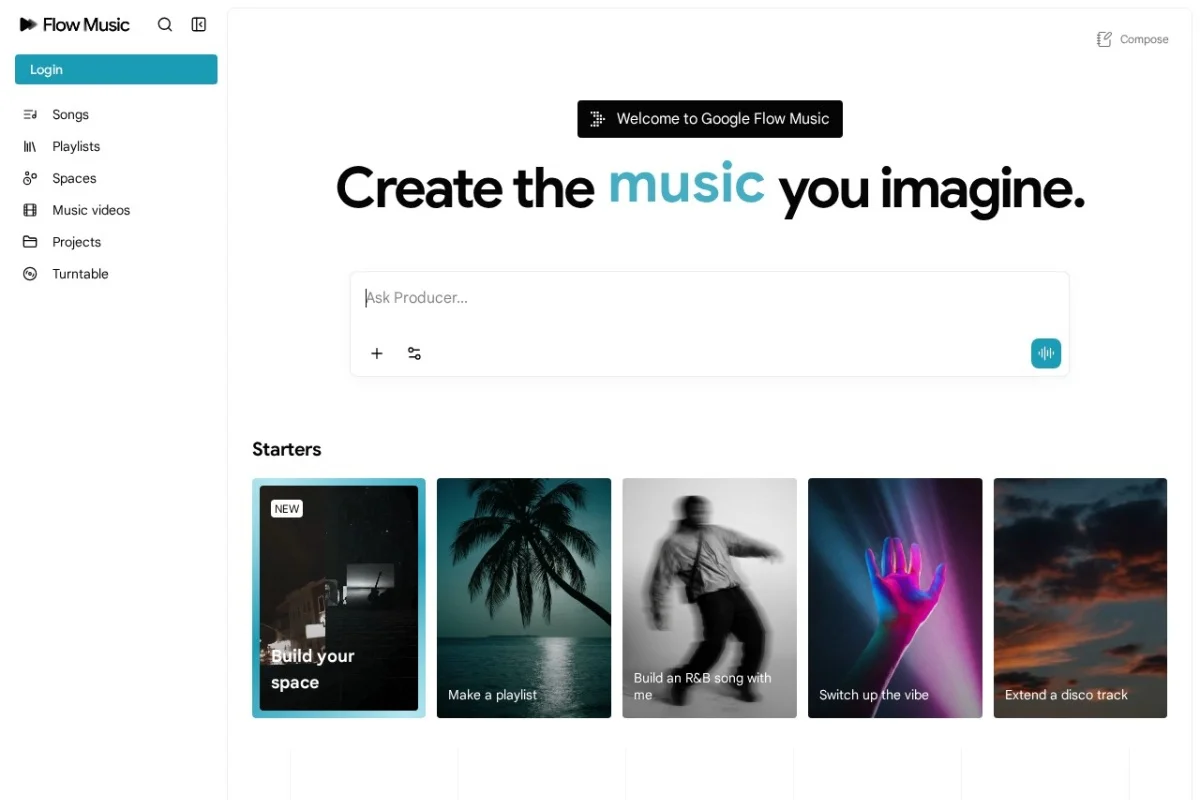
Welcome to the future of music creation. Google Flow Music, accessible at https://www.riffusion.com/, is an AI-powered music production platform that redefines how you compose, remix, and visualize sound. Powered by the advanced Lyria 3 music model for composition and the Veo video model for AI-generated music videos, this tool allows anyone—from complete beginners to seasoned producers—to create full-length songs with rich musicality and dynamic vocals.
What sets Google Flow Music apart is its ability to learn your personal style over time. The more you create, the better the AI understands your preferences, delivering results that feel uniquely yours. You can also remix existing audio, split stems, apply effects, and even “vibe-code” your own custom audio plugins or interactive games. With daily credits provided for free, you can experiment and produce music every day without worrying about subscription fees.
This tutorial will guide you through every aspect of Google Flow Music, from your first login to advanced techniques like vibe-coding. By the end, you will be confident in creating complete songs, generating music videos, and remixing tracks like a professional.
Getting Started
Creating Your Account
To begin using Google Flow Music, navigate to https://www.riffusion.com/. Click the “Sign Up” or “Get Started” button on the homepage. You can register using your Google account or an email address. Once you verify your email, you will be logged into the main dashboard.
Upon first login, you will receive a welcome screen explaining your daily credits. Credits are the currency used for each action—composing a song, generating a video, or remixing audio. The platform replenishes your credits every 24 hours, so you can create consistently without paying. Check your credit balance in the top-right corner of the dashboard.
Dashboard Overview
The dashboard is your command center. It consists of four main areas:
- Create Tab: Where you start new projects—compose songs, generate videos, or remix audio.
- My Library: Stores all your previous creations, including songs, stems, videos, and custom plugins.
- Style Profile: Shows your personal music style as learned by the AI. You can view and edit your preferences here.
- Settings: Manage your account, credit usage, and privacy options.
Take a few minutes to explore each section. Click on “My Library” to see an empty workspace—this will soon fill with your creations.
Key Features
Google Flow Music is packed with features that cover the entire music creation pipeline. Below is a breakdown of each core feature.
1. Compose Full-Length Songs with Lyria 3 Model
The Lyria 3 model is the heart of Google Flow Music. It can generate complete songs from simple text prompts or audio references. You can specify genre, mood, tempo, and even lyrical themes. The model produces rich instrumentation, harmonies, and dynamic vocals that sound natural and expressive. Songs can be up to several minutes long, depending on your credits.
2. Generate AI Music Videos with Veo Model
The Veo video model transforms your audio into synchronized music videos. You can control the visual aesthetic—choose characters, settings, animation styles, and color palettes. Simply upload or generate a song, then describe the video you want. Veo will produce a video that matches the rhythm, mood, and structure of your music.
3. Remix Audio and Apply Effects
You can import any audio file (MP3, WAV, etc.) and remix it using AI-powered tools. Apply effects like reverb, delay, distortion, or filter sweeps. The AI can also suggest remix variations based on your style profile. This is perfect for creating new versions of existing songs or experimenting with sound design.
4. Stem Splitting
Stem splitting allows you to separate a mixed track into individual components—vocals, drums, bass, and other instruments. This is invaluable for remixing, karaoke, or isolating specific parts for sampling. Google Flow Music uses AI to perform high-quality stem separation with minimal artifacts.
5. Vibe-Code Custom Audio Plugins and Games
One of the most innovative features is “vibe-coding.” You can write simple code snippets (using a beginner-friendly scripting language) to create custom audio effects, synthesizers, or even interactive music games. This feature is designed for users with no coding experience—the AI assists you by generating code based on natural language descriptions. For example, you can say “create a reverb plugin that sounds like a cathedral,” and the AI will generate the code for you.
6. Personalized Style Learning
The platform continuously analyzes your creations, remixes, and preferences. Over time, it builds a Style Profile that influences future generations. If you frequently compose lo-fi hip hop with piano melodies, the AI will prioritize those elements in new suggestions. You can manually adjust your style profile by rating songs or selecting favorite genres.
7. Daily Credits for Creation
Every day, you receive a set number of credits (typically 10–20, depending on your account tier). Each action—composing a song, generating a video, or remixing—consumes one or more credits. Unused credits do not roll over, so it is best to create regularly. You can purchase additional credits if needed, but the daily allowance is generous for most users.
How to Use Google Flow Music
This section provides step-by-step instructions for the most common tasks.
Composing Your First Song
- From the dashboard, click the “Create” tab and select “Compose Song”.
- You will see a text box labeled “Describe your song”. Write a prompt such as: “A cheerful pop song with acoustic guitar, female vocals, and a driving beat. Key of C major, 120 BPM.”
- Below the prompt, you can choose additional parameters: Genre (e.g., Pop, Rock, Jazz), Mood (Happy, Melancholic, Energetic), Length (30 seconds to 3 minutes), and Vocal Style (Male, Female, Duet, Instrumental).
- Click “Generate”. The Lyria 3 model will process your request. This may take 20–60 seconds, depending on song length.
- Once generated, you can preview the song. If you are satisfied, click “Save to Library”. If not, you can click “Regenerate” or tweak your prompt.
Tip: For better results, include specific instruments and a clear structure (e.g., “intro, verse, chorus, bridge, outro”).
Generating a Music Video with Veo
- Open any saved song from your library, or compose a new one as described above.
- Click the “Create Video” button next to the song.
- You will be prompted to describe the video. For example: “A neon-lit city street at night, with a robot dancing to the beat. Anime style, vibrant colors.”
- You can also choose Character (e.g., human, robot, animal), Setting (e.g., forest, studio, space), and Animation Style (e.g., 2D, 3D, hand-drawn).
- Click “Generate Video”. The Veo model will analyze the song’s tempo and structure to create a synchronized video. This takes 1–3 minutes.
- Preview the video. You can download it as an MP4 file or share it directly from the platform.
Tip: For best synchronization, use songs with clear rhythmic changes (e.g., a drop in EDM or a chorus in pop).
Remixing Audio and Applying Effects
- Go to the “Create” tab and select “Remix Audio”.
- Upload an audio file (MP3 or WAV) from your computer, or choose a song from your library.
- You will see a waveform display. Use the “Effects” panel to add reverb, delay, EQ, or distortion. Each effect has adjustable parameters—experiment with them.
- If you want the AI to suggest a remix, click “Auto Remix”. The AI will analyze the song and propose a new arrangement or effect chain.
- Once satisfied, click “Export Remix” to save the new version.
Splitting Stems
- From the dashboard, select “Split Stems” under the “Create” tab.
- Upload a mixed track. The AI will process it and separate into up to four stems: Vocals, Drums, Bass, and Other Instruments.
- You can preview each stem individually. Download them as separate WAV files, or use them directly in a remix project.
Vibe-Coding a Custom Plugin or Game
- Click “Vibe-Code” from the dashboard.
- You will see a code editor with a simple scripting language (similar to Python but simplified).
- Describe what you want in natural language, e.g., “Create a plugin that adds a tremolo effect with adjustable speed and depth.” The AI will generate the code for you.
- You can edit the code manually if you have experience. Click “Test” to hear the effect on a sample audio loop.
- Once working, click “Publish” to save it as a custom plugin in your library. You can use it in any remix or composition.
- For games, select “Music Game” instead of “Plugin.” Describe a simple game concept, like “A rhythm game where you press keys to match the beat.” The AI will generate a playable HTML5 game that uses your music.
Tips for Best Results
1. Write Detailed Prompts
The quality of your output depends heavily on your input. Instead of “make a sad song,” write: “A melancholic piano ballad in A minor, with soft strings and a female vocalist. Tempo 70 BPM, with a slow build to a powerful chorus.” The more specific you are, the better Lyria 3 understands your vision.
2. Use Style Profile to Your Advantage
After creating a few songs, rate them using the thumbs-up/thumbs-down icon. This trains the AI. You can also manually edit your style profile by going to “Settings” > “Style Profile” and selecting preferred genres, instruments, and moods. This ensures future generations align with your taste.
3. Manage Your Credits Wisely
Daily credits are limited. If you are experimenting, use shorter song lengths (30–60 seconds) to conserve credits. Save longer compositions for when you have a clear idea. Also, note that generating videos costs more credits than composing audio—plan accordingly.
4. Combine Features for Complex Projects
Do not limit yourself to one feature. For example, you can compose a song, split its stems, remix the drums with a custom plugin, then generate a video for the final version. The platform is designed for seamless workflow between features.
5. Explore the Vibe-Code Community
Google Flow Music has a community section where users share custom plugins and games. You can browse, use, and learn from others’ code. This is a great way to discover new effects or game mechanics without starting from scratch.
6. Use Audio References
When composing, you can upload a reference track (a song you like) and ask Lyria 3 to create something similar in style but original. This is useful for generating music in a specific artist’s vein without copying copyrighted material.
7. Export in High Quality
Always export your final songs and videos in the highest available quality (WAV for audio, 1080p for video). This ensures professional results when sharing on streaming platforms or social media.
Conclusion
Google Flow Music is a revolutionary tool that puts the power of AI music and video creation into your hands. Whether you are a hobbyist wanting to make songs for fun, a content creator needing custom music, or a producer exploring new sounds, this platform offers endless possibilities. By mastering the Lyria 3 model for composition, the Veo model for videos, and the unique vibe-coding feature, you can produce complete, polished works of art.
Start with simple prompts, experiment with remixing and stem splitting, and let the AI learn your style over time. With daily credits, you can make creation a habit. Visit https://www.riffusion.com/ today and begin your musical journey with Google Flow Music.

Google Flow Music
AI-powered music creation and video generation platform.