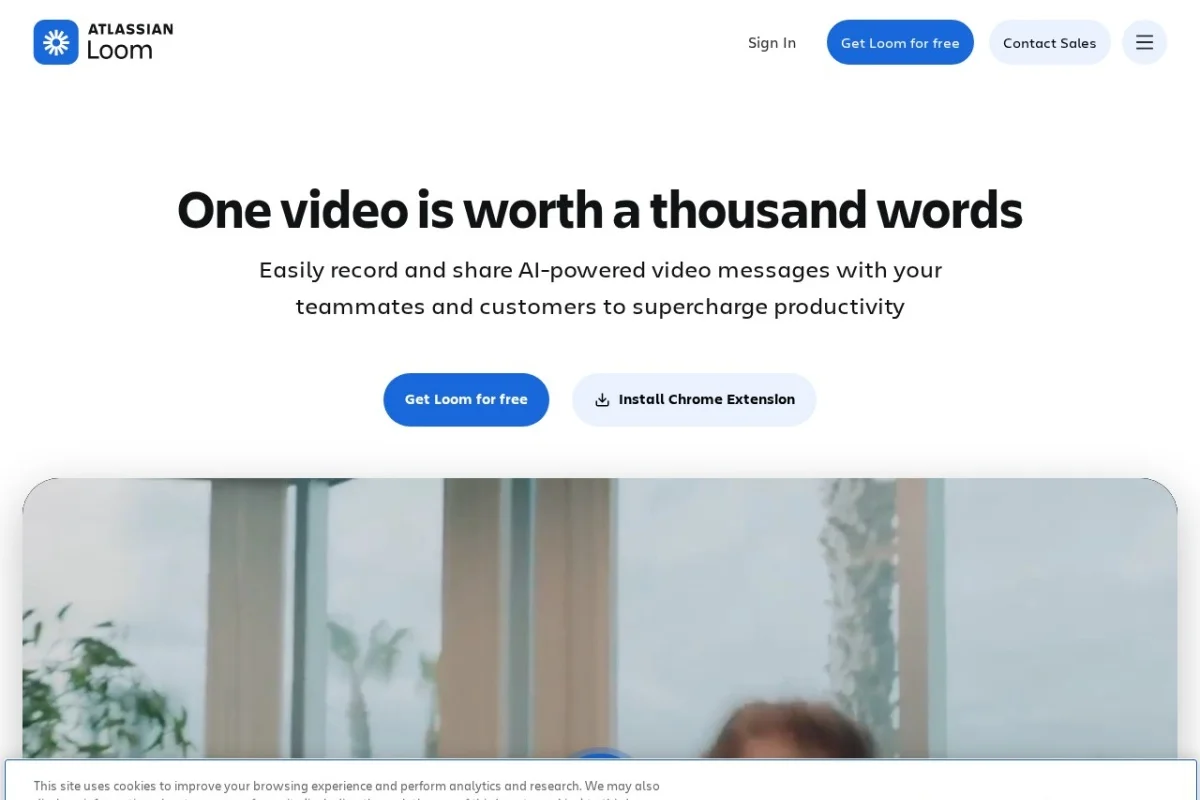
Introduction to Loom: The Future of Async Communication
In today’s fast-paced, remote-first work environment, clear and efficient communication can be a challenge. Long emails often get misinterpreted, scheduling meetings takes time, and written instructions can lack nuance. Enter Loom, a powerful video messaging platform designed to transform the way you communicate at work. Instead of typing a lengthy email or scheduling a 30-minute call, you can record a short video of your screen, your face, or both, and instantly share it with a simple link. Loom is not just another video tool; it is a communication platform built for asynchronous work, allowing you to convey tone, context, and visual information in seconds. Whether you are providing feedback on a design, explaining a complex process, giving a product demo, or recording a quick status update, Loom makes your communication more human, more efficient, and more effective. This tutorial will guide you through everything you need to know about Loom, from installation to advanced tips, making you a confident user in no time.
Getting Started with Loom
1. Creating Your Account
To begin using Loom, navigate to https://www.loom.com/ in your web browser. You can sign up using your Google account, Microsoft account, or any email address. For business users, it is highly recommended to use your work email to access team features. The free plan offers generous recording limits, including up to 25 videos with a maximum length of 5 minutes each, which is perfect for getting started.
2. Installing the Desktop App
While Loom has a web-based recorder, the desktop application provides a smoother, more feature-rich experience. After signing up, download the Loom desktop app for Mac or PC from the Loom website or your operating system’s app store. The installation process is straightforward—simply run the installer and follow the prompts. Once installed, launch Loom and sign in with the account you just created. You will see a small floating icon on your screen, usually on the side or bottom, which is your control center for recording.
3. Installing the Mobile App
Loom is also available for iOS and Android devices. Download the Loom app from the Apple App Store or Google Play Store. Sign in with the same account you used on your desktop. The mobile app is perfect for recording quick updates while on the go, capturing whiteboard sessions, or sharing feedback directly from your phone.
Key Features of Loom
Understanding Loom’s core features will help you leverage the tool to its full potential. Here are the most important ones you will use daily:
- Screen, Camera, or Both: You can choose to record just your screen (useful for demos), just your camera (for face-to-face messages), or a combination of both. The “Camera + Screen” mode places a small circle with your face in the corner of the recording, creating a personal connection.
- Instant Sharing via Link: Once you stop recording, Loom automatically processes the video and generates a shareable link. This link is copied to your clipboard instantly. You can paste it into an email, Slack message, Notion document, or any other communication tool. There is no file to upload or attach.
- Viewer Engagement Insights: Loom provides analytics for each video. You can see who has viewed your video, how many times it was watched, and even how viewers reacted with emoji reactions (like a heart, thumbs up, or question mark). This feature is invaluable for understanding if your message was received and understood.
- Customizable Recording Settings: Before recording, you can adjust your camera, microphone, and screen capture settings. You can also choose to record in 4K quality (on paid plans), enable noise cancellation, and even blur your background for privacy.
- Cross-Platform Compatibility: Loom works seamlessly on Mac, PC, iOS, and Android. Your recordings are synced to the cloud, so you can start a recording on your desktop and watch it on your phone.
- Video Editing and Trimming: After recording, you can trim the beginning or end of your video to remove mistakes or pauses. This is done directly in the Loom interface without needing external software.
- Call-to-Action (CTA) Buttons: You can add a custom button to your video, such as “Schedule a Meeting,” “Visit Website,” or “Reply with Video.” This guides the viewer on what to do next.
- Password Protection and Privacy Controls: For sensitive content, you can set a password for your video, limit views, or require viewer email verification. This ensures your information stays secure.
How to Use Loom: A Step-by-Step Guide
Recording Your First Video (Desktop)
Step 1: Open the Loom App. Click on the Loom icon in your system tray (Windows) or menu bar (Mac). A small window will pop up with recording options.
Step 2: Choose Your Recording Mode. You will see three options: Screen Only, Camera Only, and Screen + Camera. For most professional communications, “Screen + Camera” is the best choice. Select it by clicking the icon.
Step 3: Select What to Record. If you choose “Screen Only” or “Screen + Camera,” you will be asked to select a specific window, a browser tab, or your entire screen. For a clean look, choose a specific window (e.g., your browser or presentation). For the camera, ensure your webcam is selected and your face is well-lit.
Step 4: Adjust Settings. Before hitting record, check your microphone and camera. You can toggle on “Background Blur” if you are in a messy room. Click on the gear icon to access more settings, such as video quality and recording resolution.
Step 5: Start Recording. Click the red “Record” button. A 3-second countdown will appear, giving you time to prepare. Once recording begins, you will see a small floating toolbar. This toolbar allows you to pause, stop, or draw on the screen (for screen recordings).
Step 6: Speak and Demonstrate. Talk naturally as if you are speaking to a colleague. Use your mouse to point at things on the screen. The small camera circle will follow your face. You can move the camera circle to a different corner by dragging it.
Step 7: Stop and Review. When you are done, click the red “Stop” button on the floating toolbar. Loom will automatically process the video. A new window will open showing your video preview.
Step 8: Edit and Share. In the preview window, you can trim the video by dragging the handles at the beginning or end of the timeline. You can also add a title, description, and a call-to-action button. When you are satisfied, click “Copy Link.” The link is now on your clipboard. Paste it into an email, Slack, or wherever you need.
Recording on Mobile (iOS/Android)
Using Loom on mobile is just as simple. Open the app and tap the big red button at the bottom. You will be given the same three recording options. For mobile, “Camera Only” is great for quick face-to-face updates, while “Screen + Camera” is useful for showing a mobile app or website. After recording, you can trim the video and share the link just like on desktop.
Viewing and Managing Your Videos
All your recorded videos are stored in your Loom library, accessible from the app or the web dashboard at loom.com. From here, you can:
- View analytics (views, reactions, and viewer names if they are logged in).
- Edit video details (title, description, thumbnail).
- Change sharing settings (add password, limit views).
- Delete videos you no longer need.
- Organize videos into folders (available on paid plans).
Practical Tips for Using Loom Effectively
To get the most out of Loom and make your videos professional and engaging, follow these practical tips:
1. Plan Your Content Before Recording
Before you hit the record button, take 30 seconds to outline what you want to say. Jot down 3-4 key points on a sticky note or in a text file. This prevents rambling and ensures your video is concise. Remember, the best Loom videos are under 2 minutes. If you have a lot to say, consider breaking it into multiple short videos.
2. Use a Good Microphone
Audio quality is more important than video quality. Viewers will forgive a slightly grainy video but not poor audio. If possible, use a USB microphone or a good headset. Avoid recording in noisy environments. Loom also has a built-in noise cancellation feature—enable it in the settings before recording.
3. Look at the Camera, Not the Screen
When you are recording your face (in Camera or Screen+Camera mode), look directly into your webcam lens, not at the video of yourself on the screen. This creates the illusion of eye contact, making your message feel more personal and trustworthy. It takes practice, but it makes a huge difference.
4. Use the Drawing Tool for Emphasis
When recording your screen, Loom allows you to draw on the screen in real-time. Use this feature to circle important elements, underline text, or point to specific areas. This is especially useful for tutorials, design feedback, or bug reports. Simply click the pen icon on the floating toolbar during recording.
5. Keep Your Background Clean or Blur It
First impressions matter. If you are recording with your camera, ensure your background is tidy and professional. Alternatively, use Loom’s “Background Blur” feature to hide your surroundings. This is a great option for remote workers who may not have a dedicated home office.
6. Leverage Viewer Insights
After sharing a Loom video, check the analytics. If you see that a viewer only watched 30 seconds of a 3-minute video, consider making future videos shorter. If a viewer rewatched a specific section multiple times, that part might have been confusing. Use this data to improve your communication over time.
7. Add a Call-to-Action (CTA)
Always tell the viewer what you want them to do next. Use the CTA button feature to add a link to a document, a meeting scheduler, or a reply form. For example, if you are giving feedback on a design, your CTA could be “View Updated Design” or “Reply with Your Thoughts.”
8. Use Loom for Specific Scenarios
Loom shines in specific use cases. Here are a few ideas:
- Bug Reports: Instead of writing a long description, record your screen showing the bug step-by-step.
- Onboarding New Hires: Record a welcome video or a tour of your tools.
- Design Feedback: Record your screen while reviewing a design mockup, using the drawing tool to highlight changes.
- Status Updates: Replace daily stand-up meetings with a 2-minute video update.
- Asynchronous Presentations: Record a slide deck instead of presenting live.
9. Master Keyboard Shortcuts (Desktop)
For power users, Loom supports keyboard shortcuts. Press Ctrl + Shift + L (Windows) or Cmd + Shift + L (Mac) to start a new recording instantly. During recording, use Ctrl + Shift + P to pause or resume. These shortcuts save time and make the recording process feel seamless.
10. Respect Privacy and Security
Always consider the sensitivity of the information you are recording. If your video contains customer data, passwords, or internal strategy, use Loom’s privacy settings. Enable password protection or limit the video to specific email domains. You can also delete videos permanently from your library once they are no longer needed.
Conclusion
Loom is more than just a screen recorder; it is a paradigm shift in how we communicate at work. By replacing lengthy emails and unnecessary meetings with short, expressive videos, you can save time, reduce misunderstandings, and build stronger connections with your colleagues. This tutorial has covered everything from setting up your account to advanced tips for creating professional, engaging videos. The key to success with Loom is practice. Start by recording a simple message to a teammate, then gradually incorporate it into your daily workflow. As you become more comfortable, you will wonder how you ever managed without it. Now, open Loom, press record, and start communicating more effectively today.
