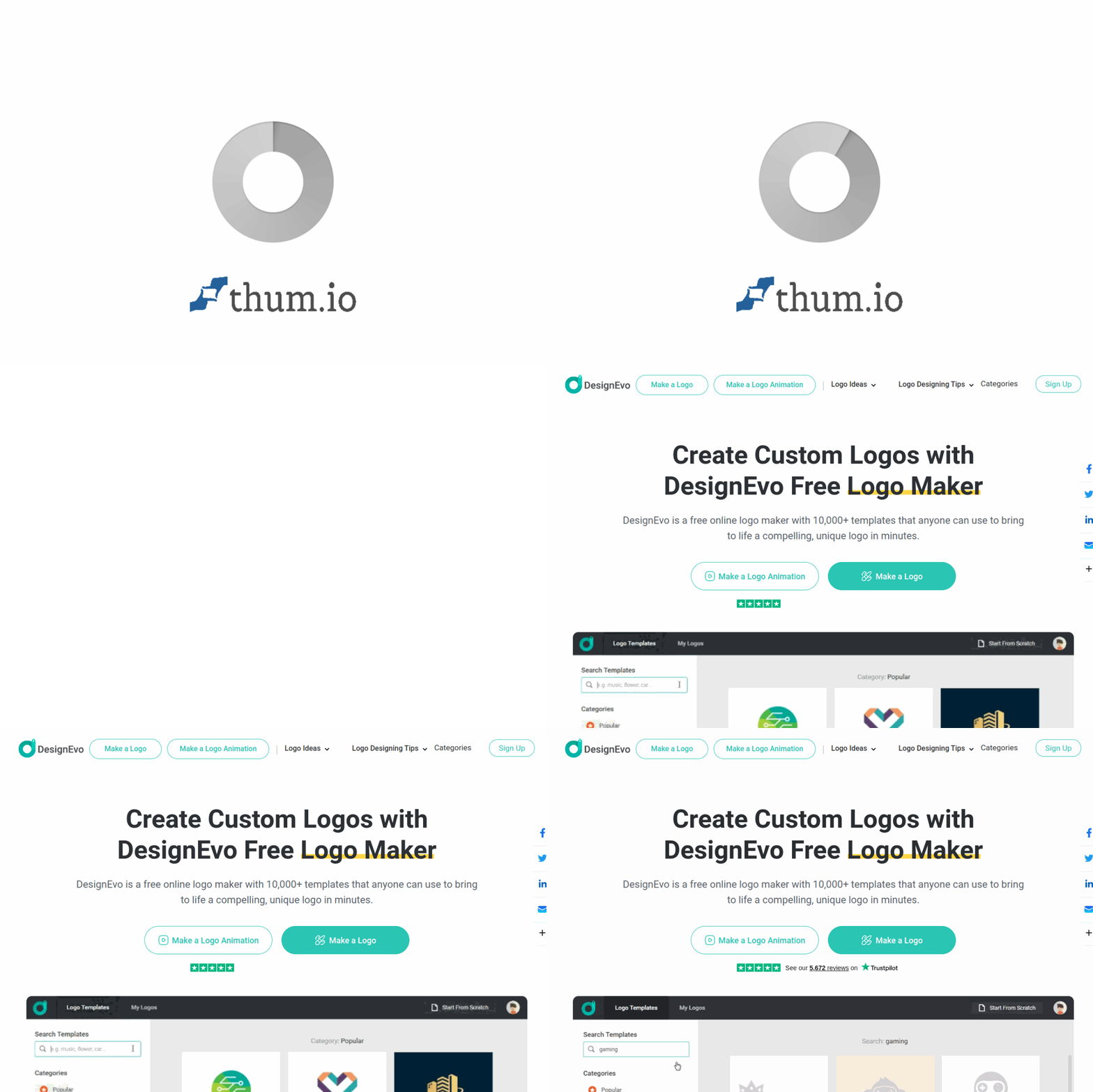
Introduction to DesignEvo Free Logo Maker
In today’s competitive marketplace, a professional logo is essential for establishing brand identity. However, hiring a graphic designer or purchasing expensive software is not always feasible for startups, small businesses, or individuals. DesignEvo Free Logo Maker solves this problem by offering a powerful, web-based tool that enables anyone to create high-quality logos in minutes—without any design experience whatsoever.
DesignEvo is a completely free online logo maker that provides access to thousands of pre-designed templates, icons, and fonts. Whether you are launching a new business, building a personal brand, or refreshing an existing identity, DesignEvo allows you to customize every aspect of your logo. You can adjust colors, modify text, rearrange layouts, and even create animated logos. Once satisfied, you can download your logo in high resolution for both personal and commercial use.
This tutorial will guide you through every step of using DesignEvo, from creating your first account to exporting a finished logo. By the end, you will be able to design a professional-looking logo that represents your brand effectively.
Getting Started with DesignEvo
Creating Your Account
To begin using DesignEvo, navigate to the official website at https://designevo.com/. You do not need to create an account to browse templates or experiment with the editor, but you will need to register if you want to download your final logo. Registration is free and straightforward.
- Click the Sign Up button located in the top right corner of the homepage.
- You can register using your email address or by connecting your Google or Facebook account.
- If you choose email registration, enter your name, email address, and a secure password. Then click Create Account.
- Check your email inbox for a verification link. Click the link to activate your account.
Once verified, you can log in and start designing immediately. Your projects will be saved automatically to your account, allowing you to return and edit them later.
Navigating the Dashboard
After logging in, you will see the main dashboard. This is where you can manage all your logo projects. The interface is clean and intuitive, designed for beginners.
- My Logos: This section displays all logos you have created or are currently working on.
- Create a Logo: The primary button to start a new design.
- Account Settings: Here you can update your profile, change your password, or manage subscriptions (though the free plan is sufficient for most users).
To start a new project, click the Create a Logo button. You will be taken to the template selection page.
Key Features of DesignEvo
DesignEvo is packed with features that make logo creation accessible to everyone. Understanding these features will help you make the most of the tool.
Thousands of Logo Templates and Icons
The heart of DesignEvo is its vast library of templates. There are over 10,000 professionally designed templates categorized by industry, style, and theme. Whether you need a logo for a bakery, a tech startup, a law firm, or a fitness brand, you will find relevant templates. Each template comes with a set of vector icons that can be replaced or modified. The icon library contains more than 1 million icons, giving you endless possibilities for customization.
Customizable Colors, Fonts, and Layouts
Every element of a template can be changed. You can select from a wide range of color palettes, or input specific hex codes to match your brand guidelines. Fonts are equally flexible—DesignEvo offers hundreds of typefaces, including serif, sans-serif, script, and display fonts. Layouts can be adjusted by dragging and dropping elements, resizing them, or repositioning them on the canvas.
High-Resolution Logo Downloads
Once your design is complete, you can download your logo in various formats. The free plan allows you to download a high-resolution PNG file (up to 5000 x 5000 pixels). For commercial use, you may need to purchase a license, but the free download is perfectly suitable for social media, websites, and print materials.
Animation Logo Creation Option
DesignEvo includes a unique feature that lets you add animation to your logo. You can choose from several animation styles, such as fade, slide, or bounce. This is especially useful for video intros, website headers, or social media posts. Animated logos can be exported as GIFs or MP4 videos.
Resize Logo and Make Transparent Tools
After downloading, you may need to adjust your logo for different platforms. DesignEvo provides built-in tools to resize your logo to common dimensions (e.g., for Facebook, Twitter, YouTube) and to make the background transparent. This ensures your logo looks professional everywhere without additional software.
How to Use DesignEvo: A Step-by-Step Guide
This practical guide will walk you through creating a logo from start to finish. We will use a hypothetical coffee shop called “Brew Haven” as an example.
Step 1: Choose a Template
After clicking Create a Logo, you will see the template gallery. Use the search bar at the top to find templates by keyword. For example, type “coffee” or “cafe.” Alternatively, browse categories on the left sidebar, such as Food & Drink or Restaurant.
- Scroll through the results and click on any template that catches your eye.
- A preview will appear. Click Use This Template to open it in the editor.
Step 2: Edit the Text
Once the template opens in the editor, you will see the canvas in the center. The text elements are already placed, but they are generic.
- Click on the text box that says “Your Company Name.”
- A text editing panel will appear on the right side. Replace the placeholder text with your brand name, e.g., “Brew Haven.”
- You can also add a tagline. Click on the second text box and enter something like “Fresh Coffee Every Morning.”
- Adjust the font style, size, and alignment using the options in the panel. For a coffee shop, a warm, handwritten font might work well.
Step 3: Customize Colors
Colors play a crucial role in brand recognition. To change colors:
- Click on any element (icon, text, or shape) on the canvas.
- In the right panel, find the Color section. You can choose from preset color palettes or click the color picker to select a custom color.
- For “Brew Haven,” you might choose earthy tones like brown, beige, or dark green to evoke a cozy coffeehouse feel.
- To apply a color to multiple elements at once, hold down the Ctrl key (or Cmd on Mac) and click each element. Then change the color for all selected items simultaneously.
Step 4: Modify the Icon
Icons are central to most logos. To change the icon:
- Click on the existing icon in your template.
- On the right panel, click the Change Icon button.
- A library of icons will open. You can search for a new icon, such as “coffee cup” or “coffee bean.”
- Select an icon and click Apply. The new icon will replace the old one.
- You can also resize the icon by dragging its corners or using the scale slider in the panel.
Step 5: Adjust Layout and Positioning
Good layout ensures your logo is balanced and readable.
- Click and drag any element to move it around the canvas.
- Use the alignment tools (top, middle, bottom, left, center, right) in the top toolbar to align elements precisely.
- If you want to rotate an element, click and hold the rotation handle (a small circle above the element) and drag it.
- You can also change the stacking order. Right-click an element and choose Bring to Front or Send to Back.
Step 6: Add Animation (Optional)
If you want an animated version of your logo:
- Click the Animate button in the top toolbar.
- A panel will appear with animation styles like Fade In, Slide Up, Bounce, and Zoom.
- Select an animation and preview it by clicking the play button on the canvas.
- Adjust the duration and delay if needed. When satisfied, click Apply.
Step 7: Save and Download Your Logo
Once your design is complete, it is time to save and download.
- Click the Save button in the top right corner. Your logo will be saved to your account.
- To download, click the Download button.
- A dialog box will appear. Choose your preferred format. For most uses, select PNG (high resolution).
- If you want a transparent background, check the box that says Make Background Transparent.
- You can also resize the logo to specific dimensions using the Resize tool before downloading.
- Click Download. The file will be saved to your computer.
Step 8: Use the Resize and Transparency Tools
After downloading, you may need to adjust your logo for different platforms.
- Go to My Logos on the dashboard and select your logo.
- Click the Resize button. You will see preset sizes for social media platforms like Facebook, Twitter, Instagram, and YouTube. Choose one, or enter custom dimensions.
- Click Apply and then download the resized version.
- To make the background transparent, use the Make Transparent tool. This is especially useful if your logo will be placed on a colored background.
Tips for Creating an Effective Logo with DesignEvo
Even with a user-friendly tool like DesignEvo, following best practices will ensure your logo stands out and represents your brand well.
Keep It Simple
A simple logo is more memorable and versatile. Avoid cramming too many elements into your design. Stick to one or two icons, clear text, and a limited color palette (2-3 colors). A cluttered logo can be confusing and hard to reproduce in small sizes.
Choose the Right Font
Fonts convey personality. A playful script font works for a children’s brand, while a bold sans-serif font suits a tech company. Test different fonts to see which one aligns with your brand’s voice. DesignEvo allows you to preview fonts in real-time, so take advantage of this.
Use Meaningful Colors
Colors evoke emotions. Blue often represents trust and professionalism, green symbolizes growth and health, red conveys energy and passion, and yellow suggests optimism. Choose colors that reflect your brand’s values. You can also use your brand’s existing color scheme to maintain consistency across all materials.
Ensure Scalability
Your logo will appear on business cards, websites, billboards, and social media. It must look good at any size. After designing, test your logo by zooming out to see if it remains readable. Avoid thin lines or very small text that might become illegible when scaled down.
Consider Versatility
Your logo should work in both color and black-and-white. DesignEvo lets you preview your logo in grayscale. If it loses its impact without color, consider simplifying the design. Also, ensure the logo looks good on light and dark backgrounds.
Use the Animation Feature Sparingly
Animated logos are engaging, but they are not suitable for all contexts. Use animation for digital platforms like websites and videos, but always have a static version for print materials. Keep the animation subtle—too much movement can be distracting.
Save Multiple Versions
You may need different versions of your logo for different purposes. Save a full-color version, a black-and-white version, a horizontal layout, and a vertical layout. DesignEvo makes it easy to duplicate a project and make variations.
Get Feedback
Before finalizing your logo, share it with colleagues, friends, or target customers. Ask for honest opinions about readability, appeal, and brand alignment. Sometimes a fresh pair of eyes can spot issues you missed.
Check Licensing
DesignEvo’s free plan allows you to use your logo for personal and commercial purposes. However, if you plan to use the logo for a registered trademark or in high-revenue commercial products, consider purchasing a premium license. This ensures you have full rights to the design and icons used.
Iterate and Improve
Your first logo does not have to be perfect. DesignEvo saves all your projects, so you can return and make changes as your brand evolves. Experiment with different templates, color schemes, and layouts until you find the perfect combination.
Conclusion
DesignEvo Free Logo Maker is an exceptional tool for anyone who needs a professional logo without the cost or complexity of traditional design software. With its extensive template library, intuitive editor, and powerful customization options, you can create a logo that truly represents your brand. By following the steps and tips in this tutorial, you will be well-equipped to design a logo that is not only visually appealing but also effective in communicating your brand’s identity. Start your design journey today at https://designevo.com/ and bring your brand to life.

DesignEvo Free Logo Maker
Create custom logo designs online easily with DesignEvo.