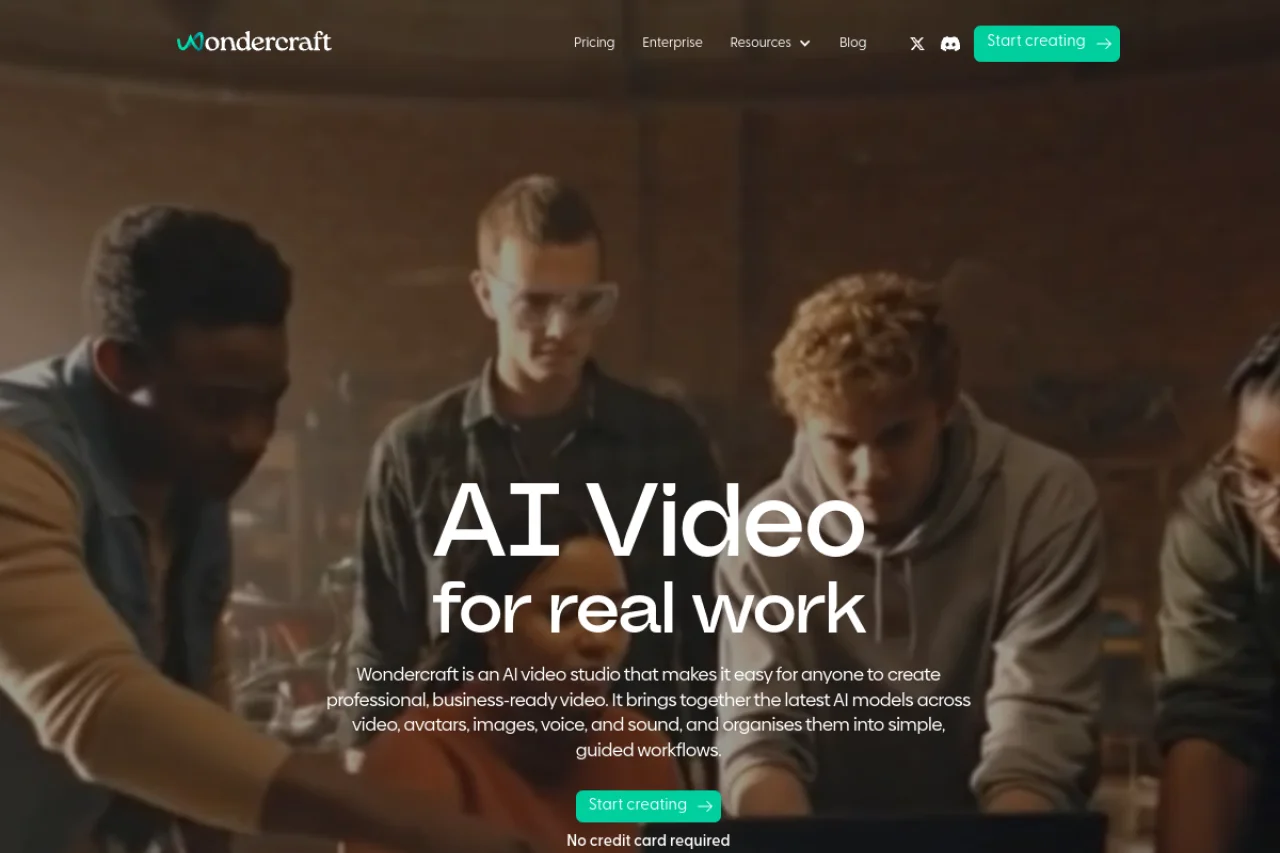
Introduction to Wondercraft AI Studio
In the rapidly evolving world of digital content, audio production has traditionally been a barrier for many creators. The need for expensive microphones, soundproof studios, and complex editing software often prevents talented individuals from sharing their voices. Wondercraft AI Studio changes this paradigm entirely. This innovative, AI-powered platform democratizes audio creation by allowing anyone—from seasoned podcasters to complete beginners—to produce studio-quality audio content using nothing more than a web browser.
Wondercraft leverages advanced artificial intelligence to generate hyper-realistic voiceovers, streamline audio editing, and facilitate the entire podcast production workflow. With a thriving community of over 200,000 active users, the platform has proven itself as a reliable tool for creators, marketers, educators, and businesses looking to scale their audio output without sacrificing quality. Whether you need a professional podcast episode, a compelling advertisement, an audiobook chapter, or a corporate training module, Wondercraft provides the infrastructure to get it done quickly and affordably.
This tutorial is designed for absolute beginners. We will walk you through every step of using Wondercraft AI Studio, from account creation to publishing your finished product. By the end of this guide, you will have the confidence and knowledge to create your first podcast or audio project from scratch.
Getting Started with Wondercraft
Step 1: Creating Your Account
To begin your audio creation journey, navigate to the official Wondercraft website at https://www.wondercraft.ai/. You will be greeted by a clean, intuitive interface. Click the prominent “Sign Up” or “Get Started” button, usually located in the top right corner of the page. You can register using your Google account for a one-click sign-in, or use your email address. The free tier provides generous access to the core features, allowing you to test the platform thoroughly before committing to a premium subscription.
Step 2: Understanding the Dashboard
Once logged in, you will land on the main dashboard. This is your command center. The layout is designed for clarity. On the left-hand side, you will typically find a navigation menu with key sections such as “New Project,” “My Projects,” “Voices,” and “Settings.” The central area displays your recent projects and templates. Spend a few minutes clicking through these sections to familiarize yourself with the layout. The “My Projects” area is where all your saved work will live.
Step 3: Navigating the Project Interface
When you start a new project, the interface changes to a multi-track editor view. This is where the magic happens. You will see a timeline at the bottom, a script editor at the top or side, and a toolbar with playback controls. The interface is intentionally uncluttered so you do not feel overwhelmed by technical jargon. Each button has a clear label or tooltip that explains its function.
Key Features of Wondercraft AI Studio
Understanding the tools at your disposal is crucial for efficient audio production. Here are the standout features that make Wondercraft a powerful platform.
AI Voice Generation with Realistic Voices
This is the flagship feature of Wondercraft. The platform hosts a vast library of AI voices that sound remarkably human. These are not the robotic, monotone voices of the past. Wondercraft uses advanced neural networks to produce voices with natural inflection, emotion, and pacing. You can choose from different genders, accents (including American, British, Australian, and more), and age ranges. You can even adjust the speaking speed and pitch to match your desired tone. The voices are perfect for narration, character dialogue, or professional announcements.
Studio-Quality Podcast Creation
Wondercraft is built specifically for podcasters. The platform provides a complete workflow: you can write your script, assign different AI voices to different speakers (simulating a host and a guest), add intro and outro music, and layer in sound effects. The final output is mixed and mastered automatically to meet broadcast standards. You do not need to understand compression, equalization, or noise gates—Wondercraft handles the technical audio engineering for you.
Audio Editing and Production Tools
While AI does the heavy lifting, you still have full creative control. The built-in audio editor allows you to trim sections, rearrange clips, adjust volume levels, and apply fades. You can also import your own audio files, such as pre-recorded interviews or custom music tracks. This hybrid approach—AI generation plus manual editing—gives you the speed of automation with the flexibility of traditional production.
Free to Use with Premium Options
Wondercraft operates on a freemium model. The free plan allows you to create a limited number of projects and access a subset of voices and features. This is excellent for testing and small projects. Premium subscriptions unlock unlimited projects, exclusive premium voices, advanced editing features, and commercial usage rights. For most serious creators, the premium tier is a worthwhile investment that pays for itself in time saved.
200,000+ Active User Community
You are not alone. With a large and active user base, Wondercraft benefits from a community that shares tips, templates, and feedback. The platform often features community-created content and runs challenges to inspire creativity. This social aspect can be a great source of motivation and learning for beginners.
How to Use Wondercraft: A Step-by-Step Guide
Now, let us walk through the practical process of creating your first audio project. We will use a simple podcast episode as our example.
Step 1: Start a New Project
From the dashboard, click the “New Project” button. You will be prompted to choose a project type. Select “Podcast” or “Voiceover,” depending on your goal. Give your project a descriptive name. This helps you stay organized when you have multiple projects.
Step 2: Write or Import Your Script
You will now see the script editor. You can type your script directly into this box. For a podcast, structure your script with a host introduction, a main segment, and a conclusion. If you already have a script written in a document, you can copy and paste it directly. Wondercraft also supports importing text files. Remember to include speaker labels, such as “Host:” and “Guest:” at the beginning of each line. The AI will use these labels to assign different voices.
Step 3: Assign AI Voices to Speakers
Look for the “Voices” panel. Click on the speaker label (e.g., “Host”) and browse the voice library. You can preview each voice by clicking the play icon next to it. Listen to the tone, accent, and speed. Choose a voice that matches the personality of your character or the professionalism of your brand. Assign a different voice to each speaker in your script. This creates a natural-sounding conversation.
Step 4: Add Background Music and Sound Effects
A professional podcast needs atmosphere. Wondercraft provides a library of royalty-free music and sound effects. Click the “Music” or “Sound” tab in the editor. You can search for genres like “Upbeat,” “Cinematic,” or “Ambient.” Drag and drop your chosen track onto the timeline. You can adjust the volume of the music so it sits underneath the voices without overpowering them. Use sound effects (like a door closing or a swoosh) to punctuate transitions.
Step 5: Generate and Preview Your Audio
Once your script, voices, and music are in place, click the “Generate” or “Render” button. The AI will process your project. This usually takes a few seconds to a minute, depending on the length of your script. After processing, a play button will appear. Click it to preview your creation. Listen carefully. Does the pacing feel right? Are the voices clear? Is the music level appropriate?
Step 6: Edit and Refine
If something sounds off, do not worry. You can go back to the script editor and adjust the text. You can change the voice entirely. You can trim the music track. The timeline editor allows you to click and drag to remove unwanted silence or sections. You can also adjust the volume of individual clips. The goal is to make it sound as natural and engaging as possible.
Step 7: Export Your Final Product
When you are satisfied with the preview, it is time to export. Click the “Export” or “Download” button. You will typically have options for file format (MP3 is standard for podcasts) and quality (higher bitrate means better sound but larger file size). Choose your settings and download the file to your computer. Your podcast episode is now ready to be uploaded to platforms like Spotify, Apple Podcasts, or your website.
Tips for Getting the Most Out of Wondercraft
To elevate your audio content from good to great, keep these practical tips in mind.
Write for the Ear, Not the Eye
Audio content is different from written content. Write your script in a conversational tone. Use short sentences. Avoid complex vocabulary. Read your script out loud before pasting it into Wondercraft. If you stumble over a sentence, your listeners will too. Use punctuation to indicate pauses. A comma means a short breath; a period means a full stop.
Leverage Voice Customization
Do not just pick the first voice you hear. Spend time auditioning different voices for your project. Adjust the speaking speed. A slightly slower pace often sounds more authoritative and clear. For energetic content, increase the speed slightly. Some voices also allow you to adjust the “emotion” or “style” slider, making the delivery sound happier, sadder, or more urgent.
Use Silence Strategically
Silence is a powerful tool in audio. Do not be afraid to leave a one-second pause between sections. This gives the listener a moment to process information. Wondercraft’s timeline editor makes it easy to insert silence or adjust the gap between clips. A well-paced podcast feels rhythmic and professional.
Mix Your Levels Carefully
One of the most common beginner mistakes is having music that is too loud. A good rule of thumb is that the background music should be barely noticeable when someone is speaking. Aim for the music to be about 20-30% of the voice volume. During pauses or transitions, you can briefly boost the music volume for dramatic effect, then lower it again when the dialogue resumes.
Start with Templates
If you feel overwhelmed by a blank canvas, use Wondercraft’s templates. The platform offers pre-built templates for common formats like interviews, solo monologues, and storytelling. These templates come with pre-assigned voice patterns, music suggestions, and structure. You can simply replace the placeholder text with your own script. This is an excellent way to learn the workflow and understand how professional podcasts are structured.
Review Your Work with Fresh Ears
After you export your first draft, do not publish it immediately. Step away from your computer for an hour or even a day. Listen to the audio again with fresh ears. You will often notice small errors or awkward pacing that you missed during the editing process. It is also helpful to have a friend listen to it and give honest feedback.
Utilize the Community
Join the Wondercraft community forums or social media groups. Ask questions about voice selection, share your projects for feedback, and learn from other users’ experiences. The community is a valuable resource for troubleshooting and inspiration. Many experienced users share their custom voice settings and workflow tips.
Conclusion
Wondercraft AI Studio represents a significant leap forward in accessible audio production. It removes the traditional barriers of cost, equipment, and technical expertise, placing the power of a professional recording studio into your hands. By following the steps outlined in this tutorial—from setting up your account and understanding the features to writing an effective script and exporting your final product—you are now equipped to create high-quality audio content with confidence.
Remember, the best way to learn is by doing. Start a small project today. Experiment with different voices and music. Make mistakes and learn from them. With practice, you will develop an intuitive sense for audio storytelling. Whether you are launching a personal podcast, creating marketing materials for your business, or exploring a new creative hobby, Wondercraft provides the tools you need to let your voice be heard. The world is listening—go ahead and create something wonderful.

Wondercraft AI Studio
Create studio-quality podcasts and audio content using AI.