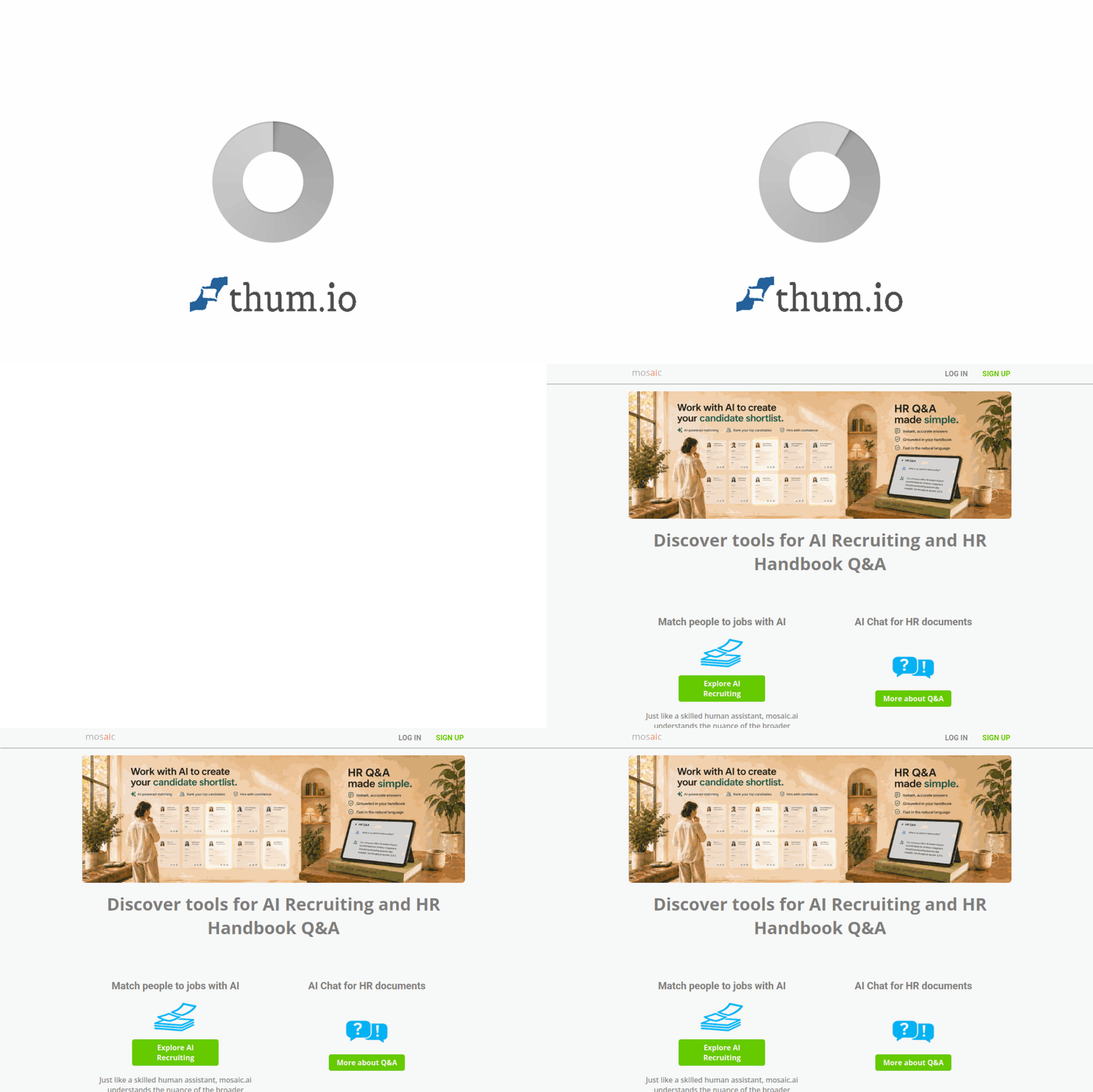
Introduction to Mosaic AI: Revolutionizing Recruitment and HR
In the fast-paced world of human resources and talent acquisition, efficiency and accuracy are paramount. Mosaic AI is a cutting-edge platform designed to transform how companies handle recruitment and employee support. By leveraging advanced artificial intelligence, natural language understanding, and semantic search, Mosaic AI helps organizations match the right candidates to the right jobs with remarkable precision. Beyond hiring, it also provides a conversational AI assistant that can answer employee handbook questions around the clock, complete with conversation context memory.
Whether you are an HR professional overwhelmed by hundreds of resumes, a recruiter seeking to streamline your workflow, or a business owner wanting to improve employee self-service, Mosaic AI offers practical, AI-powered solutions. This tutorial will guide you through everything you need to know to get started, explore its key features, and use the tool effectively—even if you have no prior experience with AI.
The platform integrates seamlessly with Applicant Tracking Systems (ATS), generates email templates, and provides related topic suggestions to enhance both candidate and employee experiences. Let’s dive into how you can harness the power of Mosaic AI for your organization.
Getting Started with Mosaic AI
Creating Your Account
To begin using Mosaic AI, navigate to the official website at https://mosaic.ai/. Click on the “Get Started” or “Sign Up” button, typically located in the top-right corner of the homepage. You will be prompted to enter your work email address, create a password, and provide basic company information such as your organization’s name and industry.
After submitting your details, check your email inbox for a verification link. Click the link to activate your account. Once verified, you can log in to the Mosaic AI dashboard. The platform offers a free trial period, allowing you to explore its features before committing to a paid plan.
Setting Up Your Profile and Company Settings
Upon your first login, you will be guided through a setup wizard. This is where you configure your company profile:
- Company Name and Logo: Upload your company logo to personalize the interface.
- Industry and Job Categories: Select your primary industry (e.g., technology, healthcare, finance) to help Mosaic AI tailor its job matching algorithms.
- Employee Handbook Upload: If you want to use the conversational AI assistant for policy answers, upload your employee handbook in PDF, DOCX, or plain text format. Mosaic AI will process this document to enable the chatbot to answer questions accurately.
- ATS Integration: Navigate to the “Integrations” section in settings. Mosaic AI supports major ATS platforms like Greenhouse, Lever, and Workday. Follow the on-screen instructions to connect your existing system. This allows Mosaic AI to sync job postings and candidate data automatically.
Inviting Team Members
Mosaic AI is designed for collaborative use. To invite colleagues, go to the “Team” tab in your dashboard. Enter the email addresses of your HR team members or recruiters and assign roles such as “Admin,” “Recruiter,” or “Viewer.” Admins have full access to settings and billing, while recruiters can manage job postings and candidate matching. Viewers can only see reports and analytics.
Key Features of Mosaic AI
Understanding the core features of Mosaic AI will help you maximize its potential. Below is a breakdown of each feature and what it does.
AI-Powered Job Matching
Traditional job matching relies on keyword searches, which often miss qualified candidates. Mosaic AI uses natural language understanding and semantic search to interpret the meaning behind job descriptions and resumes. For example, if you post a job for a “software engineer,” the AI can identify candidates with experience in “Python,” “Java,” or “full-stack development,” even if those exact words are not in the job title. This feature significantly reduces time-to-hire and improves the quality of your candidate pool.
Resume Semantic Analysis
When candidates apply for a position, Mosaic AI automatically analyzes their resumes using semantic understanding. It does not just scan for keywords; it evaluates context, skills, experience levels, and career progression. The system then ranks candidates based on how well their profile matches the job requirements. You can view a match score (e.g., 85% match) for each candidate, along with a detailed breakdown of why they were matched.
Conversational AI Assistant
This feature is a game-changer for employee self-service. The conversational AI assistant is a chatbot that can answer questions about your company’s employee handbook 24/7. It remembers the context of previous conversations, so employees can ask follow-up questions without repeating themselves. For instance, an employee might ask, “What is the parental leave policy?” and later ask, “How do I apply for it?” The chatbot will connect the two queries seamlessly.
Email Template Generation
Recruiters often spend hours drafting emails to candidates, from interview invitations to rejection letters. Mosaic AI’s email template generation feature allows you to create professional, personalized email templates in seconds. You can choose from pre-built templates or create custom ones. The AI can even suggest wording based on the candidate’s profile and the stage of the hiring process.
ATS Integration
Mosaic AI integrates with popular ATS platforms to centralize your hiring workflow. Once connected, job postings created in your ATS automatically appear in Mosaic AI. Candidate data, including resumes and application statuses, syncs in real time. This eliminates duplicate data entry and ensures your team always works with the latest information.
24/7 Policy Answers
Empower your employees to find answers to HR questions at any time. The policy answers feature is powered by the conversational AI assistant. Employees can access it via a web widget or a dedicated chat interface on your company intranet. The AI is trained on your uploaded employee handbook, so responses are accurate and aligned with your company policies.
Natural Language Understanding
This is the underlying technology that powers Mosaic AI. Unlike simple keyword matching, natural language understanding (NLU) allows the system to comprehend human language nuances, such as synonyms, sentence structure, and intent. This makes job matching and resume analysis far more intelligent and reliable.
Related Topic Suggestions
When using the conversational AI assistant or searching for candidates, Mosaic AI provides related topic suggestions. For example, if an employee asks about “vacation days,” the chatbot might also suggest “sick leave policy” or “holiday schedule.” For recruiters, if you search for a “marketing manager,” the system might suggest related roles like “digital marketing specialist” or “brand manager” to broaden your candidate search.
How to Use Mosaic AI: A Step-by-Step Guide
Using AI-Powered Job Matching
Step 1: From your dashboard, click on “Jobs” and then “Create New Job Posting.” Enter the job title, description, and required qualifications. You can also paste a job description from your ATS if integrated.
Step 2: Mosaic AI will automatically analyze the job description and suggest relevant skills and keywords. Review these suggestions and add or remove items as needed.
Step 3: Once the job is posted, candidates will apply through your ATS or directly via Mosaic AI. The system will begin analyzing incoming resumes in real time.
Step 4: Go to the “Candidates” tab for this job. You will see a list of applicants ranked by match score. Click on any candidate to view a detailed analysis, including which parts of their resume matched the job requirements and where gaps exist.
Step 5: Use the filter options to narrow down candidates by experience level, location, or specific skills. You can also save candidate profiles to a “shortlist” for further review.
Using Resume Semantic Analysis
Step 1: Navigate to the “Resumes” section in the main menu. You can upload resumes individually or in bulk (up to 50 at a time) using the “Upload” button. Supported formats include PDF, DOCX, and TXT.
Step 2: After uploading, Mosaic AI will process each resume. This usually takes a few seconds per document. You will see a status indicator showing “Processing” or “Analyzed.”
Step 3: Click on any analyzed resume to view the semantic breakdown. The system will highlight key sections such as work experience, education, skills, and certifications. It also extracts contact information and links to professional profiles like LinkedIn.
Step 4: To match a resume to a specific job, select the job from the dropdown menu at the top of the resume view. The match score will update instantly, showing how well the candidate fits that particular role.
Using the Conversational AI Assistant
Step 1: As an admin, go to “AI Assistant” in the settings menu. Ensure your employee handbook has been uploaded. You can upload additional documents (e.g., benefits guides, code of conduct) under “Knowledge Base.”
Step 2: Customize the assistant’s name and greeting message. For example, you can name it “HR Bot” and set the greeting to “Hello! How can I help you with company policies today?”
Step 3: Enable the chatbot widget by toggling the “Activate” button. You will receive an embed code that can be added to your company website or intranet. Alternatively, employees can access the assistant via a direct link provided by Mosaic AI.
Step 4: To test the assistant, type a question in the chat interface, such as “What is the dress code?” The AI will respond with the relevant policy from your handbook. Ask a follow-up question like “Are there exceptions for casual Fridays?” The assistant will remember the context and provide an accurate answer.
Generating Email Templates
Step 1: Click on “Templates” in the main menu, then select “Email Templates.”
Step 2: Choose a template type from the list, such as “Interview Invitation,” “Rejection,” or “Offer Letter.” You can also create a custom template by clicking “New Template.”
Step 3: In the template editor, write your email content. Use placeholders like {{candidate_name}}, {{job_title}}, and {{company_name}} to personalize each email automatically.
Step 4: Once saved, you can use these templates directly from a candidate’s profile. Open a candidate record, click “Send Email,” select the template, and the system will fill in the placeholders with the candidate’s information. You can edit the email before sending.
Tips for Getting the Most Out of Mosaic AI
Optimize Your Job Descriptions for Semantic Search
To improve the accuracy of job matching, write detailed job descriptions that include both required and preferred skills. Use natural language rather than just bullet points. For example, instead of saying “Must know Python,” write “We are looking for a developer with strong Python skills, ideally with experience in web frameworks like Django or Flask.” This helps Mosaic AI understand the context and find better matches.
Regularly Update Your Employee Handbook
The conversational AI assistant is only as good as the documents you upload. Review your employee handbook periodically and update it with any policy changes. After uploading a new version, go to the “Knowledge Base” settings and click “Re-process” to ensure the AI uses the latest information. This prevents employees from receiving outdated answers.
Use Related Topic Suggestions to Expand Candidate Searches
When searching for candidates, pay attention to the related topic suggestions that appear. If you are struggling to find enough applicants for a niche role, click on a suggested related job title. This can surface candidates who have transferable skills but may not have applied directly to your posting.
Leverage Email Templates for Consistency
Create a library of standard email templates for common hiring scenarios. This ensures all team members send consistent, professional communications. Encourage your team to use the templates rather than writing emails from scratch. You can also set up automated email triggers, such as sending an acknowledgment email immediately after a candidate applies.
Train Your Team on the AI Assistant
Introduce the conversational AI assistant to your employees through a company-wide announcement or training session. Explain that it can answer questions about policies, benefits, and procedures. Encourage employees to use it for simple queries before escalating to HR. This reduces the workload on your HR team and provides faster responses to employees.
Monitor Analytics for Continuous Improvement
Mosaic AI provides analytics dashboards for both recruitment and HR support. Regularly review these reports to identify trends. For example, check which job postings have the highest match scores, or which employee questions are most frequently asked. Use this data to refine your job descriptions and update your handbook to address common questions proactively.
Integrate with Your ATS Early
If you use an ATS, set up the integration during the initial configuration. This saves time and ensures data flows seamlessly between systems. Test the integration by creating a test job posting and verifying that it appears in Mosaic AI. If you encounter any issues, consult the integration guides in the help center or contact Mosaic AI support.
By following this tutorial, you are now equipped to use Mosaic AI effectively. From intelligent job matching to 24/7 employee support, this platform can significantly enhance your HR operations. Start exploring the features today and experience the power of AI-driven recruitment and employee self-service.

Mosaic AI
AI-powered recruiting and HR solutions for candidate matching and policy Q&A.