Introduction
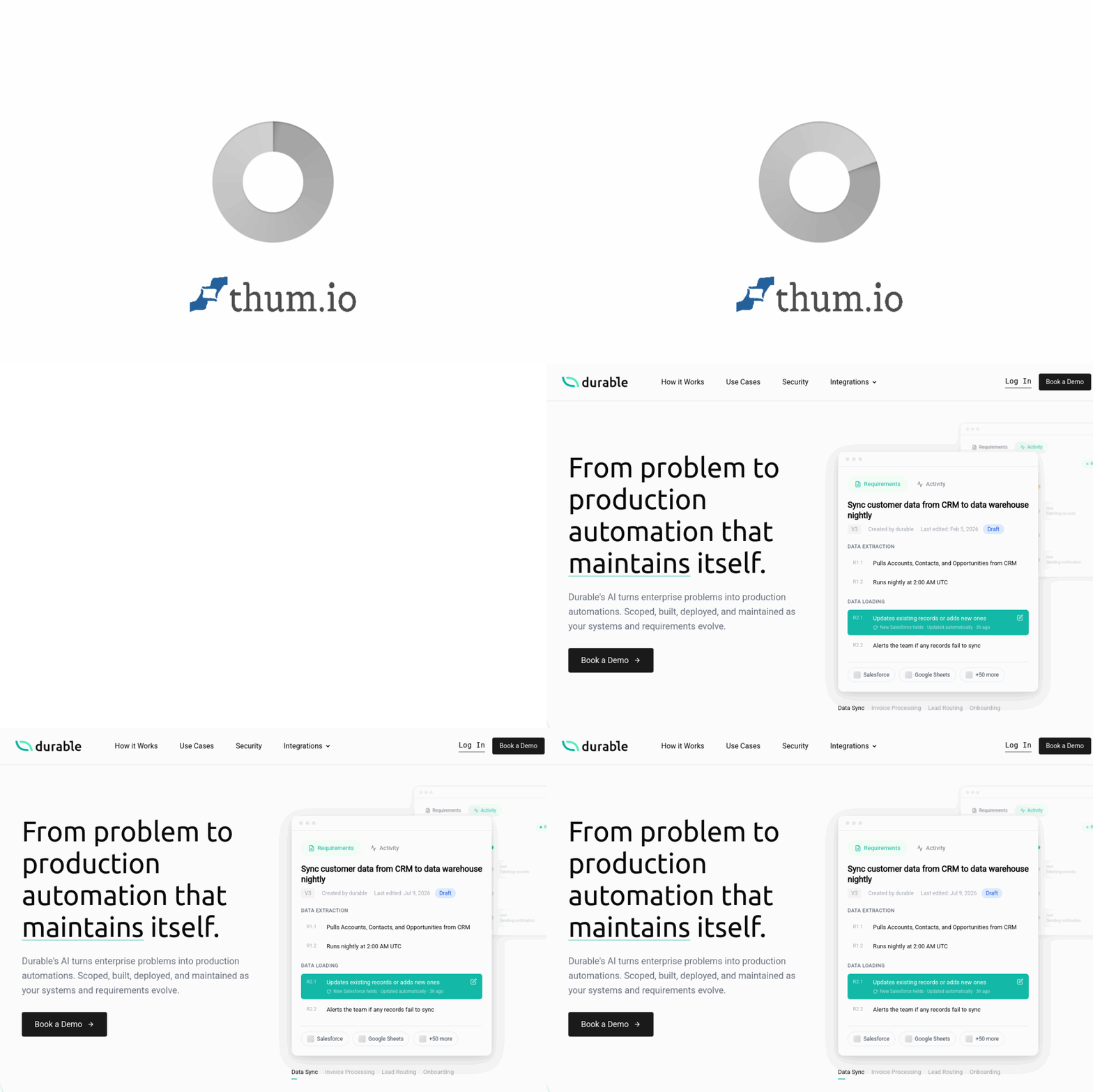
In the rapidly evolving landscape of enterprise automation, most solutions fall into one of two categories: low-code platforms that limit what you can build, or complex development frameworks that require extensive coding knowledge. Durable AI bridges this gap with a revolutionary approach. It is an AI-powered platform that autonomously builds, deploys, and maintains production-ready software automations from simple problem descriptions.
Unlike other AI coding assistants that generate snippets or agent chains, Durable AI writes real, production-quality code. It transforms enterprise problems into concrete requirements, writes the actual software, and allows you to modify that software by editing requirements in plain English. The system then scopes, builds, deploys, and maintains your automations as your business needs evolve. It integrates deeply with enterprise tools like Salesforce, Snowflake, and Google Sheets, making it a powerful ally for operations teams, IT departments, and business analysts alike.
This tutorial will guide you through everything you need to know to start using Durable AI effectively, from your first project to advanced maintenance workflows.
Getting Started
Creating Your Account
Begin by visiting https://durable.ai/. Click the “Get Started” or “Sign Up” button, typically located in the top-right corner of the homepage. You can register using your work email address or through single sign-on (SSO) options if your organization supports them. Durable AI offers a trial period, so you can explore the platform without immediate commitment.
Understanding the Dashboard
Once logged in, you will see the main dashboard. This is your command center. The interface is designed to be clean and minimal, focusing on what matters most: your automations. Key elements include:
- Projects Panel: Lists all your current automations and projects.
- New Automation Button: A prominent button to start a new project.
- Activity Feed: Shows recent changes, deployments, and system health updates.
- Integration Hub: Where you connect external tools like Salesforce, Snowflake, and Google Sheets.
Connecting Your First Integration
Before building your first automation, connect a data source. Navigate to the Integrations section from the sidebar. You will see a list of supported enterprise tools. Click on Google Sheets to start with a simple example. Follow the on-screen prompts to authorize Durable AI to access your Google account. The platform uses OAuth 2.0, so your credentials remain secure. Once connected, you can select specific spreadsheets and sheets that Durable AI can read from or write to.
Key Features
Autonomous Code Generation
This is the core of Durable AI. You describe a problem in plain English, and the platform autonomously builds production-ready software to solve it. This is not a low-code drag-and-drop builder. Durable AI writes real Python, JavaScript, SQL, and other languages as needed. The generated code is structured, commented, and follows software engineering best practices. It handles error logging, retries, and data validation automatically.
Plain English Requirement Editing
Perhaps the most powerful feature is the ability to edit your automation by simply updating the requirements in plain English. For example, if you initially asked Durable AI to “Send an email alert when a new row is added to a Google Sheet,” you can later change the requirement to “Send an email alert and also update a Salesforce record when a new row is added.” Durable AI will analyze the change, modify the underlying code, and redeploy the updated automation. You never need to touch the code directly.
Enterprise-Grade Integration
Durable AI is built for the enterprise. It comes with pre-built connectors for major platforms:
- Salesforce: Read and write records, trigger workflows, and sync data.
- Snowflake: Run queries, load data, and manage warehouses.
- Google Sheets: Real-time data manipulation and monitoring.
- Slack: Send notifications and receive commands.
- Email: Send and receive automated emails with attachments.
These integrations are secure, using encrypted connections and respecting your organization’s access controls.
Autonomous Monitoring and Maintenance
Once your automation is deployed, Durable AI does not simply walk away. It actively monitors the production system. If a data source changes, an API endpoint goes down, or a dependency updates, Durable AI can detect the issue and auto-fix the automation. It logs all activities, provides alerts when human intervention is needed, and can roll back changes if something goes wrong. This ensures your automations remain reliable over time.
How to Use
Step 1: Define Your Problem
Click on “New Automation”. You will be presented with a text field. Describe your problem as clearly as possible. Be specific about the inputs, outputs, and triggers. For example:
“Every time a new lead is created in Salesforce with a status of ‘Hot’, I want to copy that lead’s details into a Google Sheet named ‘Hot Leads Tracker’, and then send a Slack message to the sales channel with the lead name and phone number.”
Do not worry about technical jargon. Durable AI is designed to understand natural language. Include details like frequency (real-time, hourly, daily), data sources, and desired actions.
Step 2: Review the Generated Requirements
After submitting your problem description, Durable AI will analyze it and generate a structured set of requirements. This is a critical step. The platform will display a list of:
- Data Sources: Which systems it will read from (e.g., Salesforce Leads object).
- Triggers: What events start the automation (e.g., new record creation, field update).
- Actions: What the automation will do (e.g., insert row in Google Sheet, send Slack message).
- Error Handling: How it will manage failures (e.g., retry 3 times, log error, notify admin).
Review these requirements carefully. You can edit them directly in plain English. If something is missing, add it. If something is incorrect, rephrase it. This is your chance to refine the scope before any code is written.
Step 3: Build and Deploy
Once you are satisfied with the requirements, click “Build Automation”. Durable AI will now write the actual code. This process typically takes a few seconds to a couple of minutes, depending on complexity. You can watch the progress in real-time. The platform will show you which files it is creating, what libraries it is installing, and how it is structuring the application.
After the build is complete, you can choose to Deploy the automation to a test environment first. Durable AI provides a sandbox environment where you can run the automation with sample data to verify it works correctly. Once you are confident, deploy to production with a single click.
Step 4: Monitor and Iterate
After deployment, go to the Monitoring tab for your automation. Here you can see:
- Execution Logs: Every time the automation runs, a log entry is created with timestamps, data processed, and any errors.
- Health Status: Green means everything is running smoothly. Yellow or red indicates issues that may require attention.
- Auto-Fix History: If Durable AI automatically corrected an issue, it will be documented here.
To update the automation, simply go back to the Requirements tab and edit the plain English description. For example, you might add: “Also send a copy of the Slack message to the manager’s email.” Save the changes, and Durable AI will update the code and redeploy automatically.
Practical Example: Sales Lead Enrichment
Let us walk through a complete example. Imagine you are a sales operations manager. You want to enrich new Salesforce leads with company information from a public API, then store the enriched data in Snowflake.
- Describe the problem: “When a new lead is created in Salesforce, take the company domain from the lead, call the Clearbit API to get company details like employee count and industry, update the Salesforce lead with that information, and also insert the enriched record into a Snowflake table called ‘enriched_leads’.”
- Review requirements: Durable AI will list Salesforce as the trigger source, Clearbit API as an external service, and Snowflake as a target. It will also outline error handling for cases where the API fails or the domain is missing.
- Build and deploy: Click build. Durable AI will generate code that handles OAuth for Salesforce, API rate limiting for Clearbit, and Snowflake connection pooling. Deploy to production.
- Monitor: Check the logs to see each lead being processed. If the Clearbit API changes its endpoint, Durable AI may detect the failure and auto-update the code to use the new endpoint.
Tips
Write Clear Problem Descriptions
The quality of your automation directly depends on the clarity of your description. Use specific names of fields, tables, and actions. Instead of saying “update the CRM,” say “update the Salesforce ‘Lead’ object’s ‘Industry’ field.” Instead of “send a notification,” say “send a Slack message to the #sales-alerts channel with the text ‘New hot lead: [Name]’.” The more concrete you are, the less iteration you will need.
Start Small and Iterate
Do not try to build a massive, multi-step workflow on your first attempt. Start with a simple automation, such as copying data from one Google Sheet to another when a cell is updated. Test it thoroughly. Once it is running smoothly, go back and add more steps by editing the requirements. This iterative approach helps you understand how Durable AI interprets your language and builds confidence in the system.
Use the Requirements as Documentation
Your plain English requirements serve as living documentation for your automation. When you return to a project weeks or months later, the requirements will tell you exactly what the automation does. Keep them updated. If you change the code indirectly by editing requirements, the old requirements are archived, so you can always see the evolution of your automation.
Leverage the Sandbox Environment
Always test new automations in the sandbox before going to production. The sandbox uses simulated data and isolated systems. This prevents accidental data corruption or spamming of real customers. Durable AI’s sandbox is designed to mimic production behavior closely, so if it works in sandbox, it will almost certainly work in production.
Monitor Error Logs Regularly
Even with auto-fix capabilities, you should check the monitoring dashboard at least once a week. Look for patterns. Are there frequent timeouts from a specific API? Is a particular data source returning unexpected formats? Early detection of these patterns allows you to update the requirements proactively. For instance, you can add a requirement like “If the API returns a 429 status code, wait 60 seconds before retrying.”
Understand Auto-Fix Limitations
Durable AI is powerful, but it is not magic. It can auto-fix many common issues, such as API endpoint changes, schema modifications in databases, and library updates. However, it cannot fix logical errors in your requirements. If you asked for the wrong data to be copied, the system will faithfully copy the wrong data every time. Always verify that the automation is doing what you actually want, not just what you described.
Collaborate with Your Team
Durable AI supports team accounts. Invite your colleagues to view or edit automations. A business analyst can write the requirements, an IT manager can review the generated code (if they wish), and an operations person can monitor the production system. This division of labor leverages each team member’s strengths while keeping the process efficient.
Keep Your Integrations Updated
Periodically check the Integrations section to ensure your connected tools are still authorized. OAuth tokens can expire, and API keys can be rotated. Durable AI will alert you if an integration fails, but proactive checks prevent unexpected downtimes. Re-authorize connections as needed, especially after organizational changes like password resets or security audits.
Use Version Control for Requirements
While Durable AI maintains a history of your requirements, consider keeping an external log of major changes, especially for compliance purposes. Note the date, the change made, and the reason. This is particularly important for automations that handle financial data, customer information, or regulated processes.
Explore Advanced Use Cases
Once you are comfortable with basic automations, explore more complex scenarios. Durable AI can handle multi-step workflows with conditional logic, data transformation, and cross-system synchronization. For example, you can build an automation that:
- Reads daily sales data from Snowflake.
- Calculates commissions based on custom rules.
- Updates payroll records in a connected HR system.
- Sends a summary report to management via email.
Each of these steps can be described in plain English and refined over time without writing a single line of code manually.
Durable AI represents a significant shift in how enterprise automation is built and maintained. By combining natural language understanding with real code generation and autonomous maintenance, it empowers teams to move faster, reduce technical debt, and focus on business outcomes rather than software engineering details. Start with a simple problem, describe it clearly, and let Durable AI handle the rest. As you gain confidence, you will find yourself automating processes that previously required weeks of development effort in just minutes.

Durable AI
AI turns enterprise problems into production automations that maintain themselves.