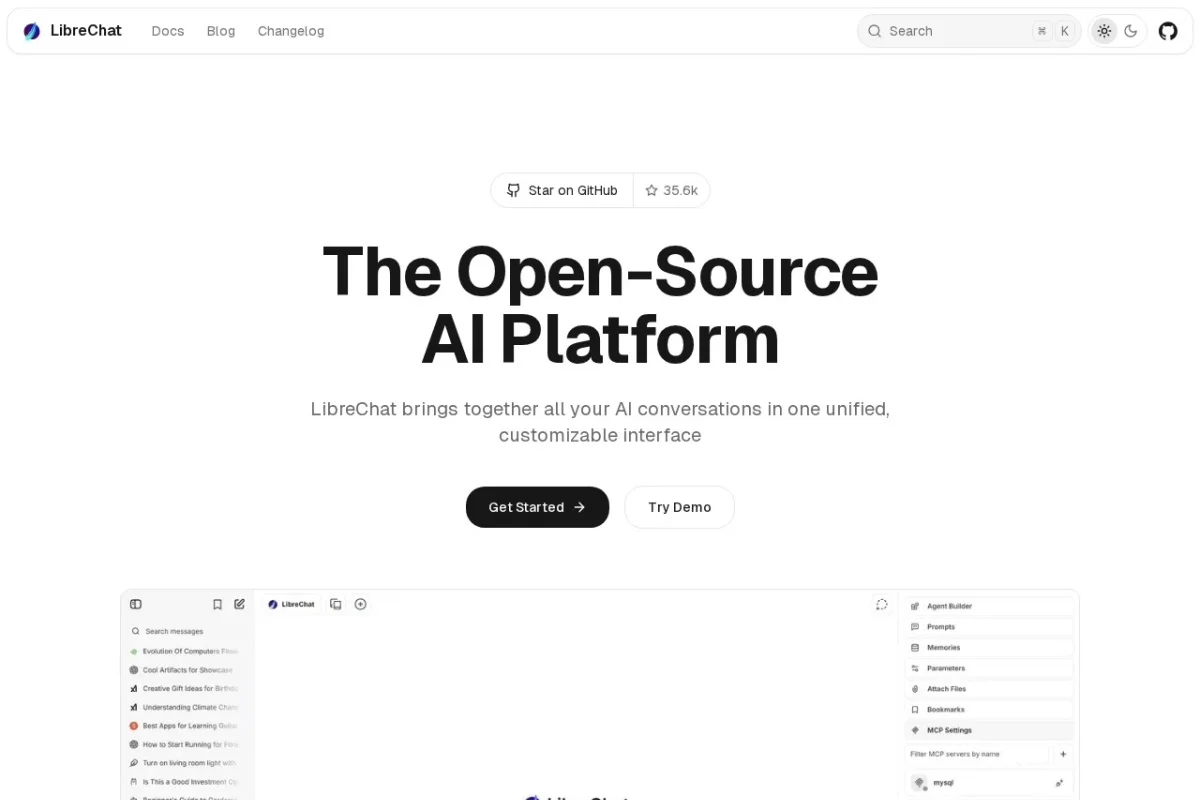
Introduction to LibreChat: Your All-in-One AI Command Center
In today’s fast-evolving AI landscape, you might find yourself juggling multiple chatbots—one for creative writing, another for coding, and a different one for research. This fragmentation can be inefficient and overwhelming. Enter LibreChat, a powerful, open-source solution designed to solve this exact problem. LibreChat consolidates conversations with various AI models into a single, unified interface. Imagine having a customizable dashboard where you can seamlessly switch between cutting-edge models from providers like OpenAI (GPT-4), Anthropic (Claude), Google, and Azure, all while keeping your conversation history, files, and preferences in one place.
Beyond being a simple aggregator, LibreChat is a feature-rich platform that transforms how you interact with artificial intelligence. It supports advanced functionalities like uploading and analyzing files, executing code in a secure sandbox, performing real-time web searches, and integrating custom tools. Whether you’re a developer, researcher, student, or business professional, LibreChat aims to be your comprehensive hub for all AI-powered tasks, enhancing both productivity and creativity.
Getting Started with LibreChat
Beginning your journey with LibreChat is straightforward. You have two primary options: using the official hosted version or deploying your own instance for maximum control and privacy.
Option 1: Using the Hosted Service (Quickest Start)
The simplest way to start is by visiting the official website at https://librechat.ai. From there, you can sign up for an account. This hosted service manages all the backend complexity for you, allowing you to focus immediately on using the AI features. You will typically need to bring your own API keys for the various AI services you wish to use (e.g., from OpenAI or Anthropic). This method is perfect for beginners and those who don’t want to deal with server setup.
Option 2: Self-Hosting (For Full Control)
For users with technical knowledge who desire privacy, customization, or cost management, self-hosting is the preferred route. LibreChat is designed to be deployed using Docker, which simplifies the process.
- Prerequisites: You will need Docker and Docker Compose installed on your computer or server.
- Steps:
- Clone the LibreChat repository from GitHub.
- Copy the provided example environment configuration file.
- Edit this file to add your API keys and configure settings like authentication.
- Run a single Docker Compose command to start all necessary services (the backend, frontend, and database).
- Once running, you access your personal LibreChat instance through your web browser, usually at http://localhost:3080.
Regardless of your chosen method, the first step after accessing the interface is to navigate to the settings to input your AI provider API keys. This is crucial for the platform to communicate with services like OpenAI or Anthropic on your behalf.
Key Features and Capabilities
LibreChat stands out due to its extensive set of integrated features that go far beyond basic chat.
Unified Interface for Multiple AI Models
This is the core promise of LibreChat. Instead of having ten different browser tabs open, you can select any configured AI model from a dropdown menu within the same conversation or start a new one. You can compare how GPT-4, Claude 3, and Google’s Gemini answer the same question side-by-side, all within a single, clean interface.
Advanced Agents with File Handling & API Actions
LibreChat can act as an intelligent agent. You can upload various files—images, PDFs, Word documents, spreadsheets, and PowerPoint presentations—and ask the AI to summarize, analyze, or extract data from them. Furthermore, through the Model Context Protocol (MCP), LibreChat can connect to external tools and APIs, allowing it to perform actions like fetching data from a database, controlling smart home devices, or interacting with your software projects.
Secure Code Interpreter
This is a game-changer for developers and learners. LibreChat includes a secure, sandboxed environment where it can write and execute code in multiple programming languages (like Python, JavaScript, and SQL) directly within the chat. You can ask it to write a script, test an algorithm, or analyze a dataset, and see the results immediately without leaving the platform.
Built-in Web Search with Internet Access
AI models are often trained on data up to a certain point and lack real-time information. LibreChat solves this by integrating web search functionality. When you enable “web search” for a prompt, the platform will scour the internet for current information, cite its sources, and provide you with an up-to-date answer. This is invaluable for research, news, and tracking latest developments.
Persistent Memory and Search
All your conversations are saved and persist across sessions. More impressively, LibreChat features powerful search functionality that allows you to find specific messages, topics, or even content within files you’ve uploaded across your entire chat history. This turns LibreChat into a searchable knowledge base of all your AI interactions.
Enterprise-Grade Authentication
For teams and organizations, LibreChat supports secure login methods like Single Sign-On (SSO), OAuth, and SAML. This makes it easy and secure to integrate into a company’s existing user management systems, allowing for controlled access and collaboration.
How to Use LibreChat: A Practical Walkthrough
Let’s walk through a common scenario to see LibreChat’s power in action: researching a topic and analyzing related data.
Step 1: Starting a Conversation and Selecting a Model
After logging in, you’ll see a clean chat interface. On the left is your conversation history. To start, click “New Conversation.” At the top of the chat window, you’ll see a dropdown menu to select your AI provider and model (e.g., “OpenAI – GPT-4 Turbo”). Choose the one best suited for your task—perhaps Claude for long document analysis or GPT-4 for complex reasoning.
Step 2: Enabling Web Search for Live Information
You want to research “the latest advancements in renewable energy storage in 2024.” Before typing your question, look for a toggle button or checkbox near the message input box labeled “Web Search” or “Internet Access” and enable it. Now, type your question and send it. LibreChat will fetch current search results, synthesize the information, and provide a summary with clickable citations.
Step 3: Uploading and Analyzing a File
Next, you have a spreadsheet (“energy_data.csv”) with some figures on battery costs. Click the attachment or upload button (often a paperclip icon) in the chat input area and select your file. Once uploaded, you can ask the AI, “Can you analyze the trend in the ‘Cost per kWh’ column in the uploaded file and create a summary?” The AI will read the file’s contents and provide an analysis.
Step 4: Executing Code to Visualize Data
To take it further, you can ask, “Using the data from that CSV, write and execute a Python script to create a line graph of the cost trend.” Ensure the “Code Interpreter” or similar feature is enabled. The AI will generate the code, run it in the secure sandbox, and can often display the output or a link to the generated graph directly in the chat.
Step 5: Switching Models and Continuing the Conversation
Now, you might want a different perspective. Without changing windows, simply use the model dropdown to switch to another provider (e.g., “Anthropic – Claude 3 Sonnet”) and ask, “Based on the research and data analysis we’ve done, draft a brief report outline on the future of energy storage.” The new model will have full context of the previous conversation and file contents, allowing for a seamless continuation.
Step 6: Finding Information Later with Search
A week later, you need to find the specific cost figure mentioned. Use the global search bar (usually at the top of the sidebar) to type a keyword like “cost per kWh 2024.” LibreChat will show you all conversations and messages where that term appeared, allowing you to instantly jump back to the relevant context.
Tips for Effective Use of LibreChat
- Organize with Conversation Titles: LibreChat allows you to rename conversations. Use descriptive titles (e.g., “Project Alpha – Market Research”) instead of the default “New Chat” to keep your history manageable.
- Master the Presets: Explore the “Presets” feature. This lets you save and quickly load specific configurations, like a preset for “Creative Writing” that uses a high-temperature GPT-4 setting, and another for “Code Debugging” that uses the code interpreter by default.
- Leverage the MCP Server: If you have technical needs, explore setting up MCP (Model Context Protocol) servers. This can connect LibreChat to your code repository, internal company APIs, or specialized databases, turning it into a powerful agent for your unique workflow.
- Combine Features Strategically: For deep research, chain the features: start with a web search for latest info, upload relevant papers for summarization, and then use the code interpreter to analyze any public datasets you find.
- Manage Your API Costs: Since you provide your own API keys, be mindful of usage. LibreChat’s unified interface makes it easy to use costly models. Monitor your usage on the providers’ dashboards and consider setting budget alerts. Using the search function to find past answers can also reduce redundant queries.
- Join the Community: As an open-source project, LibreChat has a vibrant community on GitHub and Discord. This is the best place to find configuration help, learn about new features, get troubleshooting support, and share your own customizations.
In conclusion, LibreChat is more than just another chat interface; it is a robust, extensible platform that centralizes and supercharges your interaction with the world of AI. By bringing together multiple models, persistent memory, file analysis, code execution, and web search, it empowers you to accomplish complex, multi-step tasks within a single environment. Whether you choose the hosted service for simplicity or dive into self-hosting for control, investing time in learning LibreChat will undoubtedly streamline your workflow and unlock new possibilities in your AI-assisted projects.

LibreChat Open-Source AI Platform
An open-source platform that unifies AI conversations with multiple models in one customizable interface.