Unleash Your Creativity: A Complete Beginner’s Guide to Neural Love AI
In the rapidly evolving world of digital art and image editing, artificial intelligence has become a powerful ally for creators of all skill levels. Standing out as a remarkably accessible and versatile platform is Neural.love, a comprehensive suite of AI-powered creative tools designed to bring your visual ideas to life. Whether you’re a blogger in need of unique graphics, a hobbyist exploring digital art, or someone looking to restore old family photos, Neural Love offers an intuitive gateway into the world of AI image generation and enhancement. This tutorial will guide you through every step, from creating your first account to mastering the platform’s key features, ensuring you can harness its full potential with confidence and ease.
What is Neural Love AI?
Neural.love is an online platform that provides a collection of AI-driven tools focused on visual content. Its core mission is to make advanced AI image technology accessible to everyone, regardless of their technical expertise or budget. You don’t need a powerful computer or complex software; everything runs in your web browser. The platform’s flagship feature is its ability to generate entirely new images from simple text descriptions—a process known as text-to-image generation. Beyond creation, it also offers powerful restoration and upscaling tools to improve your existing photos. With a generous free tier and a straightforward interface, Neural.love removes the barriers to entry, allowing you to focus purely on creativity.
Getting Started with Neural Love
Beginning your journey with Neural Love is a simple and quick process. Follow these steps to set up your account and familiarize yourself with the environment.
Creating Your Account
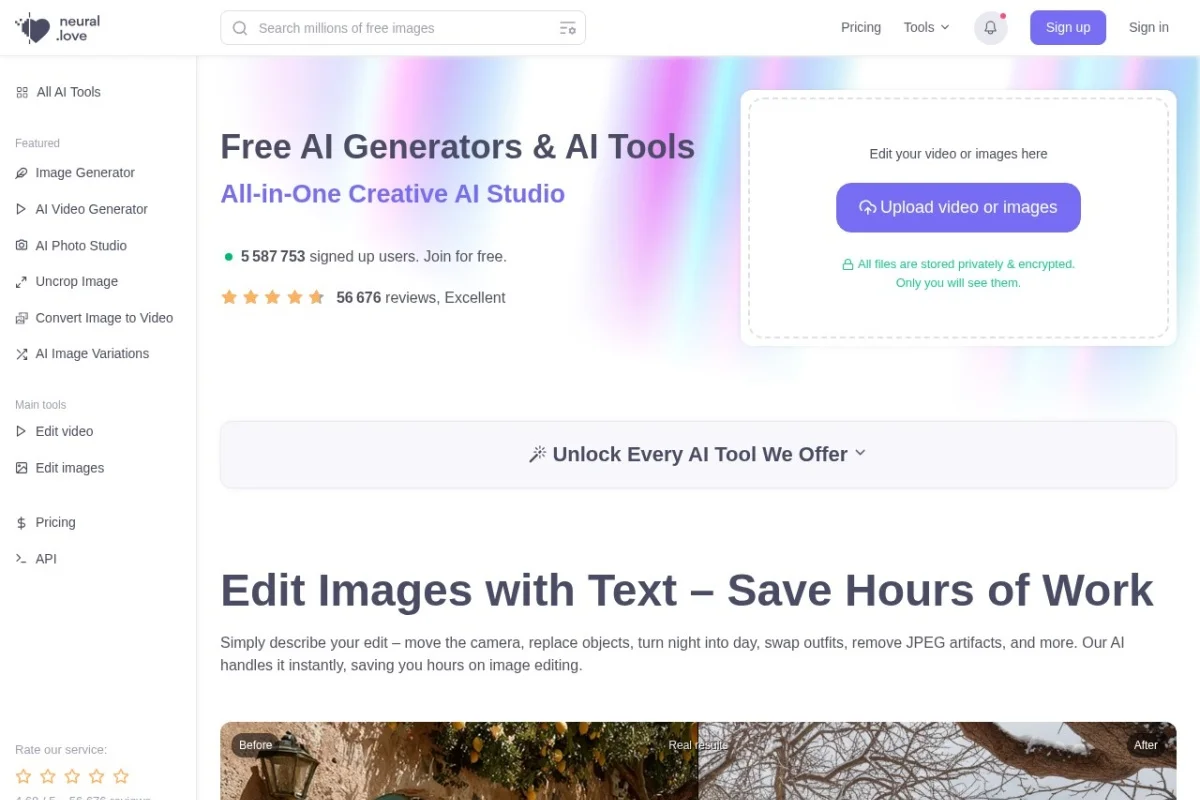
First, navigate to the Neural.love website using the URL: https://neural.love. Look for the “Sign Up” or “Get Started for Free” button, typically located in the top-right corner of the homepage. You can usually register using your email address, or through convenient social login options like Google or GitHub. Registration is essential as it provides you with free credits to start generating images and tracks your usage across the platform’s free and paid tiers.
Understanding the Interface and Free Credits
Once logged in, take a moment to explore the clean dashboard. You will likely see clear sections or tabs for the main tools: AI Image Generator, AI Enhance & Upscale, and the Free Public Domain Images library. A crucial element on your dashboard is your credit balance. Neural.love operates on a credit system. The free tier typically provides a daily or monthly allowance of credits (often for image generation). These credits refresh over time, allowing for consistent free usage. Paid plans offer more credits and access to premium features. Always check your balance before starting a large project!
Exploring the Key Features of Neural Love
Neural.love packs several powerful tools into one platform. Understanding what each feature does will help you choose the right tool for your creative task.
Free AI Image Generator
This is the heart of the platform. You describe a scene, character, object, or style in plain English, and the AI renders a unique image based on your description. It’s perfect for creating concept art, illustrations for stories, blog post graphics, or simply experimenting with surreal and beautiful visuals. The generator uses state-of-the-art models that are regularly updated to produce higher quality and more diverse results.
AI Image Enhancement & Upscaling Tools
This suite is for working with images you already have. It includes several powerful functions:
- Upscaling: Increases the resolution of your image dramatically without losing quality. Ideal for making small photos print-ready or enlarging digital artwork.
- Enhancement: Automatically corrects color, improves contrast, sharpens details, and reduces noise in blurry or grainy photos.
- Restoration: Specialized in fixing old, damaged, or scratched photographs, bringing cherished memories back to life.
Free Public Domain Image Library
Beyond generating new images, Neural.love hosts a massive collection of millions of public domain images. This is an incredible resource for finding high-quality, copyright-free photos and artworks for any project. You can search, download, and use these images freely for both personal and commercial purposes.
User-Friendly Online Interface
The entire platform is designed for simplicity. There are no complicated settings to install, no software to download, and the workflow is linear and guided. Each tool presents clear options and buttons, making the advanced technology underneath accessible to complete beginners.
How to Use Neural Love: A Step-by-Step Guide
Let’s walk through the practical steps of using the two most popular features: generating an image and enhancing a photo.
How to Generate an AI Image from Text
- From your dashboard, click on the “AI Image Generator” or similar option.
- You will see a large text box. This is your prompt field. Here, you need to describe the image you want in as much descriptive detail as possible. For example, instead of “a castle,” try “a majestic gothic castle on a foggy cliff at sunset, digital art, highly detailed, dramatic lighting.”
- Look for settings or an “Advanced” toggle. Here you can often select the image aspect ratio (e.g., square, portrait, landscape), choose an AI model version, and sometimes set a “creativity” or “guidance” level.
- Before generating, check how many credits the operation will cost (usually displayed clearly).
- Click the “Generate” or “Create” button. The AI will now process your request. This can take from a few seconds to a minute.
- Once complete, you will be presented with one or more image variations. You can then choose to download your favorite, generate more variations based on it, or upscale it directly from this screen.
How to Enhance and Upscale an Existing Image
- Navigate to the “AI Enhance” or “AI Tools” section.
- Click to upload the photo you want to improve from your computer. Supported formats typically include JPG, PNG, and WebP.
- After upload, the platform may automatically analyze your image. You will often be presented with different enhancement options, such as:
- General Enhance: For overall quality improvement.
- Upscale 2x / 4x: For increasing size.
- Face Enhance: Specifically improves portraits.
- Colorize: Adds color to black and white photos.
- Select the tool that matches your goal. For an old, low-resolution photo, you might select “Upscale 4x” and “Enhance” together.
- Preview the changes if a preview is available. Then, click the process button (e.g., “Enhance” or “Upscale”).
- Wait for the AI to process. The result will be shown side-by-side with the original. You can then download the enhanced version, which will be in a higher quality and/or resolution.
Pro Tips for Mastering Neural Love
To move from a beginner to a proficient user, incorporate these practical tips and strategies into your workflow.
Crafting Effective AI Image Prompts
The quality of your text prompt directly dictates the quality of your generated image. Be specific and use descriptive keywords.
- Subject: Clearly state the main focus (e.g., “a cyberpunk samurai,” “a cozy bookstore”).
- Style: Specify an art style or medium (e.g., “oil painting,” “3D render,” “steampunk illustration,” “photorealistic”).
- Details: Add descriptors for lighting (“cinematic lighting,” “soft morning light”), colors (“vibrant color palette,” “monochrome”), composition (“wide-angle shot,” “close-up portrait”), and mood (“mysterious,” “joyful,” “epic”).
- Artists/References: You can reference styles of famous artists or genres (e.g., “in the style of Studio Ghibli,” “art by Van Gogh”).
Experiment and iterate. If the first result isn’t perfect, tweak your prompt and try again.
Strategically Using Your Free Credits
- Plan your generations. Use the free public domain library for simple image needs and save your generation credits for unique concepts.
- Start with lower-resolution generations to test your prompts. Once you have a result you love, use credits to upscale it.
- Remember that enhancement tools also use credits, so use them on photos that truly need improvement.
- Check the platform’s blog or announcements for opportunities to earn bonus free credits.
Workflow for Best Results
- For New Art: Start in the AI Generator. Use a detailed prompt, generate multiple variations, choose the best, and then upscale it for final use.
- For Photo Restoration: Upload to the enhancer. Use a combination of “Restore,” “Colorize” (if needed), and “Upscale” in stages to see the incremental improvements.
- For Content Creation: Search the free image library for a base. Download it, then use the AI Generator to create new elements, or the enhancer to tailor it to your project’s color scheme and resolution needs.
Staying Updated
AI technology improves rapidly. Neural.love frequently updates its AI models and adds new features. Make a habit of checking the platform’s official blog, documentation, or social media channels to learn about new capabilities, improved prompt techniques, and changes to the credit system. This ensures you are always using the tool to its fullest potential.
Neural.love democratizes the power of AI image creation and enhancement, placing professional-grade tools into the hands of anyone with an internet connection. By starting with a free account, mastering the art of the prompt, and intelligently using the enhancement suite, you can produce stunning visual content for personal enjoyment or professional projects. Remember, the key to mastery is experimentation. Don’t be afraid to try wild prompts, combine features, and explore the vast public domain library. Your creative journey with AI starts now. Happy creating!

Neural Love AI Image Generator and Tools
A free suite of AI tools for generating, enhancing, and accessing millions of public domain images.