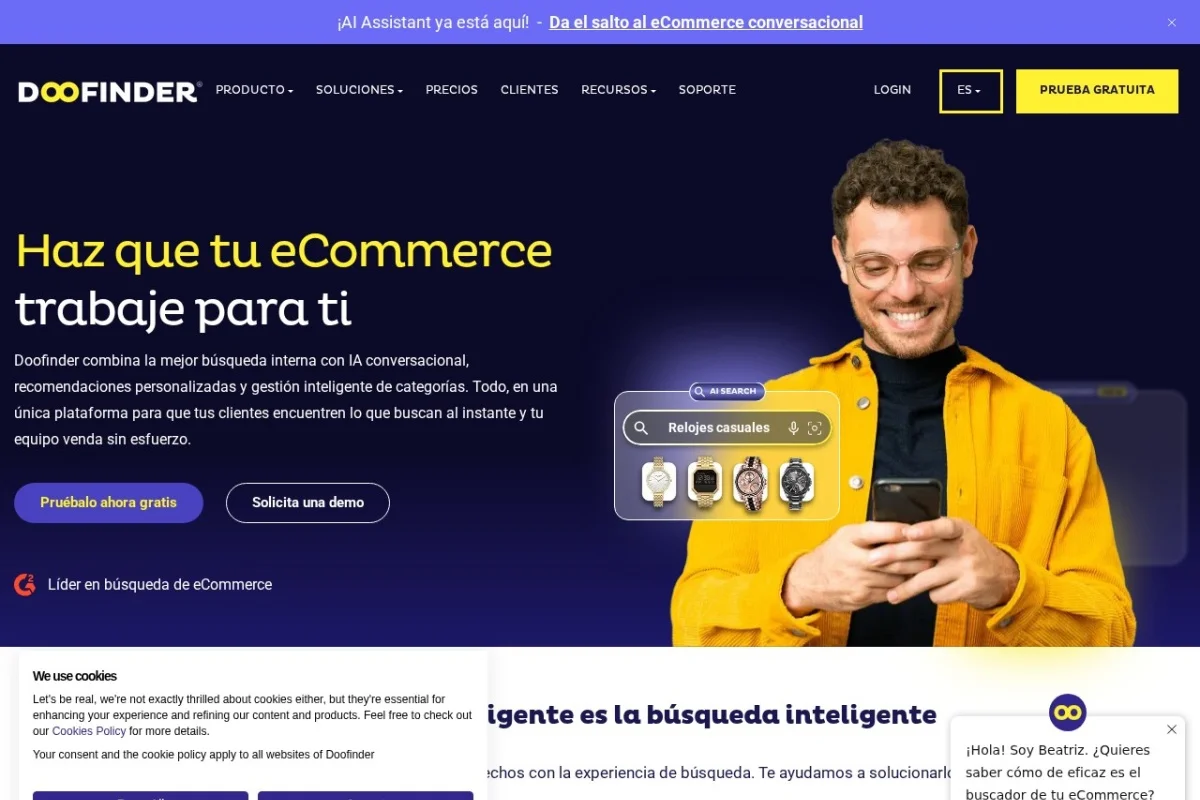
Mastering Your E-commerce Search: A Beginner’s Guide to Doofinder AI
In the fast-paced world of online shopping, if a customer can’t find a product, they can’t buy it. A clunky, slow, or irrelevant search bar is one of the quickest ways to lose a sale. This is where Doofinder comes in. Doofinder is an AI-powered site search engine designed specifically for e-commerce websites. It transforms your standard search box into an intelligent shopping assistant that understands what your customers mean, not just what they type. This detailed tutorial will guide you, step-by-step, from understanding Doofinder’s core value to implementing it effectively on your online store, even if you’re a complete beginner.
Introduction: Why Your Store Needs Intelligent Search
Imagine a customer visits your furniture store looking for a “sofa.” A basic search might only show products with “sofa” in the title. But what if they type “couch,” “settee,” or “something comfy to lounge on”? A basic search fails. Doofinder’s AI-powered semantic search understands these nuances, synonyms, and user intent, returning relevant results for all these queries. It’s like having a knowledgeable salesperson inside your search bar.
Doofinder does more than just improve accuracy. It speeds up the entire process with real-time indexing (so new products appear instantly), guides users with smart autocomplete suggestions, and gives you, the merchant, powerful tools to promote key products and analyze what people are searching for. By integrating seamlessly with platforms like Shopify, WooCommerce, and others, it enhances user experience, reduces bounce rates, and directly boosts conversion rates. Simply put, Doofinder helps customers find exactly what they want, faster, leading to more sales and happier shoppers.
Getting Started with Doofinder
Setting up Doofinder is a straightforward process. Here’s how to begin your journey toward a smarter store search.
Step 1: Sign Up for an Account
Head to the Doofinder website and click on the option to start a free trial or sign up. You will typically need to provide your email address, create a password, and enter some basic information about your store, such as its name and the e-commerce platform you use (e.g., Shopify, WooCommerce, Magento).
Step 2: Install the Doofinder Plugin/Code
Doofinder offers multiple integration methods tailored to your technical comfort level:
- For Platform Users (Shopify, WooCommerce, etc.): This is the easiest method. Navigate to your platform’s app/store (like the Shopify App Store or WordPress plugin directory), search for “Doofinder,” and install the official plugin. The installation is usually a one-click process.
- For Custom or Other Platforms: Doofinder provides a snippet of JavaScript code. You will need to copy this code from your Doofinder admin panel and paste it into the <head> section of your website’s HTML, just before the closing </head> tag. If you’re not comfortable with code, a web developer can do this in minutes.
Step 3: Connect Your Product Catalog
Once the plugin or code is installed, Doofinder needs to “see” your products. The integration will typically handle this automatically. Doofinder will start indexing your product catalog—this means it gathers all your product data (titles, descriptions, prices, images, variants) into its search engine. You can monitor this process from your Doofinder dashboard. Real-time indexing means any change you make to a product on your store is reflected in the search results almost instantly.
Step 4: Configure Basic Settings
Log into your Doofinder admin panel. Here, you can start customizing:
- Search Box Design: Match the look and feel of the search bar to your site’s design (colors, placeholder text).
- Results Page: Decide how the search results page will look—grid or list, what information to display (price, image, etc.).
For now, you can start with the default settings. The most important thing is that the search is now active on your site!
Key Features of Doofinder Explained
To use Doofinder effectively, it’s crucial to understand the powerful tools at your disposal. Here’s a breakdown of its core features.
AI-Powered Semantic Search
This is the heart of Doofinder. Unlike traditional keyword search, semantic search understands context, synonyms, and user intent. For example, if a user searches for “iPhone charger,” Doofinder’s AI will also show results for “lightning cable” or “USB-C power adapter.” It understands that “notebook” could mean a laptop or a paper journal based on your product catalog. This dramatically increases the chances of a customer finding a relevant product, even with vague or incorrectly spelled queries.
Real-Time Indexing
Your product catalog is constantly changing. With real-time indexing, any new product you add, any price you update, or any item you mark as “out of stock” is immediately processed by Doofinder’s search engine. This ensures your search results are always accurate and up-to-date, preventing customer frustration from seeing unavailable or outdated products.
Autocomplete and Search Suggestions
As soon as a user starts typing in the search box, Doofinder displays a dropdown with predictive text, popular searches, and product suggestions. This “autocomplete” feature guides users, helps them formulate their queries faster, and can even inspire purchases by highlighting trending or promoted items before the search is even submitted.
Merchandising Tools
You have direct control over what appears in search results. Doofinder’s merchandising dashboard allows you to:
- Boost Products: Pin specific, high-margin or promotional items to the top of results for certain search terms (e.g., boost a new brand of sneakers for the search “running shoes”).
- Hide Products: Temporarily remove out-of-stock or seasonal items from specific search results.
- Create Banners: Insert promotional banners or category links within the search results page to guide traffic.
Analytics Dashboard
Knowledge is power. Doofinder provides a comprehensive analytics suite that shows you:
- What terms customers are searching for most.
- Which searches return no results (“zero-results” queries).
- How many clicks and conversions come from the search bar.
- User behavior patterns.
This data is invaluable for optimizing your product catalog, identifying trends, and improving your merchandising strategies.
Seamless Platform Integration
Doofinder is built to work effortlessly with the most popular e-commerce platforms. This means minimal setup, native look-and-feel, and easy management directly from your familiar admin interface (like your Shopify or WordPress dashboard).
How to Use Doofinder: A Practical Walkthrough
Now that your search is live, let’s explore how to use the Doofinder admin panel to maximize its impact.
1. Optimizing the Search Experience
Go to the “Design” or “Search Layer” section in your dashboard. Here you can:
- Customize the search box width and colors.
- Edit the placeholder text (e.g., “Search for products…”).
- Configure the results page layout. Choose between a grid or list view and select which product fields (SKU, brand, price) are displayed.
Pro Tip: Keep the design clean and consistent with your store’s theme to make the search feel like a native part of your site.
2. Leveraging Merchandising for Business Goals
Navigate to the “Merchandising” or “Boosts” section. Let’s say you have a summer sale on sunglasses.
- Click “Create Boost” or “Promote a Product.”
- For the search query, enter “sunglasses,” “shades,” and “eyewear.”
- Select the specific sunglass models from your catalog that are on sale.
- Set them to appear at the top of the results for those queries.
This ensures your promotional products get maximum visibility exactly when customers are looking for them.
3. Analyzing Search Analytics to Make Data-Driven Decisions
Spend time weekly in the “Statistics” or “Analytics” dashboard. Focus on:
- Top Searches: Identify popular products or trends you can stock more of.
- Zero-Result Searches: This is a goldmine. If users frequently search for “blue ceramic vase” and get no results, you’ve identified a demand you’re not meeting. Consider adding such a product or creating synonyms so other vases appear.
- Click-Through Rate (CTR): See which results get the most clicks. If good products aren’t being clicked, their titles or images might need optimization.
4. Managing Synonyms and Query Understanding
Find the “Synonyms” or “Language” section. Here, you can teach Doofinder that specific words should be treated as the same. For example:
- Add “TV” as a synonym for “television.”
- Add “cell phone” as a synonym for “mobile phone.”
- For a fashion store, add “purse” and “handbag” as synonyms.
This fine-tunes the AI’s understanding for your specific product niche.
Pro Tips for Maximizing Doofinder’s Potential
To go from basic setup to search mastery, implement these advanced strategies.
Tip 1: Turn Zero-Results into Opportunities
Don’t just note zero-result searches; act on them. Use the merchandising tools to create a helpful banner for those terms. For example, for a zero-result search “size 12 wide shoes,” create a banner that says, “Can’t find your wide fit? Contact our specialist team for help!” This turns a dead-end into a customer service opportunity.
Tip 2: Use Analytics for Inventory and Content Planning
The analytics dashboard isn’t just for search. Use the “top searches” data to inform your buying decisions and content strategy. If “sustainable yoga mats” is a rising trend, write a blog post about it and ensure your product titles and descriptions include those keywords.
Tip 3: A/B Test Your Merchandising
Don’t assume your first boost is the best. Try boosting different products for the same high-value search term over two-week periods and use the conversion analytics to see which one actually drove more sales. Let data, not gut feeling, guide your promotions.
Tip 4: Refine Autocomplete Suggestions
Curate what appears in the autocomplete dropdown. Ensure it includes your top-selling categories and current campaigns. You can often manually add key suggestions to guide users toward popular or high-margin areas of your store.
Tip 5: Ensure High-Quality Product Data
Doofinder can only be as good as the data it’s given. Make sure your product titles are clear and descriptive, your descriptions are detailed, and attributes like color, size, and brand are correctly filled out. Rich, structured data fuels accurate AI understanding.
By following this tutorial, you have not only installed a powerful search tool but also learned how to wield it strategically. Doofinder moves your site search from a simple utility to a dynamic sales and discovery engine. Start with the basic setup, gradually implement the merchandising features, and continually learn from the analytics. Your customers will enjoy a frictionless shopping experience, and you’ll enjoy the increased engagement and sales that come with it. Happy selling!

Doofinder AI-Powered E-commerce Search
An advanced AI site search and product discovery platform designed specifically for online stores.