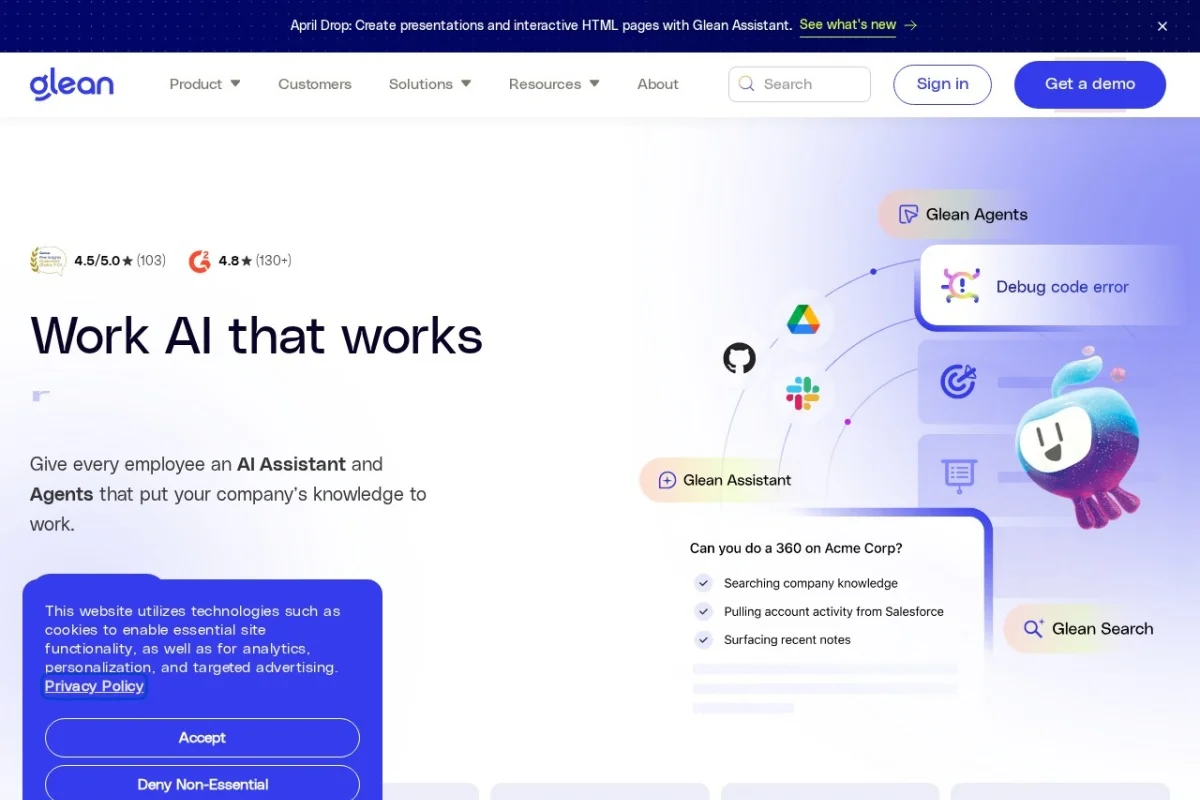
Mastering Your Workplace Intelligence: A Beginner’s Guide to Glean Work AI Assistant and Search
In today’s fast-paced work environment, information is scattered across dozens of applications: project details in Asana, customer data in Salesforce, company policies in Confluence, and crucial discussions in Slack or Teams. Finding what you need, when you need it, can feel like a full-time job. This is where Glean Work AI Assistant and Search comes in. Think of Glean as the central brain for your company’s knowledge. It’s an enterprise-grade platform that connects to all your company’s apps and data sources, using artificial intelligence to help you find information, get answers, and even automate tasks—all while strictly respecting security and permissions. This tutorial will guide you, step-by-step, from your first login to becoming a power user of this transformative workplace tool.
Introduction: What is Glean and Why Does Your Company Use It?
Glean is not just another search bar. It is an AI-powered intelligence layer that sits securely on top of all your company’s approved applications and data repositories. Whether your files are in Google Drive, Microsoft SharePoint, Dropbox, or your conversations are in Slack, Microsoft Teams, or Zoom, Glean indexes this information. Crucially, it understands who you are. It only shows you documents, messages, and data you already have permission to see, making search both powerful and safe.
The core promise of Glean is to eliminate time wasted searching and to surfacing the knowledge you didn’t know you needed. Instead of asking a colleague where a report is or digging through endless email threads, you can ask Glean a natural question, just like you’d ask a knowledgeable coworker. Beyond search, Glean’s AI Agents can perform multi-step tasks for you, pulling data from different systems to create summaries, update records, or generate reports. By using Glean, you’re not just finding information faster; you’re working smarter and leveraging the collective intelligence of your entire organization.
Getting Started with Glean
As an employee, you typically don’t need to create an account yourself. Your company’s IT or Glean administrator will have already integrated Glean with your single sign-on (SSO) provider, like Okta or Microsoft Entra ID. Getting started is usually as simple as navigating to your company’s unique Glean URL (e.g., search.yourcompany.com) or accessing it through a dedicated button in your company’s intranet.
Accessing Glean for the First Time
Step 1: Open your web browser and go to the Glean URL provided by your company. This is often a simple, memorable address.
Step 2: You will be redirected to your company’s login page. Enter your usual work email and password (this is your SSO).
Step 3: Upon first login, you might see a brief welcome tour. This will introduce the main interface. Take a moment to click through it.
Step 4: You’re in! The main Glean interface is clean and focused, centered around a prominent search bar.
Understanding the Glean Interface
The interface is designed to be intuitive. Here are the key areas you’ll see:
- The Omnibar (Search Bar): This is your command center. It’s always visible, usually at the top of the page. You type all your questions and searches here.
- Search Results Page: After you search, this page shows a list of relevant results from across all connected apps. Results are intelligently ranked, with the most likely useful items at the top.
- Answer Cards: For factual questions (e.g., “What is our Q4 sales target?”), Glean often displays a direct answer in a card at the top of the results, saving you from having to open a document.
- Filters: On the results page, you can filter results by source (e.g., “Slack,” “Google Docs,” “Jira”), person, date, and more to narrow down your findings.
- Assistant Chat Interface: Sometimes, you can engage in a conversational chat with Glean in a side panel to refine your question or ask follow-ups.
Key Features of Glean Explained
Glean’s power comes from a suite of interconnected features designed to work together. Let’s break down what each one does.
1. AI-Powered Universal Search
This is the foundation. Glean’s search goes far beyond simple keyword matching. It uses semantic understanding to grasp the intent and context behind your query. For example, searching for “how to submit an expense report” will find the official policy document, a relevant Slack thread where HR answered a question, and the link to the expense submission tool—even if none of those sources contain that exact phrase. It understands synonyms, related concepts, and your company’s specific jargon.
2. Conversational AI Assistant
When a simple search isn’t enough, you can have a dialogue. You can ask Glean complex, natural language questions like, “Summarize the key decisions from the product team meeting last Thursday.” The assistant will parse your request, find the relevant meeting notes (from Google Docs, Zoom transcripts, etc.), and generate a concise summary for you. It can also answer questions like, “Who is the expert on topic X in the company?” by analyzing who creates and engages with content on that subject.
3. AI Agents for Task Automation
This is where Glean moves from finding information to taking action. AI Agents are pre-built or custom automations that handle multi-step workflows. For instance, an agent could be triggered by you asking, “Glean, create a project summary for Project Phoenix.” The agent would then automatically:
- Pull the project charter from Confluence.
- Fetch the latest status updates from Jira tickets.
- Gather relevant customer feedback from Zendesk.
- Compile all this into a well-formatted, brief summary document.
Agents save hours of manual work and context-switching between apps.
4. Personalized and Context-Aware Results
Glean tailors results specifically for you. It knows your role, team, and projects. If someone from Marketing and someone from Engineering search for “Q2 roadmap,” they will see different, relevant documents prioritized. Glean also learns from your activity—the people you work with most and the files you frequently access—to further refine what it shows you.
5. Security and Permissions Awareness
This is a critical enterprise feature. Glean never bypasses security. It uses the existing permissions model of each connected app. If you don’t have access to a confidential financial spreadsheet in Google Drive, it will never appear in your Glean search results. You can search with the confidence that you’re only seeing what you’re supposed to see.
How to Use Glean: Practical Examples and Steps
Let’s walk through common scenarios to see Glean in action.
Basic Search: Finding a Document or Message
Scenario: You need the latest version of the “Brand Guidelines” document, but you’re not sure if it’s in Drive, SharePoint, or attached in an email.
Action:
- Click in the Glean Omnibar.
- Type: “latest brand guidelines document”.
- Press Enter.
Result: Glean shows a list. The top result is likely the most recent, official Google Doc or PDF file. You might also see a Slack message from the design team sharing it. An “Answer Card” might show the document’s owner and last modified date. Use the “Source” filter on the left to narrow down to “Google Drive” if you prefer.
Using the Assistant: Getting a Quick Answer
Scenario: A new hire asks you what the company’s paid time off (PTO) policy is. You know it’s documented, but can’t recall the details.
Action:
- In the Omnibar, type a direct question: “How many PTO days do full-time employees get?”
- Press Enter.
Result: Instead of just links, Glean’s Answer Card likely displays the exact number pulled from the HR handbook. It will cite the source document (e.g., “From ‘Employee Handbook v3.1’ in Confluence”). You can instantly give the new hire an accurate answer.
Leveraging AI Agents: Automating a Routine Task
Scenario: It’s Monday, and you need to prepare a status update for your team lead, pulling data from several places.
Action:
- Find out the name of the pre-built AI Agent for this. Your company might have one called “Weekly Status Report” or “Project Summary.” (Admins often promote these in channels).
- In Glean, you might trigger it by typing: “@WeeklyStatusAgent create a report for my work last week.” Or, you might access it from a dedicated “Agents” section in the interface.
- Follow the simple prompts. The agent might ask, “For which project?” You select from a list.
Result: Within minutes, the agent delivers a drafted summary in your chosen format (e.g., an email or doc), complete with linked tickets, completed tasks from your project management tool, and milestones hit. You review, make minor edits, and send it.
Advanced Search with Filters
Scenario: You remember discussing a specific client issue in Slack a few months ago, but can’t find the thread.
Action:
- Search for the client name, e.g., “Acme Corp”.
- On the results page, look to the left sidebar for filters.
- Click the “Source” filter and select “Slack”.
- Further narrow by using the “Date” filter to select the approximate month.
- You can also add a “Person” filter if you remember who was in the conversation.
Result: You’ve transformed thousands of potential results into a handful of highly relevant Slack conversations, quickly finding the context you needed.
Pro Tips for Getting the Most Out of Glean
- Ask, Don’t Just Keyword: Use full, natural questions. “How do I get a new laptop?” works better than a fragmented search like “laptop request IT.”
- Use Specifics: Include names, dates, project codes, or specific app names in your queries. “Q3 2024 marketing plan presentation” is better than “marketing plan.”
- Explore Filters Habitually: Get in the habit of glancing at filters after every search. They are the fastest way to drill down to the exact source or time period you need.
- Verify the Source: Always check the source link (e.g., “Confluence,” “Drive”) and the last modified date beneath each result to ensure you’re looking at the most current and authoritative information.
- Discover and Use AI Agents: Don’t ignore this powerful feature. Ask your manager or Glean admin what company-specific Agents are available. Using them can dramatically cut down on repetitive work.
- Provide Feedback: If a result was perfect or completely off, use the thumbs up/down or feedback option often available. This helps Glean’s AI learn and improve for everyone.
- Think of Glean as Your First Stop: Before pinging a colleague with a question that interrupts their flow, try asking Glean first. You’ll often find the answer faster and become more self-sufficient.
Glean Work AI Assistant and Search is more than a tool; it’s a new way of working. By centralizing your company’s scattered knowledge and making it intelligently accessible, it empowers you to spend less time hunting for information and more time acting on it. Start with simple searches, gradually incorporate the conversational assistant, and finally, embrace the time-saving power of AI Agents. As you integrate Glean into your daily workflow, you’ll find it becomes an indispensable partner in your productivity and success.

Glean Work AI Assistant and Search
An AI-powered work assistant that provides answers and automates tasks using company knowledge.