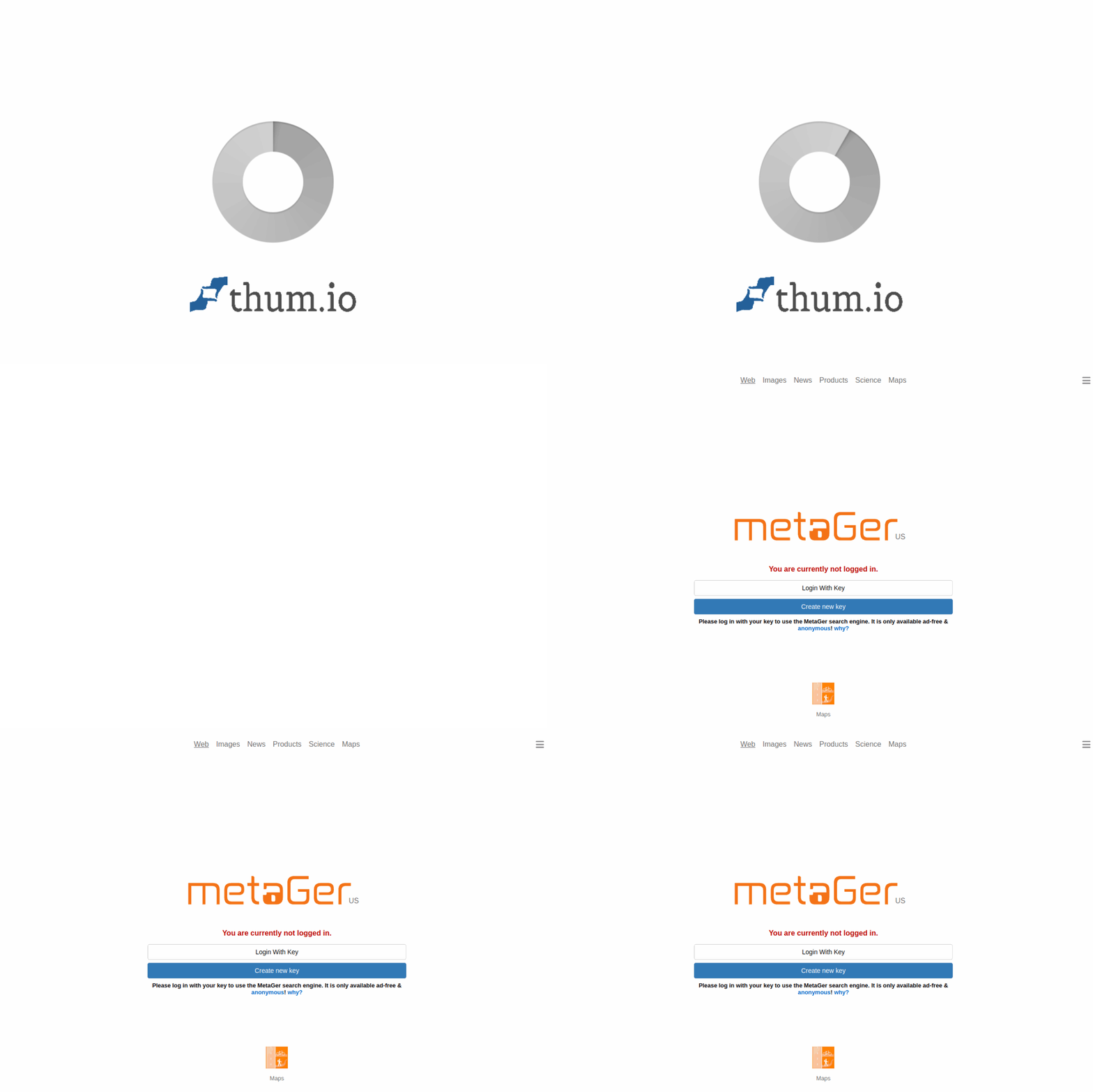
Introduction: Why Your Privacy Matters Online
In the modern digital landscape, almost every action you take online is tracked, analyzed, and monetized. Mainstream search engines like Google and Bing collect vast amounts of personal data, including your search history, location, device information, and even your click patterns. This data is often used to build detailed profiles about you, which are then sold to advertisers or used to manipulate the content you see. If you value your digital privacy and want to take control of your personal information, MetaGer offers a powerful, ethical alternative.
MetaGer is a privacy-protected search engine developed and operated by the non-profit organization SUMA-EV in Germany. Unlike commercial search engines, MetaGer does not track you, does not store your IP address, and does not serve you targeted ads. Instead, it aggregates results from multiple independent search engines (including its own index) to provide comprehensive, unbiased search results. It also features an anonymous proxy that allows you to browse websites without revealing your identity. Furthermore, the entire service runs on 100% renewable energy, making it an environmentally conscious choice. This tutorial will guide you through everything you need to know to start using MetaGer effectively and safely.
Getting Started with MetaGer
Accessing MetaGer
You can start using MetaGer immediately without creating an account or installing any software. Simply navigate to https://metager.org in your web browser. The interface is clean, minimal, and very similar to other search engines, so you will feel at home right away. There is no login, no registration, and no data collection required.
Setting MetaGer as Your Default Search Engine
For a seamless experience, you can set MetaGer as your default search engine in your browser. Here is how to do it in the most popular browsers:
- Firefox: Go to Settings > Search. Under “Default Search Engine,” select MetaGer from the list. If it is not listed, search for “MetaGer” in the add-ons store and install the official extension.
- Chrome/Edge: Go to Settings > Search Engine > Manage Search Engines. Click “Add,” enter “MetaGer” as the name, “metager.org” as the shortcut, and “https://metager.org/search?q=%s” as the URL. Then set it as default.
- Brave: Go to Settings > Search Engine. Select MetaGer from the dropdown menu. Brave often has MetaGer pre-listed.
Installing the Browser Extension
MetaGer offers official browser extensions for Firefox and Chrome-based browsers. These extensions allow you to search directly from your browser’s toolbar and automatically route your searches through MetaGer. To install:
- Visit the Firefox Add-ons store or Chrome Web Store.
- Search for “MetaGer.”
- Click “Add to Firefox” or “Add to Chrome.”
- The extension will add a small MetaGer icon to your toolbar. Clicking it opens a search box directly.
Using the Mobile App
MetaGer is also available as a mobile app for Android devices (available through the official SUMA-EV website or trusted app stores like F-Droid). The mobile app provides the same privacy features as the desktop version, including the anonymizing proxy. iOS users can add MetaGer as a search engine in Safari by going to Settings > Safari > Search Engine and selecting MetaGer, or by using a third-party browser that supports custom search engines.
Key Features of MetaGer
1. Anonymous and Ad-Free Search
This is the core feature of MetaGer. When you perform a search, MetaGer does not store your IP address, your search terms, or any cookies that could identify you. The results page contains no paid advertisements, no sponsored links, and no tracking pixels. Your search history remains completely private. This is a stark contrast to mainstream engines that use your data to build a profile for ad targeting.
2. Anonymizing Proxy for Safe Browsing
One of MetaGer’s most powerful features is the Anonymizing Proxy. When you click on a search result, MetaGer can route your request through its own proxy server. This means the website you are visiting sees the IP address of MetaGer’s server, not your real IP address. This protects your location and identity from the website operator. It also encrypts the connection between you and MetaGer, adding an extra layer of security, especially on public Wi-Fi networks.
3. Multi-Engine Search Results
MetaGer does not rely on a single search index. Instead, it combines results from multiple sources, including its own independent index, Bing, and other open-source search engines. This approach has two major benefits:
- Reduced Censorship: If one engine suppresses certain results, MetaGer can still show them from another source.
- Better Coverage: You get a more diverse and comprehensive set of results, reducing the “filter bubble” effect where algorithms only show you what they think you want to see.
You can even customize which search engines MetaGer queries in the settings.
4. Transparent and Open-Source Algorithms
Unlike Google’s proprietary and secret algorithms, MetaGer’s code is open-source. This means anyone with technical expertise can inspect the code to verify that no tracking, logging, or manipulation is taking place. The organization behind MetaGer, SUMA-EV, is a non-profit that publishes regular transparency reports. This level of openness is rare in the search engine world.
5. 100% Renewable Energy
MetaGer is committed to environmental sustainability. All servers used by MetaGer are powered by 100% renewable energy from sources like wind and solar. By using MetaGer, you are not only protecting your privacy but also reducing your carbon footprint.
How to Use MetaGer: A Step-by-Step Guide
Performing a Basic Search
Using MetaGer is as simple as using any other search engine. Follow these steps:
- Go to https://metager.org.
- Type your search query into the text box. For example, “best privacy tools 2024.”
- Press Enter or click the search icon (magnifying glass).
- You will see a list of results. Each result shows the title, a snippet of text, and the URL. Notice that there are no ads.
Using the Anonymizing Proxy
This is the key feature for safe browsing. Here is how to activate it:
- After you perform a search, look at the search results. Each result will have a small icon next to it—usually a shield or a lock symbol.
- Click on this icon instead of the link itself. This will open the website through MetaGer’s proxy.
- You will see a warning page that says “You are now using the MetaGer Anonymizing Proxy.” It will inform you that the website you are visiting will not see your IP address.
- Click “Continue to [website]” to proceed. The website will load, but your real IP address is hidden.
- Important: While the proxy hides your IP, it does not encrypt your traffic between you and MetaGer. For full encryption, always use HTTPS connections. The proxy also does not protect against cookies or tracking scripts already on the target website. For maximum privacy, combine the proxy with a browser extension like uBlock Origin.
Customizing Your Search Settings
MetaGer allows you to customize your experience. Click on the gear icon (Settings) usually located in the top-right corner of the homepage. Here you can adjust:
- Search Language: Choose the language for your search results (e.g., English, German, French).
- Country: Select a country to get localized results, but without revealing your real location.
- Search Sources: Choose which search engines MetaGer should query. You can enable or disable sources like Bing, Mojeek, or the MetaGer own index. Disabling certain sources can speed up searches.
- Open in New Tab: Set results to open in a new browser tab by default.
- Proxy Behavior: You can set the proxy to activate automatically for all clicked results, or only when you manually click the shield icon.
Using Advanced Search Operators
MetaGer supports standard search operators to refine your queries:
- Quotation marks: Use “exact phrase” to search for an exact phrase. For example, “data privacy laws.”
- Minus sign: Use – to exclude a term. For example, “privacy tools -Google.”
- Site: Use site:example.com to search only within a specific website. For example, “site:wikipedia.org privacy.”
- Filetype: Use filetype:pdf to find specific file types. For example, “privacy policy filetype:pdf.”
Using the Browser Extension
Once installed, the browser extension adds a small MetaGer icon to your toolbar. Clicking it opens a search box. You can also right-click on any text on a webpage and select “Search with MetaGer” from the context menu. The extension ensures that any search you initiate from the address bar (if MetaGer is set as default) or from the extension itself is private.
Tips for Getting the Most Out of MetaGer
Tip 1: Combine MetaGer with Other Privacy Tools
MetaGer is a powerful tool, but it works best when combined with other privacy-enhancing software. Use a good ad blocker like uBlock Origin to block trackers on websites you visit. Consider using a VPN (Virtual Private Network) for an additional layer of encryption and IP masking. Also, use a privacy-focused browser like Firefox or Brave, and enable “Do Not Track” and “Strict” privacy settings.
Tip 2: Understand the Proxy’s Limitations
The anonymizing proxy is excellent for hiding your IP address, but it is not a silver bullet. It does not prevent the target website from using cookies, JavaScript, or browser fingerprinting to identify you. For maximum anonymity, use the proxy in combination with a browser that automatically clears cookies and history after each session (e.g., Firefox’s “Private Browsing” mode or Brave’s “Private Window with Tor”).
Tip 3: Use the Proxy for Sensitive Searches
Always use the anonymizing proxy when searching for sensitive topics, such as medical conditions, political opinions, legal advice, or financial information. This ensures that the websites you visit cannot link your search to your real IP address. For everyday, non-sensitive searches, you can click links directly without the proxy for faster loading.
Tip 4: Bookmark the Settings Page
MetaGer’s settings page allows you to fine-tune your experience. Bookmark https://metager.org/settings so you can quickly adjust your preferences. For example, if you are traveling, you can change the country setting to get local results without revealing your actual location.
Tip 5: Donate or Support SUMA-EV
MetaGer is completely free to use because it is funded by donations and a non-profit organization. Unlike ad-supported search engines, it relies on the generosity of its users. If you find MetaGer valuable, consider making a small donation to SUMA-EV through their website. This helps keep the service running, free of ads, and independent.
Tip 6: Test Your Privacy
After using MetaGer for a while, you can test how effective it is. Visit a website like https://ipleak.net or https://whatismyipaddress.com through the MetaGer proxy. You should see the IP address of MetaGer’s server, not your own. If you see your real IP, you are not using the proxy correctly—make sure you click the shield icon on the search result.
Tip 7: Use the Mobile App for On-the-Go Privacy
If you use an Android device, install the official MetaGer app from the F-Droid store or the SUMA-EV website. The app includes all the features of the desktop version, including the proxy and multi-engine search. For iOS users, set MetaGer as your default search engine in Safari or use the Firefox Focus browser, which supports custom search engines.
Tip 8: Be Aware of Language Limitations
MetaGer is developed in Germany, and while it supports many languages, its index is strongest for English and German searches. For searches in other languages, it relies more heavily on its partner engines like Bing. If you search in a less common language, you may find that results are less comprehensive than on Google. In such cases, you can manually enable additional search sources in the settings.
Tip 9: Clear Your Browser Data Regularly
Even though MetaGer does not track you, your browser itself may store your search history locally. To maintain complete privacy, regularly clear your browser’s history, cache, and cookies. Most browsers have a “Clear browsing data” option in their settings. You can also set your browser to automatically clear this data when you close it.
Tip 10: Share MetaGer with Others
Privacy is a collective effort. The more people use privacy-respecting tools like MetaGer, the less valuable user data becomes to advertisers and data brokers. Share this tutorial with friends, family, and colleagues. Explain to them how MetaGer protects their data and why it matters. You can also follow SUMA-EV on social media to stay updated on new features and privacy news.
By following this tutorial, you are now equipped to use MetaGer effectively. You have taken a significant step toward reclaiming your online privacy. Remember, every search you make with MetaGer is a vote for a more private, transparent, and sustainable internet. Start using MetaGer today and experience the web without being watched.

MetaGer: Privacy Protected Search Engine
Anonymous, ad-free search engine run by a nonprofit organization.